
1. Introduction
Thank you for choosing the IAMJOY U-Air Wireless Gaming Earbuds. These earbuds are designed to provide a high-fidelity audio experience with ultra-low latency for gaming across various platforms. This manual provides detailed instructions on how to set up, operate, maintain, and troubleshoot your earbuds to ensure optimal performance.
2. Package Contents
Verify that all items are present in your package:
- IAMJOY Wireless Gaming Earbuds (Left and Right)
- Wireless Charging Case
- USB-C to USB-A Dongle Adapter
- USB-C Charging Cable
- Multiple Sizes of Silicone Ear Tips (S, M, L)
- User Manual

Image 2.1: IAMJOY U-Air Wireless Gaming Earbuds, charging case, and USB dongle.
3. Product Overview
The IAMJOY U-Air earbuds feature a compact design with integrated ear wings for a secure fit. The charging case includes an LED display to show battery levels for both earbuds and the case itself. A 2.4GHz wireless dongle is provided for low-latency connections to gaming devices.
4. Charging the Earbuds and Case
Before first use, fully charge the earbuds and charging case.
4.1 Charging the Earbuds
- Place the earbuds into the charging case, ensuring they are correctly seated in their respective slots (L for left, R for right).
- Close the charging case. The earbuds will begin charging automatically.
4.2 Charging the Case
- Connect the USB-C charging cable to the charging port on the case.
- Connect the other end of the cable to a USB power source (e.g., wall adapter, computer USB port).
- The LED display on the case will show the charging status. A full charge typically takes approximately 1.5 hours.
The charging case provides approximately 22 hours of additional playtime, extending the total battery life to up to 30 hours. Each earbud offers up to 6 hours of playtime per charge (3 hours in game mode).
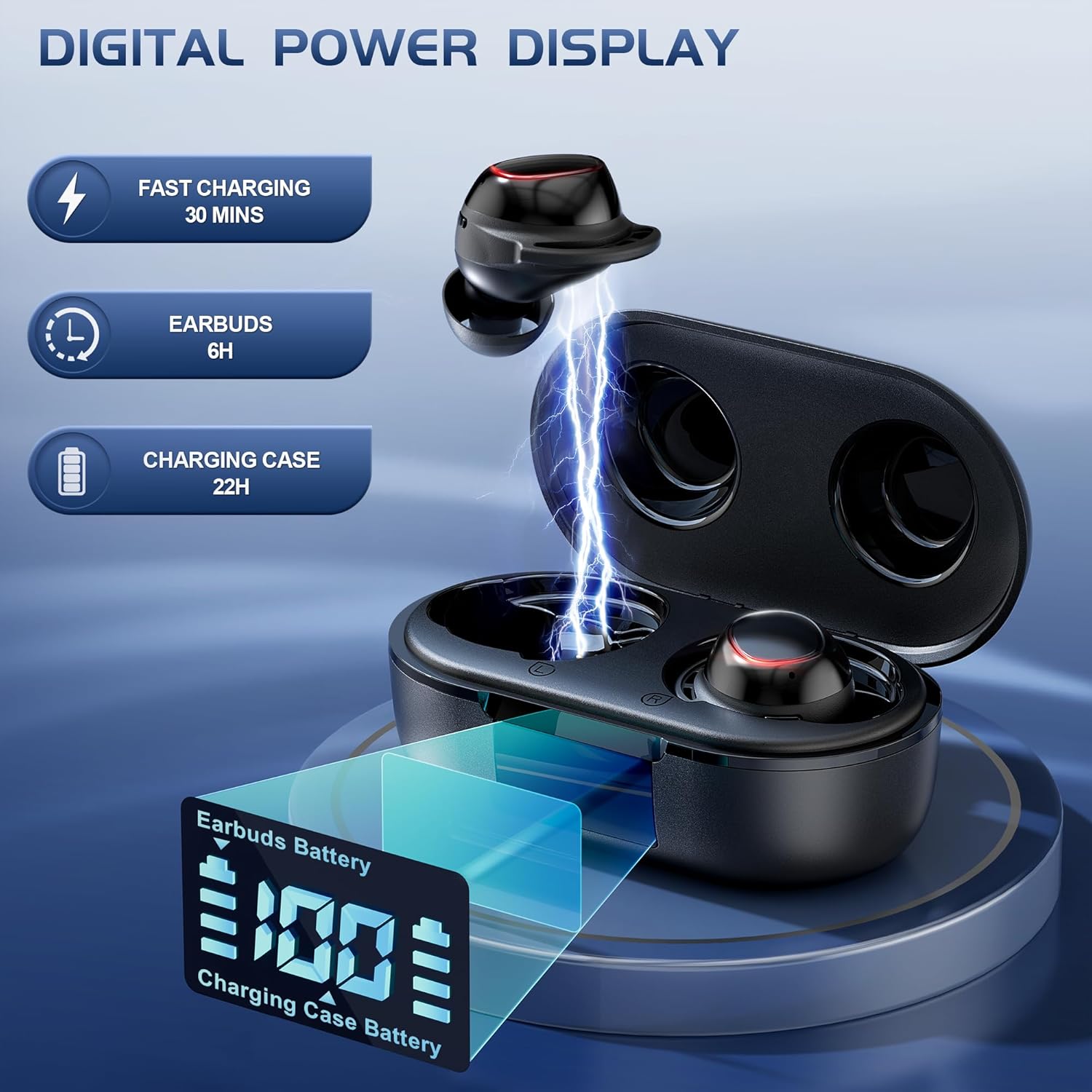
Image 4.1: Digital power display on the charging case indicates earbud and case battery levels.

Image 4.2: Overview of earbud and charging case battery life.
5. Fitting the Earbuds
Proper fit is essential for comfort and optimal sound quality.
- Choose the Right Size: Select the silicone ear tips that provide the best seal and comfort for your ears. Three sizes (S, M, L) are included.
- Insert Earbuds: Gently insert each earbud into your ear canal.
- Adjust for Comfort: Twist the earbuds slightly until the ear wings sit securely in your outer ear, ensuring a stable and comfortable fit. The 45° angled in-ear design helps maintain stability during movement.

Image 5.1: Steps for selecting ear tips and achieving a comfortable fit.
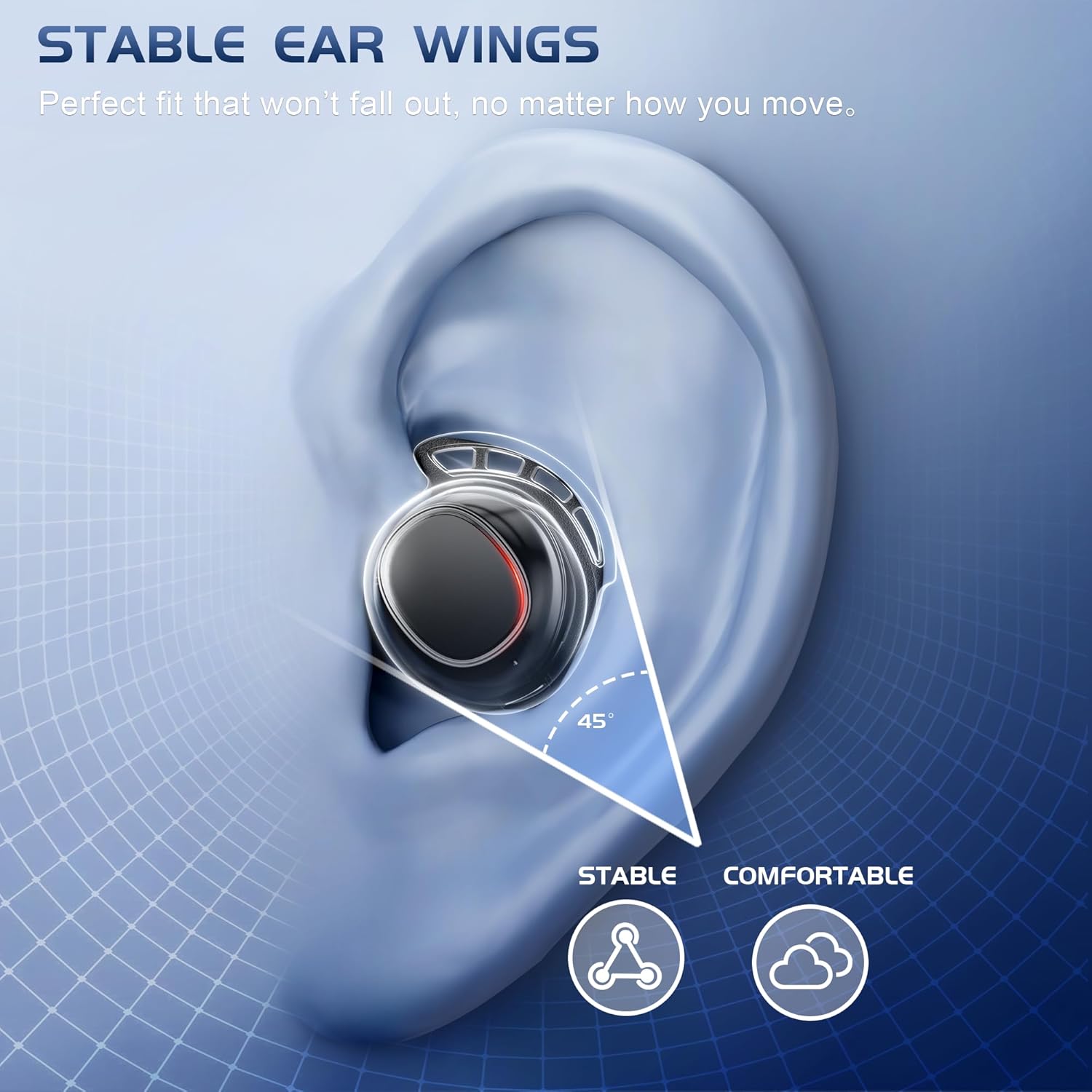
Image 5.2: The stable ear wing design ensures the earbuds remain in place.
6. Connectivity
The IAMJOY U-Air earbuds offer both 2.4GHz wireless and Bluetooth 5.3 connectivity.
6.1 2.4GHz Wireless Connection (for Gaming Devices)
This mode provides ultra-low latency (20ms) for an optimized gaming experience.
- Insert the USB-C dongle into the compatible port of your gaming device (Meta Quest 2/3, PICO 4, PlayStation 4/5, Steam Deck, Nintendo Switch, PC, laptop). If your device only has USB-A, use the provided USB-A adapter.
- Take the earbuds out of the charging case. They will automatically attempt to connect to the dongle.
- A successful connection is indicated by a specific light pattern or audio cue (refer to earbud indicator lights for details).
6.2 Bluetooth 5.3 Connection (for Mobile Devices and General Use)
Use Bluetooth for connecting to smartphones, tablets, and other Bluetooth-enabled devices.
- Ensure the earbuds are out of the charging case.
- On your device, go to Bluetooth settings and enable Bluetooth.
- Search for available devices and select "IAMJOY U-Air" to pair.
- Once paired, the earbuds will connect automatically when taken out of the case and within range of your device.
6.3 Dual-Connection Compatibility
The earbuds support simultaneous connection to both 2.4GHz (via dongle) and Bluetooth. This allows you to receive calls on your phone while gaming without interruption.
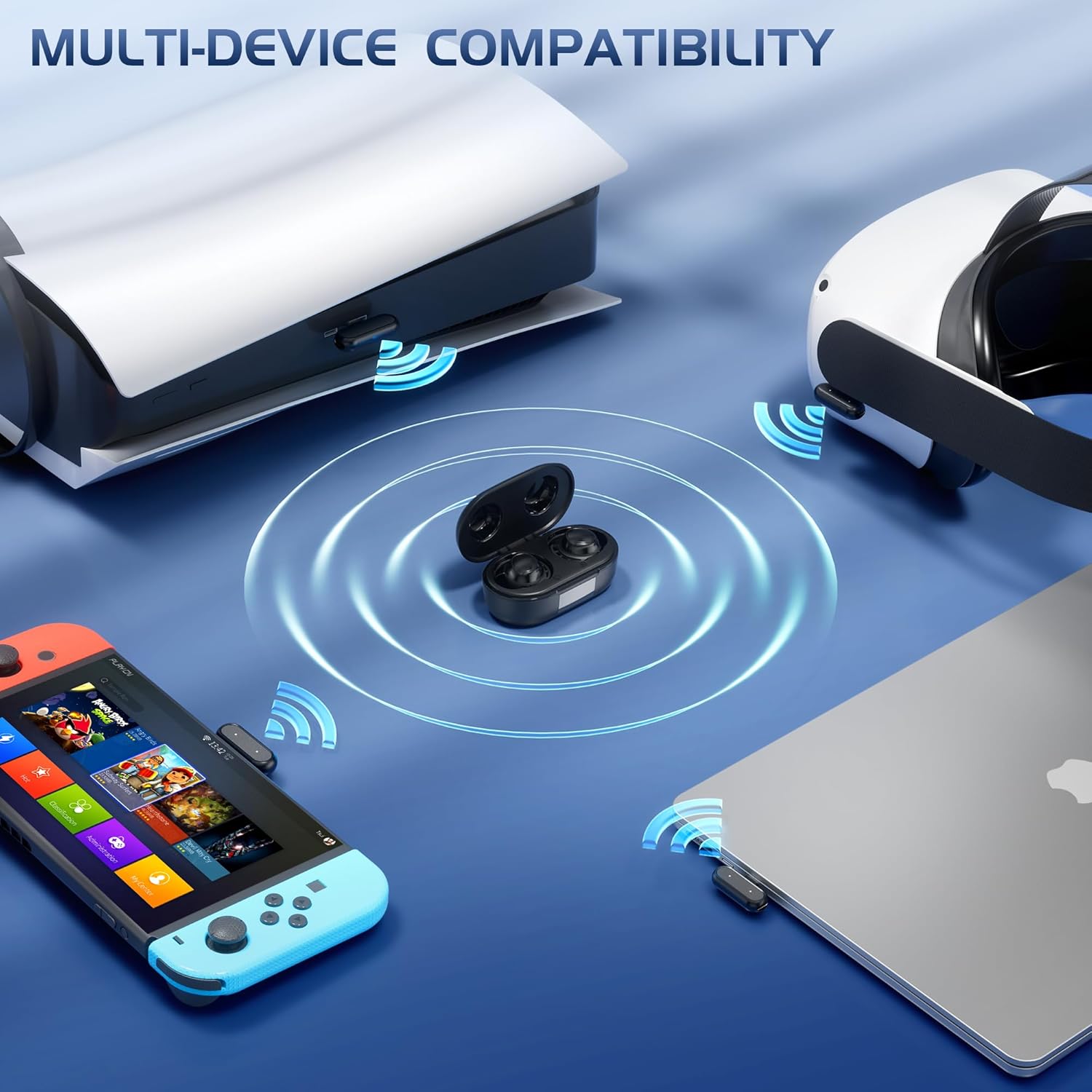
Image 6.1: Multi-device compatibility with 2.4GHz dongle for various gaming platforms.

Image 6.2: Answer calls mid-game by connecting to Bluetooth and the dongle simultaneously.
7. Operating the Earbuds
7.1 Touch Controls
The earbuds feature touch-sensitive areas for various functions:
- Volume Down: Long press Left earbud (Bluetooth connection only).
- Volume Up: Long press Right earbud (Bluetooth connection only).
- Next Song: Double-click Right earbud.
- Previous Song: Double-click Left earbud.
- Play/Pause: Single-click Left or Right earbud.
- Answer/End Call: Single-click Left or Right earbud.
- Refuse Call: Long press Left or Right earbud for 2 seconds.
- Voice Assistant: Triple-click Left earbud.

Image 7.1: Detailed touch control functions for the earbuds.
7.2 Audio Features
- 20ms Ultra-Low Latency: Optimized for gaming, ensuring synchronized sound with on-screen action.
- Immersive High-Fidelity Audio: Delivers clear surround sound with deep bass, balanced mids, and crisp highs.
- Noise-Canceling Microphones: Four integrated microphones reduce background noise for clear voice chat.

Image 7.2: Experience ultra-low latency for immersive gaming.

Image 7.3: Upgraded Hi-Fi level sound quality with 13mm speaker dynamic audio.

Image 7.4: Dual microphones with Environmental Noise Cancellation (ENC) for clear communication.
8. Maintenance
To ensure the longevity and performance of your earbuds:
- Cleaning: Regularly clean the earbuds and charging case with a soft, dry cloth. Avoid using abrasive materials or harsh chemicals.
- Ear Tips: Remove and clean the silicone ear tips periodically with mild soap and water. Ensure they are completely dry before reattaching.
- Water Resistance: The earbuds are IPX5 water-resistant, meaning they can withstand splashes and sweat. They are not designed for submersion in water. Ensure the charging port is dry before charging.
- Storage: When not in use, store the earbuds in their charging case to protect them and keep them charged.

Image 8.1: IPX5 water resistance protects against sweat and splashes.
9. Troubleshooting
If you encounter issues with your IAMJOY U-Air earbuds, try the following solutions:
9.1 No Sound or Low Volume
- Ensure the earbuds are properly charged.
- Check the volume levels on both your earbuds and the connected device.
- Verify that the earbuds are correctly paired and connected to your device (2.4GHz dongle or Bluetooth).
- For 2.4GHz connections, ensure the dongle is firmly inserted into the device.
9.2 PS5 Sound Issues
If you experience sound issues with your PlayStation 5:
- Go to Settings > Sound > Audio Output.
- Select the correct audio device (e.g., "Headphones (USB Headset)" if using the dongle).
- Ensure your PS5 software is up to date.
- Turn up the volume on your TV/monitor and PS5.

Image 9.1: PS5 audio settings to resolve sound issues.
9.3 PS4 Sound Low or Disconnecting
If you experience sound issues with your PlayStation 4:
- Go to Settings > Devices > Audio Devices.
- Under "Output to Headphones," select "All Audio."
- Ensure your PS4 software is up to date.
- Turn up the volume on your TV/monitor and PS4.

Image 9.2: PS4 audio settings to resolve sound issues.
9.4 Connectivity Issues
- Reset Earbuds: Place earbuds back in the case, close it, then open it again.
- Re-pair: Delete the earbuds from your device's Bluetooth list and re-pair.
- Interference: Move away from other wireless devices that might cause interference.
10. Specifications
| Model Name | U-Air |
| Connectivity Technology | Wireless (2.4GHz, Bluetooth 5.3) |
| Audio Latency | 20 Milliseconds |
| Battery Life (Earbuds) | Up to 6 Hours (3 Hours in Game Mode) |
| Battery Life (with Charging Case) | Up to 30 Hours |
| Charging Time | Approx. 1.5 Hours |
| Charging Case Battery Capacity | 500 mAh |
| Bluetooth Range | 10 Meters |
| Water Resistance Level | IPX5 |
| Earbud Weight | Approx. 5 Grams (each) |
| Material | Acrylonitrile Butadiene Styrene (ABS) |
| Compatible Devices | Meta Quest VR, PlayStation 4/5, Switch, Pico 4 Ultra, Steam Deck, PC, Laptops, Phones (Note: Not compatible with Xbox) |
11. Warranty and Support
IAMJOY is committed to ensuring your satisfaction. If you experience any issues or have questions regarding your U-Air Wireless Gaming Earbuds, please do not hesitate to contact our customer support team.
Our team is available to provide prompt and helpful assistance to resolve any concerns you may have.

Image 11.1: Contact customer support for assistance.
