
Introduction
This manual provides detailed instructions for the KZZI Z98 Wireless Mechanical Keyboard. It covers setup, operation, maintenance, and troubleshooting to ensure optimal performance and user experience. Please read this manual thoroughly before using your keyboard.
What's in the Box
- Z98 Wireless Mechanical Keyboard
- Keycap Puller
- Replacement Switch (4 pieces)
- USB Cable
- Dust Cover
Product Overview
The KZZI Z98 keyboard features a 90% layout, smart display, multi-mode connectivity, and hot-swappable switches for a customizable and efficient typing experience.
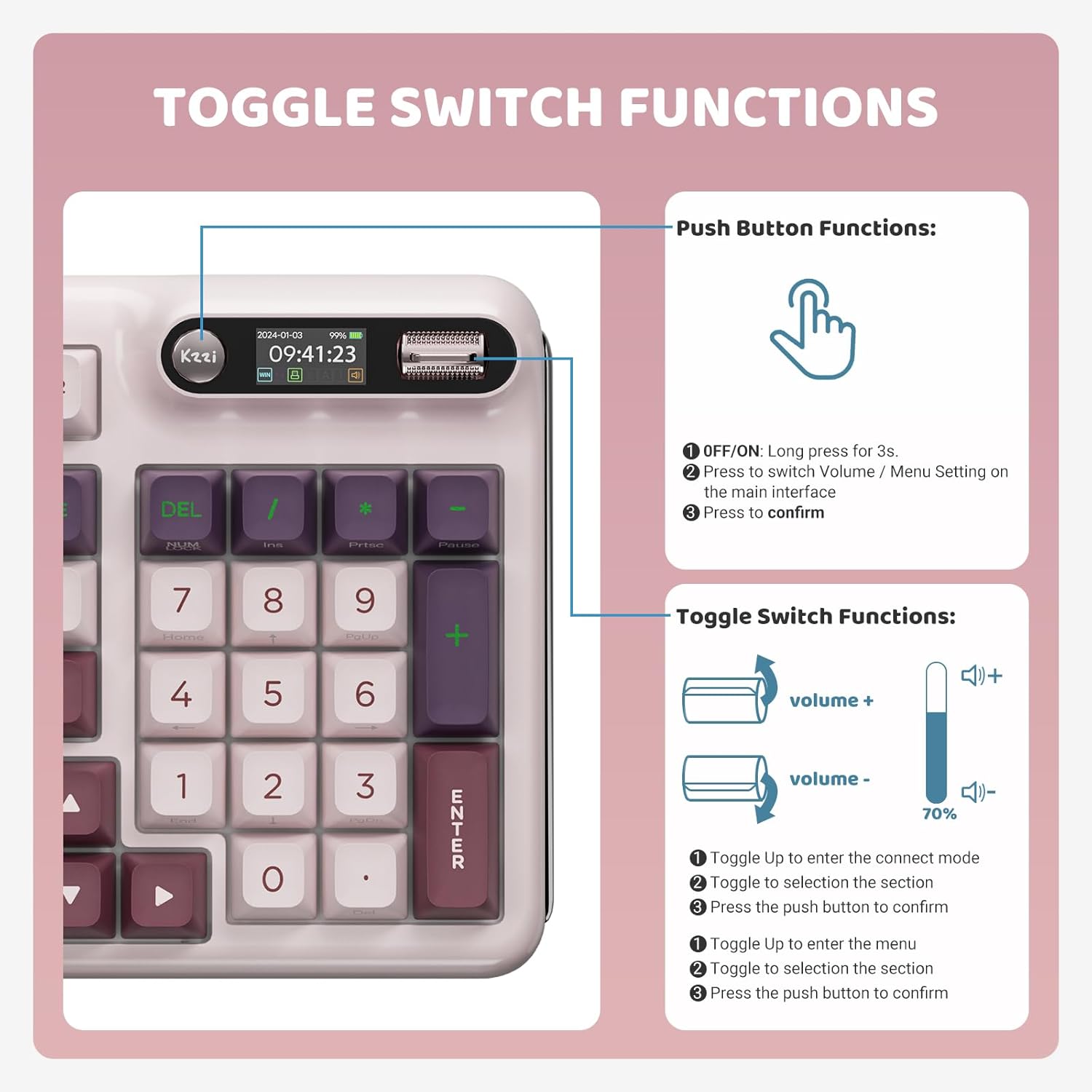
Image: KZZI Z98 Wireless Mechanical Keyboard showcasing its full layout and RGB lighting.
Setup Instructions
1. Wired Connection (USB-C)
- Locate the USB-C port on the keyboard.
- Connect the provided USB-C cable to the keyboard and the other end to your computer's USB port.
- The keyboard will automatically be recognized by your system.
2. 2.4GHz Wireless Connection
- Remove the 2.4GHz USB receiver from its storage slot on the keyboard.
- Plug the USB receiver into an available USB port on your computer.
- On the keyboard's smart display, use the knob to navigate to the connection settings and select the 2.4GHz mode. The display will show "2.4G Linking" and then "2.4G Success!" upon successful connection.

Image: The KZZI Z98 keyboard highlighting its three connection modes: Bluetooth 5.0, 2.4GHz wireless, and USB-C wired.
3. Bluetooth 5.0 Connection
- On the keyboard's smart display, use the knob to navigate to the connection settings and select one of the Bluetooth channels (BT1, BT2, or BT3). The display will show "BT Linking".
- On your device (PC, laptop, tablet, smartphone), enable Bluetooth and search for new devices.
- Select "Kzzi-Z98" from the list of available devices to pair. The keyboard display will show "BT Success!" once paired.
- The keyboard can store up to three different Bluetooth devices, allowing for seamless switching.
Video: Demonstrates the triple-mode connection process for the KZZI Z98 keyboard, including wired, 2.4GHz, and Bluetooth setup.
Operating Instructions
1. Smart Display & Knob Functions
The integrated smart display and three-way knob provide quick access to keyboard settings and system information.
- Push Button Functions:
- Press for 3 seconds to turn the keyboard ON/OFF.
- Press to switch between Volume control and Menu settings on the main interface.
- Press to confirm a selection within the menu.
- Toggle Switch Functions:
- Toggle up/down to adjust volume or navigate through menu options.
- Toggle up to enter the connect mode, then toggle to select a section, and press the push button to confirm.
- Toggle up to enter the menu, then toggle to select a section, and press the push button to confirm.

Image: Detailed diagram illustrating the functions of the toggle switch and push button on the KZZI Z98 keyboard's smart display.

Image: The smart digital screen of the KZZI Z98 keyboard showing different display options including Home, GIF image display, System Connection, RGB Mode & Color, RGB Brightness/Speed, and Volume.
2. RGB Lighting Customization
The keyboard features 16.8 million RGB backlit keys with various effects.
- Use the smart display and knob to navigate to the RGB settings.
- Adjust brightness, speed, and select from 18 default lighting effects.
- Utilize the software for advanced customization, including 'Music Syncing' mode.

Image: The KZZI Z98 keyboard illuminated with 16.8 million RGB backlighting, demonstrating various color possibilities.
3. Software Customization
Advanced customization options are available through the dedicated software.
- Download the KZZI Z98 software from the official KZZI website.
- Use the software to:
- Customize GIFs for the smart display.
- Program complex keyboard macros.
- Fine-tune RGB lighting effects.
- Enable 'Music Syncing' mode for dynamic lighting.

Image: A computer screen displaying the KZZI keyboard software, illustrating options for 18 RGB lighting effects, music audio visualizer effects, and macro recording and editing.
4. Hot-Swappable Switches
The KZZI Z98 supports hot-swappable 3-pin/5-pin switches, allowing for easy customization without soldering.
- Use the provided keycap puller to carefully remove the desired keycap.
- Use the switch puller (not included, but commonly available) to gently remove the switch from the PCB.
- Align the pins of the new switch with the holes on the PCB and press firmly until it clicks into place. Ensure the pins are not bent.
- Replace the keycap.

Image: A close-up view of the KZZI Z98 keyboard's hot-swappable slotted PCB, demonstrating how switches can be easily removed and replaced.
Video: Overview of the KZZI Z98 Wireless Mechanical Keyboard, demonstrating features such as the smart display, connection modes, hot-swappable switches, and RGB lighting effects.
Maintenance
Proper maintenance ensures the longevity and performance of your KZZI Z98 keyboard.
- Cleaning: Use a soft, dry cloth to wipe the keyboard surface. For deeper cleaning, remove keycaps with the provided puller and use compressed air to clear debris from between switches.
- Battery Care: To maximize battery life, avoid fully discharging the keyboard frequently. Charge the 3750mAh battery when the low battery indicator appears on the smart display.
- Storage: When not in use, store the keyboard in a cool, dry place, ideally covered with the provided dust cover to prevent dust accumulation.

Image: An internal view of the KZZI Z98 keyboard, highlighting its massive 3750mAh battery for ultra-long lasting life.
Troubleshooting
If you encounter issues with your KZZI Z98 keyboard, refer to the following common solutions:
- Keyboard Not Responding:
- Ensure the keyboard is turned on.
- Check the battery level on the smart display and charge if necessary.
- Verify the connection mode (wired, 2.4GHz, or Bluetooth) is correctly selected and established.
- For 2.4GHz, ensure the USB receiver is securely plugged in.
- For Bluetooth, ensure your device's Bluetooth is enabled and the keyboard is paired.
- RGB Lighting Not Working/Incorrect:
- Check RGB settings via the smart display or software.
- Ensure the keyboard is not in a low-power mode that disables RGB.
- Keys Not Registering:
- Remove the keycap and switch to check for any obstructions or bent pins. Re-seat or replace the switch if needed.
- Ensure the keyboard firmware is up to date.
- Smart Display Not Functioning:
- Restart the keyboard.
- Ensure the keyboard has sufficient power.
Specifications
| Feature | Detail |
|---|---|
| Model Number | Z98 |
| Connectivity Technology | Bluetooth 5.0, 2.4GHz RF, USB-C Wired |
| Layout | 90% (94 keys) |
| Switches | Hot-Swappable Linear Switches (3-pin/5-pin support) |
| Keycaps | Double-Shot PBT, DSA-height |
| Backlighting | 16.8 Million RGB, Customizable |
| Battery Capacity | 3750mAh |
| Battery Life (approx.) | 20 days (non-RGB), 5 days (with RGB, 6 hours daily use) |
| Special Features | Smart Display & Knob, Gasket Mount, Sound-absorbing layers, Software Customization (GIFs, Macros, Music Syncing) |
| Compatible Devices | PC, Laptop, Gaming Console, Smart TV, Tablet |
| Item Weight | 3 pounds |
| Package Dimensions | 17.13 x 8.03 x 2.05 inches |
Warranty and Support
The KZZI Z98 Wireless Mechanical Keyboard comes with a standard manufacturer's warranty. Please refer to the warranty card included with your product for specific terms and conditions. For technical support, troubleshooting assistance, or warranty claims, please contact KZZI customer service through their official website or the contact information provided in your product packaging.


