

Introduction
This manual provides comprehensive instructions for setting up, operating, and maintaining your KZZI Z98 Wireless Mechanical Keyboard. The Z98 keyboard is designed to enhance your typing and gaming experience with its innovative smart display, versatile tri-mode connectivity, and customizable features.
What's in the Box
- Z98 Wireless Mechanical Keyboard
- Keycap Puller
- Replacement Switch (x4)
- USB Cable
- Dust Cover
Setup
The KZZI Z98 keyboard offers three connection modes: Bluetooth 5.0, 2.4GHz wireless, and USB-C wired. Follow these steps to connect your keyboard.
Tri-Mode Connection

Diagram illustrating the three connection modes: Bluetooth 5.0, 2.4GHz Wireless, and USB-C Wired.
- Bluetooth Connection:
Use the toggle switch on the keyboard to select BT1, BT2, or BT3. Long press the push button for 3 seconds to initiate pairing. The display will show 'BT Linking'. On your device (PC, Laptop, Smart TV, Tablet), search for 'Kzzi Z98' in Bluetooth settings and connect. The display will confirm 'BT Success'. You can store up to 3 different Bluetooth devices. - 2.4GHz Wireless Connection:
Select the 2.4G icon using the toggle switch and click the push button. The keyboard will switch to 2.4G mode, and the display will show '2.4G Linking'. Insert the 2.4GHz USB receiver into your device. The display will show '2.4G Success' upon successful connection. The receiver is pre-paired from the factory. - USB-C Wired Connection:
Connect the provided USB-C cable from the keyboard to your device. The keyboard will automatically switch to wired mode. This provides a stable and reliable connection, ideal for competitive gaming.
Initial Charge
Before first use, ensure the keyboard is fully charged using the provided USB-C cable. The robust 3750mAh battery offers extended usage time.
Official product video demonstrating the KZZI Z98 Wireless Mechanical Keyboard's features, including connection modes, smart display, and customization.
Operating Instructions
Smart Display & Knob Functions
The Z98 features an innovative smart display and a built-in three-way knob for easy control and information display.

Visual guide to the Smart Digital Screen's various display modes and functions, including home screen, GIF display, system connection, RGB mode, brightness/speed, and volume control.
- Push Button Functions:
Press and hold for 3 seconds to turn the keyboard ON/OFF. Press to switch between Volume and Menu settings on the main interface. Press to confirm selections. - Toggle Switch Functions:
Toggle up or down to adjust volume, select connection mode, or navigate through menu sections. - Display Information:
View system information, battery status, connection mode, and customize GIF images directly on the screen.
Software Customization
Unlock the full potential of your Z98 keyboard with the dedicated software. This allows for advanced customization of lighting, macros, and the smart display.

Overview of the customization software, highlighting 18 RGB lighting effects, music audio visualizer, and macro recording/editing capabilities.
- GIF Customization: Upload and display custom GIFs on the smart screen.
- Macro Programming: Program complex keyboard macros for enhanced productivity or gaming.
- RGB Lighting: Fine-tune RGB lighting effects, brightness, and speed. Utilize 'Music Syncing' mode for dynamic lighting.
Hot-Swappable Switches
The Z98 keyboard features hot-swappable sockets, allowing you to easily change switches without soldering. It supports both 3-pin and 5-pin switches.

Close-up view of the hot-swappable PCB, demonstrating how switches can be easily removed and replaced.
- To remove a switch, use the provided switch puller to gently pull it straight up.
- To install a new switch, align the pins with the holes on the PCB and press down firmly until it clicks into place. Ensure pins are not bent.
RGB Backlighting
The keyboard offers 16.8 million RGB backlight colors and various lighting effects. Adjust them via the smart display or the customization software.

The keyboard illuminated with vibrant RGB backlighting, showcasing the extensive customization options available.
Typing Experience
The Z98 is engineered for an incredible typing experience, featuring a multi-layer structure for shock absorption and reduced noise.

Detailed diagram showing the internal layers of the keyboard, including the sound-absorbing silicone layer and cotton for a quiet and creamy typing sound.
Maintenance
Cleaning
- Use a soft, dry cloth to wipe down the keyboard surface regularly.
- For deeper cleaning, remove keycaps using the provided keycap puller and use compressed air to clear debris from beneath.
- Avoid using harsh chemicals or abrasive materials.
Battery Care
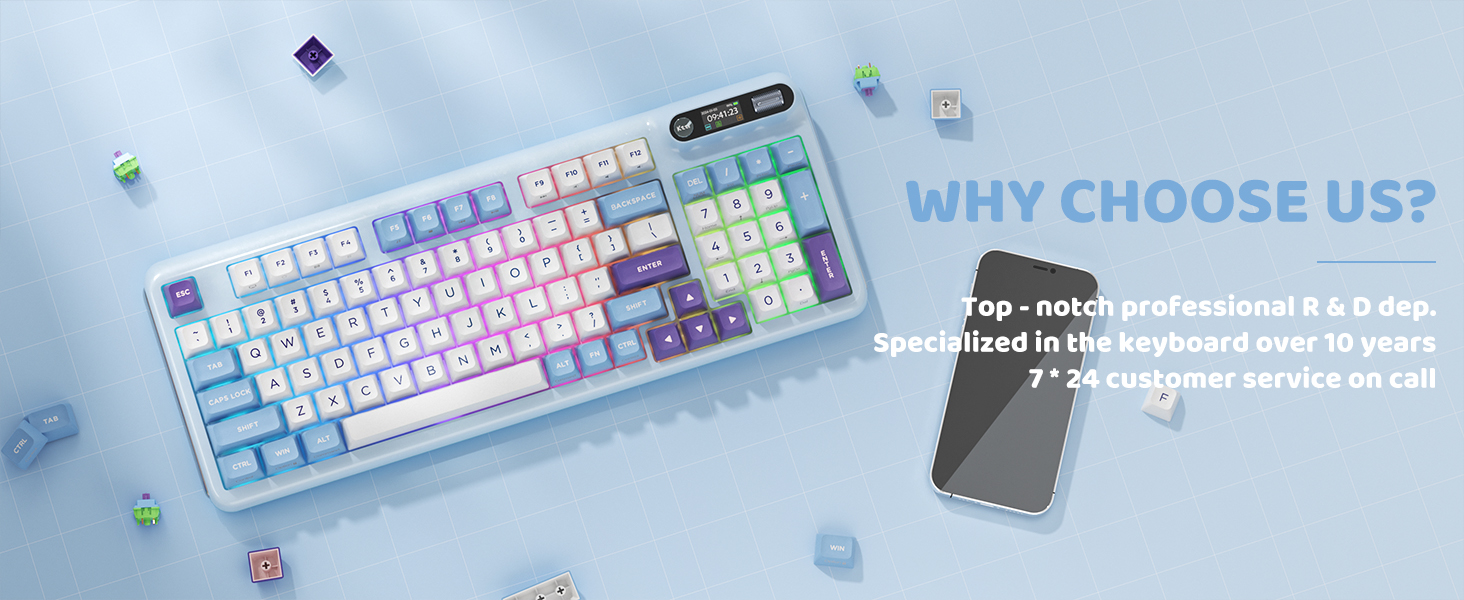
Illustration of the keyboard's internal 3750mAh battery, emphasizing its ultra-long lasting life.
- Charge the keyboard using the provided USB-C cable and a compatible power source.
- Avoid fully discharging the battery frequently to prolong its lifespan.
- Store the keyboard in a cool, dry place when not in use for extended periods.
Troubleshooting
| Issue | Possible Cause | Solution |
|---|---|---|
| Keyboard not connecting | Incorrect mode selected, low battery, out of range, interference. | Ensure correct connection mode (BT/2.4G/USB-C) is selected. Charge the keyboard. Move closer to the receiver/device. Reduce interference from other wireless devices. Re-pair Bluetooth or 2.4G connection. |
| Smart display not working | Software issue, display setting. | Restart the keyboard. Check display settings in the customization software. Ensure firmware is up to date. |
| RGB lights not functioning | Lighting mode off, software setting. | Check if RGB is enabled via the smart display or software. Adjust brightness and effect settings. |
| Keys not responding | Loose switch, software error. | Ensure switches are properly seated. Restart the keyboard. If issue persists for specific keys, consider replacing the switch. |
Specifications
| Feature | Detail |
|---|---|
| Model Number | Z98 |
| Connectivity Technology | Bluetooth, RF (2.4GHz), USB-C |
| Number of Keys | 98 |
| Keyboard Layout | 90% |
| Keycap Material | Double-Shot PBT |
| Switches | Hot-Swappable Linear Switches (supports 3-pin/5-pin) |
| Backlighting | RGB (16.8 Million Colors) |
| Battery Capacity | 3750mAh |
| Compatible Devices | Gaming Console, Laptop, PC, Smart TV, Tablet |
| Item Weight | 3 pounds |
| Package Dimensions | 16.93 x 8.03 x 2.13 inches |
Warranty and Support
For any inquiries or technical assistance, KZZI offers 7*24 customer service. Please refer to your product packaging or the official KZZI website for specific warranty details and contact information.


