
VTech 80-581405
VTech DJ Studio Magic Light User Manual
Model: 80-581405
1. Introduction
The VTech DJ Studio Magic Light is an interactive mixing table designed to introduce children aged 3 to 7 years to the world of music and creativity. This manual provides essential information on how to set up, operate, and maintain your DJ Studio Magic Light, ensuring a safe and enjoyable experience.
With over a thousand unique musical combinations, educational games, and a recording function, this device allows young aspiring DJs to explore different music styles and create their own tracks.
Safety Warning:
Not suitable for children under 36 months due to small parts that could be ingested.
2. Product Overview
Familiarize yourself with the main components of your VTech DJ Studio Magic Light.
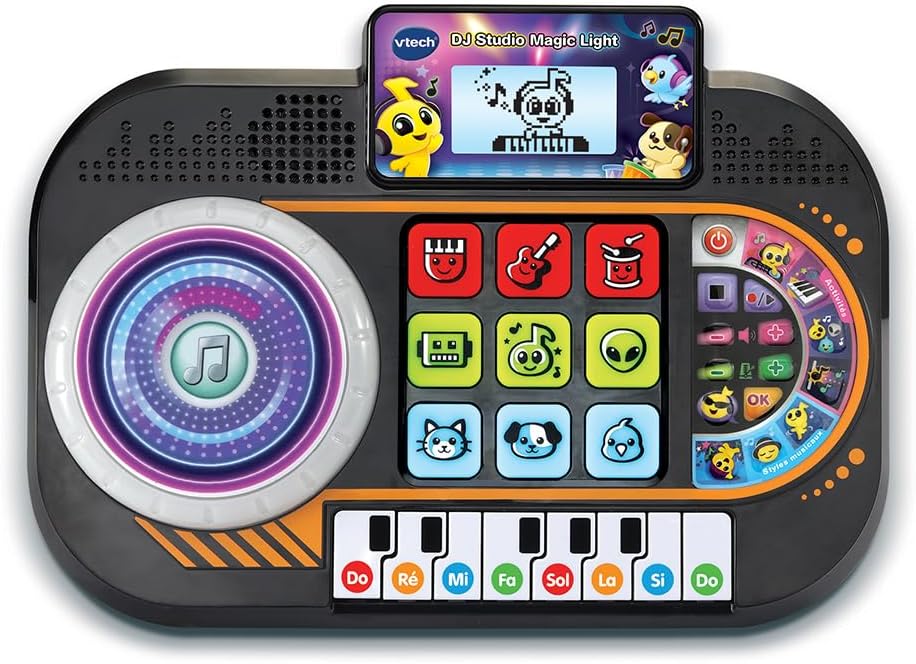
Figure 2.1: Front view of the VTech DJ Studio Magic Light, showing the scratch disk, control pads, screen, and piano keys.
- Scratch Disk: Large, illuminated disk for adding sound effects and scratching.
- Control Pads: Nine light-up pads for selecting instruments, characters, and mixing tracks.
- LCD Screen: Backlit display showing animations, rhythm patterns, and game progress.
- Piano Keys: Eight piano keys for playing melodies and engaging in educational games.
- Volume Control: Adjusts the overall sound level.
- Tempo Control: Adjusts the speed of the music.
- DJ Button: Activates DJ mode features.
- Recording Button: Initiates and stops recording of mixes.
3. Setup
3.1 Battery Installation
The DJ Studio Magic Light requires 3 LR6-AA batteries (included). Follow these steps for proper battery installation:
- Locate the battery compartment on the underside of the unit.
- Using a screwdriver, loosen the screw on the battery compartment cover and remove the cover.
- Insert 3 new LR6-AA batteries, ensuring correct polarity (+/-) as indicated inside the compartment.
- Replace the battery compartment cover and tighten the screw securely.
Note: Always use new batteries of the same type. Do not mix old and new batteries or different types of batteries. Remove batteries if the unit will not be used for an extended period.
3.2 Initial Power On
After installing the batteries, press the Power button (usually located on the top right of the unit) to turn on the DJ Studio Magic Light. The screen will light up, and a welcome sound will play.
4. Operating Instructions
4.1 Basic Functions
- Power On/Off: Press the Power button to turn the unit on or off. The toy features an automatic shut-off function to preserve battery life if left inactive.
- Volume Control: Use the Volume buttons (usually + and -) to adjust the sound output.
- Tempo Control: Use the Tempo buttons to increase or decrease the speed of the music.
4.2 DJ Mode and Creative Play
In DJ Mode, children can experiment with various sounds and create their own mixes.
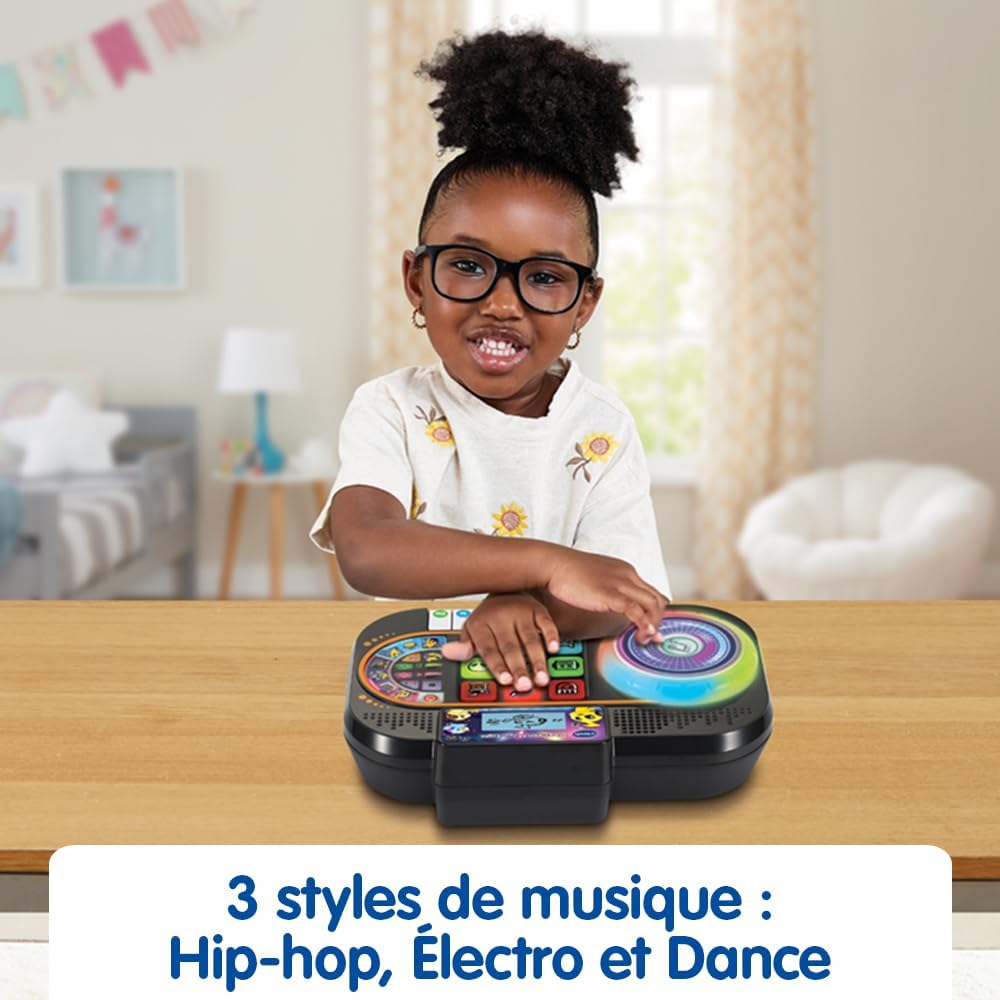
Figure 4.1: A child's hands engaging with the interactive pads and scratch disk, demonstrating active play.
- Scratch Disk: Rotate the illuminated scratch disk to add sound effects and create scratching sounds, mimicking a real DJ.
- Control Pads: Press the nine light-up pads to select different instruments and characters. Combine them to form a musical group and mix up to four musical tracks simultaneously.
- Music Styles: Explore 9 songs and 27 melodies across various styles including Hip-hop, Electro, and Dance.
4.3 Educational Games
The DJ Studio Magic Light includes educational games designed to teach music notes and improve rhythm.

Figure 4.2: The screen displays a character playing the piano, guiding the child through rhythm exercises.
- Rhythm Reproduction: When a rhythm pattern appears on the screen, reproduce it using the piano keys.
- Progressive Levels: Successfully playing at least 50% of the notes correctly advances the child to the next level. The game is won after 4 successful sequences.
4.4 Recording Function
Children can record their own musical creations in DJ and Creative game modes.
- Press the Record button to start recording. All sounds from the scratch disk, piano keys, DJ button, and tempo changes will be saved.
- Press the Record button again to stop recording.
- Use the Playback button (if available, or re-press record button in some models) to listen to the recorded track.
4.5 Screen and Light Adjustments
- Scratch Disk Lights: The illuminated effects of the scratch disk can be deactivated. Refer to the specific button or setting on your unit for this function.
- LCD Screen Brightness: The brightness of the backlit LCD screen can be adjusted for optimal viewing.
5. Maintenance
5.1 Cleaning
To keep your DJ Studio Magic Light clean, wipe the surface with a slightly damp cloth. Do not use harsh chemicals or abrasive cleaners. Ensure the unit is dry before storage or next use.
5.2 Battery Care
Always remove exhausted batteries promptly. If the unit will not be used for an extended period, remove the batteries to prevent leakage and damage.
5.3 Storage
Store the DJ Studio Magic Light in a cool, dry place away from direct sunlight and extreme temperatures.
6. Troubleshooting
| Problem | Possible Cause | Solution |
|---|---|---|
| Unit does not turn on. | Batteries are low or incorrectly installed. | Replace batteries with new ones, ensuring correct polarity. |
| No sound or low sound. | Volume is too low or muted. | Increase the volume using the Volume + button. Check battery level. |
| Lights are not working. | Lights may be deactivated or batteries are low. | Check settings to ensure lights are enabled. Replace batteries. |
| Unit freezes or behaves erratically. | Temporary electronic malfunction. | Turn the unit off and then on again. If problem persists, remove batteries for a few minutes and reinsert. |
7. Specifications
| Feature | Detail |
|---|---|
| Product Dimensions (L x W x H) | 27.5 x 19.8 x 6.3 cm |
| Weight | 599 grams |
| Recommended Age | 36 months - 7 years |
| Educational Values | Learning music notes, improving rhythm, discovering different music styles |
| Model Number | 80-581405 |
| Number of Pieces | 1 |
| Batteries Required | Yes (3 x LR6-AA) |
| Batteries Included | Yes |
| Main Material | Plastic |
| Color | Black |
8. Warranty and Support
For warranty information and customer support, please refer to the warranty card included with your product or visit the official VTech website. Keep your purchase receipt as proof of purchase.
VTech is committed to providing high-quality products. If you encounter any issues not covered in this manual, please contact VTech customer service for assistance.
You can find more information and support at: www.vtech.com
Related documents80-581405

Ask a question about this manual
Ask about setup, troubleshooting, compatibility, parts, safety, or missing instructions. Manuals+ will review the question and use this page’s manual context to help answer it.