
1. Introduction
Thank you for choosing the QDVOPHZA 10K 20MP Outdoor Wireless WiFi Security Camera. This advanced surveillance system is designed to provide comprehensive security monitoring with its ultra-high definition resolution, 10x optical zoom, automatic tracking, and multi-screen viewing capabilities. This manual will guide you through the installation, operation, and maintenance of your new security camera to ensure optimal performance and longevity.
2. Safety Information
- Ensure the power supply voltage matches the camera's requirements (DC 12V). Incorrect voltage can damage the device.
- Do not expose the camera to extreme temperatures, humidity, or corrosive environments.
- Avoid direct exposure to sunlight for extended periods, as this may affect image quality and device lifespan.
- Install the camera in a secure location where it cannot be easily tampered with.
- Keep the camera away from strong electromagnetic fields.
- Disconnect power before performing any maintenance or cleaning.
- Only use accessories specified by the manufacturer.
3. Package Contents
Please check the package contents upon unboxing. If any items are missing or damaged, contact your retailer.
- QDVOPHZA 10K 20MP Outdoor Wireless WiFi Security Camera
- Power Adapter (DC 12V)
- Mounting Screw Kit
- User Manual
4. Product Overview
Familiarize yourself with the components of your QDVOPHZA security camera.

Figure 4.1: Front view of the QDVOPHZA 10K 20MP Outdoor Wireless WiFi Security Camera, showing the main PTZ camera, two side fixed cameras, and antennas.

Figure 4.2: Diagram illustrating the four-screen camera system, with the main PTZ camera providing a zoomable view and three fixed lenses covering additional areas.
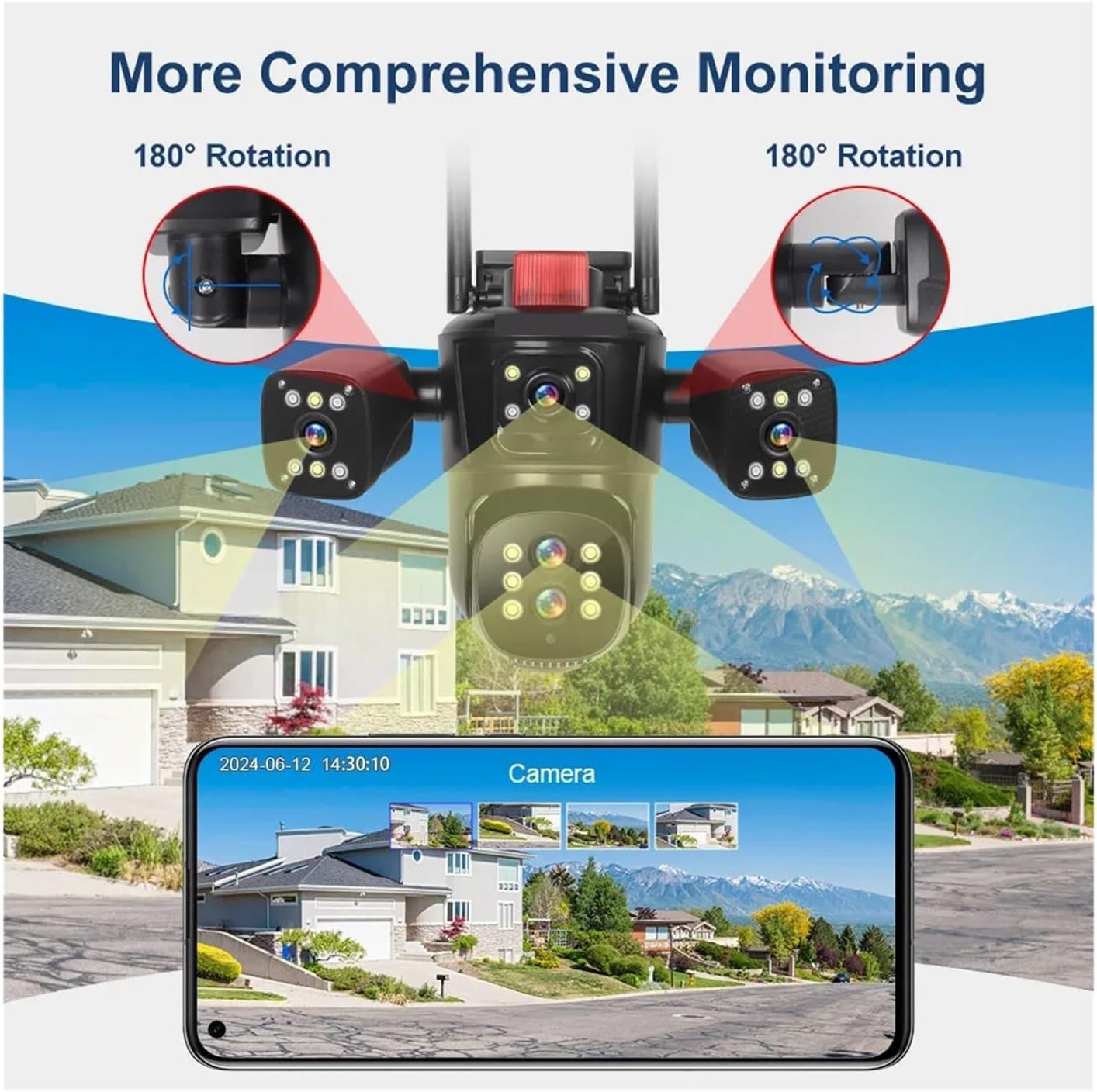
Figure 4.3: Visual representation of the camera's comprehensive monitoring capabilities, including 180-degree rotation for the side cameras and a smartphone interface displaying multiple camera feeds.
5. Setup
5.1 Installation
- Choose a Location: Select an outdoor location that provides the desired viewing angle and is within range of your Wi-Fi network or near an Ethernet port. The camera is IP66 waterproof, suitable for various weather conditions.
- Mounting: Use the provided screw kit to securely mount the camera to a wall or ceiling. Ensure the mounting surface is strong enough to support the camera's weight.
- Adjust Angle: Loosen the adjustment screws (if applicable) to position the camera for optimal coverage. The main PTZ camera offers horizontal 0-360 degrees and vertical 0-90 degrees movement. The side cameras can rotate 180 degrees for broader coverage.
5.2 Power Connection
Connect the provided DC 12V power adapter to the camera's power input port and then plug it into a power outlet. The camera will power on and initiate its self-test sequence.
5.3 Network Connection
The camera supports both 2.4G WiFi and RJ45 network port access.
- Wireless (WiFi): Download the recommended mobile application (refer to the packaging or quick start guide for app name). Follow the in-app instructions to add the camera and connect it to your 2.4GHz Wi-Fi network.
- Wired (Ethernet): Connect an Ethernet cable from your router to the camera's RJ45 port. The camera should automatically connect to the network. Then, use the mobile app to discover and add the camera.
6. Operating Instructions
6.1 Mobile Application Usage
After successfully connecting your camera to the network, open the mobile application to access its features.
- Live View: The app will display the live feeds from all four camera lenses simultaneously, providing a comprehensive overview of your monitored area.
- PTZ Control: Use the on-screen controls to pan (rotate horizontally) and tilt (rotate vertically) the main camera.
- Optical Zoom: Utilize the 10x optical zoom feature to magnify distant objects without losing image clarity.
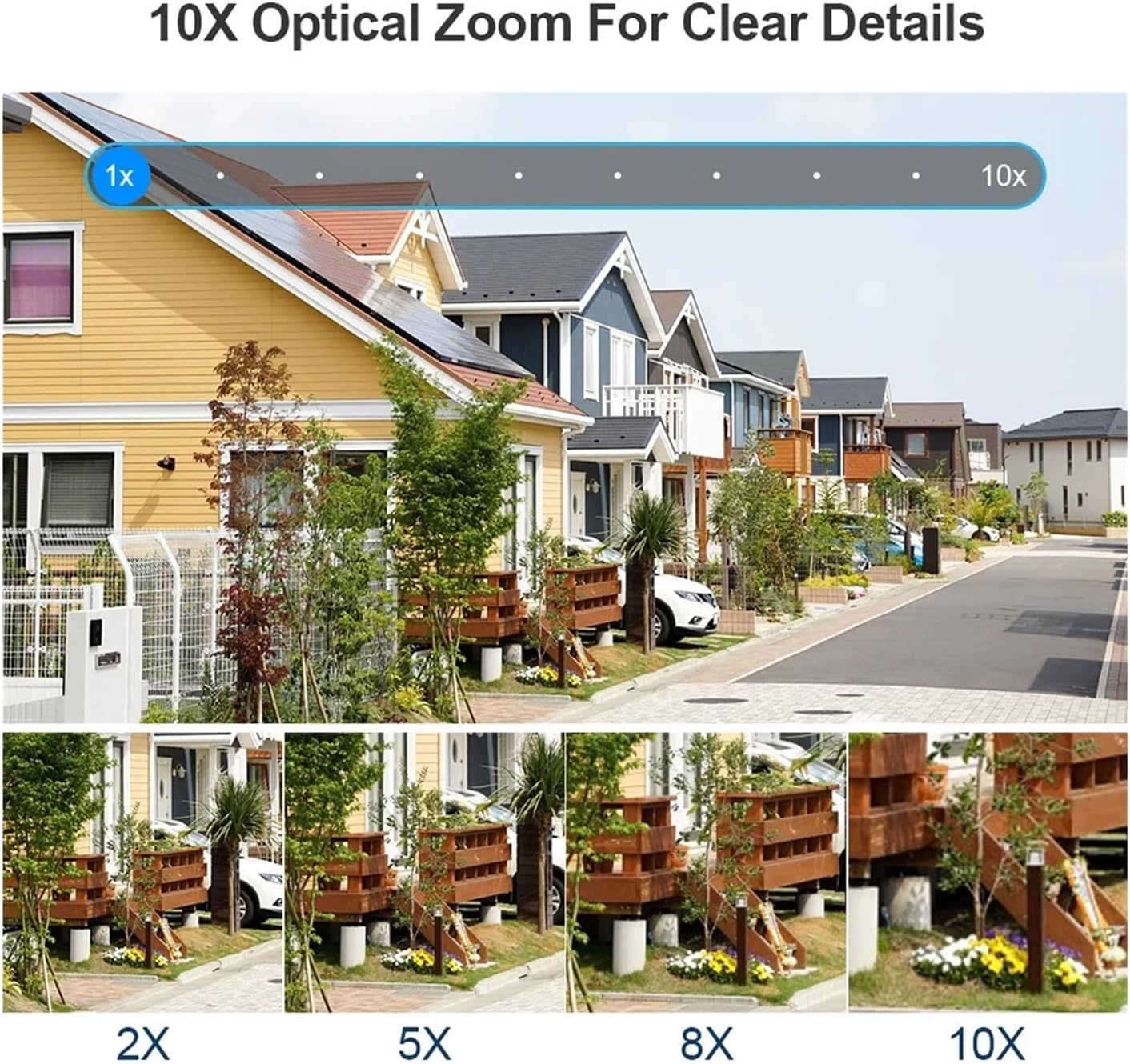
Figure 6.1: Demonstration of the 10x optical zoom capability, showing progressive magnification from 1x to 10x while maintaining image clarity.

Figure 6.2: Visual comparison highlighting the difference in detail captured by the 10x zoom camera versus a fixed focus camera, demonstrating the advantage of optical zoom.
6.2 Motion Detection and Auto Tracking
The camera features intelligent motion detection and automatic tracking.
- Motion Detection: The camera can detect movement within its field of view and send instant alerts to your mobile device.
- Auto Tracking: When a moving target is detected, the camera will automatically adjust its pan/tilt to keep the target centered in the frame, ensuring continuous monitoring of suspicious activity.

Figure 6.3: Illustration of the human detection and automatic tracking feature, showing the camera following a person and a mobile phone displaying an alarm notification.
6.3 Recording and Storage
The camera supports multiple storage options for video recordings.
- TF Card Storage: Insert a TF (microSD) card (up to 128GB, not included) into the designated slot for local storage of recordings. The camera supports video synchronous recording and playback.
- Cloud Storage: Subscribe to the cloud storage service via the mobile app to securely save your video data online. This ensures your recordings are safe even if the camera is damaged or stolen.
6.4 Two-Way Audio and Night Vision
- Two-Way Audio: The built-in microphone and speaker allow for two-way communication, enabling you to listen in and speak through the camera via the app.
- Color Night Vision: The camera is equipped with advanced night vision technology, providing clear, full-color video even in low-light conditions.
7. Maintenance
- Cleaning: Regularly clean the camera lens with a soft, dry cloth to ensure clear image quality. Do not use harsh chemicals or abrasive materials.
- Firmware Updates: Check the mobile application periodically for available firmware updates. Keeping your camera's firmware up-to-date ensures optimal performance, security, and access to new features.
- Power Cycle: If the camera experiences issues, try power cycling it by disconnecting and reconnecting the power adapter.
8. Troubleshooting
| Problem | Possible Cause | Solution |
|---|---|---|
| Camera not powering on | No power, faulty adapter, loose connection | Check power outlet, ensure adapter is securely connected, try a different outlet. |
| Unable to connect to Wi-Fi | Incorrect Wi-Fi password, camera too far from router, 5GHz network selected | Verify Wi-Fi password, move camera closer to router, ensure you are connecting to a 2.4GHz network. |
| Poor image quality | Dirty lens, low network bandwidth, insufficient lighting | Clean the camera lens, ensure stable internet connection, check lighting conditions. |
| Auto tracking not working | Feature disabled in app, obstruction in view, slow movement | Enable auto tracking in the app settings, ensure clear line of sight, ensure movement is detectable. |
| No audio or poor audio quality | Microphone/speaker blocked, app volume low, network issues | Ensure microphone/speaker are clear, adjust app volume, check network stability. |
9. Specifications
| Brand | QDVOPHZA |
| Model Number | w0u5903wei |
| High Definition | 20 Megapixels (10K resolution, 5 lenses x 4MP each) |
| Connectivity | WIFI (2.4G), RJ45 Ethernet Port |
| Storage | TF Card (Up to 128GB), Cloud Storage |
| IP Rating | IP66 (Waterproof / Weatherproof) |
| Movement Range (Pan) | 0°-360° |
| Movement Range (Tilt) | 0°-90° |
| Optical Zoom | 10x |
| Audio Output | Two Way Audio |
| Special Features | Color Night Vision, Motion Detection, Auto Tracking, Four Screens |
| Power Supply | DC 12V |
| Item Weight | 50 Grams |
10. Warranty and Support
This product comes with a standard manufacturer's warranty. Please refer to the warranty card included in your package or contact your retailer for specific warranty terms and conditions.
For technical support, troubleshooting assistance, or any questions regarding your QDVOPHZA security camera, please contact the customer support team through the contact information provided on the product packaging or the official brand website.