
Labymos VK16
Labymos VIISAN VK16 Book & Document Camera Scanner User Manual
Model: VK16
Product Overview
The Labymos VIISAN VK16 is a versatile and highly accurate overhead book and document camera scanner designed for efficient digitization. It features a 16-megapixel sensor, making it suitable for capturing various materials including books, magazines, documents, receipts, business cards, 3D objects, and barcodes. Its compact and foldable design ensures portability and ease of use with a PC or laptop.
Key functionalities include advanced image processing such as automatic page flattening, removal of finger marks from scanned photos, repair of damaged document edges, text orientation-based page rotation, and automatic splitting of double-page spreads into separate images.

Image: The VK16 scanner positioned over an open book on a scanning mat, connected to a small external button.
Setup Guide
- Unpack the Scanner: Carefully remove all components from the packaging, including the scanner unit, USB cable, and scanning mat.
- Position the Scanner: Place the scanner on a stable, flat surface. Ensure there is enough space for the scanning mat and the documents you intend to scan.
- Connect to Computer: The VK16 is UVC compatible and driver-free. Connect the scanner to your computer using the provided USB cable. The scanner is compatible with Windows 7/8/8.1/10/XP and MAC systems.
- Install Software (if necessary): While the device is driver-free, specific software may be required for advanced features like OCR or specific scanning modes. Refer to the official VIISAN website (http://www.viisan.com) for the latest software downloads and installation instructions.
- Place Scanning Mat: Position the black scanning mat under the scanner's camera arm. This mat helps with document alignment and provides a contrasting background for optimal scanning.
Important Note: Only use the USB cable provided or a compatible high-quality USB 2.0 Type B cable for connection to ensure proper functionality and power supply.
Operating Instructions
Basic Scanning
To perform a basic scan, place the document or book flat on the scanning mat, ensuring it is within the camera's field of view. Open the scanning software on your computer. The VK16 features a 16-megapixel sensor for high-resolution captures. Initiate the scan using the software's scan button or the external one-click scanning button.

Image: The VK16 scanner highlighting its 16-megapixel camera and the convenience of one-click scanning.
Continuous Scanning with Smart Page Turning Detection
The scanner supports automatic continuous scanning, which significantly improves efficiency. When enabled, the device can automatically detect when a page is turned and initiate the next scan without manual intervention. This feature is particularly useful for digitizing multi-page documents or books quickly.

Image: A hand turning a page of a book under the scanner, demonstrating the continuous scanning and smart page turning detection feature.
Optical Character Recognition (OCR) Function
The VK16 includes a powerful OCR function that allows you to convert scanned images into editable text formats. All scanned images can be converted to PDF, Word, Excel, ePub, or TXT files. The OCR function supports multi-language character recognition, enabling conversion of scanned text into editable word files across various languages.

Image: A visual representation of the scanner's powerful multi-language OCR capability, showing text recognition from a scanned document.
Multi-function Scanning Features
Beyond basic scanning, the VK16 offers several intelligent image processing features:
- Auto-Flattening: Automatically corrects the curvature of book pages, ensuring flat and readable scans.
- Finger Removal: Detects and removes fingers from scanned photos, common when holding down pages.
- Damaged Edge Repair: Automatically repairs and cleans up damaged or torn edges of documents.
- Text Orientation Rotation: Rotates pages based on the detected text orientation for correct viewing.
- Double-Page Splitting: Automatically splits a scanned double-page spread into two separate, individual images.
- Multi-Card Scanning: Allows scanning and cropping multiple cards (e.g., business cards) at once for optimized efficiency.
Intuitive Lighting Controls
The VK16 is equipped with a built-in top LED light, featuring 3 levels of touch-controlled brightness. This allows you to adjust the illumination according to the ambient environment, ensuring clear photos even in low-light conditions.

Image: The scanner's LED light illuminating a book, demonstrating the adjustable brightness feature for optimal scanning in various lighting conditions.
Multiple Operating Modes
The scanner supports various methods to trigger scanning:
- External Hand Button: A dedicated physical button for initiating scans.
- Foot Pedal (Optional): For hands-free operation, a foot pedal can be used to trigger scans.
- Software Button: Initiate scans directly from the accompanying software interface on your computer.
- Interval Time Scanning: Set a specific time interval for the scanner to automatically capture pages continuously, ideal for large scanning tasks.

Image: Illustrations of the external hand button and an optional foot pedal, showcasing the flexible operating modes of the scanner.
Teaching Video Tutorials and Visualizer Function
The VK16 can be utilized for educational purposes. Thanks to its sub-camera recording function and compatibility with OfficeCam software, you can create interactive video tutorials by using the laptop webcam with the scanner to record yourself teaching.
Additionally, the innovative visualizer function allows you to easily project your laptop screen with a connected projector. This enables the use of the embedded whiteboard tool within the scanner software for interactive presentations during meetings or lessons.

Image: A visual example of how the scanner can be used to create teaching video tutorials, integrating the scanner's view with a webcam feed.
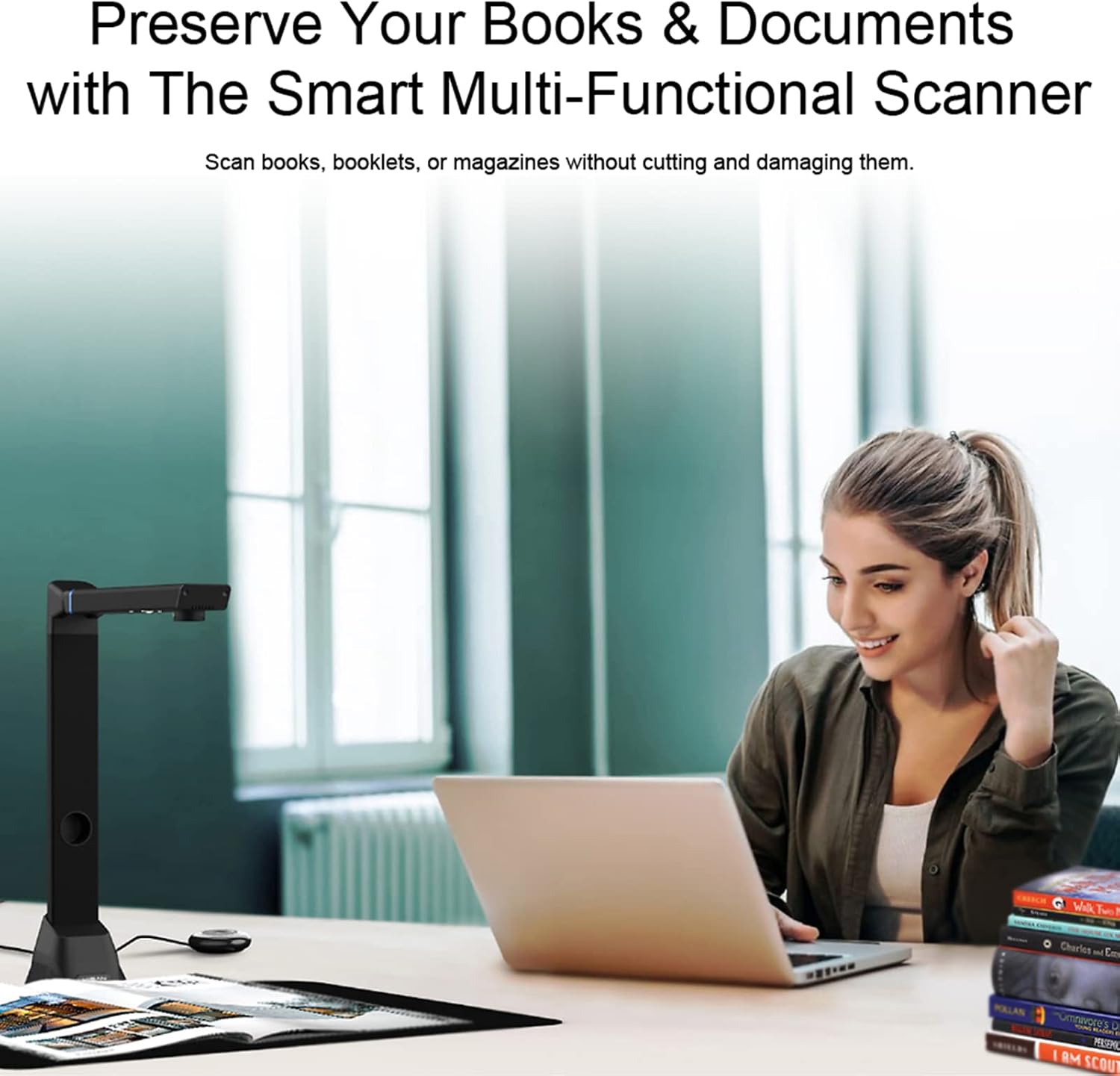
Image: A diagram demonstrating the visualizer function, where the scanner's output can be projected for presentations or collaborative work.
Maintenance
To ensure the longevity and optimal performance of your Labymos VIISAN VK16 scanner, follow these simple maintenance guidelines:
- Cleaning the Lens: Gently wipe the camera lens with a soft, lint-free cloth. For stubborn smudges, use a lens cleaning solution specifically designed for optical surfaces. Avoid abrasive materials or harsh chemicals.
- Cleaning the Body: Use a dry or slightly damp soft cloth to clean the exterior of the scanner. Do not use liquid cleaners directly on the device.
- Storage: When not in use, store the scanner in a clean, dry place away from direct sunlight and extreme temperatures. The foldable design allows for compact storage.
- Cable Care: Ensure the USB cable is not kinked or strained. Always disconnect by pulling the plug, not the cable itself.
Troubleshooting
If you encounter issues with your Labymos VIISAN VK16 scanner, consider the following common troubleshooting steps:
- Scanner Not Detected:
- Ensure the USB cable is securely connected to both the scanner and your computer.
- Try connecting to a different USB port on your computer.
- Restart your computer.
- Verify that the correct software (if applicable) is installed and running.
- Poor Image Quality:
- Clean the camera lens as described in the Maintenance section.
- Adjust the built-in LED light brightness to suit the environment.
- Ensure the document is placed flat and within the camera's focus area.
- Check software settings for resolution and image enhancements.
- OCR Not Working Correctly:
- Ensure the scanned image is clear and well-lit.
- Verify that the correct language pack is selected in the OCR software.
- Text should be clearly legible and not too small or distorted.
- Software Issues:
- Ensure your operating system is compatible (Windows 7/8/8.1/10/XP, MAC).
- Check the VIISAN website (http://www.viisan.com) for updated software or drivers.
- Reinstall the scanning software if problems persist.
For further assistance, please refer to the official VIISAN website or contact customer support.
Technical Specifications
| Feature | Specification |
|---|---|
| Material | Aluminum |
| Color | Black |
| Sheet Size | A3 (420 x 297mm) |
| Image Sensor | 16 MP CMOS sensor |
| Scanner Type | Snap, magazines, books, documents, receipts, business cards, 3D objects, barcodes |
| Document Format | PDF/WORD/TXT/EXCEL |
| Image Format | JPG |
| Lens Focus | Fixed Focus |
| Resolution | 4608 x 3456 pixels |
| Light Source | 4 LEDs |
| Interface | USB 2.0 Type B * 1 (For PC Connection), USB 2.0 Type-A * 1 (For USB Extension) |
| Input | 5V by USB powered |
| Compatible System | Windows 7/8/8.1/10/XP, MAC |
| Item Size | 9.3 * 8.2 * 36.2cm (3.7 * 3.2 * 14.3in) |
| Item Weight | 800g (1.8lb) |
| Product Dimensions (Package) | 48.5 x 14 x 11 cm |
| Manufacturer | Labymos |
| ASIN | B0DP2PNGSK |
Disclaimer: Hardware specifications are subject to change without notice. For the most current information, please refer to the official VIISAN website (http://www.viisan.com).
Warranty and Support
The Labymos VIISAN VK16 scanner typically comes with a standard manufacturer's warranty. For detailed warranty terms and conditions, please refer to the documentation included with your purchase or visit the official VIISAN website.
Extended warranty plans may be available for purchase, offering additional coverage beyond the standard period. For example, 1-Year and 2-Year Extended Warranty Plans are often offered.
For technical support, software updates, or any inquiries regarding your scanner, please visit the official VIISAN support page or contact their customer service directly. Always provide your product model (VK16) and ASIN (B0DP2PNGSK) when seeking support.
Official Website for support and updates: http://www.viisan.com
Ask a question about this manual
Ask about setup, troubleshooting, compatibility, parts, safety, or missing instructions. Manuals+ will review the question and use this page’s manual context to help answer it.