
1. Introduction
This manual provides detailed instructions for the installation, operation, and maintenance of your SAMA V50 Mid Tower Gaming PC Case. Please read this manual thoroughly before beginning your PC build to ensure proper assembly and optimal performance. Keep this manual for future reference.

Image 1.1: SAMA V50 Mid Tower Gaming PC Case in a typical setup.
2. Product Features
The SAMA V50 Mid Tower Gaming PC Case is designed for high-performance systems, offering a blend of aesthetics, cooling efficiency, and user-friendly features.
- 270° Panoramic View: Dual-layer tempered glass panels and a removable front column provide an unobstructed view of internal components. Includes a display compartment for collectibles.
- Exceptional Cooling: Comes with 4 pre-installed ARGB PWM fans. Supports 360mm radiators on the top and side, with CPU cooler clearance up to 181mm.
- Spacious Interior: Accommodates GPUs up to 410mm, features 7 PCIe expansion slots, and 4 storage bays. Supports a reverse-ATX layout.
- Broad Compatibility: Compatible with ATX, Micro-ATX, Mini-ITX, and reverse-ATX motherboards. Supports ATX PSUs up to 265mm.
- Solid Build Quality & Smart Cable Management: Constructed from durable SPCC steel, tempered glass, and ABS. Features magnetic dust filters, a tool-free design, and a dual-chamber layout for clean cable routing. Includes a perforated removable top panel and front USB-C port.
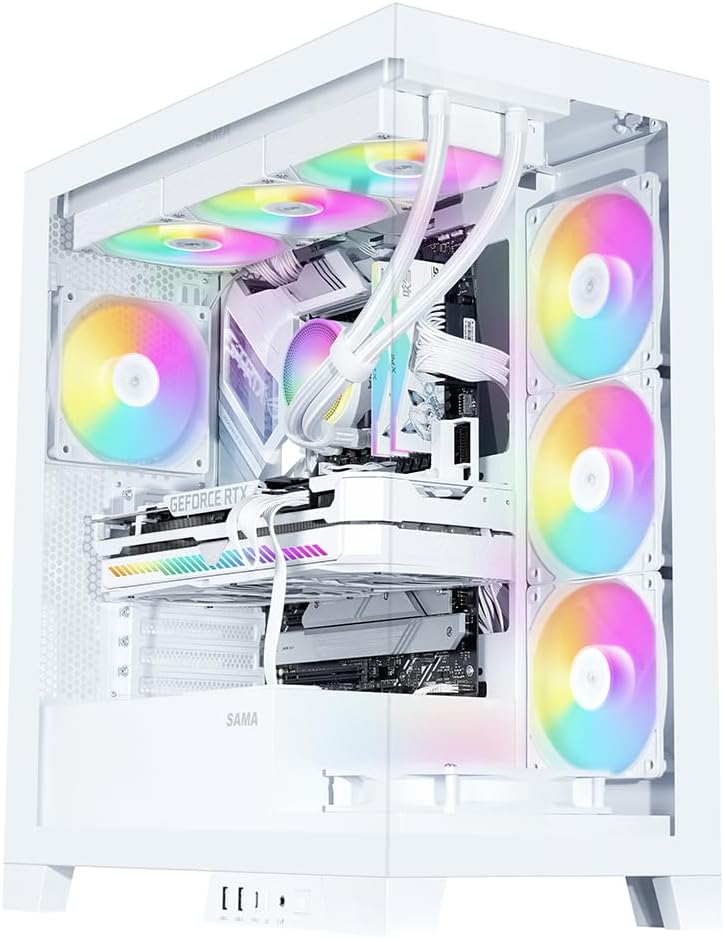
Image 2.1: Fully assembled SAMA V50 case highlighting internal components and RGB lighting.
3. Package Contents
Please verify that all items are present in the package:
- SAMA V50 Mid Tower PC Case
- 4 x Pre-installed ARGB PWM Fans
- Accessory Box (containing screws, standoffs, zip ties, etc.)
- User Manual (this document)
4. Specifications
| Feature | Specification |
|---|---|
| Model Name | SAMA Case V50 |
| Dimensions (L x W x H) | 17.36 x 9.25 x 19.72 inches (441 x 235 x 501 mm) |
| Case Type | Mid Tower |
| Material | SPCC Steel, Tempered Glass, ABS Plastic |
| Motherboard Compatibility | ATX, Micro-ATX, Mini-ITX, Reverse-ATX |
| CPU Cooler Height Clearance | Up to 181mm |
| GPU Length Support | Up to 410mm |
| PSU Length Support | Up to 265mm (ATX) |
| Expansion Slots | 7 PCIe Slots |
| Drive Bays | 3 x 3.5" HDD, 3 x 2.5" SSD (combined with 3.5" mounts) |
| Fan Support | Top: 3 x 120mm / 2 x 140mm Side: 3 x 120mm Rear: 1 x 120mm / 1 x 140mm Bottom: 3 x 120mm |
| Radiator Support | Top: 360mm / 280mm / 240mm / 140mm / 120mm Side: 360mm / 280mm / 240mm / 140mm / 120mm Rear: 140mm / 120mm |
| Front I/O Ports | 2 x USB 3.0, 1 x USB 3.1 Type-C, HD Audio/Mic, Power Button, LED Control Button |

Image 4.1: Motherboard and cooling compatibility overview.
5. Setup and Installation
Follow these steps for assembling your PC components within the SAMA V50 case.
5.1. Preparing the Case
- Remove Side Panels: Carefully remove the tempered glass side panels. The V50 features an easy-to-disassemble design.
- Remove Top Panel: The top panel is mounted with pressure mounts. It can be completely removed for easier hardware installation.
- Detachable Column: The internal column can be optionally disassembled for a cleaner aesthetic without affecting stability.

Image 5.1: Easy-to-disassemble design for convenient access.

Image 5.2: Detachable column for aesthetic customization.
5.2. Motherboard Installation
- Install the necessary standoffs for your motherboard form factor (ATX, Micro-ATX, Mini-ITX) onto the motherboard tray.
- Carefully place your motherboard onto the standoffs, aligning the screw holes.
- Secure the motherboard with the provided screws.
5.3. GPU and PCIe Card Installation
- Remove the appropriate PCIe slot covers from the rear of the case.
- Insert your graphics card or other PCIe expansion cards into the motherboard's PCIe slots.
- Secure the cards with screws. The V50 supports bulky GPUs with its 7-slot PCIe design.
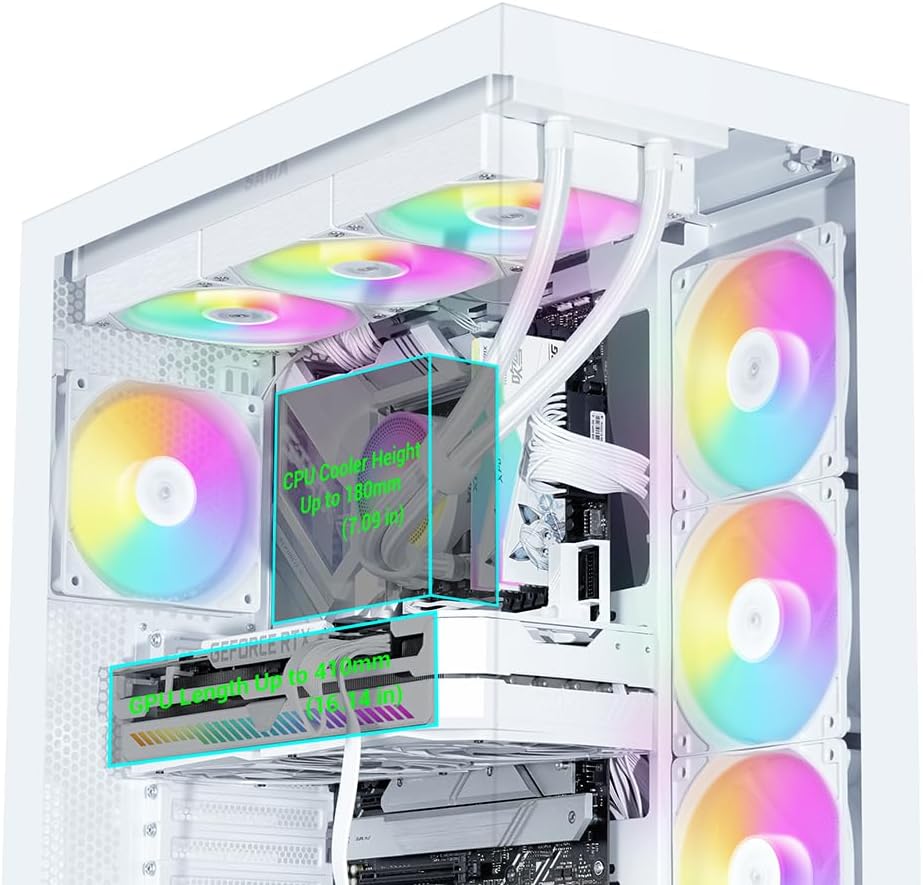
Image 5.3: Clearance for CPU cooler and GPU length.
5.4. Storage Device Installation
The V50 offers multiple drive bays for 3.5" HDDs and 2.5" SSDs, primarily located behind the motherboard tray and near the PSU shroud.
- Mount your 2.5" SSDs or 3.5" HDDs into the designated drive trays/mounts.
- Secure the drives with the provided screws.

Image 5.4: Drive bay locations for SSDs and HDDs.
5.5. Power Supply Unit (PSU) Installation
- Slide your ATX power supply into the dedicated compartment at the bottom rear of the case.
- Secure the PSU with screws from the rear of the case.
5.6. Fan and Radiator Installation
The SAMA V50 comes with 4 pre-installed ARGB PWM fans. Additional fans or radiators can be installed as follows:
- Top: Supports up to 3 x 120mm fans or a 360mm radiator.
- Side: Supports up to 3 x 120mm fans or a 360mm radiator.
- Rear: Supports 1 x 120mm or 1 x 140mm fan.
- Bottom: Supports up to 3 x 120mm fans.

Image 5.5: Detailed fan and radiator support.
5.7. Cable Management
The V50 features a dual-chamber layout and ample space behind the motherboard tray for effective cable management.
- Route all power cables and data cables through the designated cutouts to the rear of the motherboard tray.
- Use the included zip ties to bundle and secure cables, ensuring optimal airflow and a clean aesthetic.

Image 5.6: Airflow channel for efficient cooling.
5.8. Front Panel Connections
Connect the front panel cables (USB, Audio, Power, Reset, LED) to the corresponding headers on your motherboard. The I/O module is relocatable to two locations.

Image 5.7: Relocatable Front I/O Module.
5.9. ARGB Fan Hub Connection
The pre-installed ARGB fans connect to an included ARGB hub. To power the hub, connect a SATA power cable from your PSU to the SATA connector on the hub. Then, connect the ARGB cable from the hub to one of the 3-pin ARGB connectors on your motherboard. This allows for motherboard control of the fan lighting.

Image 5.8: Connecting the fan control board.
6. Operating Instructions
6.1. ARGB Fan Control
The pre-installed ARGB fans offer flexible lighting control:
- Manual Control: Use the dedicated LED button on the front control panel to cycle through various lighting modes and colors.
- Motherboard Sync: To allow your motherboard to control the fan colors, press and hold the LED button on the front panel for approximately 7-8 seconds. This will switch control to your motherboard's ARGB software (e.g., ASUS Aura Sync, MSI Mystic Light, Gigabyte RGB Fusion).
Note: The included fan hub does not provide fan speed control. Fan speed is controlled via PWM connection to the motherboard.
7. Maintenance
Regular maintenance helps ensure the longevity and optimal performance of your PC case.
- Dust Filters: The V50 features magnetic dust filters. Regularly remove and clean these filters to prevent dust buildup and maintain good airflow.
- Case Cleaning: Use a soft, damp cloth to clean the exterior surfaces of the case. For tempered glass panels, use a glass cleaner and a microfiber cloth. Avoid abrasive cleaners.
- Internal Dust: Periodically use compressed air to clear dust from internal components and fans. Ensure the system is powered off and unplugged before cleaning.
8. Troubleshooting
If you encounter issues with your SAMA V50 case, refer to the following common solutions:
- Fans Not Spinning/No RGB:
- Ensure the ARGB fan hub is correctly connected to your PSU via a SATA power cable.
- Verify that the ARGB cable from the hub is securely connected to a 3-pin ARGB header on your motherboard.
- If using motherboard software for RGB control, ensure the LED button on the front panel has been held for 7-8 seconds to transfer control.
- Check all fan PWM cables are connected to appropriate fan headers on the motherboard.
- Front Panel I/O Not Working:
- Confirm that all front panel cables (USB, Audio, Power, Reset, LED) are correctly connected to their respective headers on the motherboard. Refer to your motherboard manual for header locations.
- Poor Airflow/High Temperatures:
- Clean all dust filters and internal components.
- Ensure fans are oriented correctly for optimal airflow (intake vs. exhaust).
- Verify that all fans are spinning.
9. Warranty and Support
SAMA products are manufactured to high-quality standards. For warranty information and technical support, please refer to the official SAMA website or contact your local retailer. Keep your proof of purchase for warranty claims.
For further assistance, you may visit the SAMA Official Store on Amazon.


