
Product Overview
The TECKNET Wireless Mouse (Model M003) offers versatile connectivity and ergonomic design for enhanced productivity. It supports both 2.4G wireless via a USB-A receiver and Bluetooth 5.0/3.0, allowing seamless switching between two devices. Featuring silent clicks and adjustable DPI settings, this mouse is designed for comfort and precision across various operating systems.
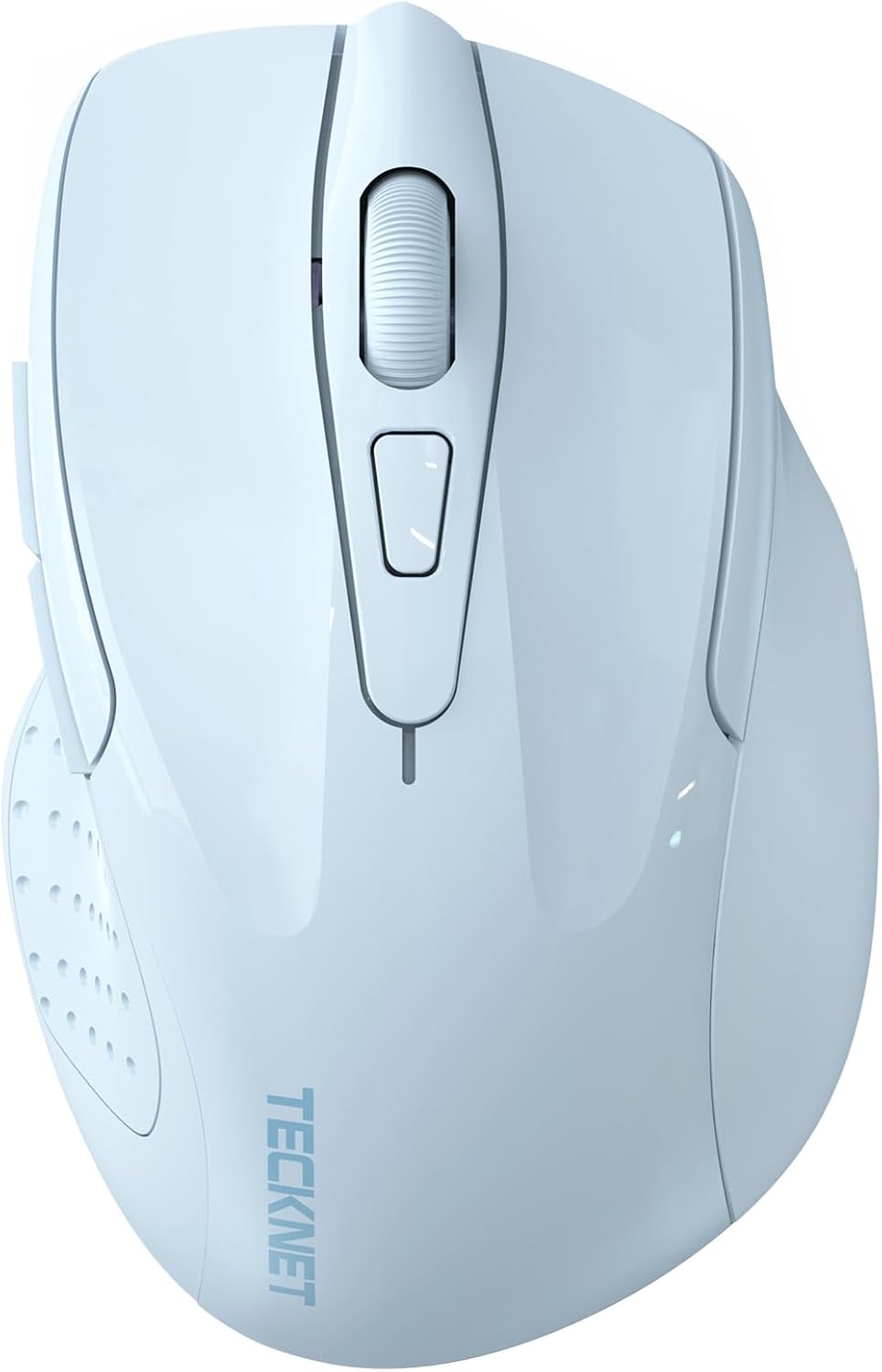
Image: Top-down view of the TECKNET Wireless Mouse, highlighting its sleek design.
Key Features
- Dual Device Connectivity: Seamlessly switch between 2.4G wireless (USB-A receiver) and Bluetooth (5.0/3.0) for connection to two devices.
- Adjustable DPI: Six sensitivity levels (800/1200/1600/2400/3200/4800 DPI) for precise control.
- Silent Operation: Whisper-quiet clicks for a distraction-free environment.
- Wide Compatibility: Supports Windows, macOS, Chrome OS, and Linux. (Note: Side buttons are not compatible with macOS).
- Ergonomic Design: Contoured shape fits the natural curvature of the hand for comfortable use.
- Intelligent Energy Saving: Automatic sleep mode extends battery life up to 30 months.
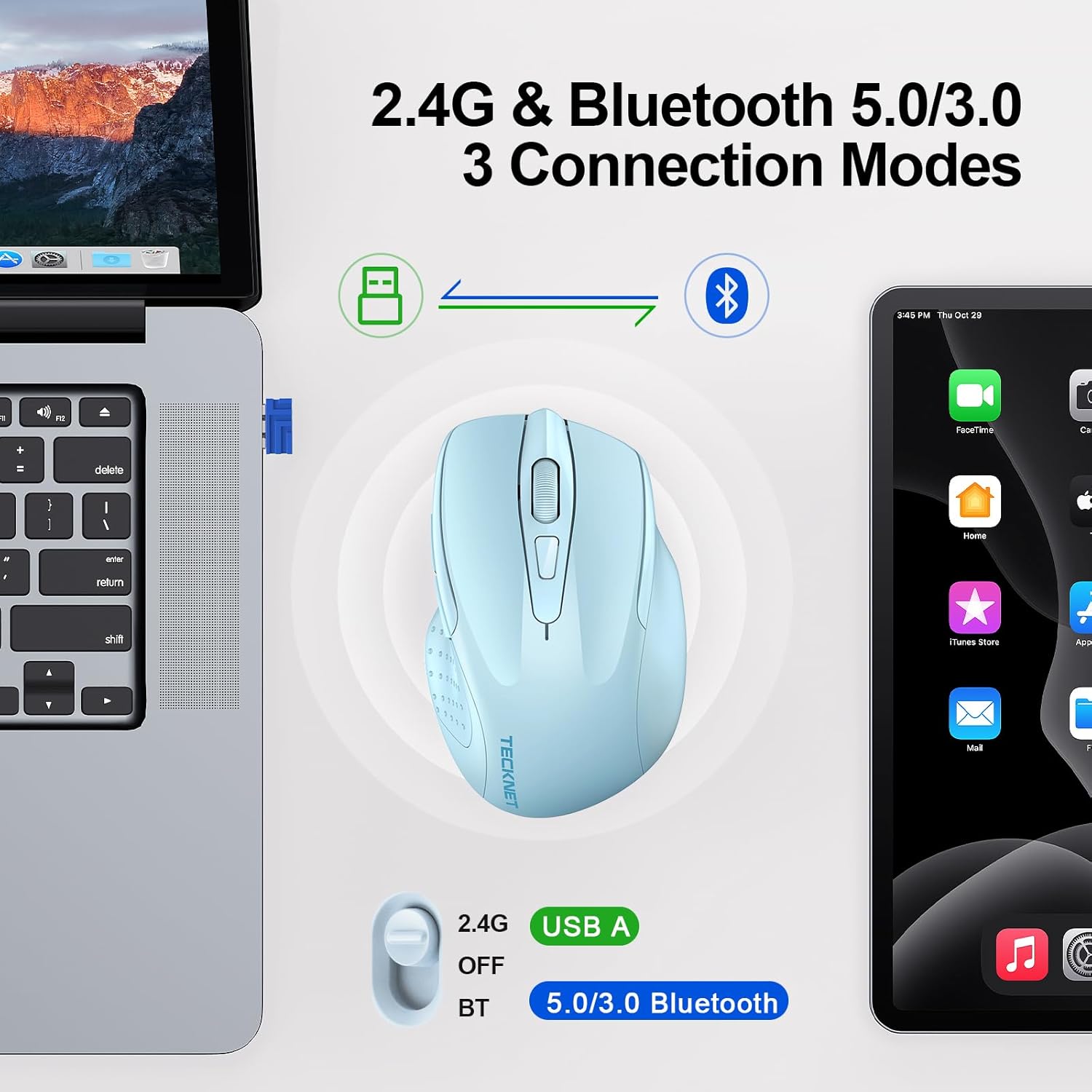
Image: Diagram illustrating the dual 2.4G and Bluetooth connection modes of the mouse with a laptop and tablet.
Setup Instructions
1. Battery Installation
- Locate the battery compartment on the underside of the mouse.
- Open the battery compartment cover.
- Insert two AAA batteries (not included), ensuring correct polarity (+/-).
- Close the battery compartment cover.

Image: The underside of the mouse with the battery compartment open, showing where to insert two AAA batteries.
2. Connecting via 2.4G Wireless (USB-A Receiver)
- Locate the USB-A receiver, typically stored in the battery compartment of the mouse.
- Plug the USB-A receiver into an available USB port on your computer.
- Slide the power switch on the bottom of the mouse to the '2.4G' position.
- The mouse should automatically connect to your computer. The green LED indicator will light up briefly.
3. Connecting via Bluetooth (BT5.0/3.0)
- Slide the power switch on the bottom of the mouse to the 'BT' position.
- Press and hold the Bluetooth pairing button (usually located near the power switch) for 3-5 seconds until the blue LED indicator starts flashing.
- On your computer or device, navigate to Bluetooth settings.
- Search for new devices and select 'TECKNET Mouse' (or similar) from the list.
- Follow any on-screen prompts to complete the pairing process. The blue LED indicator will stop flashing and remain solid once connected.

Image: Detailed diagram showing the location of the scroll wheel, left/right buttons, forward/backward buttons, DPI switch, Bluetooth pairing button, USB receiver storage, and battery compartment.
Operating Instructions
1. DPI Adjustment
Press the DPI switch button, located behind the scroll wheel, to cycle through the six available DPI settings (800/1200/1600/2400/3200/4800). This allows you to adjust the cursor sensitivity to your preference.

Image: Visual representation of the 6 adjustable DPI levels (800 to 4800) and the mouse for precise control.
2. Switching Between Devices
To switch between 2.4G wireless and Bluetooth connections, simply slide the power switch on the bottom of the mouse to the desired mode (2.4G or BT).
3. Side Buttons
The mouse features forward and backward side buttons for convenient navigation in web browsers and other applications. Please note that these side buttons are not compatible with macOS.
4. Automatic Sleep Mode
The mouse is equipped with an intelligent energy-saving feature. If left inactive for a period, it will enter an automatic sleep mode to conserve battery life. To reactivate the mouse, simply move it or click any button.

Image: Illustration of the mouse's working, stand-by, auto-sleep, and activation states.
Maintenance
1. Battery Replacement
When the red LED indicator flashes, it signifies low battery. Replace the two AAA batteries as described in the 'Battery Installation' section.

Image: Explanation of the LED indicator colors: Red for DPI/Low Battery, Blue for Bluetooth, Green for 2.4G.
2. Cleaning
To clean the mouse, use a soft, dry cloth. Avoid using harsh chemicals or abrasive materials, which may damage the surface.
Troubleshooting
- Mouse not responding: Ensure batteries are correctly installed and charged. Check that the power switch is in the correct position (2.4G or BT). For 2.4G, ensure the USB receiver is securely plugged in. For Bluetooth, verify the mouse is paired correctly in your device's Bluetooth settings.
- Erratic cursor movement: Try adjusting the DPI setting. Ensure the mouse is used on a clean, non-reflective surface.
- Connection issues: If using 2.4G, try plugging the USB receiver into a different USB port. If using Bluetooth, try unpairing and re-pairing the mouse with your device.
Specifications
| Model | M003 |
| Connectivity Technology | Bluetooth (5.0/3.0), 2.4G Wireless (USB A) |
| DPI Settings | 800, 1200, 1600, 2400, 3200, 4800 |
| Buttons | 6 (Left, Right, Scroll Wheel, DPI Switch, Forward, Backward) |
| Movement Detection | Optical |
| Power Source | 2 x AAA Batteries (not included) |
| Item Weight | 3.2 ounces |
| Package Dimensions | 4.45 x 3.19 x 1.85 inches |
| Compatibility | Windows, macOS, Chrome OS, Linux |
Warranty and Support
TECKNET offers 36 Months Support for this product. If you encounter any problems during use, please contact our professional customer service team for assistance. Please register your product to ensure full warranty benefits.
For further information or support, visit the official TECKNET Store.


