
1. Introduction
This manual provides detailed instructions for the setup, operation, and maintenance of your CORBOBO KI75 Wireless Mechanical Gaming Keyboard. The KI75 is a 75% layout keyboard featuring an aluminum alloy construction, hot-swappable switches, tri-mode connectivity (Bluetooth 5.0, 2.4GHz wireless, USB-C wired), and customizable RGB backlighting. Please read this manual thoroughly to ensure proper use and to maximize your keyboard's potential.

Image 1.1: The CORBOBO KI75 Wireless Mechanical Gaming Keyboard, showcasing its compact 75% layout and aluminum design.
2. Product Overview
The CORBOBO KI75 keyboard is engineered for performance and customization. Key features include:
- Aluminum Alloy Shell: Durable and premium construction.
- 75% Layout: Compact design retaining essential keys.
- Hot-Swappable Switches: Compatible with 3-pin and 5-pin mechanical switches.
- N-Key Rollover (NKRO): Ensures all simultaneous key presses are registered.
- 16 Million RGB Backlit: Customizable lighting effects.
- Macro Custom Programming: Personalize key functions via driver software.
- Tri-Mode Connection: Bluetooth 5.0, 2.4GHz Wireless, and USB-C Wired options.
- 4000mAh Battery: Extended wireless usage.
- Functional Knob: Multi-purpose control for media and lighting.
- Noise Reducing Design: Innovative gasket mount with five-layer sound dampening.
- Side-Engraved PBT Keycaps: Durable, fade-resistant, and comfortable.
- Pre-lubricated Linear Switches: Smooth and consistent keystrokes.
What's in the Box:
- CORBOBO KI75 Keyboard x 1
- User Manual x 1
- USB-C Cable x 1
- Keycap Puller x 1

Image 2.1: Visual representation of the CORBOBO KI75's key features, including its aluminum shell, 75% layout, and tri-mode connectivity.

Image 2.2: Diagram illustrating the five-layer sound deadening structure of the CORBOBO KI75 keyboard, designed to reduce hollow sounds and noise.
3. Setup
Initial Charging:
Before first use, connect the keyboard to a USB power source using the provided USB-C cable to fully charge the internal 4000mAh battery. The charging indicator will show the charging status.
Connectivity Options:
The KI75 supports three connection modes: Bluetooth 5.0, 2.4GHz Wireless, and USB-C Wired.
- USB-C Wired Connection: Connect the provided USB-C cable from the keyboard to your computer's USB port. The keyboard will automatically switch to wired mode.
- 2.4GHz Wireless Connection:
- Locate the 2.4G USB dongle, typically stored magnetically within the keyboard chassis (refer to Image 4.4).
- Plug the 2.4G USB dongle into an available USB port on your computer.
- Switch the keyboard's mode selector to 2.4G wireless. The keyboard should connect automatically.
- Bluetooth 5.0 Connection:
- Switch the keyboard's mode selector to Bluetooth.
- On your device (PC, laptop, tablet, smartphone), open Bluetooth settings and search for new devices.
- Select 'KI75' from the list of available devices to pair. The keyboard can pair with up to five devices simultaneously.

Image 3.1: Illustration of the CORBOBO KI75's tri-mode connectivity, showing compatibility with various devices and operating systems via Bluetooth, 2.4GHz, and USB-C.
4. Operating Instructions
Multi-Function Control Knob:
The versatile control knob on the KI75 keyboard operates in two modes: Gaming and Office.
- Switching Modes: Long-press the knob for approximately 3 seconds to toggle between Gaming and Office modes.
- Gaming Mode: Rotate the knob to adjust RGB lighting brightness. Click the knob to cycle through various lighting effects.
- Office Mode: Rotate the knob to control volume levels. Click the knob to play or pause media.
RGB Backlighting:
The KI75 features 16.8 million RGB backlighting colors with extensive customization options.
- Pre-set Effects: The keyboard comes with 15 pre-set lighting effects.
- Music Rhythm Effects: 10 dynamic music rhythm lighting effects are available via the driver software.
- Adjustments: Adjust lighting brightness and speed using the control knob (in Gaming Mode) or specific FN + key combinations.
- Single Color/Off: Choose a single-color effect or turn off the backlight as desired.
Hot-Swappable Switches:
The KI75 keyboard supports hot-swapping, allowing you to change mechanical switches without soldering. It is compatible with both 3-pin and 5-pin switches. This feature enables personalization of typing feel and sound.
Programmable Keys:
Customize individual key functions and create complex macro combinations using the dedicated KI75 driver software. This enhances both gaming performance and work efficiency. The keyboard also supports locking the WIN key to prevent accidental presses during gameplay.

Image 4.1: Close-up view of the CORBOBO KI75's hot-swappable switch sockets, demonstrating compatibility with various mechanical switches and the light diffuser.
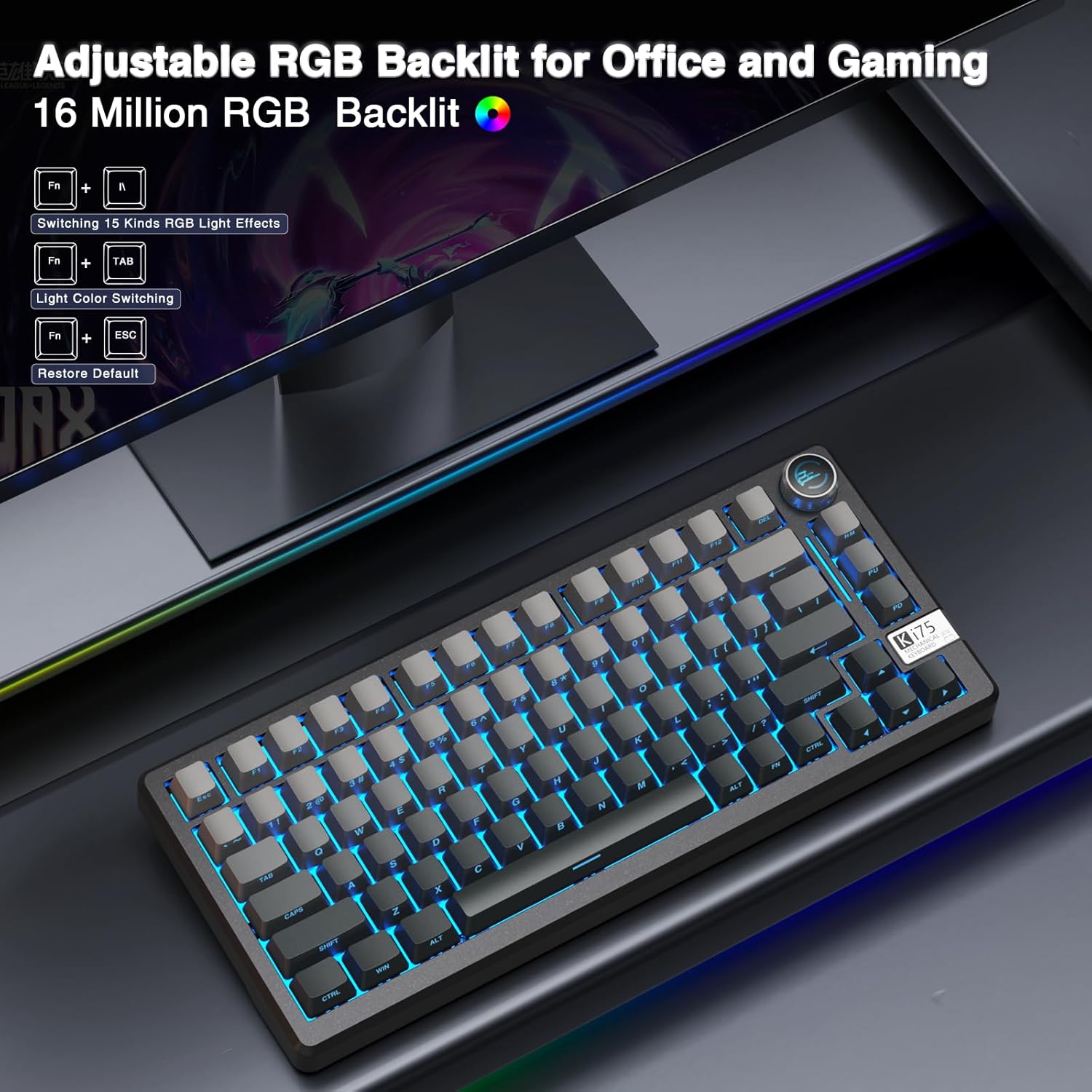
Image 4.2: The CORBOBO KI75 keyboard displaying its adjustable RGB backlighting, with controls for switching lighting effects and colors.
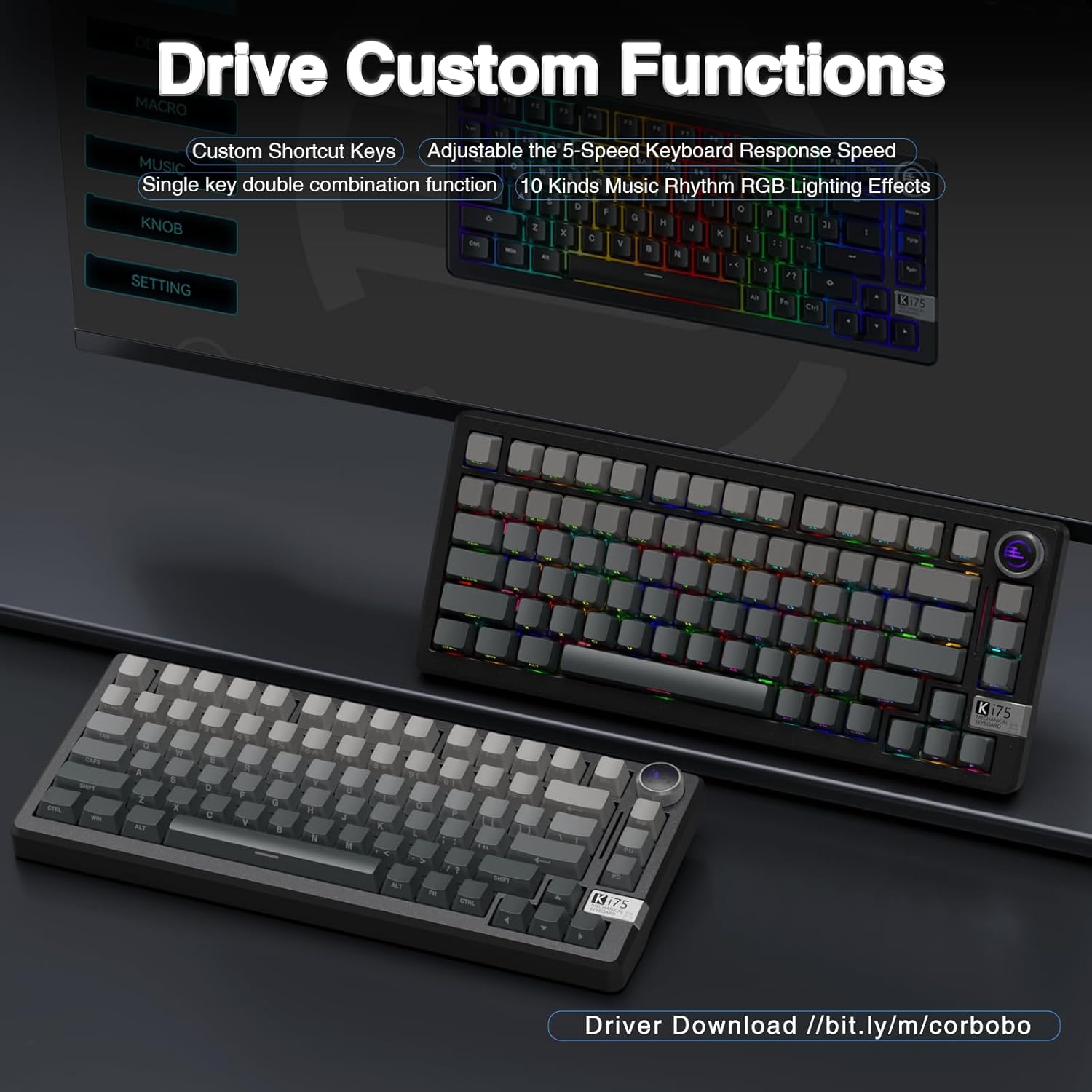
Image 4.3: Screenshot showing the interface for customizing functions and settings via the CORBOBO KI75 driver software, including macro programming and RGB effects.

Image 4.4: Detailed views of the CORBOBO KI75's multi-function knob, the magnetic storage for the USB 2.4G dongle, and the non-slip silicone stand.
5. Maintenance
- Cleaning: Use a soft, dry cloth to wipe the keyboard surface. For deeper cleaning, use a keycap puller to remove keycaps and a can of compressed air to clear debris from between switches. Avoid using harsh chemicals or abrasive materials.
- Battery Care: To prolong battery life, avoid fully discharging the keyboard frequently. Charge the keyboard when the battery indicator is low. If storing the keyboard for an extended period, charge it to approximately 50% before storage.
- Switch Replacement: When replacing switches, use the provided switch puller. Ensure the new switch pins are aligned correctly with the hot-swap sockets to prevent damage.
6. Troubleshooting
- Keyboard Not Responding:
- Ensure the keyboard is charged.
- Check the connection mode (USB-C, 2.4GHz, Bluetooth) and ensure it matches your device's connection.
- For 2.4GHz, ensure the dongle is securely plugged in.
- For Bluetooth, ensure the keyboard is paired and selected in your device's Bluetooth settings.
- Try connecting via USB-C cable to rule out wireless issues.
- RGB Backlighting Not Working/Incorrect:
- Ensure the keyboard is not in a mode where backlighting is turned off.
- Adjust brightness using the control knob or FN key combinations.
- If using custom effects, verify settings in the driver software.
- Keys Not Registering:
- Remove the keycap and switch for the affected key. Re-seat the switch firmly into the socket.
- If the issue persists, try replacing the switch with a known working one.
- Driver Software Issues: If experiencing problems with custom functions or macros, ensure you have the latest driver software installed from the official CORBOBO support channels.
7. Specifications
| Feature | Specification |
|---|---|
| Model Number | KI75 |
| Product Dimensions | 14.7 x 7.2 x 2.95 inches (37.34 x 18.29 x 7.49 cm) |
| Item Weight | 3.83 pounds (1.74 kg) |
| Connectivity Technology | Bluetooth 5.0, 2.4G Wireless, USB-C Wired |
| Battery Capacity | 4000mAh |
| Keyboard Description | Aluminum Wireless Mechanical Gaming Keyboard |
| Special Features | Aluminum Mechanical keyboard, Hot-Swappable, Programmable Keys, Quiet Operation, RGB Backlit, Side-Printed PBT Keycaps |
| Compatible Devices | Gaming Console, Laptop, PC, Smartphone, Tablet |
| Keyboard Backlighting | RGB (16.8 Million Colors) |
8. Warranty and Support
For warranty information and technical support, please refer to the documentation included with your purchase or contact CORBOBO customer service through the retailer where the product was purchased. Keep your proof of purchase for warranty claims.
For driver software downloads and further assistance, please visit the official CORBOBO support website or contact their customer support directly. Contact information may be available on the product packaging or the retailer's product page.