
UPERFECT 245T02
UPERFECT 22" 2K Portable Touchscreen Monitor User Manual
Model: 245T02
1. Introduction
This manual provides comprehensive instructions for the setup, operation, and maintenance of your UPERFECT 22" 2K Portable Touchscreen Monitor. This monitor is designed to enhance productivity and entertainment with its responsive touch interaction, expansive display, and versatile connectivity.
The UPERFECT 22" touchscreen portable monitor features a smooth glass screen with 10-point capacitive touch for quick, responsive interaction. Its 2K QHD (2560 x 1440) IPS display delivers crystal-clear visuals for an immersive experience. Please note: Touch is not supported on iOS/iPadOS; MacOS supports 2-touch for web pages and images.
2. Product Features
- Responsive Touch Interaction & Expansive Display: 10-point capacitive touch screen with 2K QHD (2560 x 1440) IPS display.
- Superior Color Accuracy: 100% sRGB color gamut coverage, 300 nits brightness, and 1000:1 contrast ratio.
- Versatile Connectivity: Equipped with a mini HDMI port and dual USB-C 3.1 ports for wide compatibility.
- Ergonomic Design: Sleek, ultra-slim profile with VESA mount compatibility and a patented 180° adjustable kickstand.
- Multitasking Capabilities: Expansive screen real estate and FreeSync adaptive sync technology for seamless experiences.
- Built-in Speakers: Integrated speakers for audio output.
- Eye Care Features: Flicker-Free and Low Blue Light technologies to reduce eye strain.

Figure 1: UPERFECT 22" 2K Portable Touchscreen Monitor.
3. Setup Guide
3.1 Package Contents
Before setup, ensure all items are present:
- 1 x UPERFECT 22" Portable Monitor
- 1 x Mini HDMI Cable
- 1 x USB A to USB C Cable
- 2 x Type C to Type C Cable
- 1 x PD 30W Power Charger
3.2 Connecting the Monitor
The monitor supports various connection methods. Choose the appropriate method based on your device:
- USB-C Connection (Full-featured): For devices with a full-featured USB-C port (supporting video, audio, and power delivery). Connect one end of the Type-C to Type-C cable to your device's USB-C port and the other end to one of the monitor's USB-C 3.1 ports. The monitor will draw power and display content simultaneously.
- HDMI Connection: For devices with an HDMI output. Connect the Mini HDMI cable from your device to the monitor's Mini HDMI port. You will also need to power the monitor separately using the provided PD 30W Power Charger and a Type-C to Type-C cable connected to one of the monitor's USB-C ports.
- Powering the Monitor: If your device does not provide sufficient power via USB-C, or if using HDMI, connect the PD 30W Power Charger to a power outlet and then to one of the monitor's USB-C ports using a Type-C to Type-C cable.

Figure 2: Multiport and Wide Compatibility Overview.
This image illustrates the various input/output ports on the monitor, including Type-C 3.1 ports, Mini HDMI port, Micro USB-B OTG, and a 3.5mm Audio Jack, along with control buttons for power, menu, brightness, and volume.
3.3 Using the Kickstand and VESA Mount
- Integrated Kickstand: The monitor features a patented 180° adjustable kickstand. Simply fold it out from the back of the monitor to achieve your desired viewing angle (12-60°).
- VESA Mounting: For more permanent setups or multi-monitor configurations, the monitor is VESA compatible (75x75 mm). Use M4x4 mm screws to attach it to a VESA-compatible arm or wall mount.
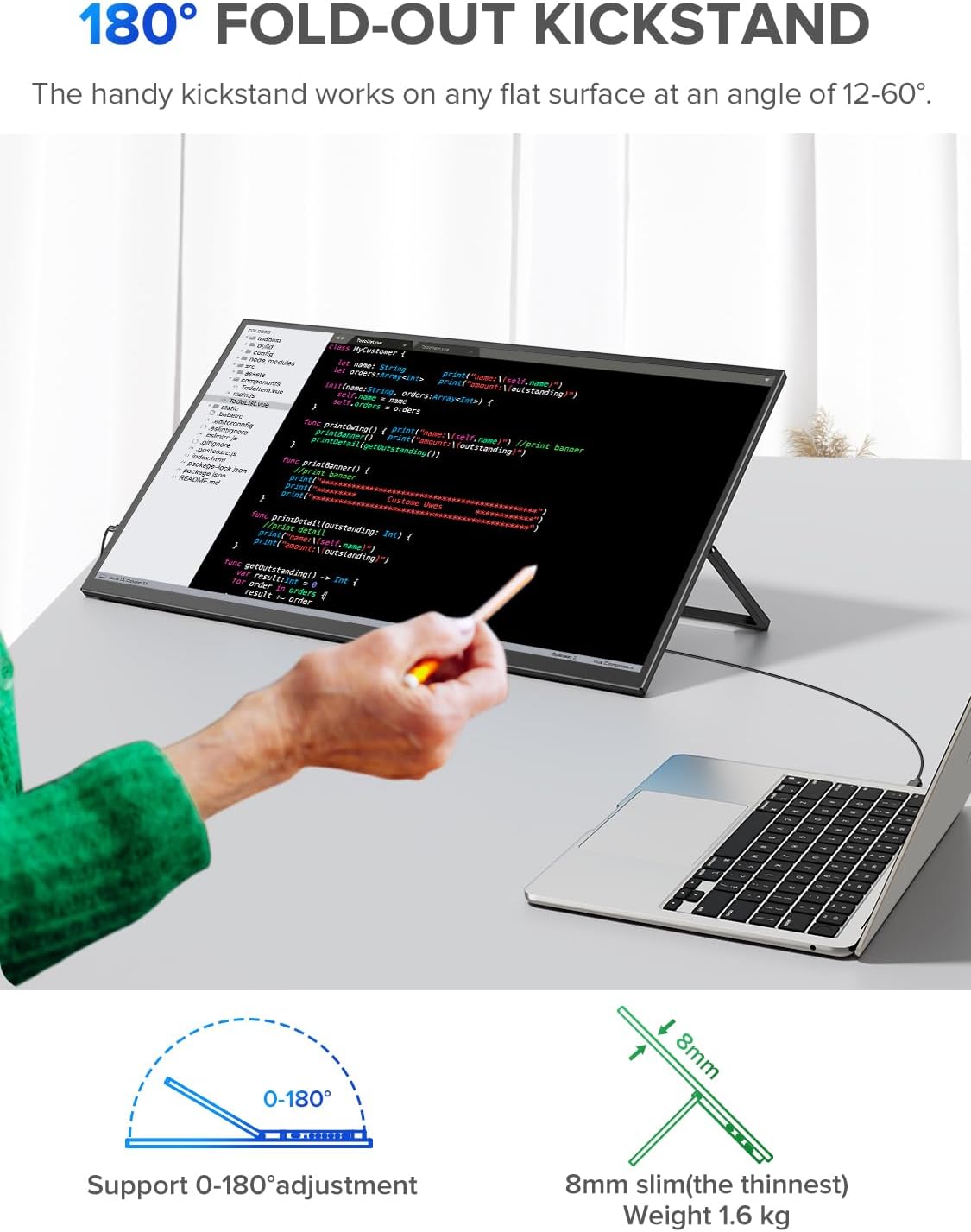
Figure 3: 180° Fold-Out Kickstand in use.
This image demonstrates the monitor's adjustable kickstand, allowing for flexible viewing angles when used with a laptop.
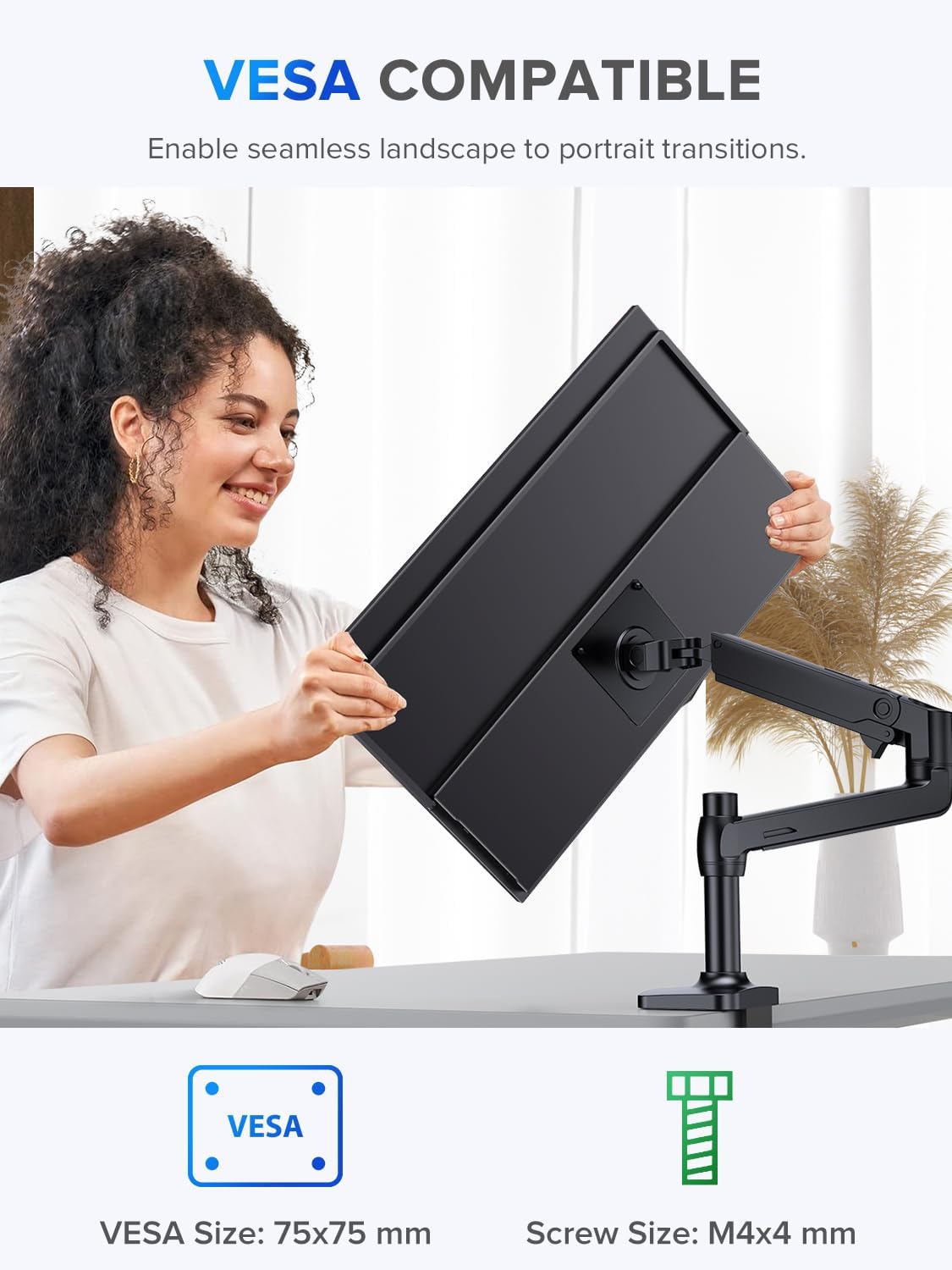
Figure 4: VESA Compatible Mounting.
This image shows the monitor being attached to a VESA mount, highlighting its compatibility for various setup configurations.
4. Operating Instructions
4.1 Power On/Off
Press and hold the "Turn ON/OFF" button (refer to Figure 2) to power the monitor on or off.
4.2 On-Screen Display (OSD) Menu
Use the "Menu/Confirm" button to access the OSD menu. Navigate through options using the "Brightness+/-" and "Volume+/-" buttons, and confirm selections with "Menu/Confirm".
- Brightness/Contrast: Adjust display brightness and contrast levels.
- Color Settings: Modify color temperature, hue, and saturation.
- Input Source: Manually select between USB-C and HDMI inputs.
- Audio: Adjust volume for the built-in speakers or connected headphones.
- System Settings: Language, OSD timeout, and reset options.
4.3 Touchscreen Functionality
The monitor supports 10-point capacitive touch for intuitive interaction with compatible devices. Common gestures include:
- Slide: Drag your finger across the screen.
- Touch: Tap the screen to select items.
- Enlarge/Narrow: Pinch-to-zoom gestures.
- Drag: Press and hold, then move your finger.
Note: Touch functionality is not supported on iOS/iPadOS devices. MacOS supports 2-touch gestures for web pages and images only.

Figure 5: 10-Point Capacitive Touch Features.
This image visually explains the various touch gestures supported by the monitor, including slide, touch, enlarge, narrow, and drag.
5. Maintenance
Proper maintenance ensures the longevity and optimal performance of your monitor.
- Cleaning the Screen: Gently wipe the screen with a soft, lint-free cloth. For stubborn smudges, slightly dampen the cloth with water or a non-abrasive screen cleaner. Avoid using alcohol-based cleaners or harsh chemicals.
- Cleaning the Casing: Use a soft, dry cloth to clean the monitor's casing.
- Storage: When not in use, store the monitor in a cool, dry place, away from direct sunlight and extreme temperatures.
- Handling: Always handle the monitor by its edges. Avoid applying pressure to the screen.
6. Troubleshooting
If you encounter issues with your UPERFECT portable monitor, refer to the following common problems and solutions:
| Problem | Possible Cause | Solution |
|---|---|---|
| No display/No signal | Incorrect cable connection, insufficient power, incorrect input source selected. |
|
| Touchscreen not responding | Incompatible device, driver issue, loose USB connection. |
|
| Brightness resets to 0 after inactivity | Firmware bug or power saving setting. |
|
| Flickering screen | Cable quality, refresh rate mismatch, power instability. |
|
7. Specifications
| Feature | Detail |
|---|---|
| Brand | UPERFECT |
| Model Number | 245T02 |
| Screen Size | 22 Inches |
| Display Resolution | 2560 x 1440 (QHD Ultra Wide 1440p) |
| Display Technology | IPS LCD |
| Refresh Rate | 60 Hz |
| Response Time | 1 Millisecond |
| Brightness | 300 nits |
| Contrast Ratio | 1000:1 |
| Viewing Angle | 178 Degrees |
| Aspect Ratio | 16:9 |
| Connectivity | 2 x USB Type-C 3.1, 1 x Mini HDMI, 1 x 3.5mm Audio Jack, 1 x Micro USB-B OTG |
| Special Features | Portable, Frameless, Flicker-Free, Eye Care, Built-In Speakers, 10-point Capacitive Touch, FreeSync |
| Mounting Type | Desk Mount, VESA Compatible (75x75 mm) |
| Product Dimensions | 2 x 49 x 28 cm |
| Weight | 3.76 kg |

Figure 6: Display Technology and Specifications.
This image highlights key display specifications such as 2K Ultra HD resolution, IPS panel, 100% sRGB, 300 cd/m² brightness, and 1000:1 contrast ratio.
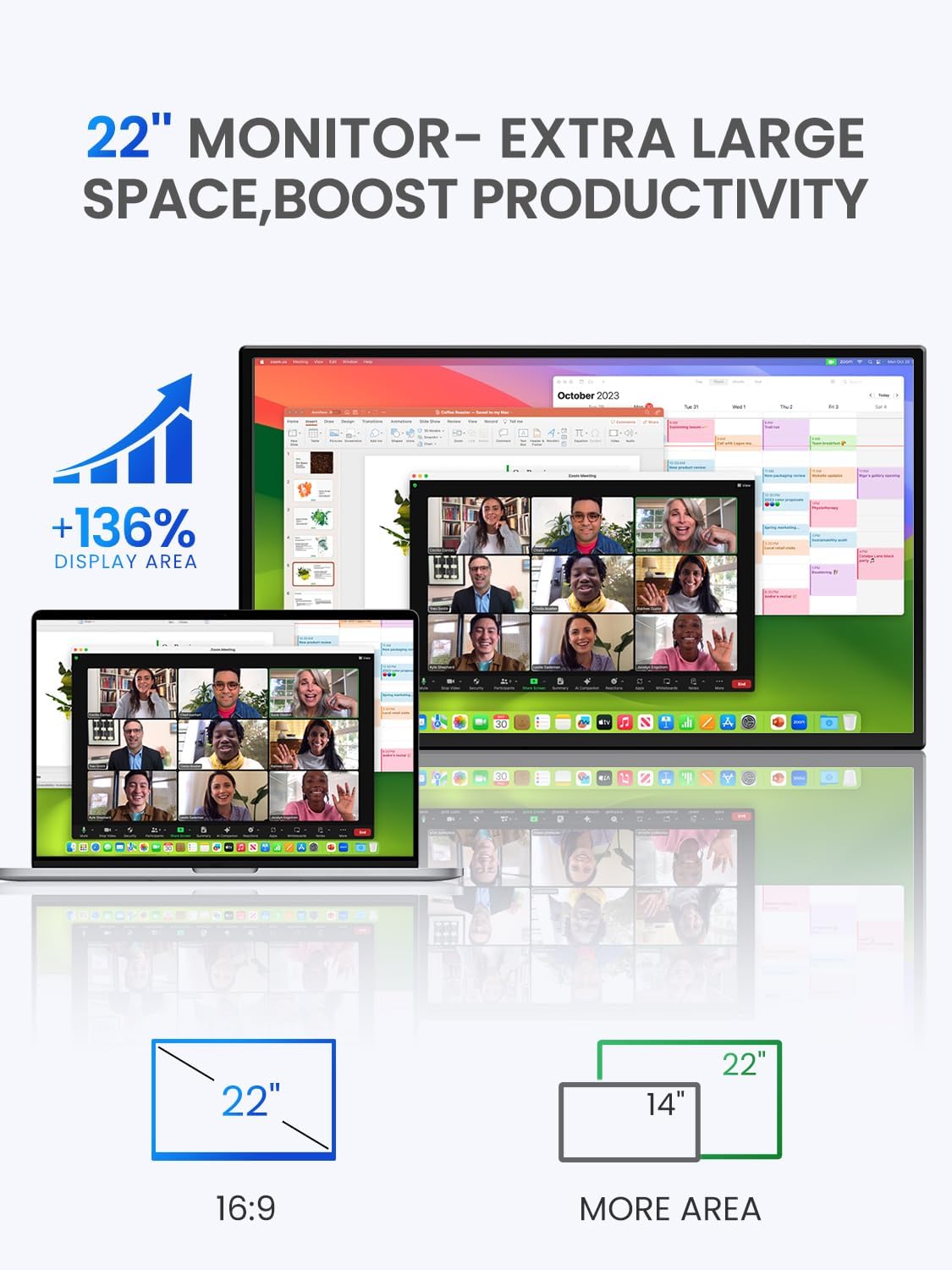
Figure 7: Enhanced Productivity with 22" Display.
This image illustrates the significant increase in display area provided by the 22-inch monitor compared to a smaller 14-inch screen, emphasizing productivity benefits.
8. Warranty and Support
UPERFECT products are designed for reliability and performance. For warranty information and technical support, please refer to the official UPERFECT website or contact their customer service directly. Keep your purchase receipt for warranty claims.
For further assistance, visit the UPERFECT Brand Store on Amazon or the manufacturer's official support channels.
Related documents245T02


Ask a question about this manual
Ask about setup, troubleshooting, compatibility, parts, safety, or missing instructions. Manuals+ will review the question and use this page’s manual context to help answer it.