
TECKNET BM307
TECKNET Wireless Mouse (Model BM307) Instruction Manual
Dual Mode 2.4G & Bluetooth 5.0/3.0 Silent Mouse
Introduction
Thank you for choosing the TECKNET Wireless Mouse. This manual provides detailed instructions for setting up, operating, and maintaining your mouse to ensure optimal performance. This mouse offers versatile connectivity options, precise control, and a comfortable, silent user experience.
Product Overview
Familiarize yourself with the components of your TECKNET Wireless Mouse.

Image: Front and bottom view of the TECKNET Wireless Mouse, highlighting the scroll wheel, left/right buttons, forward/backward buttons, DPI switch, Bluetooth pairing button, USB receiver storage, and battery compartment.
- Left/Right Buttons: Standard mouse click functions.
- Scroll Wheel: For vertical scrolling and middle-click function.
- Forward/Backward Buttons: Navigate web pages or documents. (Note: Side buttons are not compatible with macOS).
- DPI Switch Button: Adjusts mouse sensitivity (4800/3200/2400/1600/1200/800 DPI).
- Bluetooth Pairing Button: Initiates Bluetooth pairing mode.
- 2.4G/Off/BT Switch: Selects connection mode or turns off the mouse.
- USB Receiver: Stores securely within the mouse for 2.4G wireless connection.
- Battery Compartment: Holds 2 AAA batteries (not included).
- LED Indicator: Displays connection status and low battery warning.
Setup
1. Installing Batteries
- Open the battery compartment cover on the underside of the mouse.
- Insert 2 AAA batteries (not included), ensuring correct polarity (+/-).
- Close the battery compartment cover.

Image: The underside of the mouse with the battery cover removed, showing two AAA batteries correctly inserted.
2. Connecting the Mouse
The TECKNET Wireless Mouse supports two connection modes: 2.4G Wireless (via USB receiver) and Bluetooth.
2.1. 2.4G Wireless Connection (USB Receiver)
- Locate the USB receiver stored in the battery compartment of the mouse.
- Plug the USB receiver into an available USB-A port on your computer.
- Slide the switch on the bottom of the mouse to the "2.4G" position.
- The mouse should automatically connect to your computer.

Image: A green TECKNET Wireless Mouse positioned between a laptop with a USB-A receiver plugged in and a tablet, illustrating dual connectivity options.
Text Description for Video: This video demonstrates the process of installing AAA batteries into the TECKNET Wireless Mouse and connecting it via the 2.4G USB receiver. It shows the location of the battery compartment and the USB receiver, as well as the power/mode switch on the underside of the mouse. The video also highlights the forward/backward buttons and DPI switch on the top of the mouse.
2.2. Bluetooth Connection
- Slide the switch on the bottom of the mouse to the "BT" position.
- Press and hold the Bluetooth pairing button (usually located near the mode switch) for 3-5 seconds until the LED indicator starts blinking blue, indicating pairing mode.
- On your computer or device, go to Bluetooth settings and search for new devices.
- Select "TECKNET Mouse" (or similar name) from the list of available devices to pair.
- The LED indicator will stop blinking and remain solid blue once connected.
Text Description for Video: This video provides a detailed demonstration of how to set up and pair the TECKNET Wireless Mouse using its Bluetooth functionality. It shows the user switching the mouse to Bluetooth mode, pressing the pairing button, and then connecting it to a computer. The video also briefly showcases the silent click feature and the ergonomic design of the mouse.
Text Description for Video: This video highlights the silent click feature of the TECKNET Wireless Mouse and demonstrates its easy pairing process via Bluetooth. The user shows the mouse's underside, including the battery compartment and the mode switch, and then performs a silent click to emphasize the quiet operation. The video also briefly mentions the convenience of using AAA batteries.
Operating Instructions
DPI Adjustment
Press the DPI switch button located on the top of the mouse to cycle through 6 adjustable DPI settings: 800, 1200, 1600, 2400, 3200, and 4800. This allows you to customize cursor speed and precision to your preference.

Image: The TECKNET Wireless Mouse with an overlay showing the 6 adjustable DPI settings, emphasizing precise control.
Silent Click Feature
The mouse is designed for silent operation, providing whisper-quiet clicks. This feature is ideal for environments where noise reduction is important, such as libraries, offices, or late-night use.

Image: A person using the TECKNET Wireless Mouse in a quiet environment, with text indicating "Silent Click" and "Inaudible click sound, quiet and focused, without disturbing others."
Automatic Sleep Mode
To conserve battery life, the mouse will automatically enter sleep mode after approximately 5 minutes of inactivity. To wake the mouse, simply click any button.
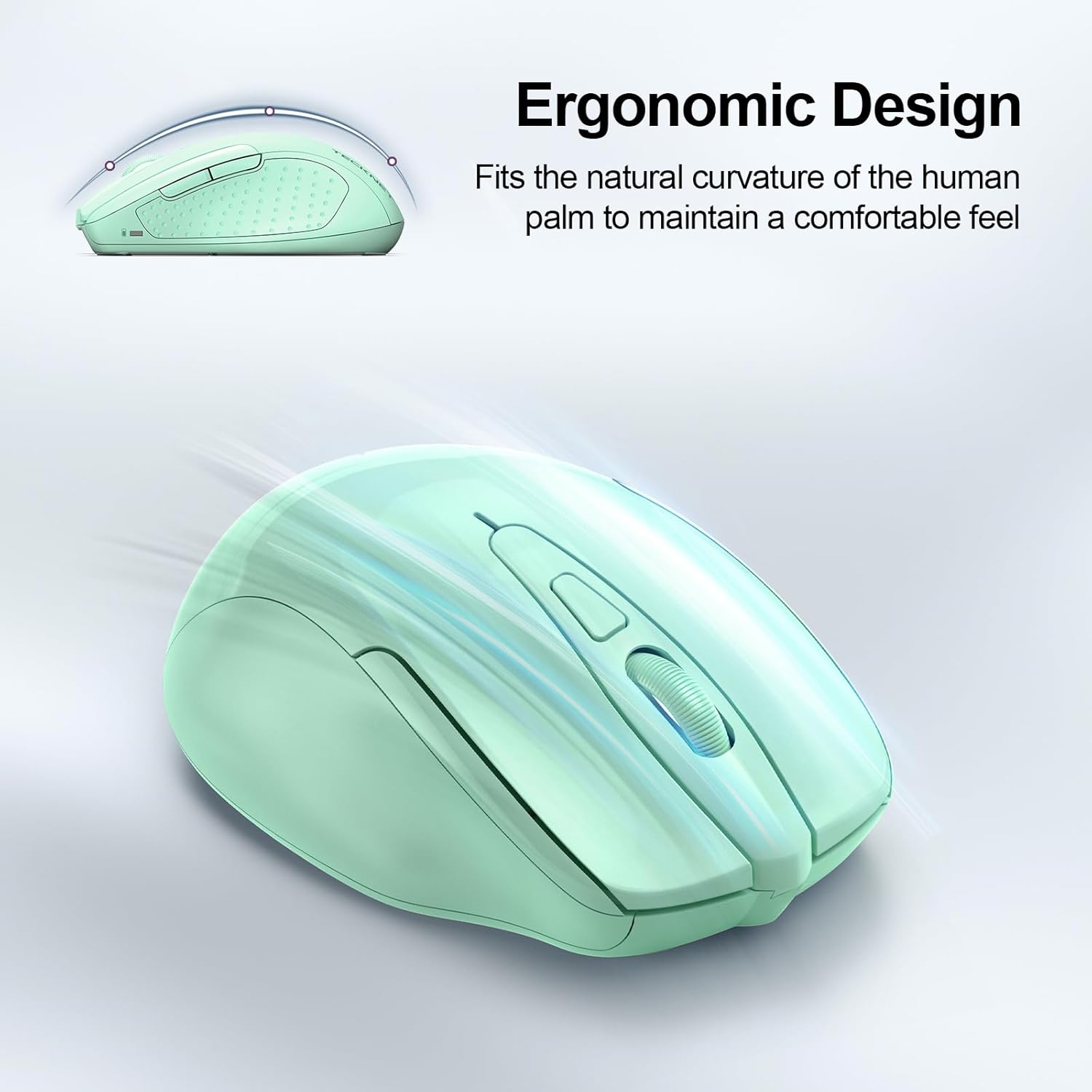
Image: A visual representation of the mouse's power states: Working, Stand-by, Auto-sleep, and how to activate it by pressing a button.
Maintenance
- Cleaning: Use a soft, dry cloth to clean the mouse. Avoid using harsh chemicals or abrasive materials.
- Battery Replacement: Replace batteries when the LED indicator shows a low battery warning (red light).
- Storage: When not in use for extended periods, turn off the mouse using the switch on the bottom to further conserve battery life.
Troubleshooting
| Problem | Solution |
|---|---|
| Mouse not responding. |
|
| Cursor movement is erratic or slow. |
|
| Bluetooth connection drops frequently. |
|
| Side buttons not working on macOS. | Side buttons are not compatible with macOS. This is a known limitation. |
Specifications
| Feature | Detail |
|---|---|
| Model | BM307 |
| Connectivity | 2.4G Wireless (USB-A receiver), Bluetooth 5.0/3.0 |
| DPI Levels | 800, 1200, 1600, 2400, 3200, 4800 (Adjustable) |
| Buttons | 6 Buttons (Left/Right, Scroll Wheel, Forward/Backward, DPI Switch, Bluetooth Pairing) |
| Power Source | 2 x AAA Batteries (not included) |
| Special Features | Silent Click, Ergonomic Design, Automatic Sleep Mode |
| Compatibility | Windows, macOS (side buttons not compatible), Chrome OS, Linux |
| Dimensions | 4.53 x 3.15 x 1.85 inches |
| Weight | 3.52 ounces |
Warranty and Support
TECKNET offers a 36 Months Warranty (Registered Only) for this product. If you encounter any problems or have questions regarding the use of your TECKNET Wireless Mouse, please contact our professional customer service team for assistance.
Contact information can typically be found on the TECKNET official website or through your purchase platform.
Related documentsBM307


Ask a question about this manual
Ask about setup, troubleshooting, compatibility, parts, safety, or missing instructions. Manuals+ will review the question and use this page’s manual context to help answer it.