1. Introduction
This manual provides essential instructions for the safe and efficient operation of your RadioShack Home Projector. Please read this manual thoroughly before using the device and retain it for future reference.
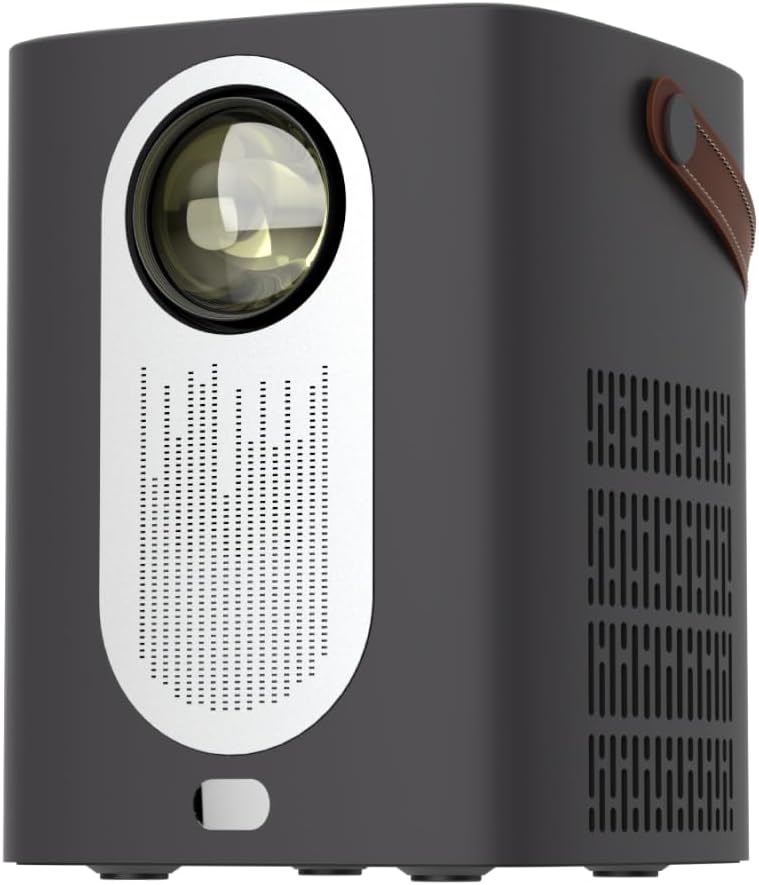
Image 1.1: Front view of the RadioShack Home Projector, showcasing its lens and speaker grille.
2. Package Contents
Verify that all items are present in the package:
- 1 x RadioShack Home Projector
- 1 x Remote Control
- 1 x Power Cable
- 1 x User Manual (this document)

Image 2.1: Illustration of the package contents, including the projector, remote control, power cable, and user manual.
3. Product Overview
3.1. Key Features
- High-Resolution Display: Supports full HD resolution for clear and detailed images.
- Bright and Long-Lasting: Features impressive brightness and a durable light source.
- Versatile Connectivity: Includes Bluetooth, WiFi, Android Miracast, and iOS Cast for streaming.
- Enhanced Viewing: Digital focus and keystone correction for optimal image alignment.
- Compact and Portable: Lightweight design with a handle for easy transport.
3.2. Ports and Controls
Familiarize yourself with the projector's input/output ports and controls.

Image 3.1: Rear view of the projector showing USB input for media playback, AV input for DVD players, and HDMI input for various devices like video game consoles, streaming sticks, cell phones, tablets, and laptops.

Image 3.2: Side view illustrating the compact dimensions (approximately 7 inches tall, 5.3 inches wide) and the integrated leather handle for portability.
4. Setup Guide
4.1. Initial Power On
- Connect the power cable to the projector and a suitable power outlet.
- Press the power button located on the top of the projector or on the remote control to turn on the device. The indicator light will illuminate.
- The RadioShack logo will appear on the projection surface, indicating successful power-on.
Video 4.1: A short demonstration showing the unboxing, connecting the power cable, powering on the projector, and the initial display of the RadioShack logo.
4.2. Placement and Focus
- Place the projector on a stable, flat surface, ensuring the lens is unobstructed.
- Adjust the distance from the projection surface (wall or screen) to achieve the desired image size.
- Use the digital focus adjustment (refer to the remote control or on-screen menu) to sharpen the image.
- Utilize keystone correction if the image appears trapezoidal, to achieve a rectangular projection.
5. Operating Instructions
5.1. Connecting Devices
The projector supports multiple input sources:
- HDMI: Connect devices such as laptops, gaming consoles, streaming boxes, or Blu-ray players using an HDMI cable. Select HDMI as the input source from the projector's menu.
- USB: Insert a USB drive to play compatible video or audio files. Select USB as the input source.
- AV: Connect older devices like DVD players using an AV cable. Select AV as the input source.
- Bluetooth: Pair with Bluetooth audio devices for wireless sound output.
- WiFi / Casting: Connect to a Wi-Fi network to enable Android Miracast or iOS Cast for screen mirroring from compatible smartphones and tablets.

Image 5.1: A couple enjoying content projected by the RadioShack Home Projector, demonstrating its use in a home cinema setting.
5.2. Remote Control Functions
The included remote control allows for convenient operation:
- Power: Turn the projector on/off.
- Source: Select input sources (HDMI, USB, AV, etc.).
- Navigation: Arrow keys to navigate menus, OK button to confirm.
- Volume: Adjust audio output level.
- Focus/Keystone: Access digital focus and keystone correction settings.

Image 5.2: The RadioShack Home Projector placed on a table next to its remote control, ready for use.
6. Maintenance
- Cleaning the Lens: Use a soft, lint-free cloth specifically designed for optical lenses to gently wipe the projector lens. Avoid abrasive materials or harsh chemicals.
- Cleaning the Exterior: Wipe the projector's exterior with a soft, dry cloth. Do not use liquid cleaners directly on the device.
- Ventilation: Ensure the projector's ventilation openings are clear of dust and obstructions to prevent overheating.
- Storage: When not in use for extended periods, store the projector in a cool, dry place, away from direct sunlight and extreme temperatures.
7. Troubleshooting
| Problem | Possible Cause | Solution |
|---|---|---|
| No image displayed | Power cable disconnected; incorrect input source selected; lens cap on. | Check power connection; select correct input source (HDMI, USB, AV); remove lens cap. |
| Image is blurry | Focus not adjusted; projector too close/far from screen. | Adjust digital focus; reposition projector for optimal distance. |
| No sound | Volume too low; external audio device not connected/paired; incorrect audio output selected. | Increase volume; ensure Bluetooth device is paired or wired audio is connected; check audio output settings. |
| Remote control not working | Batteries depleted; obstruction between remote and projector. | Replace remote control batteries; ensure clear line of sight to the projector's IR receiver. |
8. Specifications
- Brand: RadioShack
- Model: Home Projector (ASIN: B0DP1GFG9L)
- Display Resolution: 1280 x 720 (Supports Full HD)
- Connectivity Technology: AV, HDMI, USB, Bluetooth, WiFi (Android Miracast, iOS Cast)
- Special Features: Portable, Digital Focus, Keystone Correction
- Recommended Use: Home Cinema
- Product Dimensions: 5.31 x 5.31 x 7.09 inches
- Item Weight: 3.91 pounds

Image 8.1: The projector displaying content, highlighting its support for full HD resolution and high-quality sound.
9. Warranty and Support
For warranty information and technical support, please refer to the official RadioShack website or contact their customer service. Keep your purchase receipt as proof of purchase.
Online Support: www.radioshack.com


