
Armitron Matrix
Armitron Connect Matrix Smartwatch User Manual
Model: Matrix
Introduction
Welcome to the Armitron Connect Matrix Smartwatch user manual. This guide provides comprehensive instructions to help you get the most out of your new smartwatch. The Armitron Connect Matrix is designed to seamlessly integrate into your daily life, offering advanced health monitoring, fitness tracking, and communication features. Please read this manual carefully to ensure proper setup and operation.

The Armitron Connect Matrix Smartwatch, featuring a vibrant display and sleek silver design.
1. Setup
1.1 What's in the Box
- Armitron Connect Matrix Smartwatch
- Charging Cable
- User Manual (this document)

Front view of the Armitron Connect Matrix Smartwatch retail packaging.

The Armitron Connect Matrix Smartwatch and its contents as seen when the packaging is opened.
1.2 Charging Your Smartwatch
Before first use, fully charge your Armitron Connect Matrix Smartwatch. Connect the provided charging cable to the charging port on the back of the watch and plug the other end into a USB power source (e.g., computer USB port, wall adapter). A full charge typically lasts up to four days, depending on usage.

The rear of the Armitron Connect Matrix Smartwatch, highlighting the charging contacts and IP68 water resistance marking.
1.3 Installing the Armitron Connect App
The full functionality of your smartwatch is unlocked through the Armitron Connect app. Download the app from your device's app store:
- For Android devices: Search for "Armitron Connect" on the Google Play Store. (Requires Android 5.0 or higher)
- For iOS devices: Search for "Armitron Connect" on the Apple App Store. (Requires iOS 9.0 or higher)
Install the app and create an account or log in if you already have one.
1.4 Pairing Your Smartwatch
- Ensure Bluetooth is enabled on your smartphone.
- Open the Armitron Connect app.
- Follow the on-screen instructions within the app to search for and connect to your Armitron Connect Matrix Smartwatch. The app will guide you through the pairing process.
- Confirm the pairing request on both your smartphone and smartwatch if prompted.
Once paired, your watch will synchronize data with the app and allow access to all features.
2. Operating Your Smartwatch
2.1 Navigation and Interface
The Armitron Connect Matrix features an AMOLED High Definition touchscreen display for intuitive interaction. You can navigate through menus and features by swiping across the screen. The side dial can also be used for scrolling and selecting options, as well as turning the watch on/off and controlling volume during calls.
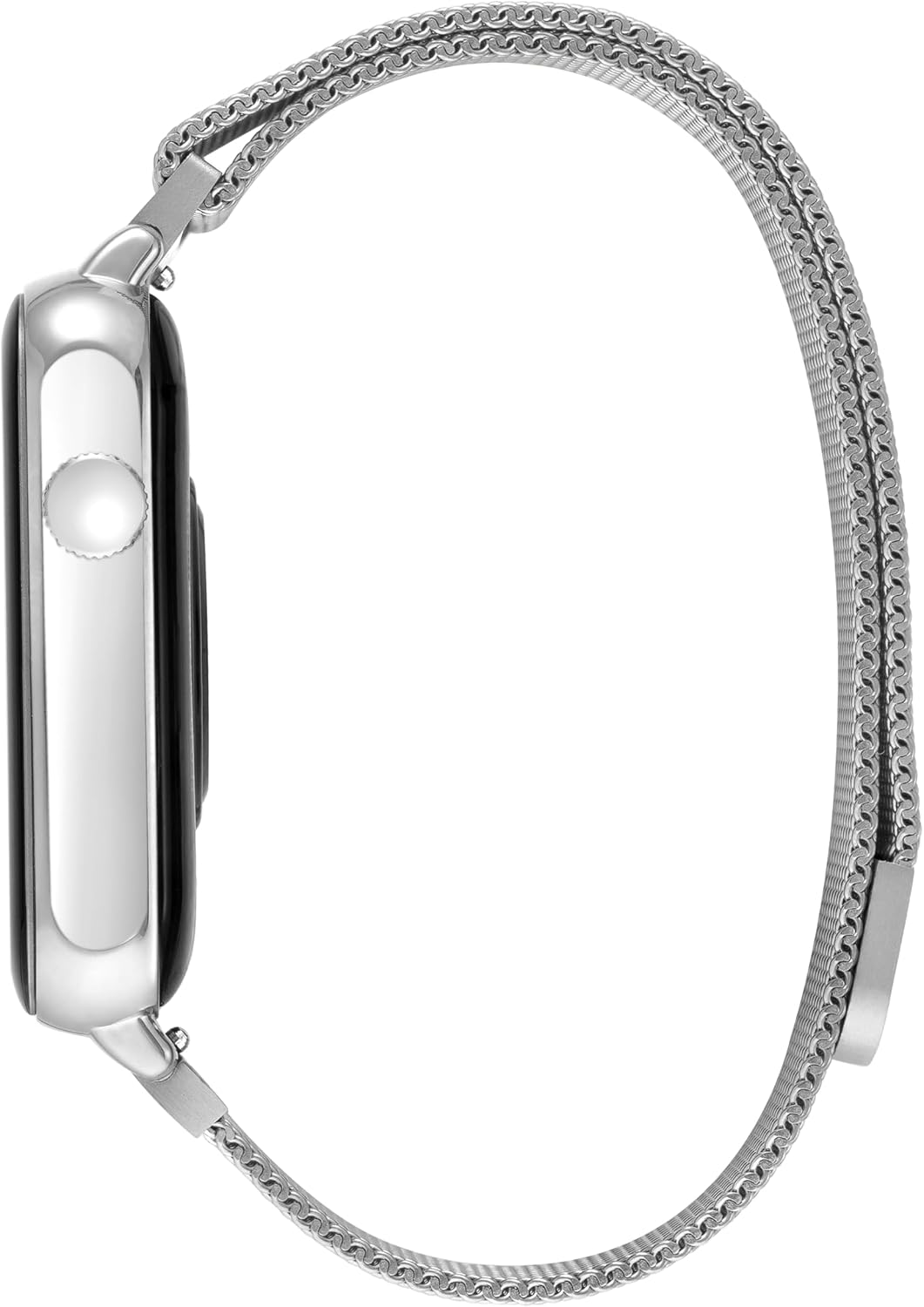
Side view of the Armitron Connect Matrix Smartwatch, highlighting the functional side dial.
2.2 Health Monitoring
Your smartwatch is equipped with sensors to help you monitor various aspects of your health:
- Heart Rate: Continuously monitors your heart rate throughout the day. You can also initiate a manual measurement from the watch or app.
- Blood Oxygen (SpO2): Measures your blood oxygen saturation levels.
- Calories: Tracks calories burned based on your activity levels.
- Sleep Tracking: Monitors your sleep patterns, including deep sleep, light sleep, and awake times.
- Menstrual Cycle: Provides tracking and predictions for the menstrual cycle (configurable in the app).
2.3 Fitness Tracking
Achieve your fitness goals with the built-in tracking features:
- Step Counter: Records your daily steps.
- Sport Modes: Select from various sport modes (e.g., running, walking, cycling) for more accurate tracking during workouts.
- Reminders: Set reminders to move and stay hydrated throughout the day.
2.4 Communication Features
Stay connected directly from your wrist:
- Make and Receive Calls: Use the integrated microphone and speaker to handle calls directly from your smartwatch when connected to your phone via Bluetooth.
- Message Notifications: Receive notifications for incoming messages (SMS, app notifications) on your watch.
- Save Contacts: Sync and save your favorite contacts for quick dialing.
2.5 Additional Features
Explore other convenient functions:
- Voice Assistant: Access your smartphone's voice assistant directly from the watch.
- GPS Connection: Connects to your phone's GPS for tracking routes during outdoor activities.
- Camera Control: Remotely control your smartphone's camera.
- Music Control: Play, pause, skip tracks, and adjust volume for music playing on your smartphone.
- Weather Updates: Get real-time weather information.
- Alarms: Set and manage alarms.
- Watch Face Customization: Personalize your watch face design through the Armitron Connect app.
- Breathing Exercises: Guided breathing sessions for relaxation.
- Hydration Reminders: Prompts to drink water.

An overview of the many features available on the Armitron Connect Matrix Smartwatch.
3. Maintenance
3.1 Cleaning Your Smartwatch
To keep your smartwatch in optimal condition:
- Wipe the screen and body with a soft, lint-free cloth.
- For stubborn smudges, slightly dampen the cloth with water. Avoid using harsh chemicals or abrasive materials.
- Clean the charging contacts periodically to ensure good connection.
- If the band is removable, clean it according to its material type. For the metal mesh band, a soft brush can help remove debris.
3.2 Water Resistance
The Armitron Connect Matrix Smartwatch has an IP68 water resistance rating. This means it is protected against dust ingress and can withstand immersion in water up to 1.5 meters for up to 30 minutes. While it is resistant to splashes, rain, and brief immersion, it is not recommended for swimming, showering, or diving. Avoid exposing the watch to hot water, steam, or high-velocity water.
3.3 Battery Care
To maximize battery lifespan:
- Avoid fully discharging the battery frequently.
- Charge the watch using only the provided charging cable.
- Store the watch in a cool, dry place when not in use for extended periods.
4. Troubleshooting
If you encounter issues with your Armitron Connect Matrix Smartwatch, please refer to the following common problems and solutions:
| Problem | Possible Solution |
|---|---|
| Watch not turning on or unresponsive. | Ensure the watch is fully charged. Press and hold the side dial for several seconds to force a restart. |
| Cannot pair with smartphone. |
|
| No message notifications. |
|
| Inaccurate health/fitness data. |
|
| Poor call audio quality. |
|
If the problem persists, please refer to the Warranty and Support section for further assistance.
5. Specifications
| Feature | Detail |
|---|---|
| Model Name | Matrix |
| Brand | Armitron |
| Display Type | AMOLED High Definition Touchscreen |
| Compatibility | Android 5.0+ and iOS 9.0+ |
| Water Resistance | IP68 (Protected against dust and immersion up to 1.5m for 30 mins) |
| Battery Life | Up to four days (typical usage) |
| Connectivity | Bluetooth |
| Health Monitoring | Heart Rate, Blood Oxygen, Calories, Sleep Tracking, Menstrual Cycle |
| Fitness Tracking | Step Counter, Various Sport Modes, Move/Hydration Reminders |
| Communication | Make/Receive Calls, Message Notifications, Contact Saving |
| Additional Features | Voice Assistant, GPS Connection, Camera Control, Music Control, Weather Updates, Alarms, Watch Face Customization, Breathing Exercises |
6. Warranty and Support
Armitron stands behind the quality of its products. For detailed warranty information, including coverage period and terms, please refer to the warranty card included with your product or visit the official Armitron website. For technical support, troubleshooting assistance beyond this manual, or to inquire about repairs, please contact Armitron customer service.
You can often find support contact information on the Armitron website or within the Armitron Connect app.
Note: Protection plans may be available for purchase separately to extend coverage.
Ask a question about this manual
Ask about setup, troubleshooting, compatibility, parts, safety, or missing instructions. Manuals+ will review the question and use this page’s manual context to help answer it.