
Introduction
This manual provides essential information for setting up, operating, maintaining, and troubleshooting your HP 17 Laptop. Please read this guide thoroughly to ensure optimal performance and longevity of your device.
The HP 17 Laptop features a 17.3-inch Full HD (1920 x 1080) IPS Micro-Edge, Anti-glare Display, powered by an AMD Ryzen 5 Processor with AMD Radeon Graphics. It comes with 16GB DDR4 RAM and a 512GB PCIe Solid State Drive, running on Windows 11 Home in S mode. Key features include a numeric keypad, HP True Vision 720p HD camera, Wi-Fi 6, and Bluetooth 5.0 connectivity.
1. Setup
1.1 Unpacking and Initial Power On
Carefully remove your HP 17 Laptop and all accessories from the packaging. Ensure all components are present:
- HP 17 Laptop
- AC Power Adapter
- Alpacatec Accessories (if included)
Connect the AC power adapter to the laptop's power port and then to a power outlet. Press the power button to turn on the laptop. Follow the on-screen instructions to complete the initial Windows 11 Home setup.

Image: The HP 17 Laptop featuring its 17.3-inch Full HD display. The screen is shown with a graphic indicating touch functionality, though this specific model does not have a touch screen. The image highlights the large display size.
1.2 Charging the Battery
For optimal battery life, fully charge the laptop before its first use. The HP Fast Charge feature allows the battery to charge from 0% to 50% in approximately 45 minutes when the laptop is off.
2. Operating Your Laptop
2.1 Display
Your laptop is equipped with a 17.3-inch diagonal Full HD (1920 x 1080) IPS Micro-Edge, Anti-glare Display. This display provides clear visuals and reduces reflections for comfortable viewing.

Image: A user operating the HP laptop, demonstrating its suitability for productivity tasks with Microsoft Office applications. The laptop's large screen is visible.
2.2 Keyboard and Touchpad
The laptop features a full-size QWERTY keyboard with a dedicated numeric keypad for efficient data entry. The touchpad serves as your pointing device, supporting multi-touch gestures for navigation.
2.3 Webcam and Audio
The integrated HP True Vision 720p HD camera includes a privacy shutter for security. It also features temporal noise reduction and integrated dual array digital microphones for clear video calls and audio recording.
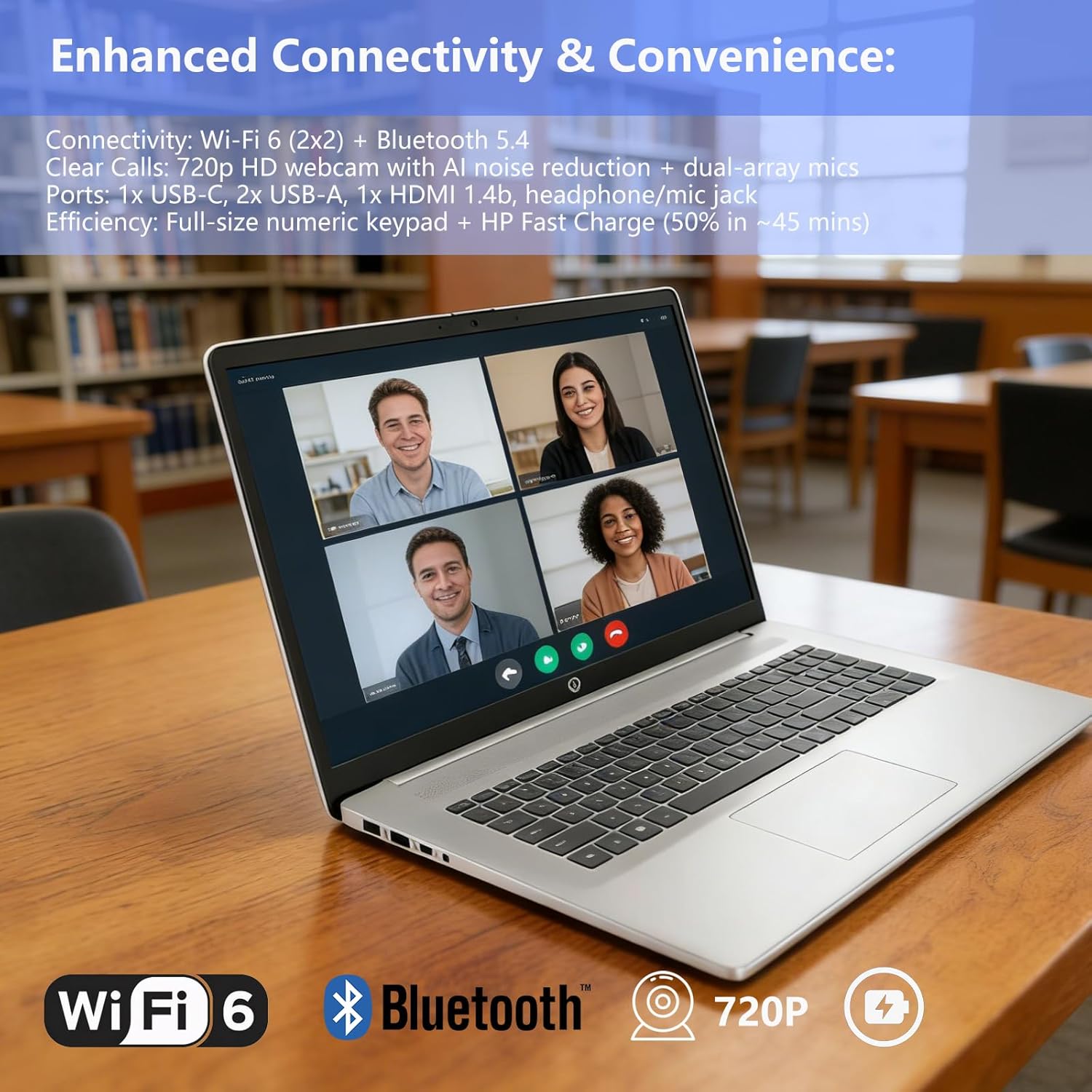
Image: The HP laptop showcasing its enhanced connectivity features, including Wi-Fi 6 and Bluetooth, and its 720p HD webcam suitable for video conferencing. Fast charging capability is also indicated.
2.4 Connectivity
Your HP 17 Laptop offers various connectivity options:
- Wireless: Wi-Fi 6 (802.11ax) and Bluetooth 5.0 for high-speed wireless connections.
- Ports:
- 1 x USB Type-C 3.0 (data transfer only)
- 2 x USB Type-A 3.0
- 1 x HDMI (for external display output)
- 1 x Headphone/Microphone combo jack
- 1 x AC smart pin (for power adapter)
2.5 Operating System
The laptop runs on Windows 11 Home in S mode, providing a streamlined and secure experience. You can switch out of S mode if you require to install apps from outside the Microsoft Store.

Image: A user engaged in work on an HP laptop, illustrating the Windows 11 operating system and its features. Note that this model comes with Windows 11 Home in S mode, not Windows 11 Pro as suggested by the image overlay.
3. Maintenance
3.1 Cleaning Your Laptop
To maintain the appearance and functionality of your laptop:
- Use a soft, lint-free cloth to clean the screen and exterior surfaces.
- Avoid using harsh chemicals, abrasives, or solvents.
- For the screen, dampen the cloth with water or a screen-cleaning solution.
3.2 Battery Care
To prolong battery life:
- Avoid extreme temperatures.
- Do not fully discharge the battery frequently.
- Store the laptop with a partial charge if not used for extended periods.
4. Troubleshooting
If you encounter issues with your laptop, try the following basic troubleshooting steps:
- No Power: Ensure the AC adapter is securely connected to both the laptop and a working power outlet. Check if the power outlet is functional.
- Display Issues: If the screen is blank, try adjusting the brightness. Connect an external monitor to check if the issue is with the laptop's display or graphics output.
- Slow Performance: Close unnecessary applications. Check for available Windows updates. Consider running a system scan for malware.
- Connectivity Problems: For Wi-Fi, ensure your router is working and the laptop's Wi-Fi is enabled. For Bluetooth, ensure the device you are trying to connect to is in pairing mode and within range.
For more complex issues, refer to the HP support website or contact customer service.
5. Specifications
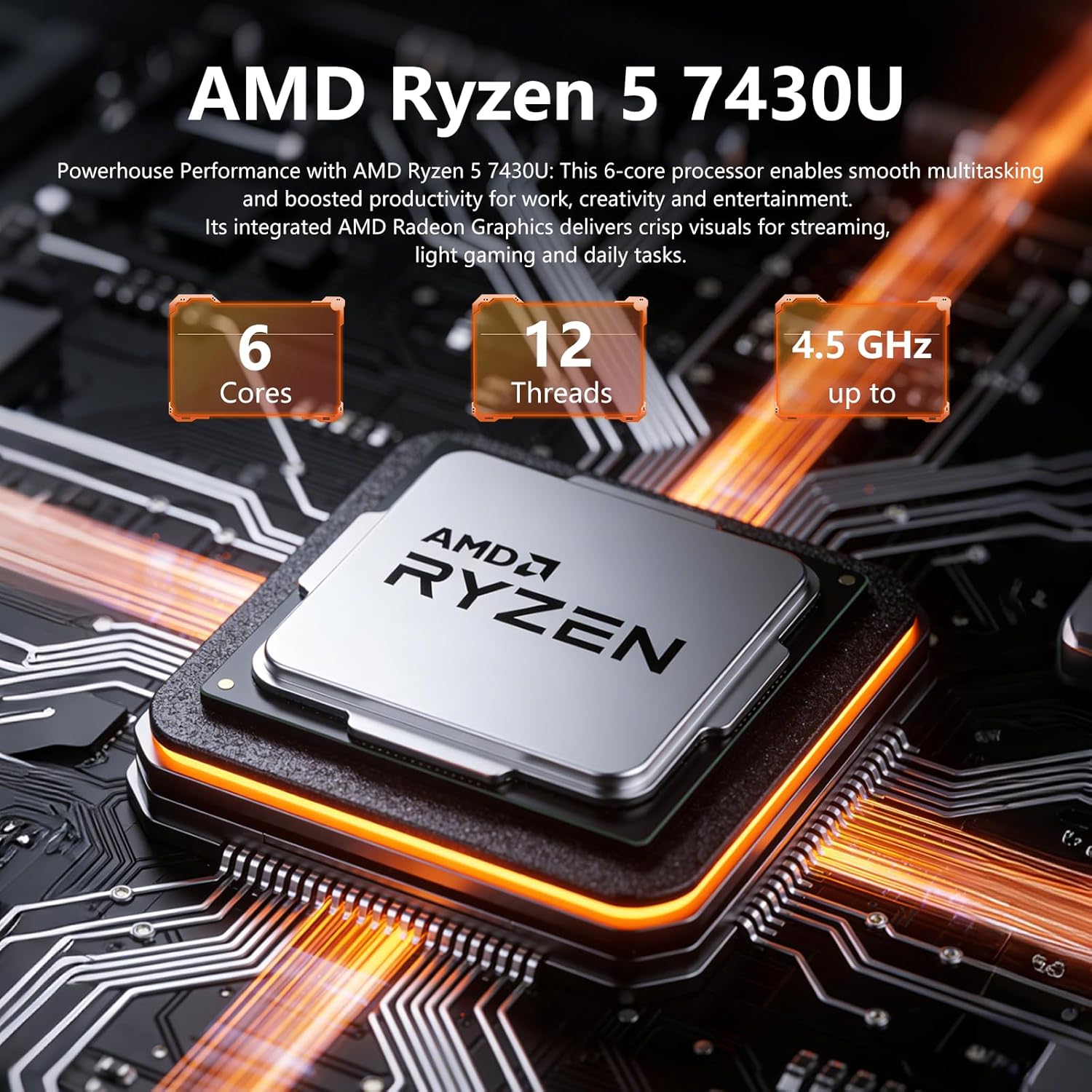
Image: Detailed view of the AMD Ryzen 5 7430U processor, highlighting its 6 cores, 12 threads, and up to 4.3 GHz clock speed, which powers the HP 17 Laptop. Note: The image indicates 4.5 GHz, but the product specifications state up to 4.3 GHz.
| Feature | Detail |
|---|---|
| Brand | HP |
| Model Name | HP |
| Screen Size | 17.3 Inches |
| Display Resolution | 1920 x 1080 Pixels (Full HD) |
| Display Type | IPS Micro-Edge, Anti-glare LED |
| Processor | AMD Ryzen 5 7430U (6 Cores, up to 4.3 GHz) |
| Graphics | Integrated AMD Radeon Graphics |
| RAM Memory | 16 GB DDR4 SDRAM |
| Storage | 512 GB PCIe Solid State Drive (SSD) |
| Operating System | Windows 11 Home in S mode |
| Webcam | HP True Vision 720p HD camera with privacy shutter |
| Connectivity | Wi-Fi 6 (802.11ax), Bluetooth 5.0 |
| Ports | 1x USB Type-C 3.0, 2x USB Type-A 3.0, 1x HDMI, 1x Headphone/Mic combo, 1x AC smart pin |
| Battery Life | Up to 9 Hours |
| Dimensions (L x W x H) | 15.78" x 10.15" x 0.78" |
| Weight | 4.6 pounds |
| Special Features | Numeric Keypad, Fast Charge |

Image: The HP laptop highlighting its physical dimensions and core performance components: 16GB DDR4-3200MHz RAM, 512GB PCIe NVMe SSD, and AMD Radeon Graphics. Note: The image overlay indicates 1TB SSD, but the product specifications are 512GB SSD.
6. Warranty and Support
6.1 Product Warranty
Your HP 17 Laptop comes with a limited warranty. Please refer to the warranty documentation included with your product for specific terms and conditions, including coverage duration and service options.
6.2 Customer Support
For technical assistance, warranty claims, or further information, please visit the official HP support website or contact HP customer service directly. Have your product model number and serial number ready when contacting support.


