Introduction
The M-KVIVE Chocolate BT Wireless MIDI Controller is a compact and versatile foot pedal designed for musicians. It features four easy-to-use foot switches and offers intelligent APP control via CubeSuite, enhancing music creation flexibility. With a built-in 300mAh rechargeable lithium battery, it provides up to 12 hours of use on a 2.5-hour charge. The intuitive display screen provides direct feedback on commands, ensuring clear operation. This MIDI foot controller is compatible with Windows, iOS, and Android platforms, facilitating wireless music production across various devices.
What's in the Box
- 1 x M-KVIVE Chocolate BT Wireless MIDI Controller
- 1 x Charging Cable
- 1 x User Manual
Product Overview
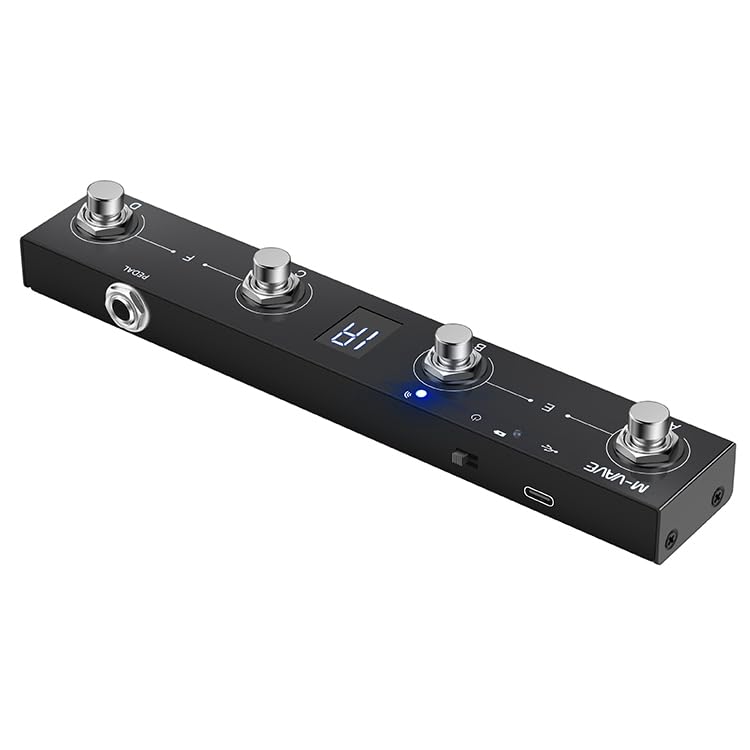
Figure 1: Top view of the M-KVIVE Chocolate BT Wireless MIDI Controller, showcasing its compact design and four foot switches labeled A, B, C, D, along with USB, power, and Bluetooth indicators.

Figure 2: Close-up view of the M-VAVE logo, USB port, power button, and Bluetooth indicator lights on the MIDI controller.

Figure 3: Detailed view of one of the metallic foot switches (labeled 'A') on the M-KVIVE Chocolate MIDI Controller.
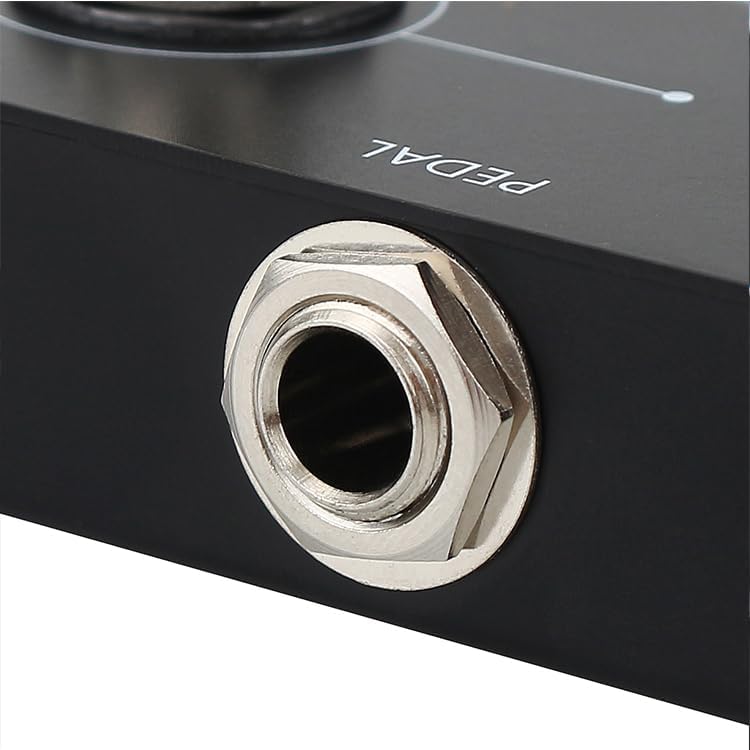
Figure 4: Close-up of the pedal input jack, typically used for connecting external expression pedals or other accessories.

Figure 5: The M-KVIVE Chocolate MIDI Controller being used on the floor, demonstrating its low-profile design suitable for foot operation.

Figure 6: A clear top-down view of the MIDI controller, highlighting the LED display and the arrangement of the four foot switches.

Figure 7: An angled view of the M-KVIVE Chocolate MIDI Controller, showing its sleek profile and the illuminated display.
Setup
1. Charging the Device
The M-KVIVE Chocolate MIDI Controller has a built-in 300mAh rechargeable lithium battery. Connect the provided charging cable to the device's USB port and a suitable power source (e.g., computer USB port, USB wall adapter). A full charge takes approximately 2.5 hours and provides up to 12 hours of continuous use.
2. Bluetooth Connection
The controller connects wirelessly via Bluetooth. Ensure Bluetooth is enabled on your compatible device (Windows, iOS, Android). Open the CubeSuite intelligent APP and follow the on-screen instructions to pair your M-KVIVE Chocolate MIDI Controller. The display screen will provide visual feedback during the connection process.
3. App Installation and Firmware Update
Download the CubeSuite APP from your device's app store or by scanning the QR code on the back of the product. For Android devices, if a firmware update reminder appears in the APP, update the firmware, then scan the QR code on the back of the product to download a new APK for installation. For Apple devices, update the firmware first, then update the software via the App Store.
Video 1: This video demonstrates the process of updating the firmware for the M-KVIVE Chocolate MIDI Controller via the CubeSuite app, including steps for both Android and Apple devices.
Operating Instructions
1. Basic Operation
The controller features four foot switches (A, B, C, D) for sending MIDI commands. The display screen provides real-time feedback on the commands issued. The intelligent CubeSuite APP allows for easy operation and customization of the pedal's functions.
2. Customizing Foot Switches
The CubeSuite APP provides advanced customization options. You can assign various MIDI commands (PC, CC, Note ON/OFF, SysEx) to each foot switch. The display can show specific values for both PC and CC commands.
Video 2: This video provides a detailed explanation of the new functions available in the CubeSuite app for the Chocolate MIDI Controller, including customization of foot switches and bank selection.
3. Keyboard Mode and Combination Keys
In custom keyboard mode, you can set common keyboard keys for the flip group. Note that combination key 1 and combination key 2 cannot be the same. You can choose combination keys according to your specific needs.
4. Bank Switching
Banks can be selected directly on the software, and the corresponding Bank value will be displayed on the device screen. In custom keyboard mode, pressing foot switch D can also switch banks. The last digit on the display screen corresponds to the Bank value.
5. BIAS FX Integration
The M-KVIVE Chocolate MIDI Controller can be used to control effectors in software like BIAS FX. This involves connecting the controller to the effector via a TYPE-C data cable and configuring MIDI settings within the BIAS FX application.
Video 3: This tutorial demonstrates how to connect the CHOCOLATE MIDI Controller to BIAS FX software and configure its settings for controlling effects.
Advanced Features
1. Import and Export Functions
The CubeSuite APP allows you to import and export .fcp files. This function is primarily used to save the values of the control software/hardware effector, facilitating smooth switching between multiple different effectors. You can modify PC values (e.g., PC15 to PC20) and then import/export the .fcp file to restore previously saved settings.
2. Note On/Off Code
The Chocolate is a Bluetooth controller. The Bluetooth pedal can only be set to note on/off codes in the Advanced Customization settings. Any software that supports Bluetooth MIDI can be used.
Specifications
| Feature | Detail |
|---|---|
| Material | Metal |
| Power Input | DC 5V |
| Working Current | 45mA |
| Battery | 300mAh rechargeable lithium battery (included) |
| Charging Time | 2.5 hours |
| Usage Time | Up to 12 hours |
| APP | CubeSuite |
| Item Size | 212 * 36 * 17mm / 8.35 * 1.42 * 0.67in |
| Item Weight | 236g / 8.34oz (approx. 10.2 ounces) |
| Compatibility | Windows, iOS (min. iOS 14), Android (min. Android 8) |
| Connectivity Technology | Bluetooth |
| Number of Keyboard Keys | 4 |
Troubleshooting
1. Firmware Update Failure
If a firmware update fails, ensure your device is properly connected and try again. For Android, follow the in-app prompts to update firmware and then scan the QR code for a new APK. For Apple, update firmware first, then update the app from the App Store.
Video 4: This video demonstrates the process of a forced OTA (Over-The-Air) firmware upgrade for the Chocolate MIDI Controller, including steps to resolve potential update failures.
2. Compatibility Issues with Specific Software
Some users have reported compatibility issues with certain software (e.g., Mobilesheets on Windows OS, Valeton GP-5). Ensure your operating system meets the minimum version requirements (Android 8, iOS 14). If issues persist, consult the software's documentation or support for MIDI controller compatibility.
3. Slow Patch Changes
If you experience slow patch changes, particularly in live performance settings, this may be a limitation of the device or the software it's controlling. Experiment with different customization modes and settings within the CubeSuite app to optimize response times.
Maintenance
- Keep the device clean and dry. Avoid exposure to extreme temperatures or moisture.
- Charge the battery regularly to maintain its lifespan, even if not in frequent use.
- Store the device in a safe place to prevent physical damage.
Warranty and Support
If you have any questions or encounter problems during the purchase or use of this product, please feel free to contact our customer service team through Amazon's messaging center. Your shopping experience is our top priority, and we are committed to providing you with timely solutions.


