
Introduction
This manual provides detailed instructions for the setup, operation, and maintenance of your ikuai 10-Port USB 3.2 / USB C Powered Hub. Please read this manual thoroughly before using the product to ensure optimal performance and safety.

Figure 1: ikuai 10-Port USB 3.2 / USB C Powered Hub
Package Contents
Verify that all items are present in the package:
- 1x ikuai 10-in-1 USB Hub
- 1x 3.3ft USB 3.2 Data Cable (2-in-1 USB-C to USB-A/USB-C)
- 1x 12V/5A Power Adapter
- 1x User Manual

Figure 2: Package Contents and Dimensions
Product Features
- High-Speed Data Transfer: Features 3 ultra-fast 10Gbps USB 3.2 ports (2 USB-C + 1 USB-A) for rapid data transfer.
- Expanded Connectivity: Includes 7 additional USB 3.0 ports (4 USB-C + 3 USB-A) with speeds up to 5Gbps, providing a total of 10 ports.
- Detachable 2-in-1 Data Cable: A 3.3ft USB-C to USB 3.2 cable with both USB-A and USB-C connectors ensures broad compatibility with various host devices.
- Individual Port Control: Smart touch buttons allow independent control (on/off) for each port, indicated by LED lights.
- Stable Power Supply: Equipped with a universal DC 12V/5A (60W) power adapter to ensure stable performance and full-speed data transmission even with multiple devices connected.
- Advanced Protection: Built-in overcurrent protection, short circuit protection, and anti-backflow design for enhanced safety and device longevity.
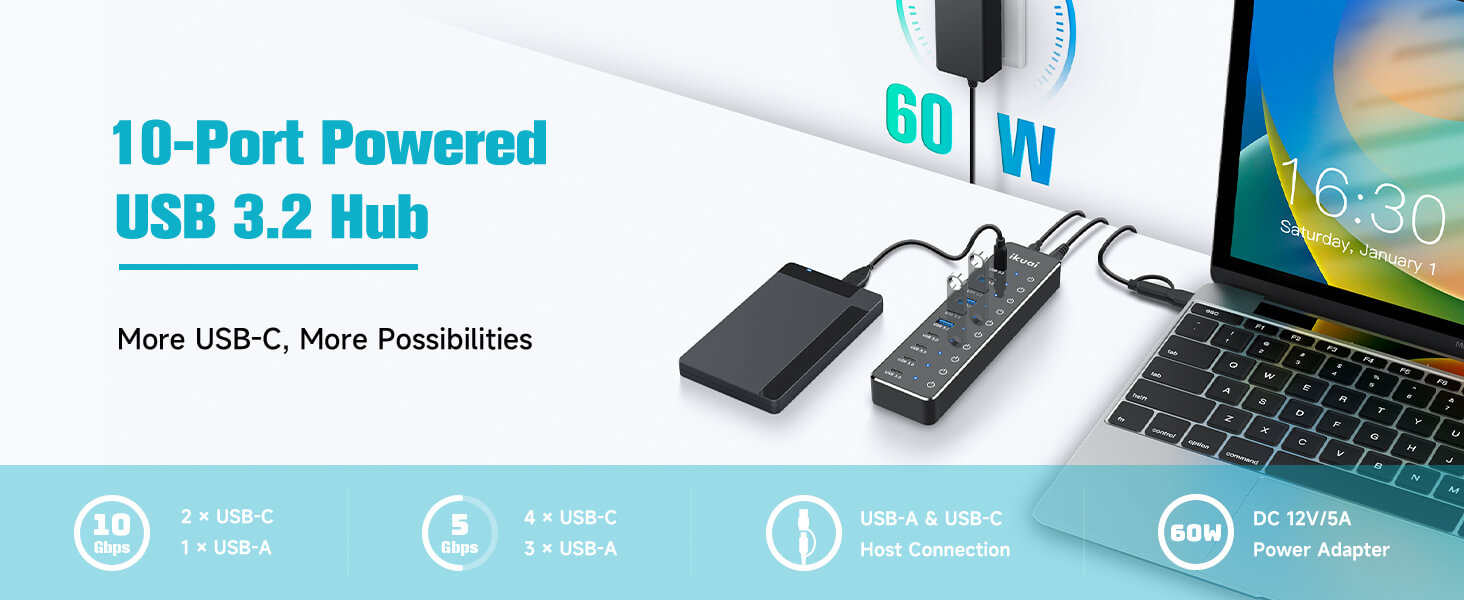
Figure 3: Key Features of the USB Hub
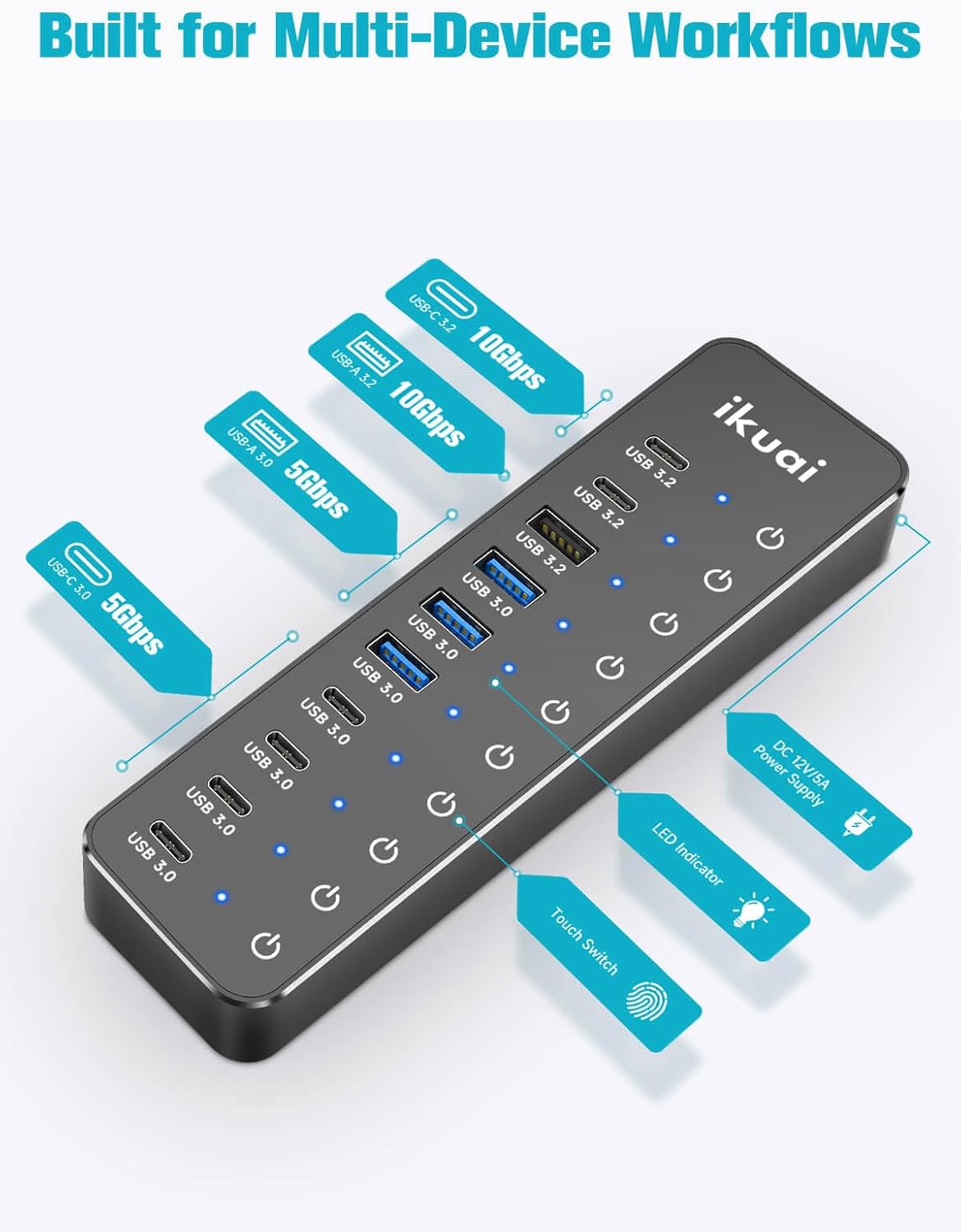
Figure 4: Port Layout and Indicators
Setup Guide
- Connect Power Adapter: Plug the included 12V/5A power adapter into the DC 12V input port on the back of the ikuai USB Hub. Then, plug the power adapter into a wall outlet.
- Connect to Host Device: Use the provided 3.3ft 2-in-1 data cable. Connect the USB-C end of the cable to the "HOST" port on the back of the ikuai USB Hub.
- Choose Host Connector: Depending on your computer's available port, connect either the USB-A or USB-C connector of the 2-in-1 data cable to your computer (PC, Mac, Laptop, etc.).
- Power On: The hub will typically power on automatically once connected. The LED indicators next to each port will illuminate when the port is active.
- Connect Peripherals: You can now connect your USB devices (e.g., external hard drives, keyboards, mice, flash drives, cameras) to the available USB 3.2 and USB 3.0 ports on the hub.
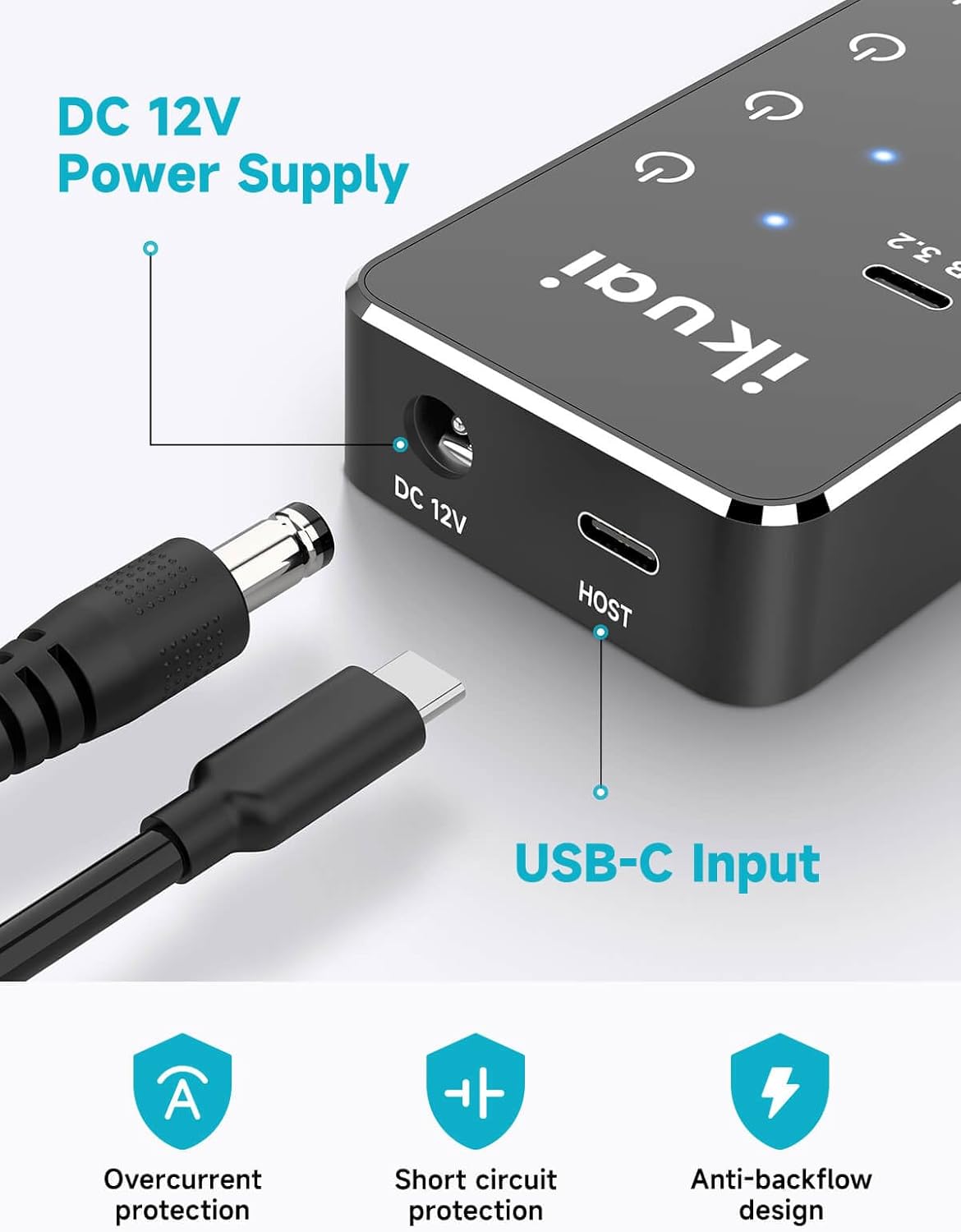
Figure 5: Power and Host Connections
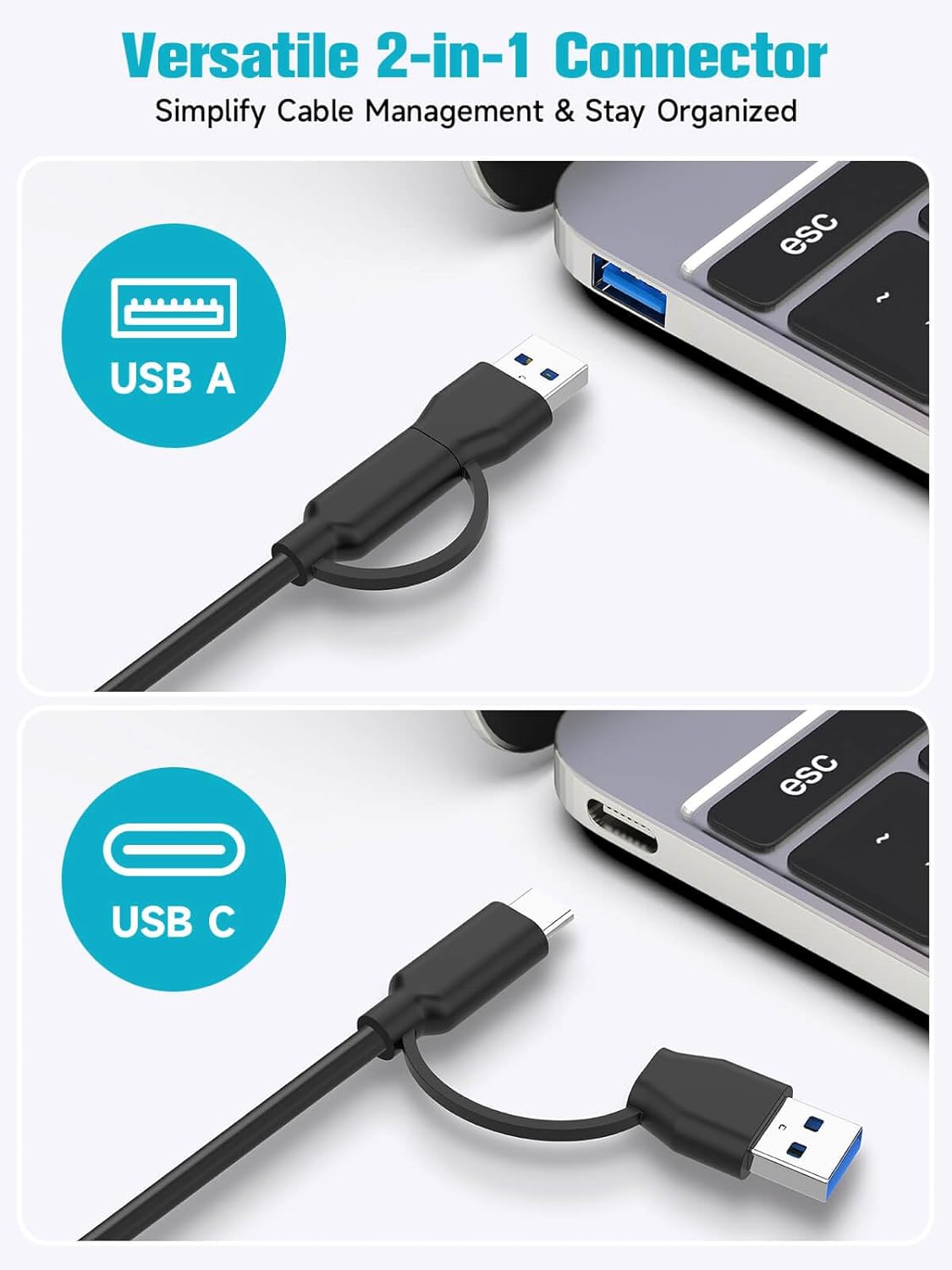
Figure 6: Versatile 2-in-1 Host Connector
Operating Instructions
Individual Port Control
Each port on the ikuai USB Hub features a smart touch button and an LED indicator for independent control.
- To Turn On a Port: Simply tap the touch button next to the desired port. The corresponding blue LED indicator will illuminate, signifying the port is active.
- To Turn Off a Port: Press and hold the touch button next to the desired port for approximately 2 seconds. The LED indicator will turn off, indicating the port is deactivated. This prevents accidental disconnections during use.
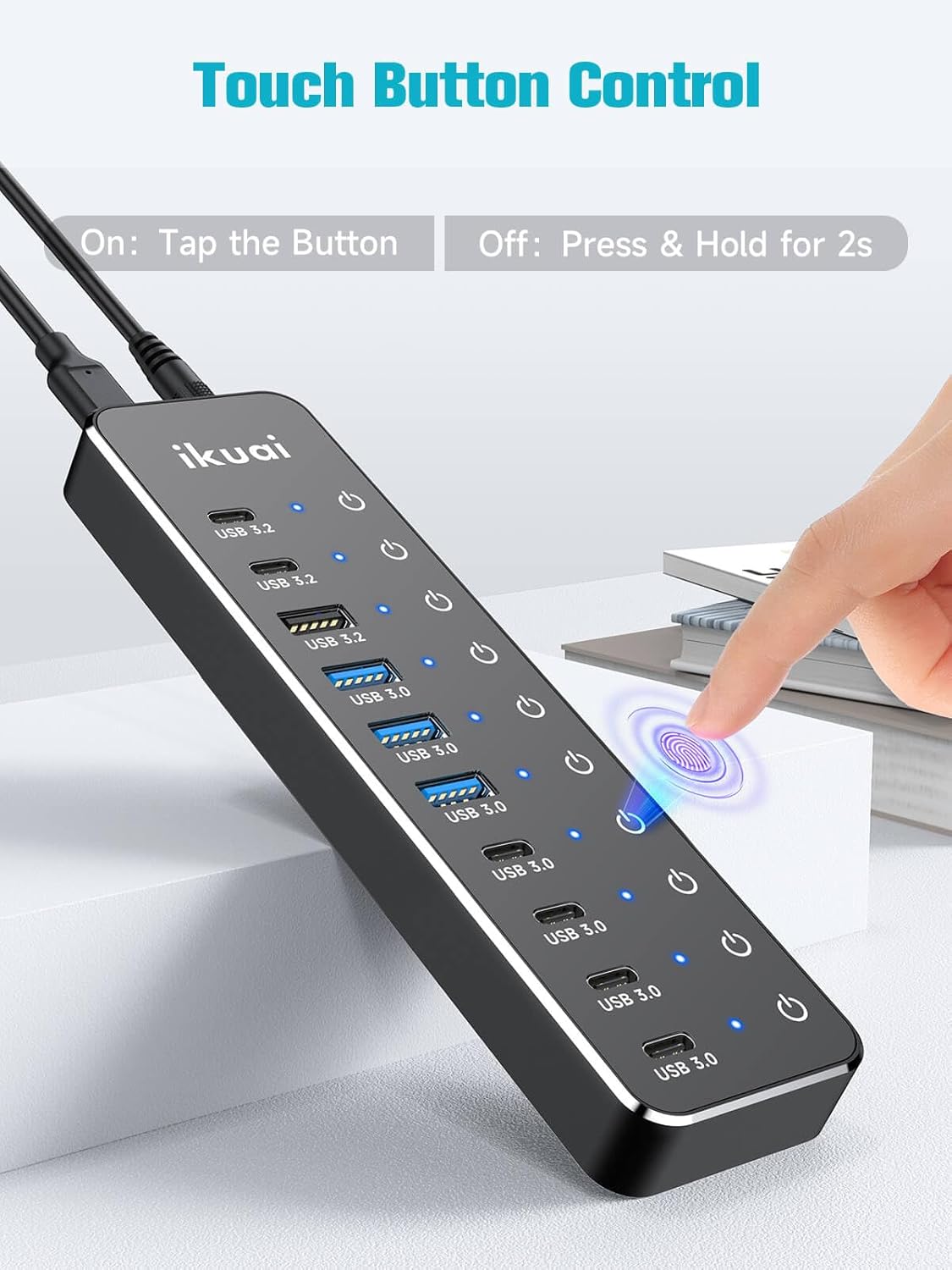
Figure 7: Touch Button Control for Individual Ports
Compatibility
The ikuai 10-Port USB Hub is designed for wide compatibility with various operating systems and USB devices.
Supported Operating Systems:
- Windows
- Mac OS
- Linux
- Android
- Chrome OS
- iPad OS
Compatible Devices:
- Keyboards and Mice
- Flash Drives
- USB Fans
- USB Lamps
- HDD/SSD (External Hard Drives/Solid State Drives)
- Gaming Peripherals
- Cameras
- USB Printers
- And more USB-enabled devices.
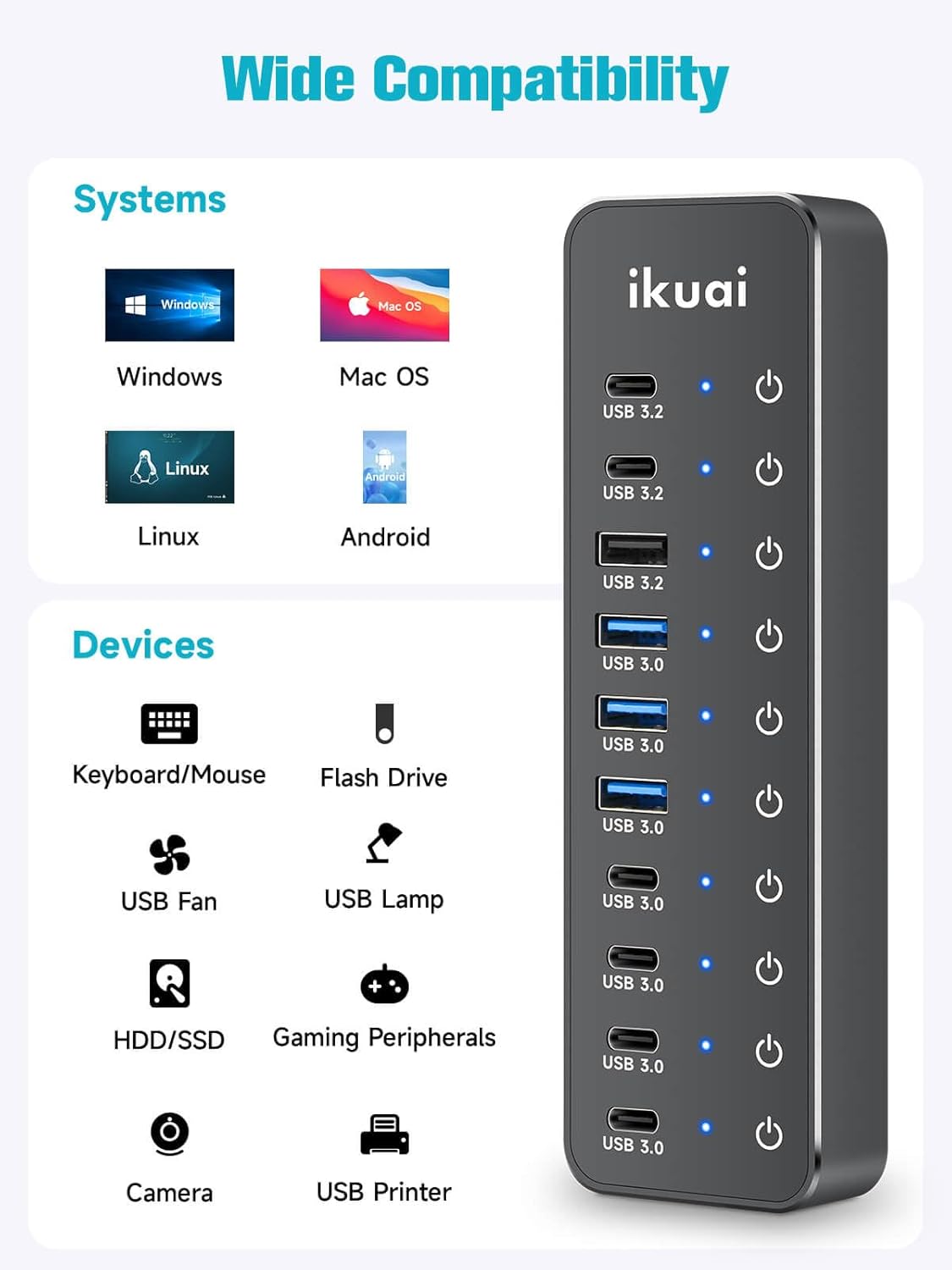
Figure 8: Wide System and Device Compatibility
Specifications
| Attribute | Value |
|---|---|
| Brand | ikuai |
| Model | 10-Port USB 3.2 10Gbps |
| Hardware Interface | USB Type C |
| Data Transfer Speed | Up to 10Gbps (USB 3.2 ports), Up to 5Gbps (USB 3.0 ports) |
| Ports | 3 x 10Gbps (2 USB-C, 1 USB-A), 7 x 5Gbps (4 USB-C, 3 USB-A) |
| Power Supply | DC 12V/5A (60W) |
| Cable Length | 3.3ft (1 meter) 2-in-1 USB 3.2 Data Cable |
| Color | Black |
| Item Weight | 1.04 pounds (approx. 472g) |
| Package Dimensions | 7.36 x 4.96 x 2.32 inches |

Figure 9: Data Transfer Speed Comparison
Troubleshooting
- Device Not Recognized:
- Ensure the hub's power adapter is securely connected to a power outlet and the hub.
- Verify the 2-in-1 data cable is firmly connected to both the hub's "HOST" port and your computer's USB port.
- Check if the individual port's LED indicator is lit. If not, tap the touch button to activate the port.
- Try connecting the device to a different port on the hub or directly to your computer to isolate the issue.
- Restart your computer.
- Slow Data Transfer:
- Ensure you are using the 10Gbps USB 3.2 ports for high-speed devices if available.
- Confirm your connected device and your computer's USB port support USB 3.0 or USB 3.2 speeds.
- Avoid connecting too many power-hungry devices simultaneously, as this can affect performance. The 60W power supply is robust, but extreme loads might still impact speed.
- Intermittent Connection:
- Check all cable connections for looseness.
- Ensure the hub is placed on a stable surface and not subject to movement.
- Verify that the power adapter is providing stable power.
Maintenance
- Cleaning: Use a soft, dry cloth to clean the surface of the hub. Do not use liquid cleaners or aerosols.
- Storage: When not in use for extended periods, disconnect the power adapter and store the hub in a cool, dry place away from direct sunlight and extreme temperatures.
- Handling: Avoid dropping the hub or subjecting it to strong impacts.
Warranty and Support
ikuai products are designed for reliability and performance. For any product-related inquiries, technical support, or warranty claims, please contact ikuai customer service. Refer to the contact information provided in your product packaging or visit the official ikuai website for support details.
You can also visit the ikuai Store on Amazon for more information and product updates: ikuai Amazon Store