
1. Introduction
This manual provides detailed instructions for the setup, operation, and maintenance of your CHICIRIS Programmable LED Display. This full-color LED panel features 1280 RGB LEDs, USB power, and IP65 waterproofing, making it suitable for various indoor and outdoor applications. Please read this manual thoroughly before using the product to ensure proper functionality and longevity.
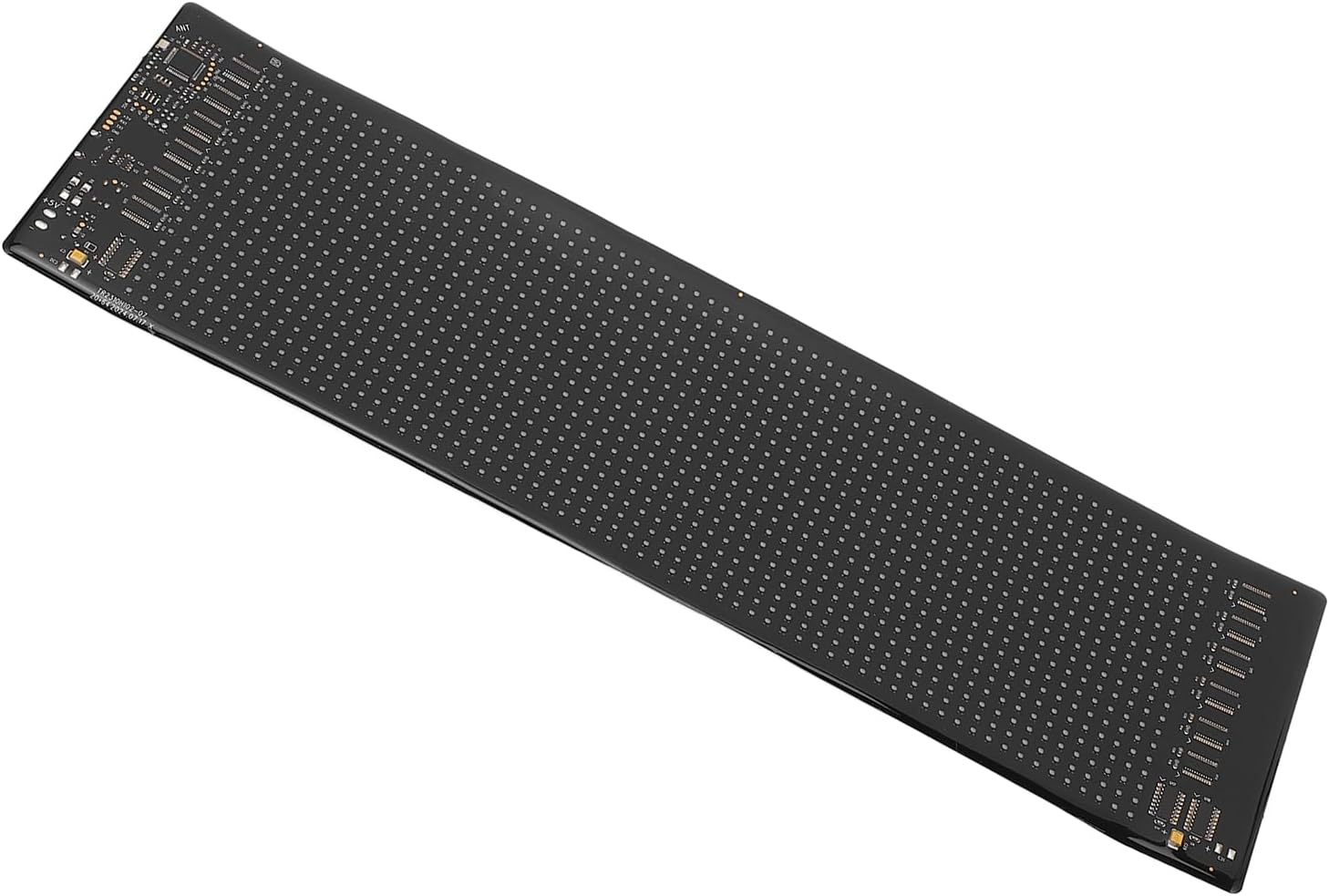
Figure 1: Top-down view of the CHICIRIS Programmable LED Display, showcasing its flexible silicone and PCB construction with numerous LED points.
2. Package Contents
Verify that all items listed below are present in your product package:
- 1 x Programmable LED Display
- 1 x User Manual (this document)
- 1 x USB Cable
- 1 x Remote Control
- 1 x Double Sided Tape

Figure 2: Included accessories: USB cable, remote control, and double-sided tape, alongside the LED display.
3. Specifications
| Feature | Detail |
|---|---|
| Item Type | Programmable LED Display |
| Material | Silicone, PCB |
| Pixels | 20x64 Pixels |
| Expanded Size | Approx. 13.7 x 4.0 inches (34.8 x 10.16 cm) |
| Color | Black |
| LED Quantity | 1280 pcs (RGB LEDs) |
| Power Supply | USB |
| Power Input | 5V 2A 10W |
| Control App | Color APP |
| Waterproof Rating | IP65 |
| Model Number | CHICIRISadgzyp7i58 |
4. Setup Instructions
- Unpack the Display: Carefully remove the programmable LED display and all accessories from the packaging.
- Choose a Location: Select a suitable location for the display. The flexible design allows for various mounting options. Ensure the surface is clean and dry if using the double-sided tape.
- Mounting (Optional): If desired, use the provided double-sided tape to secure the display to a flat surface. The display's flexibility allows it to conform to slightly curved surfaces.
- Connect Power: Connect the provided USB cable to the display's USB port. Plug the other end of the USB cable into a 5V 2A (10W) USB power source (e.g., a USB wall adapter, power bank, or computer USB port). The display will power on automatically.
- Install the App: Download and install the "Color APP" on your smartphone or tablet. Refer to the app store (Google Play Store for Android, Apple App Store for iOS) for the official application.
- Pair with App: Open the "Color APP" and follow the on-screen instructions to connect your device to the LED display via Bluetooth. Ensure Bluetooth is enabled on your smartphone/tablet.

Figure 3: Detail of the LED panel's integrated circuitry and connection interface, highlighting the USB port for power.
5. Operating Instructions
The CHICIRIS Programmable LED Display is primarily controlled via the "Color APP" on your smartphone or tablet. The included remote control offers basic functions.
5.1 Using the Color APP
Once connected to the display via Bluetooth, the "Color APP" allows for comprehensive customization:
- Text Display: Enter custom text messages. Adjust font, size, color, scrolling direction, and speed.
- Pattern & Animation: Select from pre-loaded patterns or create custom animations.
- Doodle Function: Draw directly on the app interface, and your drawing will appear on the LED display.
- Music Rhythm: Synchronize the display's light effects with music played through your device's microphone.
- Brightness Adjustment: Control the overall brightness of the LED display.
- Scheduling: Some apps may offer scheduling features to turn the display on/off or change content at specific times.
Refer to the "Color APP" interface for specific menu options and detailed feature usage.
5.2 Using the Remote Control
The remote control provides quick access to common functions. Point the remote directly at the LED display for optimal response.
- Power Button: Turns the display on or off.
- Brightness Adjustment: Buttons to increase or decrease display brightness.
- Mode Selection: Cycle through pre-set display modes or animations.
- Speed Adjustment: Control the scrolling speed of text or animation speed.
- Other Function Buttons: Specific icons on the remote correspond to various pre-programmed patterns or functions (e.g., car safety symbols, music mode). Consult the remote's legend for exact functions.
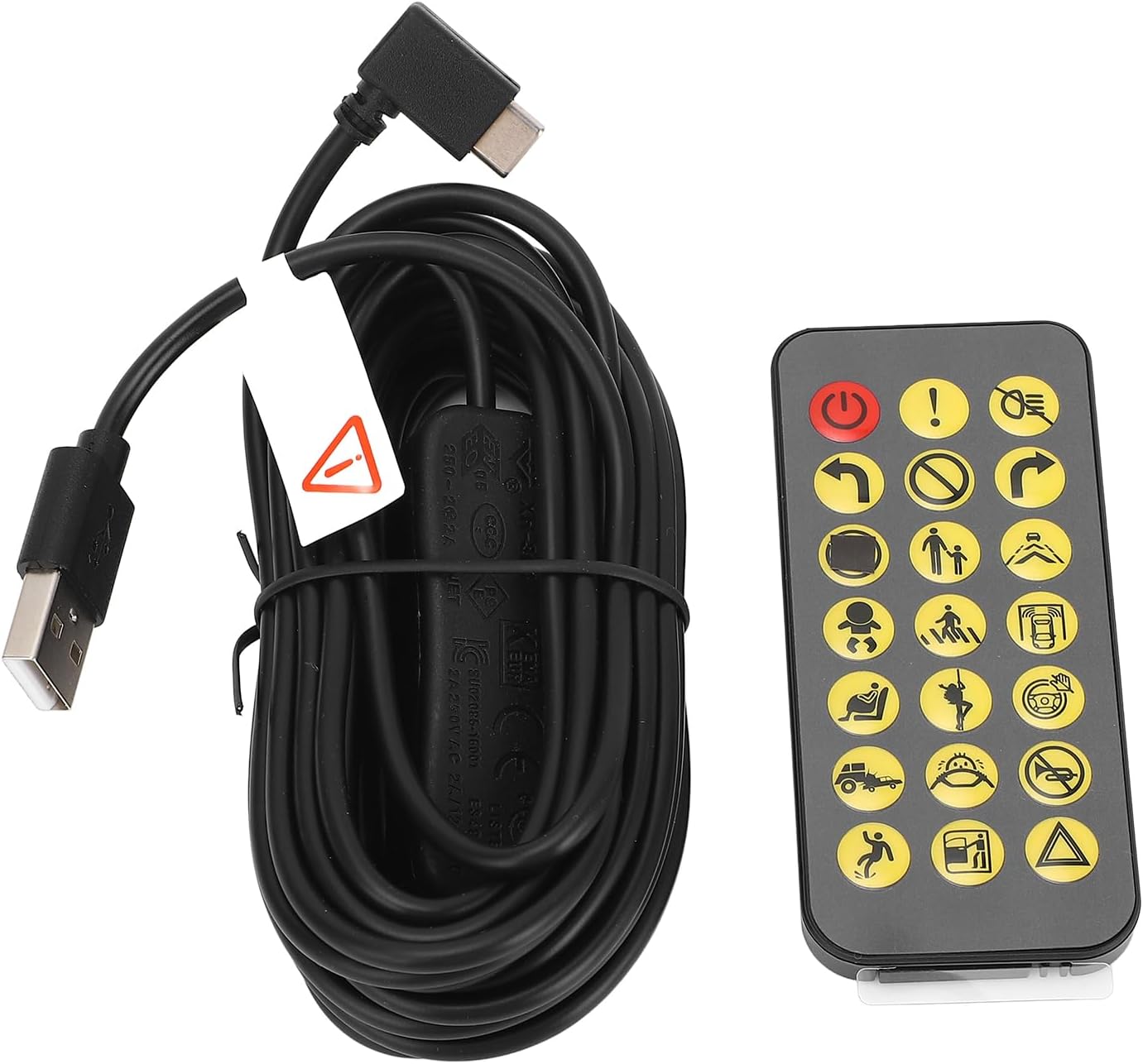
Figure 4: The included remote control, featuring power, brightness, mode, and various symbolic function buttons for quick control.
6. Maintenance
- Cleaning: Gently wipe the display surface with a soft, dry, lint-free cloth. For stubborn dirt, slightly dampen the cloth with water. Avoid harsh chemicals, abrasive cleaners, or excessive moisture.
- Storage: When not in use for extended periods, store the display in a cool, dry place, away from direct sunlight and extreme temperatures. Avoid folding or creasing the display sharply.
- Handling: While the display is flexible, avoid excessive bending or sharp folds, which could damage the internal circuitry or LEDs. Handle with care.
- Power Supply: Always use a 5V 2A power supply. Using an incorrect power adapter can damage the device.
7. Troubleshooting
| Problem | Possible Cause | Solution |
|---|---|---|
| Display does not power on. | No power, insufficient power, faulty USB cable. |
|
| Cannot connect to "Color APP". | Bluetooth off, app not installed, display not powered, interference. |
|
| Display shows incorrect or garbled text/patterns. | App synchronization issue, corrupted data. |
|
| Remote control not working. | Line of sight blocked, remote battery low/dead. |
|
8. Warranty and Support
Specific warranty information for this product is not provided in the product description. Please refer to your purchase documentation or contact the retailer/manufacturer directly for warranty details.
For technical support or further assistance, please contact CHICIRIS customer service through the platform where you purchased the product or visit the official CHICIRIS brand store online.
CHICIRIS Brand Store: Visit CHICIRIS Store on Amazon