
Introduction
This manual provides essential information for setting up, operating, maintaining, and troubleshooting your Acer TravelLite TL14-42M Business Laptop. Please read this guide thoroughly to ensure proper use and to maximize the lifespan of your device.
Front view of the Acer TravelLite TL14-42M laptop, showcasing its sleek design and display.
Setup
1. Unboxing and Initial Inspection
Carefully remove the laptop and all accessories from the packaging. Verify that the following items are included:
- Acer TravelLite TL14-42M Laptop
- Power Adapter
- Power Cord
- User Manual (this document)
Inspect the laptop for any physical damage. If any damage is found, contact your retailer immediately.
2. Connecting the Power Adapter
Connect the power adapter to the laptop's charging port and then plug the power cord into an electrical outlet. It is recommended to fully charge the battery before initial use.
3. Initial Power On and Windows 11 Setup
Press the power button located on the keyboard deck to turn on the laptop. Follow the on-screen instructions to complete the Windows 11 Home setup process. This includes selecting your region, language, connecting to a Wi-Fi network, and creating a user account.
4. Connecting Peripherals
Utilize the available ports to connect external devices such as a mouse, external display, or USB drives.

Side view of the laptop, illustrating the various connectivity ports including USB, HDMI, and LAN.
Operating Instructions
1. Power Management
- Power On: Press the power button.
- Sleep Mode: Close the lid or press the power button briefly.
- Shut Down: Click the Start button, then Power > Shut down.
- Restart: Click the Start button, then Power > Restart.
2. Keyboard and Touchpad
The laptop features a multi-language A4 size isolated spill-resistant keyboard and an extra-large touchpad. Use the touchpad for navigation and gestures. Refer to Windows 11 settings for touchpad customization.
3. Display Features
The 14-inch Full HD (1920 x 1080) anti-glare TFT LCD provides clear visuals. Adjust display settings via Windows 11 for brightness and resolution preferences.

The laptop's 14-inch Full HD display offers vivid clarity for various tasks.
4. Connectivity
The laptop supports 802.11ac and 802.11ax wireless standards for Wi-Fi connectivity. It also includes a Gigabit LAN port for wired network connections.
5. Ports Overview
Your TravelLite laptop is equipped with the following ports:
- 1 x HDMI Port
- 1 x SD Card Slot
- 1 x Gigabit LAN Port
- 1 x USB 3.2 Gen 2 Type-C (Full function, supports display over Type-C & charging)
- 2 x USB 3.2 Type-A (1 with power-off charging)
6. Privacy Features
The laptop includes a built-in camera shutter for enhanced privacy and enterprise-level security with TPM 2.0.

The laptop emphasizes privacy with a built-in camera shutter and TPM 2.0 security.
Maintenance
1. Cleaning the Laptop
Use a soft, lint-free cloth slightly dampened with water or a specialized screen cleaner to clean the display. For the keyboard and chassis, use a soft, dry cloth. Avoid harsh chemicals or abrasive materials.
2. Battery Care
To prolong battery life, avoid extreme temperatures. It is recommended to fully discharge and recharge the battery periodically. If storing the laptop for an extended period, ensure the battery is charged to approximately 50%.
3. Software Updates
Regularly update your Windows 11 operating system and drivers to ensure optimal performance and security. Windows 11 Home includes automatic updates.
4. Storage Management
Periodically clean up unnecessary files and applications to maintain sufficient storage space on the 512GB SSD. Utilize cloud storage or external drives for large files.
Troubleshooting
This section addresses common issues you might encounter with your laptop.
1. Laptop Does Not Power On
- Ensure the power adapter is securely connected to both the laptop and a working electrical outlet.
- Verify the power outlet is functional by plugging in another device.
- If the battery is completely drained, allow it to charge for at least 30 minutes before attempting to power on.
2. Display Issues
- If the screen is blank, try adjusting the brightness settings using the function keys.
- Connect an external monitor to determine if the issue is with the laptop's display or the graphics output.
3. Wi-Fi Connectivity Problems
- Ensure Wi-Fi is enabled in Windows settings.
- Restart your router and modem.
- Check if other devices can connect to the same Wi-Fi network.
4. Slow Performance
- Close unnecessary applications running in the background.
- Run a disk cleanup and defragmentation (for HDD, though SSDs manage this differently).
- Ensure Windows and drivers are up to date.
For more complex issues, refer to the Acer support website or contact customer service.
Specifications
Below are the detailed technical specifications for the Acer TravelLite TL14-42M Business Laptop:

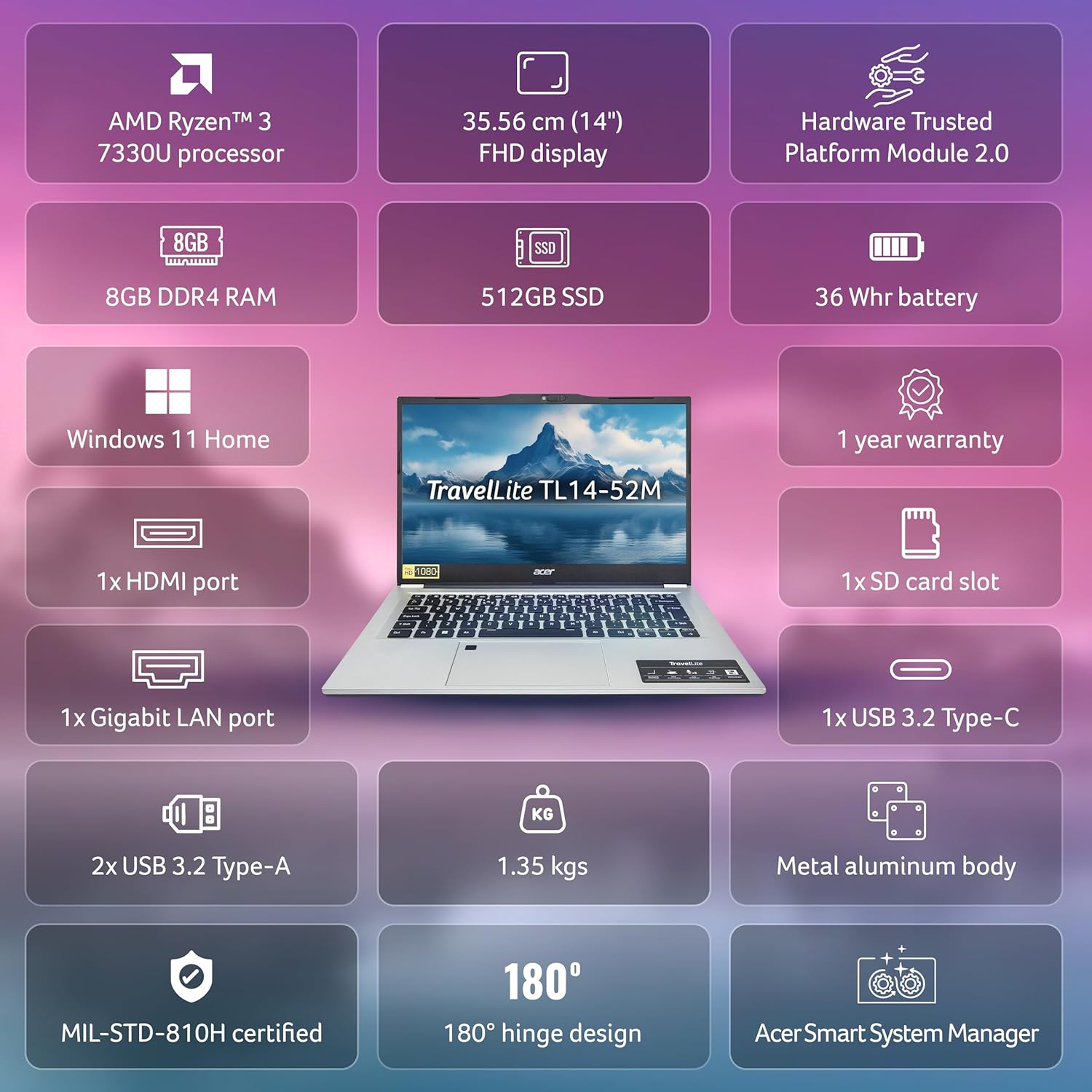
An overview of the Acer TravelLite TL14-42M's key features and specifications.
| Feature | Specification |
|---|---|
| Model Number | TL14-42M |
| Processor | AMD R3 7330U with AMD Radeon Graphics |
| Operating System | Windows 11 Home |
| Display | 14-inch Full HD (1920 x 1080) Anti-glare TFT LCD |
| RAM | 8 GB DDR4 |
| Storage | 512 GB SSD |
| Graphics | Integrated AMD Radeon R3 |
| Ports | 1x HDMI, 1x SD Card Slot, 1x Gigabit LAN, 1x USB 3.2 Gen 2 Type-C, 2x USB 3.2 Type-A |
| Wireless Connectivity | 802.11ac, 802.11ax |
| Battery | 36 Watt Hours, 3-cell Lithium Ion (Approx. 4 hours average battery life) |
| Dimensions (LxWxH) | 22 x 32.5 x 1.9 cm |
| Weight | 1.34 kg |
| Included Components | Laptop, Power cord, Adapter, User Manual |
Warranty and Support
Your Acer TravelLite TL14-42M laptop comes with a 1-year manufacturer's warranty. For detailed warranty terms and conditions, please refer to the warranty card included with your product or visit the official Acer support website.
For technical assistance, driver downloads, or service inquiries, please visit the Acer support portal or contact their customer service department. Keep your product's serial number and proof of purchase readily available when seeking support.


