1. Introduction
Welcome to the user manual for your new Infinix Hot 50 Pro+ smartphone. This guide will help you understand the features and functions of your device, ensuring a smooth and enjoyable experience. Please read this manual carefully before using your phone.
What's in the Box
- Infinix Hot 50 Pro+ Device
- Power Adapter (Plug)
- Headset
- Protective Cover
- Screen Protector
2. Device Overview
Familiarize yourself with the physical components of your Infinix Hot 50 Pro+.
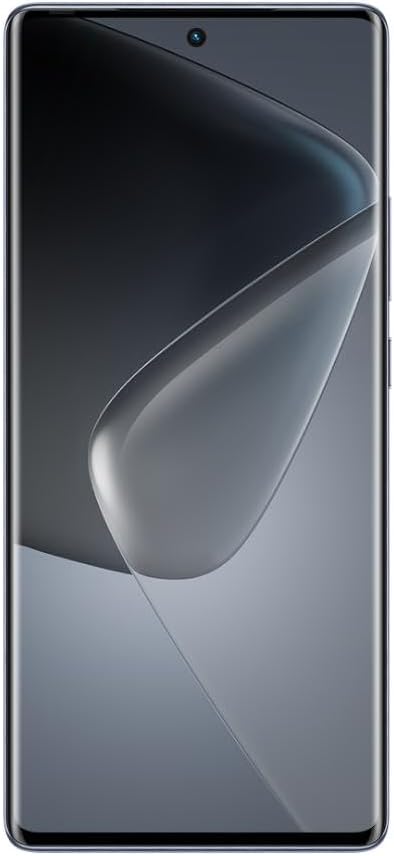
Figure 2.1: Front view of the Infinix Hot 50 Pro+ smartphone, featuring a large display and a small punch-hole front camera at the top center.
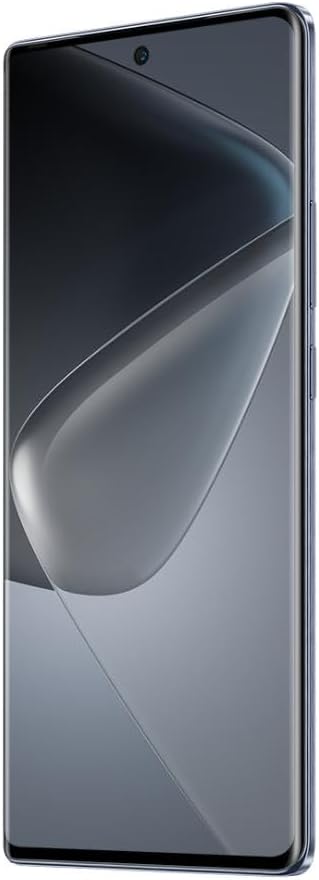
Figure 2.2: Side view of the Infinix Hot 50 Pro+ smartphone, showcasing its thin design and the power and volume buttons on the right side.

Figure 2.3: Back view of the Infinix Hot 50 Pro+ smartphone in sleek black, featuring a vertical triple camera array and the Infinix logo.
3. Setup
3.1 Inserting SIM Card(s) and SD Card
- Locate the SIM tray on the side of your device.
- Use the provided SIM ejector tool to open the tray.
- Place your Nano-SIM card(s) and/or microSD card into the tray with the gold contacts facing down. Ensure they are correctly seated.
- Carefully reinsert the tray into the phone.
3.2 Initial Power On and Setup
- Press and hold the Power button until the Infinix logo appears.
- Follow the on-screen prompts to select your language, connect to a Wi-Fi network, and set up your Google account.
- Configure security settings, including fingerprint unlock (in-display fingerprint sensor) and a screen lock method (PIN, pattern, or password).
4. Operating Instructions
4.1 Basic Navigation
- Touchscreen: Tap to select, swipe to scroll, pinch to zoom.
- Power Button: Press to turn the screen on/off, press and hold to power off or restart.
- Volume Buttons: Adjust media volume, call volume, or notification volume.
- In-Display Fingerprint Sensor: Use your registered fingerprint to unlock the device.
4.2 Making Calls and Sending Messages
- Open the Phone app to dial numbers or select contacts.
- Open the Messages app to compose and send SMS/MMS messages.
4.3 Camera Usage
Your Infinix Hot 50 Pro+ features a versatile camera system.
- Open the Camera app.
- Select your desired mode (Photo, Video, Portrait, etc.).
- Tap the shutter button to capture photos or start/stop video recording.
4.4 Connecting to Networks
- Wi-Fi: Go to Settings > Network & internet > Wi-Fi, turn on Wi-Fi, and select a network to connect.
- Bluetooth: Go to Settings > Connected devices > Bluetooth, turn on Bluetooth, and pair with nearby devices.
- Mobile Data (4G): Ensure your SIM card is active and mobile data is enabled in Settings > Network & internet > Mobile network.
4.5 Charging the Device
Connect the provided power adapter to your phone's charging port and plug it into a power outlet. The device supports 33W fast charging.
5. Maintenance
5.1 Cleaning Your Device
- Use a soft, lint-free cloth to wipe the screen and back panel.
- Avoid using harsh chemicals or abrasive materials.
- Keep ports free of dust and debris.
5.2 Battery Care
- Avoid extreme temperatures.
- Do not let the battery completely drain frequently.
- Use only the original or certified charging accessories.
5.3 Software Updates
Regularly check for software updates to ensure optimal performance and security. Go to Settings > System > System update.
5.4 Storage Management
To manage your 256GB internal storage, go to Settings > Storage. You can clear cache, uninstall unused apps, or move files to an external microSD card (if installed).
6. Troubleshooting
This section addresses common issues you might encounter.
| Problem | Possible Solution |
|---|---|
| Device does not turn on | Ensure the battery is charged. Connect to the charger for at least 10 minutes, then try powering on. If it still doesn't work, perform a force restart by holding the Power button for 10-15 seconds. |
| Apps are crashing or freezing | Clear the app's cache (Settings > Apps > [App Name] > Storage & cache > Clear cache). Update the app from the Google Play Store. If the issue persists, uninstall and reinstall the app. |
| No network signal | Check if your SIM card is properly inserted. Restart the device. Ensure Airplane mode is off. Contact your network provider if the issue continues. |
| Fingerprint sensor not working | Ensure your finger is clean and dry. Re-register your fingerprint in Settings > Security > Fingerprint. |
| Device is slow or lagging | Close unused apps. Clear cache and temporary files. Free up storage space. Restart the device. |
| Overheating during use | Avoid using the phone while charging. Close resource-intensive applications. Reduce screen brightness. If overheating persists, contact support. |
Factory Reset (Last Resort)
If severe software issues persist, you may need to perform a factory reset. Warning: This will erase all data on your phone. Back up important data before proceeding. Go to Settings > System > Reset options > Erase all data (factory reset).
7. Specifications
Detailed technical specifications for the Infinix Hot 50 Pro+.
| Feature | Detail |
|---|---|
| Operating System | Android 14 |
| Dimensions | 19.6 x 9.6 x 5.4 cm |
| Weight | 400 grams |
| Model Number | Hot50Pro+ |
| Cellular Technology | 4G |
| GPS | Integrated |
| Special Features | Dual SIM, Touch Screen, In-Display Fingerprint Scanner |
| Audio Jack | 3.5 mm |
| Color | Sleek Black |
| Battery Capacity | 5000 mAh |
| RAM | 8 GB (Up to 16GB Extended RAM) |
| CPU Model | MediaTek Helio |
| CPU Speed | 2.2 GHz |
| Internal Storage | 256 GB |
| Screen Size | 6.78 inches |
| Display Type | 3D Curved AMOLED, 120Hz Refresh Rate |
| Charging | 33W Fast Charging |
| Audio | Dual Speakers with JBL Sound |
8. Warranty and Support
Your Infinix Hot 50 Pro+ comes with a standard manufacturer's warranty. Please refer to the warranty card included in your product packaging for specific terms and conditions, including warranty period and coverage details.
Customer Support
For technical assistance, service, or warranty claims, please contact Infinix customer support through their official website or the contact information provided in your warranty documentation. Keep your purchase receipt and device serial number handy when contacting support.


