
Redragon M916S
Redragon M916 STD 3-Mode Wireless Gaming Mouse User Manual
Model: M916S
Introduction
Thank you for choosing the Redragon M916 STD 3-Mode Wireless Gaming Mouse. This manual provides detailed instructions on how to set up, operate, and maintain your new gaming mouse. Please read this manual carefully before use to ensure optimal performance and longevity of your device.

Image: The Redragon M916 STD Wireless Gaming Mouse in white, shown with its compact USB receiver.
Key Features:
- Ultra-Lightweight Design: Weighs approximately 49 grams for effortless control.
- 3-Mode Connectivity: Supports Bluetooth, 2.4GHz wireless, and USB-C wired connections.
- High-Precision Sensor: Equipped with a PAW3311 sensor, offering up to 24000 Max DPI.
- Programmable Buttons: 5 customizable buttons for personalized tactical keybinds.
- Ergonomic Build: Designed for comfort during prolonged use.
- Customizable DPI: 5 redefinable DPI levels (default: 1000/2000/4000/8000/12000).
Package Contents
- Redragon M916 STD Wireless Gaming Mouse
- USB-C to USB-A Cable
- 2.4GHz USB Receiver
- User Manual
Setup
Charging the Mouse
Before first use, it is recommended to fully charge the mouse. Connect the supplied USB-C cable to the mouse's front port and the USB-A end to a computer's USB port or a compatible USB charger. The mouse's indicator light will show charging status.
Connecting the Mouse
The M916 STD mouse offers three connection modes: 2.4GHz Wireless, Bluetooth, and Wired (USB-C).
- 2.4GHz Wireless Mode:
- Locate the 2.4GHz USB receiver.
- Plug the receiver into an available USB port on your computer.
- On the bottom of the mouse, slide the switch to the 2.4G position. The mouse should connect automatically.
- Bluetooth Mode:
- On the bottom of the mouse, slide the switch to the BT position.
- On your computer or device, open Bluetooth settings and search for new devices.
- Select "Redragon M916" or similar from the list of available devices to pair.
- Wired Mode:
- Connect the supplied USB-C cable to the mouse and the USB-A end to your computer.
- The mouse will function immediately in wired mode and will charge simultaneously.
Operating Instructions
DPI Adjustment
The mouse features a dedicated DPI button on its underside to cycle through preset DPI levels. Each DPI level is indicated by a different LED color:
- 1000 DPI: Red
- 2000 DPI: Blue
- 4000 DPI: Green
- 8000 DPI: Purple
- 12000 DPI: Yellow
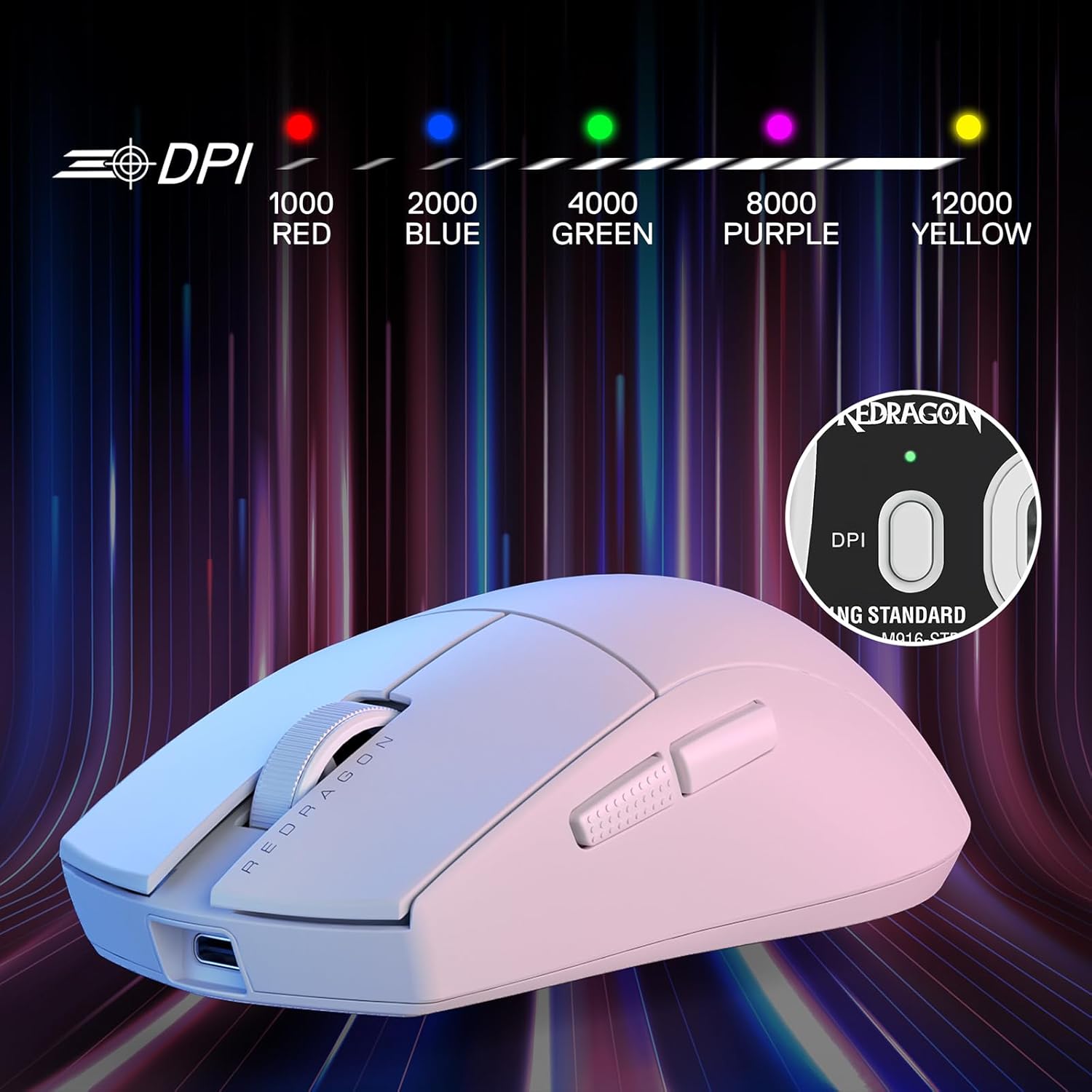
Image: Visual representation of the M916 STD mouse's DPI settings, with different LED colors indicating each level.
For advanced DPI customization (50-24000 DPI range), use the Redragon dedicated software.
Programmable Buttons
The Redragon M916 STD features 5 programmable buttons. These buttons can be customized using the Redragon software to assign various functions, macros, or keybinds for gaming or productivity.

Image: Screenshot of the Redragon software interface, illustrating how to program the mouse's buttons.
To download the software, visit the official Redragon website and navigate to the support section for the M916S model.
Maintenance
To ensure the longevity and optimal performance of your Redragon M916 STD mouse, follow these maintenance guidelines:
- Cleaning: Use a soft, dry cloth to wipe the mouse surface. For stubborn dirt, slightly dampen the cloth with water or a mild cleaning solution. Avoid harsh chemicals or abrasive materials.
- Sensor Care: Keep the optical sensor on the bottom of the mouse clean and free from dust or debris. Use a cotton swab or compressed air if necessary.
- Storage: When not in use for extended periods, store the mouse in a cool, dry place away from direct sunlight and extreme temperatures.
- Battery: Avoid fully discharging the battery frequently. Charge the mouse when the low battery indicator appears.
Troubleshooting
| Problem | Possible Cause | Solution |
|---|---|---|
| Mouse not responding | Low battery, incorrect connection mode, receiver not plugged in (2.4G), Bluetooth not paired. | Charge the mouse. Ensure the mode switch is in the correct position (2.4G/BT/Wired). Re-plug the USB receiver. Re-pair Bluetooth. Try wired mode. |
| Cursor erratic or not moving smoothly | Dirty sensor, unsuitable surface, low battery. | Clean the optical sensor. Use on a clean, non-reflective mouse pad. Charge the mouse. |
| Buttons not working | Software conflict, incorrect button assignment. | Restart your computer. Check button assignments in the Redragon software. Reset mouse to factory defaults via software if available. |
| Wireless connection unstable | Interference, distance from receiver, low battery. | Move closer to the receiver. Ensure no large metal objects are between mouse and receiver. Charge the mouse. Try a different USB port for the receiver. |
Specifications

Image: The Redragon M916 STD mouse with its physical dimensions (length, width, height) clearly marked.
| Feature | Detail |
|---|---|
| Model Number | M916S |
| Connectivity | BT (Bluetooth), 2.4G Wireless, USB-C Wired |
| Sensor | PAW 3311 Optical Sensor |
| DPI Range | 50-24000 (Software Adjustable) |
| Default DPI Levels | 1000/2000/4000/8000/12000 |
| Programmable Buttons | 5 |
| Weight | 49 grams (approx.) |
| Dimensions (L x W x H) | 12.0 cm x 6.4 cm x 3.8 cm (4.72 x 2.52 x 1.50 inches) |
| Battery | 1 Nonstandard Battery (Rechargeable) |
| Switch Type | Huano Switch (50 Million Clicks) |
Warranty and Support
Redragon products are designed and manufactured to the highest quality standards. This product is covered by a limited warranty from the date of purchase. For detailed warranty terms and conditions, please refer to the warranty card included with your product or visit the official Redragon website.
For technical support, driver downloads, or frequently asked questions, please visit the Redragon official support page or contact their customer service directly. Contact information can typically be found on the Redragon website or on the product packaging.
Website: www.redragonusa.com
Related documentsM916S


Ask a question about this manual
Ask about setup, troubleshooting, compatibility, parts, safety, or missing instructions. Manuals+ will review the question and use this page’s manual context to help answer it.