
PGYTECH P-PG-035
PGYTECH MagCam - 3-in-1 Phone Grip Kit
Model: P-PG-035
Introduction
The PGYTECH MagCam is a versatile 3-in-1 modular phone grip designed to enhance your smartphone photography experience. It integrates a comfortable grip, magnetic wireless charging, and a detachable Bluetooth remote control, making it an essential tool for mobile content creators. This manual provides detailed instructions on how to set up, operate, and maintain your MagCam.
Product Overview and Components
The PGYTECH MagCam consists of several modular components that work together to provide a comprehensive photography solution.

Figure 1: PGYTECH MagCam main components including the grip, magnetic charging module, and remote.
Package Contents
- 1 x Photo Grip (including Bluetooth Remote)
- 1 x Magnetic Wireless Charging Module
- 1 x EDC Magnetic Stand
- 1 x Magnetic Ring (for non-MagSafe compatible phones)
- 1 x Wrist Strap
Component Identification

Figure 2: Detailed view of MagCam components: Bluetooth Remote Module, Electrical Contact Pins, Charging Grip Module, Magnetic Wireless Charging Module, and 1/4" Threaded Hole.
- Bluetooth Remote Module: Detachable module for remote control of your phone's camera.
- Electrical Contact Pins: Connect the remote module to the grip for power and communication.
- Charging Grip Module: The main body of the grip, housing the battery and charging circuitry.
- Magnetic Wireless Charging Module: Attaches magnetically to the grip and provides wireless charging for your phone.
- 1/4" Threaded Hole: Located at the bottom, allows mounting on tripods or other accessories.
Setup
Assembly
To assemble the PGYTECH MagCam:
- Align the Magnetic Wireless Charging Module with the Charging Grip Module. The magnets will guide it into place.
- Ensure the module is securely locked. A "One-step Unlock" mechanism is present for easy detachment.
- Insert the Bluetooth Remote Module into the top slot of the Charging Grip Module, ensuring the electrical contact pins align.
Figure 3: Assembly process of the MagCam, showing how the magnetic charging module attaches to the grip.
First Use and Charging
Before first use, fully charge the PGYTECH MagCam. Connect the grip to a USB power source using a compatible charging cable (not included). The battery indicator light will show charging status.
Operating Instructions
Controls and Indicators

Figure 4: Overview of the MagCam's control buttons and indicator lights.
- Photo/Video / Half-Press Focus Button: Press fully to capture a photo or start/stop video recording. Half-press to focus (if supported by your phone's camera app).
- Zoom Adjustment: (Only in photo mode) Use to zoom in or out.
- Battery Indicator Light: Shows the current battery level and charging status.
- Bluetooth Indicator Light: Indicates Bluetooth connection status.
- Power On / Bluetooth Pairing Button: Press and hold to power on/off or initiate Bluetooth pairing.
- Mode Switch: Toggles between different camera modes (e.g., photo, video).
- Front/Rear Camera Flip: Switches between front and rear cameras.
Note: Press and hold the "Camera Flip" button and the "Power" button simultaneously to clear the Bluetooth memory and re-pair.
Bluetooth Pairing
To connect your PGYTECH MagCam to your smartphone via Bluetooth:
- Ensure the MagCam is charged and powered on. The Bluetooth indicator light will flash, indicating it's in pairing mode.
- On your smartphone, go to Bluetooth settings and search for available devices.
- Select "PGYTECH MagCam" (or similar name) from the list to pair.
- Once paired, the Bluetooth indicator light on the MagCam will turn solid blue.
- Open your phone's camera application to begin using the remote functions.
Tip: If you experience connection issues, try clearing the Bluetooth memory on the MagCam as described above, and then re-pair.
Wireless Charging Function
The MagCam features a magnetic wireless charging module compatible with MagSafe-enabled iPhones and Android phones using the included magnetic ring.
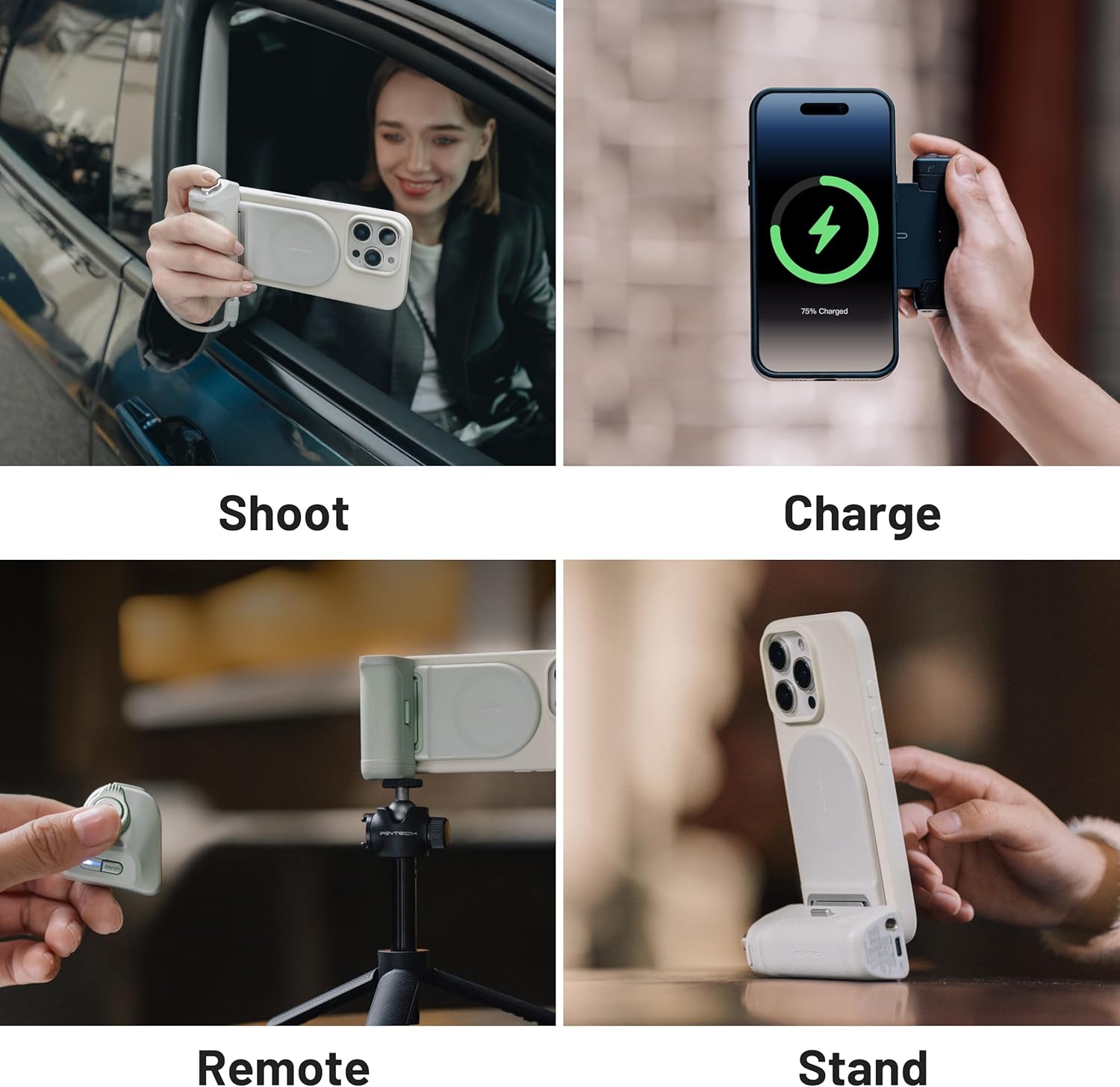
Figure 5: The MagCam in use for shooting, charging, remote control, and as a stand.
- Attach your MagSafe-compatible iPhone directly to the magnetic charging module.
- For Android phones or non-MagSafe iPhones, apply the provided magnetic ring to the back of your phone or phone case to enable magnetic attachment and wireless charging.
- Ensure the phone is properly aligned with the charging coil for efficient charging.
Multiple Uses: Power Bank & Stand
Beyond its primary function as a camera grip, the PGYTECH MagCam can also serve as a compact power bank and a convenient EDC (Everyday Carry) stand.

Figure 6: The MagCam's versatility as a power bank and a phone stand.
- As a Compact Power Bank: The integrated battery allows you to wirelessly charge your phone on the go.
- As an EDC Stand: The design allows the grip to fold out and act as a stable stand for your phone, ideal for watching videos or video calls.
Compatibility
The PGYTECH MagCam is designed for broad compatibility with smartphones, particularly those with MagSafe technology or those using the provided magnetic ring.
Figure 7: Bluetooth compatibility for various functions across iOS and Android devices.
Note: Some features may not be available on certain phone models not listed. It is not recommended to use this product with Samsung, Sony, Vivo, or Google smartphones for optimal performance. The focus adjustment feature is only available in photo mode and is not supported during video recording.
Maintenance
To ensure the longevity and optimal performance of your PGYTECH MagCam:
- Cleaning: Wipe the device with a soft, dry cloth. Do not use harsh chemicals or abrasive materials.
- Storage: Store the MagCam in a cool, dry place away from direct sunlight and extreme temperatures.
- Battery Care: For long-term storage, charge the battery to approximately 50% every three months to prevent deep discharge.
- Avoid Water: The device is not waterproof. Avoid exposure to water or high humidity.
Troubleshooting
If you encounter issues with your PGYTECH MagCam, refer to the following common problems and solutions:
| Problem | Possible Cause | Solution |
|---|---|---|
| Device does not power on. | Low battery. | Charge the device fully. |
| Bluetooth remote does not connect. | Not in pairing mode; previously paired with another device; phone Bluetooth off. | Ensure MagCam is in pairing mode (flashing blue light). Clear Bluetooth memory (press Camera Flip + Power simultaneously) and re-pair. Check phone's Bluetooth settings. |
| Wireless charging is slow or not working. | Misalignment; phone case too thick; incompatible phone. | Ensure phone is centered on the charging module. Remove thick phone cases. Use the magnetic ring for non-MagSafe phones. Verify phone compatibility. |
| Grip heats up during use/charging. | Normal operation during wireless charging; prolonged use. | Slight warming is normal during wireless charging. If excessive, discontinue use and contact support. |
| Remote functions (zoom, focus) not working. | App incompatibility; feature not supported by phone model. | Ensure your camera app supports remote control functions. Note that focus adjustment is photo-mode only. Some Android phones may require adjusting camera settings (e.g., remapping volume button to shutter). |
Specifications
| Feature | Detail |
|---|---|
| Brand | PGYTECH |
| Model Number | P-PG-035 |
| Color | Misty Gray |
| Material | Thermoplastic Polyurethane (TPU) |
| Special Features | Wireless Charging Compatible, Ergonomic Design, Magnetic Attachment |
| Mounting Type | Phone Mount |
| Battery Composition | Lithium-ion |
| Item Weight | 146 Grams |
| Product Dimensions (L x W x H) | 11.4 x 9 x 3.4 cm (4.49 x 3.54 x 1.34 inches) |
| Compatible Mobile Phone Models | Apple iPhone 12/13/14/15/16, Android 14 (MagSafe compatible or with magnetic ring) |
Warranty and Support
The PGYTECH MagCam is covered by a standard manufacturer's warranty. Please refer to the warranty card included in your product packaging for specific terms and conditions, including warranty duration and coverage details.
For technical support, troubleshooting assistance, or warranty claims, please contact PGYTECH customer service through their official website or the retailer from whom you purchased the product. Keep your proof of purchase for warranty validation.
For more information, visit: www.pgytech.com
Related documentsP-PG-035


Ask a question about this manual
Ask about setup, troubleshooting, compatibility, parts, safety, or missing instructions. Manuals+ will review the question and use this page’s manual context to help answer it.