
1. Introduction
The ORICO StudioLink Mac Mini Hub is designed to expand the connectivity and storage capabilities of your Mac Mini M1/M2, Mac Studio, and other compatible devices. This hub integrates an M.2 SSD enclosure and provides seven additional ports for various peripherals, enhancing your workspace efficiency.
2. Package Contents
Verify that all items are present in the package:
- ORICO StudioLink USB-C Dock
- 0.15m USB-C to C Data Cable
- Cooling Vest (for SSD)
- Silicone Thermal Pads (for SSD)
- User Manual

3. Product Overview
The ORICO StudioLink hub features a sleek aluminum alloy design that complements Mac devices. It provides a range of ports and an internal M.2 SSD enclosure for expanded storage.

Ports and Connectivity
The hub offers the following ports:
- 1x USB-C Data Port (10Gbps)
- 1x USB-C Input Port (10Gbps)
- 1x Type-C Power Port (5V)
- 2x USB-A 2.0 Ports (480Mbps)
- 1x USB-A Port (10Gbps)
- 1x Micro/SD Card Reader (104 Mbps)
- 1x 3.5mm Headphone Jack
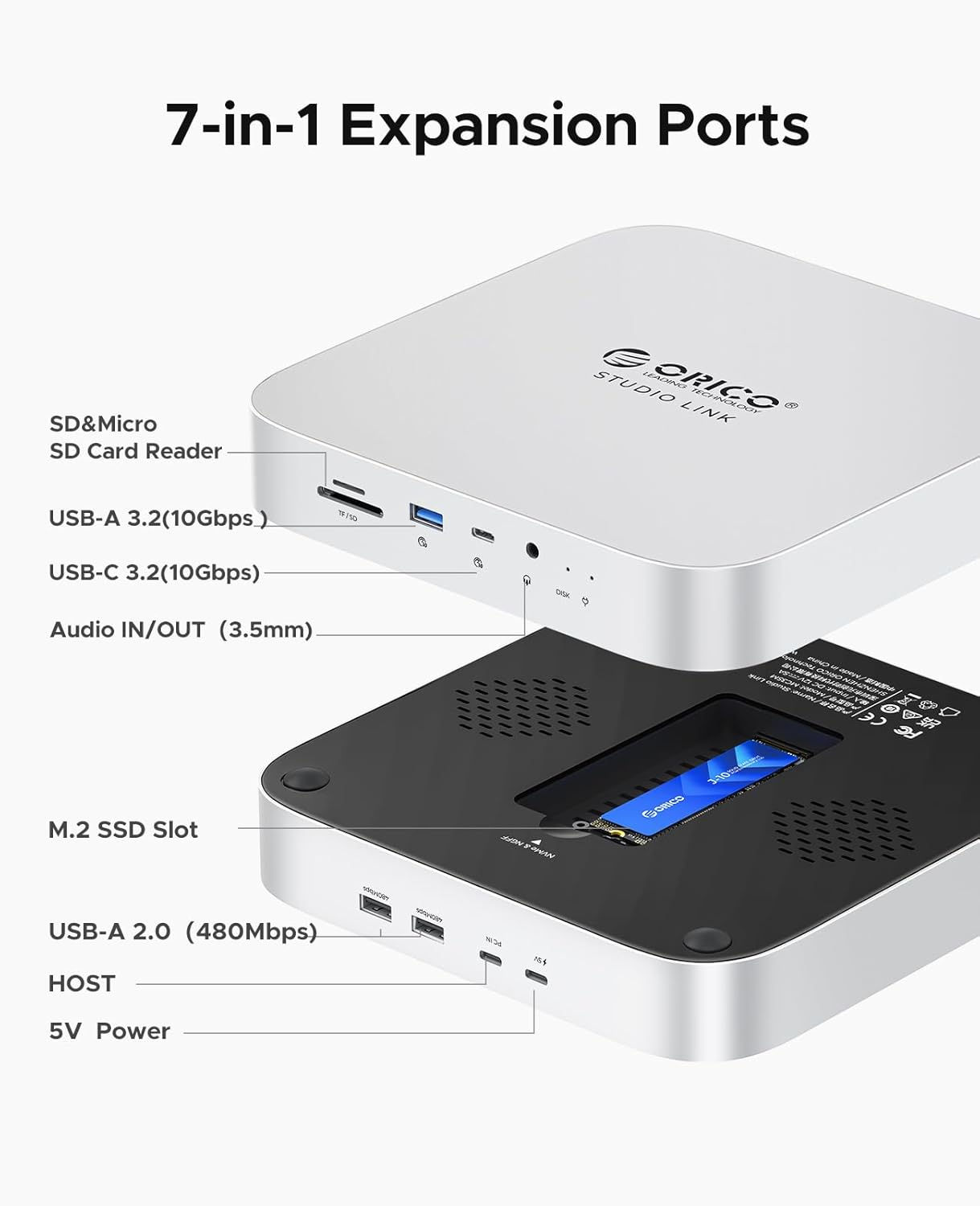
4. Setup Instructions
4.1 M.2 SSD Installation
The hub supports NVMe PCIe and SATA M.2 SSDs (2242/2260/2280 sizes). An SSD is not included.
- Locate the M.2 SSD slot on the bottom of the hub.
- Carefully insert your M.2 SSD into the slot.
- Secure the SSD using the provided cooling vest and silicone thermal pads to ensure optimal heat dissipation.
- Close the SSD compartment cover.

4.2 Connecting to Your Computer
Connect the ORICO StudioLink to your Mac Mini or other compatible computer using the supplied USB-C to USB-C data cable.
- Connect one end of the USB-C to USB-C cable to the 'HOST' port on the ORICO StudioLink.
- Connect the other end of the cable to a USB-C port on your computer.
4.3 External Power Supply (Optional)
For stable operation with multiple power-intensive devices or for optimal SSD performance, an external 5V power supply can be connected.
- Connect a 5V power adapter (not included) to the '5V' Type-C power port on the hub.

5. Operating Instructions
5.1 Using the Ports
Once connected, your computer will recognize the hub and its connected devices. You can now use the various ports:
- USB-C and USB-A Ports: Connect USB devices such as external hard drives, keyboards, mice, or other peripherals. The 10Gbps ports offer high-speed data transfer.
- SD/TF Card Reader: Insert SD or MicroSD cards for data access.
- 3.5mm Audio Jack: Connect headphones or speakers for audio output, or a microphone for audio input.
5.2 Data Transfer
The hub supports high-speed data transfer:
| Port Type | Speed | Typical Write Speed | Typical Read Speed |
|---|---|---|---|
| M.2 NVMe | 10Gbps | 862MB/s | 837MB/s |
| USB C 3.2 | 10Gbps | 811MB/s | 822MB/s |
| USB A 3.2 | 10Gbps | 776MB/s | 818MB/s |
Note: Actual data transfer speeds may vary depending on specific conditions, including the connected device, cable quality, and system load.

6. Compatibility
The ORICO StudioLink is designed for wide compatibility with various devices and operating systems.
Compatible Devices:
- Mac Mini M1/M2
- Mac Studio
- 2018/2020 Mac Mini
- Laptops with USB-C
- iMac with USB-C
Compatible Operating Systems:
- macOS
- Windows
- Linux
- Android

7. Maintenance
To ensure the longevity and optimal performance of your ORICO StudioLink hub, follow these maintenance guidelines:
- Keep the device clean and free from dust. Use a soft, dry cloth for cleaning.
- Avoid exposing the hub to extreme temperatures, humidity, or direct sunlight.
- Do not disassemble the device. Unauthorized repairs will void the warranty.
- Ensure proper ventilation around the hub, especially when an SSD is installed and under heavy load, to aid in heat dissipation.
8. Troubleshooting
If you encounter issues with your ORICO StudioLink, refer to the following common problems and solutions:
- Device not recognized by computer:
- Ensure the USB-C to USB-C data cable is securely connected to both the hub's 'HOST' port and your computer's USB-C port.
- Try connecting the hub to a different USB-C port on your computer.
- Restart your computer.
- SSD not detected:
- Verify that the M.2 SSD is correctly installed and seated firmly in its slot.
- Check if the SSD is initialized and formatted in your operating system's Disk Utility (macOS) or Disk Management (Windows). New SSDs often require initialization before use.
- Ensure the SSD type (NVMe or SATA) is compatible with the enclosure.
- Slow data transfer speeds:
- Ensure you are using the 10Gbps USB-C or USB-A ports for high-speed devices.
- Connect an external 5V power supply to the hub if multiple power-intensive devices are connected.
- Verify that your computer's USB-C port supports the required data transfer speeds.
- Audio jack not working:
- Check your computer's sound settings to ensure the ORICO StudioLink audio output is selected as the default device.
- Ensure your headphones or speakers are properly connected to the 3.5mm jack.
9. Specifications
| Feature | Detail |
|---|---|
| Model | StudioLink |
| Brand | ORICO |
| Color | Silver |
| Hardware Interface | 3.5mm Audio, MicroSD, USB 2.0 Type A, USB 3.2 Gen 2x2 (10Gbps) |
| SSD Compatibility | NVMe PCIe & SATA M.2 SSD (2242/2260/2280) |
| Data Transfer Speed | Up to 10Gbps |
| Compatible Devices | Mac Mini M1/M2, Mac Studio, Laptops, iMac |
| Compatible OS | macOS, Windows, Linux, Android |
| Item Weight | 2.07 pounds |
| Package Dimensions | 11.26 x 8.86 x 3.27 inches |
10. Warranty and Support
ORICO products typically come with a standard manufacturer's warranty. For specific warranty details, technical support, or service inquiries, please refer to the warranty card included in your package or visit the official ORICO website. You may also contact your retailer for assistance.