
1. Introduction
This manual provides detailed instructions for the installation, operation, and maintenance of your QDVOPHZA 4G/WiFi Solar Camera. This outdoor surveillance camera features 12MP resolution, 10X optical zoom, dual-screen display, human auto-tracking, and flexible 4G/WiFi connectivity, powered by an integrated solar panel. Please read this manual thoroughly before use to ensure proper setup and functionality.
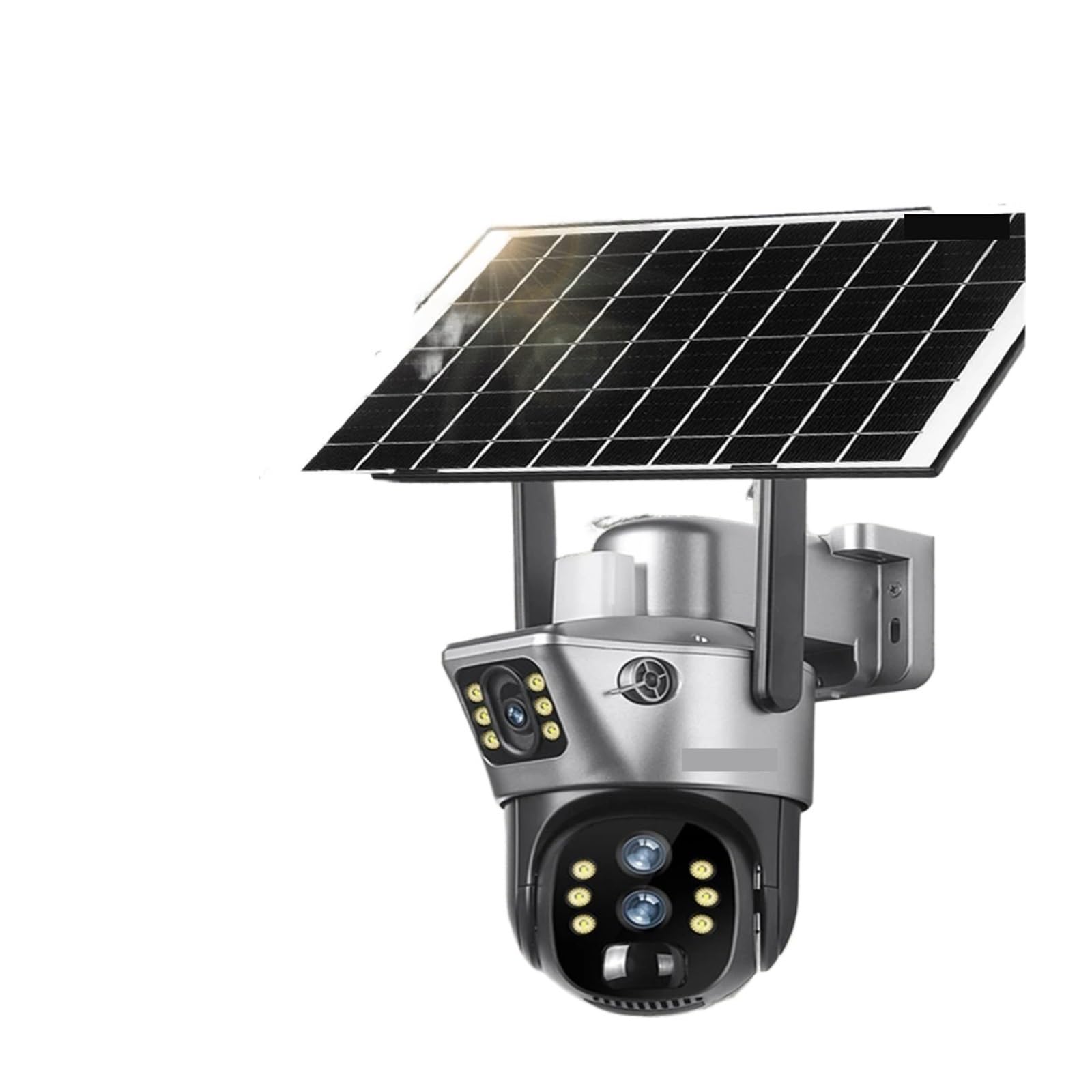
Image 1.1: Overview of the QDVOPHZA 4G/WiFi Solar Camera.
2. Product Features
- 12MP 6K Ultra-Clear Imaging: Equipped with a 12-megapixel camera, providing 6K resolution for detailed video capture day and night.
- 10X Optical Zoom: Allows for clear monitoring of distant areas, enabling users to zoom in on specific details without loss of clarity.
- Smart Human Auto Tracking: Automatically identifies and tracks human movement, ensuring continuous surveillance of suspicious activity.
- Dual Screen / Multi-Lens Display: Features multiple lenses for a comprehensive view, displayed on a dual screen interface for enhanced monitoring.
- Flexible Connectivity (4G & WiFi): Supports both 4G cellular and WiFi connections, offering versatile installation options even in areas without WiFi.
- Solar Powered: Integrated efficient solar panels provide continuous power, making the camera environmentally friendly and suitable for remote outdoor locations without external power cords.
- Full Color Night Vision: Offers both infrared and intelligent full-color night vision modes, automatically switching to color when motion is detected in low light.
3. Component Identification
Familiarize yourself with the main components of your camera:

Image 3.1: Front view of the camera highlighting dual lenses and antennas.
- Solar Panel: Converts sunlight into electrical energy to power the camera.
- Main Camera Body: Houses the primary components, including the pan-tilt mechanism.
- Upper Lens: Provides a wide-angle view for general surveillance.
- Lower Lens: Features 10X optical zoom for detailed observation.
- LED Illuminators: White light LEDs for full-color night vision and infrared LEDs for standard night vision.
- Antennas: For 4G and WiFi signal reception.
- Mounting Bracket: For securing the camera to a wall or pole.
- SIM Card Slot: (Typically located under a protective cover) For inserting a 4G SIM card.
- SD Card Slot: (Typically located under a protective cover) For local video storage.
4. Setup Guide
4.1 Unboxing and Initial Check
Carefully unpack all components. Verify that all items listed in the packaging are present and undamaged. If any items are missing or damaged, contact customer support.
4.2 SIM Card and SD Card Installation (if applicable)
- Locate the protective cover for the SIM card and SD card slots, usually on the underside or side of the camera body.
- Open the cover carefully.
- Insert a compatible 4G SIM card (if using 4G connectivity) into the SIM card slot with the correct orientation.
- Insert a microSD card (up to 128GB, not included) into the SD card slot for local storage.
- Close the protective cover securely to ensure waterproofing.
4.3 App Download and Account Registration
- Scan the QR code provided in the quick start guide or search for the designated camera application (e.g., 'Ubox' or similar, refer to packaging) in your mobile app store (iOS App Store or Google Play Store).
- Download and install the application.
- Open the app and follow the on-screen instructions to register a new account.
4.4 Camera Pairing and Network Configuration
- Ensure your camera is powered on (the solar panel should be exposed to light, or the internal battery charged).
- Open the app and select "Add Device" or the '+' icon.
- Follow the app's instructions to pair the camera. This typically involves scanning a QR code on the camera or listening for an audio prompt.
- For WiFi Connection: Select your 2.4GHz WiFi network and enter the password when prompted by the app.
- For 4G Connection: If a SIM card is installed and active, the camera should automatically connect to the 4G network. Verify signal strength within the app.
- Once connected, you can name your camera and complete the setup.
4.5 Physical Installation
Choose a suitable outdoor location for mounting. Consider the following:
- Solar Panel Exposure: Ensure the solar panel receives direct sunlight for several hours daily to maintain battery charge. Orient it towards the south (Northern Hemisphere) or north (Southern Hemisphere) for maximum exposure.
- Coverage Area: Position the camera to cover your desired surveillance area effectively.
- Mounting Surface: Use the provided mounting bracket and screws to securely attach the camera to a wall, pole, or other stable surface.
- Height: Mount the camera at a height that provides a good vantage point while deterring tampering.
5. Operation
5.1 Live View and Recording
Open the camera app. Select your camera from the device list to access the live video feed. From here, you can manually start recording, take snapshots, and listen to audio.
5.2 10X Optical Zoom
While in live view, use the pinch-to-zoom gesture on your mobile device screen or the dedicated zoom controls within the app to adjust the 10X optical zoom of the lower lens. This allows you to magnify distant objects for clearer identification.

Image 5.1: Illustration of the 10X Intelligent Zoom feature.
5.3 Human Automatic Tracking
Enable the human auto-tracking feature in the camera settings within the app. Once activated, the camera's pan-tilt mechanism will automatically follow detected human figures, keeping them in the frame.

Image 5.2: The camera automatically tracks human movement.
5.4 Dual Screen Display
The camera utilizes two lenses to provide a dual-screen view within the app. The upper lens typically offers a wide, fixed perspective, while the lower lens provides a pan-tilt-zoom (PTZ) view. This allows for simultaneous monitoring of a broad area and specific details.

Image 5.3: Visual comparison of camera capabilities, illustrating the concept of different views.
5.5 Night Vision Modes
The camera supports two night vision modes:
- Infrared Night Vision: Provides clear black and white video in complete darkness using infrared LEDs.
- Intelligent Full Color Night Vision: When enabled, the camera will automatically activate its white light LEDs upon detecting motion in low-light conditions, providing a full-color video feed.

Image 5.4: Comparison of Infrared Night Vision and Intelligent Full Color Night Vision.
6. Maintenance
- Cleaning the Solar Panel: Regularly wipe the solar panel surface with a soft, damp cloth to remove dust, dirt, and debris. A clean panel ensures optimal charging efficiency.
- Cleaning the Lenses: Use a soft, lint-free cloth specifically designed for optics to clean the camera lenses. Avoid abrasive materials or harsh chemicals.
- Firmware Updates: Check the camera app periodically for available firmware updates. Keeping the firmware updated ensures optimal performance, security, and access to new features.
- Battery Health: While solar-powered, ensure the camera receives sufficient sunlight. If the camera is frequently in shaded areas, consider repositioning it or manually charging the internal battery if an external charging port is available (refer to product specifications).
7. Troubleshooting
- Camera Not Powering On:
- Ensure the solar panel is exposed to sufficient sunlight.
- Check if the internal battery has enough charge. Allow several hours of direct sunlight for initial charging. - No Network Connection (4G/WiFi):
- For 4G: Verify the SIM card is correctly inserted, active, and has data.
- For WiFi: Ensure the camera is within range of a 2.4GHz WiFi network. Check WiFi password accuracy. Restart your router and the camera.
- Check signal strength in the app. - Video Feed is Unclear or Lagging:
- Check your network connection speed (4G or WiFi). A weak signal can cause issues.
- Clean the camera lenses.
- Ensure there are no obstructions blocking the camera's view. - Human Auto Tracking Not Working:
- Ensure the feature is enabled in the app settings.
- Verify the camera's field of view is clear and not obstructed.
- Ensure there is sufficient lighting for detection. - SD Card Not Recording:
- Ensure the SD card is correctly inserted and formatted within the app.
- Check if the SD card is full. Back up data and format if necessary.
- Verify recording settings (e.g., motion detection recording) are enabled.
8. Specifications
| Feature | Specification |
|---|---|
| Model Number | w0u5903wei |
| Resolution | 12MP (6K) |
| Zoom | 10X Optical Zoom |
| Connectivity | 4G, WiFi (2.4GHz) |
| Sensor Size | 1/2.7" |
| Lens (mm) | 3.6mm (Fixed), 2.8mm (Zoom) |
| Audio Output | 1CH BNC (Implied, typically for external audio) |
| Supported Mobile Systems | iOS, Android |
| Alarm Action | Local Alarm |
| Viewing Angle | 360° (Pan/Tilt capability) |
| Storage | Supports up to 128GB MicroSD Card (not included) |
| Installation | Side, Ceiling, Normal |
| Power Source | Solar Powered (Built-in battery) |
| Item Weight | 1.76 ounces |
| Package Dimensions | 0.39 x 0.39 x 0.39 inches |
9. Warranty and Support
This QDVOPHZA product comes with a standard manufacturer's warranty. Please refer to the warranty card included in your package or visit the official QDVOPHZA website for detailed warranty terms and conditions.
For technical support, troubleshooting assistance, or any product-related inquiries, please contact QDVOPHZA customer service through the contact information provided on the product packaging or the official website. When contacting support, please have your model number (w0u5903wei) and purchase details ready.