
1. Introduction
Thank you for choosing the QDVOPHZA 4K 8MP PTZ Outdoor WiFi Security Camera. This manual provides detailed instructions for the installation, operation, and maintenance of your security camera. Please read this manual thoroughly before use to ensure proper functionality and to maximize the camera's performance.
This camera is designed for outdoor surveillance, offering advanced features such as 4K Ultra HD resolution, 10X optical zoom, automatic tracking, and color night vision, all within a durable, weatherproof design.

Image: The QDVOPHZA PTZ camera highlighting its key features including automatic tracking, multi-lens design, and dual-screen preview capability, alongside a mobile app interface.
2. Product Features
- 4K 8MP Ultra HD Resolution: Provides clear and detailed images for comprehensive surveillance.
- 10X Optical Zoom: Allows for clear magnification of distant objects without loss of image quality.
- Automatic Tracking: Intelligently tracks moving objects, keeping them within the monitoring field.
- Color Night Vision: Delivers clear, colorful images even in low-light or complete darkness.
- IP66 Weatherproof Rating: Ensures stable operation in various weather conditions, including heavy rain and snow.
- Pan and Tilt Functionality: Offers a 355° horizontal pan and 90° vertical tilt for wide area coverage, controllable via mobile app.
- Dual-lens Dual-screen Preview: Enables simultaneous monitoring of a fixed wide view and a zoomed-in PTZ view.
- Humanoid Detection Alarm: Advanced detection capabilities to identify human figures and trigger alarms.
- Two-Way Audio: Allows for communication through the camera.
- Multiple Storage Options: Supports TF card storage (up to 128G) and cloud storage (if applicable).
3. Package Contents
Please check the package contents upon unboxing. If any items are missing or damaged, contact customer support.
- QDVOPHZA 4K 8MP PTZ Outdoor WiFi Security Camera
- Power Adapter (DC 12V)
- Mounting Screws and Wall Plugs
- User Manual (this document)
- Waterproof Kit for Network Cable (if applicable)
4. Setup Guide
4.1 Physical Installation
Choose a suitable outdoor location for installation, ensuring a clear line of sight and access to a power source. The camera can be mounted on a wall or pole.
- Mark Drilling Positions: Use the mounting template (if provided) or the camera base to mark the screw holes on the desired surface.
- Drill Holes: Drill holes at the marked positions. Insert wall plugs if mounting on masonry.
- Secure Camera: Attach the camera base to the surface using the provided screws. Ensure it is securely fastened.
- Connect Power: Connect the DC 12V power adapter to the camera's power input and plug it into an outdoor-rated power outlet.

Image: The QDVOPHZA PTZ camera mounted on a tree, illustrating its 355° pan and 90° tilt capabilities for wide area coverage.
4.2 Mobile App Installation and Pairing
Download the compatible mobile application (e.g., "iCSee" or similar, refer to packaging for specific app name) from your device's app store (iOS App Store or Google Play Store).
- Download App: Search for the recommended app and install it on your smartphone.
- Register Account: Open the app and follow the on-screen instructions to register a new account or log in if you already have one.
- Add Device: Tap the "+" icon or "Add Device" option in the app.
- Select Camera Type: Choose "WiFi Camera" or "Smart Camera" and follow the prompts for network configuration.
- Connect to WiFi: Ensure your phone is connected to a 2.4GHz WiFi network. The camera supports 2.4GHz WiFi.
- Scan QR Code: The app will guide you to scan a QR code on the camera or generate a QR code on your phone for the camera to scan. Hold your phone's screen towards the camera lens until you hear a confirmation sound.
- Complete Setup: Once connected, name your camera and set a password.
4.3 Micro SD Card Installation (Optional)
For local video storage, install a Micro SD card (up to 128GB, not included unless specified in your purchase).
- Power Off: Disconnect the camera from the power supply before installing or removing the SD card.
- Locate Slot: Find the SD card slot, usually under a protective cover on the camera body.
- Insert Card: Gently insert the Micro SD card into the slot with the contacts facing the correct direction until it clicks into place.
- Power On: Reconnect the power. Format the SD card via the mobile app settings if prompted.
5. Operating Instructions
5.1 Live View and PTZ Control
Open the mobile app and select your camera to access the live view.
- Pan/Tilt: Use the directional controls (arrows or joystick) on the app interface to rotate the camera horizontally (pan) and vertically (tilt).
- Zoom: Use the pinch-to-zoom gesture on the live view or dedicated zoom buttons to activate the 10X optical zoom.

Image: The camera's 10X optical zoom capability, illustrating how distant objects like a camel in a snowy landscape can be clearly magnified.
5.2 Automatic Tracking
Enable the automatic tracking feature in the camera settings within the app. When activated, the camera will automatically follow detected moving objects.
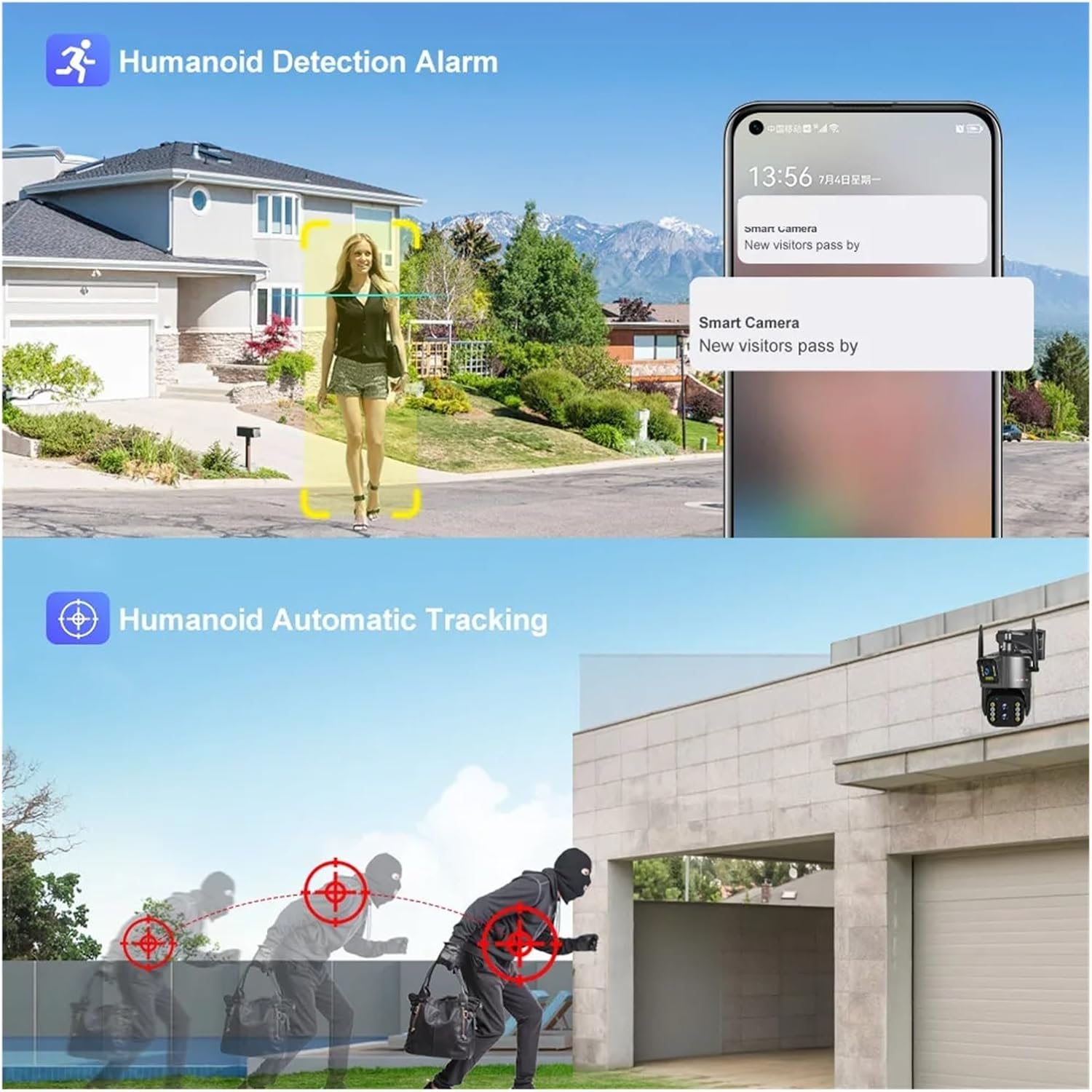
Image: Illustration of the camera's humanoid detection and automatic tracking, showing how it follows a person and a potential intruder.
5.3 Night Vision Modes
The camera supports both infrared (black and white) and full-color night vision. You can switch between modes or set it to automatic in the app settings.
- Infrared Mode: Provides clear black and white images in complete darkness.
- Full Color Night Vision Mode: Utilizes built-in spotlights to illuminate the area, providing color images at night.

Image: A comparison demonstrating the clarity of infrared night vision versus the vibrant detail of full-color night vision provided by the camera.
5.4 Dual-lens Dual-screen Preview
This feature allows you to view two video streams simultaneously: one from the fixed wide-angle lens and another from the PTZ (pan-tilt-zoom) lens. This enables comprehensive monitoring with both a general overview and detailed close-ups.

Image: The dual-lens dual-screen preview feature, displaying both a wide-angle fixed view and a zoomed-in PTZ view concurrently on a single screen.
5.5 Recording and Playback
Recordings are stored on the Micro SD card or cloud storage (if subscribed). Access playback through the app's "Playback" or "History" section.
- Event Recording: Records automatically when motion or humanoid detection is triggered.
- Continuous Recording: Can be enabled in settings for 24/7 recording (requires sufficient storage).
- Playback: Select a date and time in the app to review recorded footage.
6. Maintenance
- Cleaning: Periodically clean the camera lens with a soft, dry cloth to ensure clear image quality. Do not use harsh chemicals.
- Firmware Updates: Check the mobile app regularly for firmware updates. Keeping the firmware updated ensures optimal performance and security.
- Power Supply: Ensure the power adapter and cable are free from damage. Replace if necessary.
- SD Card Management: If using an SD card, periodically check its status in the app. Consider formatting it every few months to maintain performance.
7. Troubleshooting
7.1 Camera Offline
- Check Power: Ensure the camera is properly connected to a power source and the outlet is working.
- Check WiFi: Verify your WiFi router is functioning and the camera is within range. Restart the router if necessary.
- Re-pair Camera: If the issue persists, try re-pairing the camera with the app.
7.2 Poor Image Quality
- Clean Lens: Clean the camera lens for any dirt or smudges.
- Network Stability: Ensure a stable WiFi connection. Poor signal can affect streaming quality.
- Resolution Settings: Check the resolution settings in the app; ensure it's set to 4K or 8MP for best quality.
7.3 Automatic Tracking Not Working
- Enable Feature: Confirm that automatic tracking is enabled in the app settings.
- Clear View: Ensure there are no obstructions blocking the camera's view.
- Sensitivity: Adjust the motion detection sensitivity in the app.
7.4 SD Card Not Recording
- Insert Correctly: Ensure the SD card is inserted correctly.
- Format Card: Format the SD card through the app.
- Card Capacity/Health: Check if the SD card is full or damaged. Replace if necessary.
- Recording Settings: Verify that recording options (event or continuous) are enabled in the app.
8. Specifications
| Feature | Detail |
|---|---|
| Model Number | w0u5903wei (LS-WL341) |
| Resolution | 4K 8MP (4.0 Megapixels) |
| Optical Zoom | 10X |
| Lens | 2.8-12mm |
| Pan Range | 0°-360° (typically 355° controllable) |
| Tilt Range | Other (typically 90° controllable) |
| Night Vision | Color Night Vision, Infrared Mode |
| Connectivity | WiFi (2.4GHz) |
| Storage | TF Card (up to 128GB), Cloud Storage (optional) |
| Audio | Two Way Audio |
| IP Rating | IP66 (Waterproof / Weatherproof) |
| Power Supply | DC 12V |
| Operating Temperature | -10°C to 60°C (14°F to 140°F) |
| Dimensions (L x W x D) | 25x20x18cm (approx. 9.8 x 7.9 x 7.1 inches) |
| Supported Mobile Systems | Android, iOS |
| Video Compression | H.264, H.265 |
9. Warranty and Support
For warranty information and technical support, please refer to the documentation included with your purchase or visit the official QDVOPHZA website. You may also contact the seller directly through the platform where the product was purchased.
Please retain your proof of purchase for any warranty claims.