
EMONAIR ET01
EMONAIR Mate Tracker Tags User Manual
Model: ET01
1. Introduction
The EMONAIR Mate Tracker Tag is a compact Bluetooth item finder designed to help you locate your personal belongings quickly and efficiently. Utilizing Apple's Find My network, this device allows you to track items such as keys, luggage, backpacks, and wallets directly from your iOS device. Its loud sound feature and long-range tracking capabilities ensure your valuables are always within reach or easily locatable.
Note: This product is exclusively compatible with iOS devices (iPhone, iPad, Mac) and does not support Android.

The EMONAIR Mate Tracker Tag, a compact and versatile item finder.
2. Product Overview
The EMONAIR Mate Tracker Tag features a simple, durable design with essential components for its functionality.
- Key Ring Hole: For attaching to keychains, bags, or other items.
- Button: Used for pairing and activating certain functions.
- Battery Compartment: Houses the replaceable CR2032 battery.

Detailed view of the Mate Tracker Tag's components and dimensions.
3. Setup Guide
Follow these steps to connect your EMONAIR Mate Tracker Tag to your iOS device:
- Ensure Bluetooth is enabled on your iPhone or iPad. Go to Settings > Bluetooth and turn it on.
- Open the Find My app on your iOS device.
- Press the button on the EMONAIR Mate Tracker Tag. Release the button when you hear a beep, indicating the tag has entered pairing mode.
- In the Find My app, tap the Items tab.
- Tap Add Item, then select Other Supported Item.
- Follow the on-screen instructions within the Find My app to complete the pairing process. You may be prompted to name your tag and assign an emoji.

Visual guide for the easy setup process.
4. Operating Your Tracker Tag
4.1 Finding Nearby Items (One-Tap Find)
When your item is within Bluetooth range (approximately 200 feet), you can make the EMONAIR Mate Tracker Tag play a sound to help you locate it. Open the Find My app, select your tag from the Items tab, and tap 'Play Sound'. The tag will emit a loud sound (80-100 decibels) from its built-in speaker. You can also ask Siri for assistance.

Locate items quickly by playing a sound from the tag.
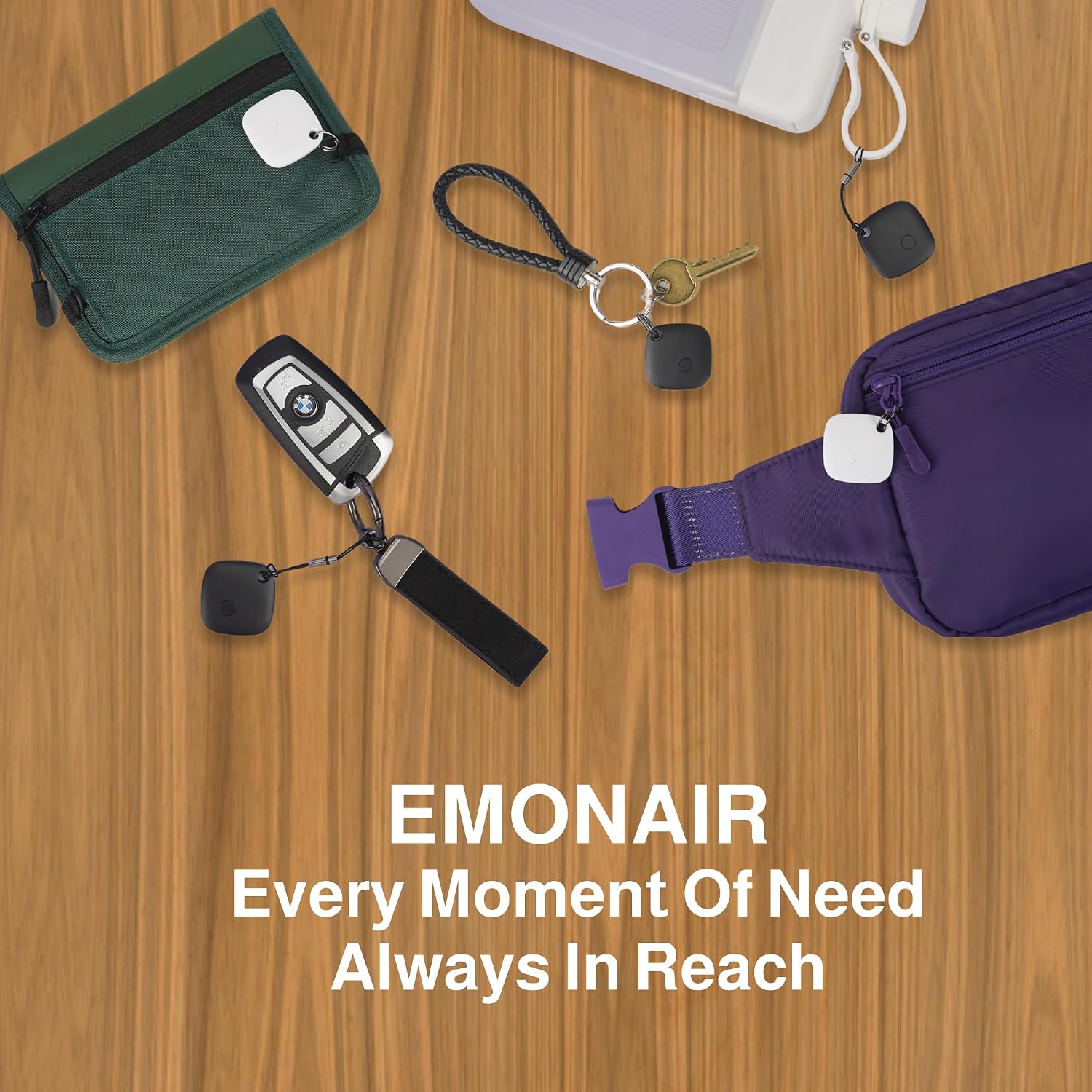
Demonstration of the EMONAIR Mate Tags in various use cases, including finding keys and attaching to water bottles, highlighting its versatility.
4.2 Long-Range Finding with Apple Find My Network
If your item is out of Bluetooth range, the Apple Find My network can help you locate it. Billions of Apple devices worldwide anonymously and securely relay the location of your EMONAIR Mate Tracker Tag to the Find My app. You can then view its last known location on a map and navigate directly to it.

The Find My app displays the location of your tagged items.
4.3 Left-Behind Remind
The Find My app's Left-Behind Remind feature provides instant notifications if you leave an item with your EMONAIR Mate Tracker Tag behind. When the tag goes out of Bluetooth range from your iOS device, you'll receive an alert, helping you remember to retrieve forgotten items.

Receive alerts if you leave your tagged items behind.
4.4 Lost Mode
If an item is truly lost, you can activate Lost Mode in the Find My app. This allows nearby Apple devices to detect your tag and securely relay its location to you. You can also add contact information so that if someone finds your tag, they can contact you directly.
Activate Lost Mode to help recover misplaced items.
5. Maintenance
5.1 Battery Replacement
The EMONAIR Mate Tracker Tag uses a replaceable CR2032 coin cell battery, which typically lasts between 12 to 25 months depending on usage. You can check the battery status directly within the Find My app. A small screwdriver is included with your tag to facilitate battery replacement.
To replace the battery:
- Locate the screw on the back of the tag.
- Use the provided screwdriver to open the battery compartment.
- Remove the old CR2032 battery and insert a new one, ensuring correct polarity.
- Securely close the battery compartment.
5.2 Water and Dust Resistance
The EMONAIR Mate Tracker Tag is rated IP67 for water and dust resistance. This means it is protected against dust ingress and can withstand immersion in water up to 1 meter for up to 30 minutes. It is resistant to splashes and rain, making it suitable for various conditions, but it is not recommended for prolonged submersion or use during swimming.
6. Troubleshooting
- Tag not pairing with iOS device:
- Ensure Bluetooth is enabled on your iOS device.
- Make sure the tag's battery is not depleted.
- Try resetting the tag by removing and reinserting the battery.
- Ensure you are following the correct pairing steps in the Find My app.
- Sound from tag is too low or inaudible:
- Check if the tag is muffled by surrounding objects (e.g., inside a thick bag).
- Ensure the tag's speaker is not obstructed.
- The sound may be less audible in noisy environments.
- Location accuracy issues:
- Location accuracy depends on the density of the Apple Find My network in the area.
- Ensure your iOS device has a stable internet connection for updated location data.
- GPS and Wi-Fi signals can affect accuracy.
- Tag not responding:
- Replace the battery if it's low or dead.
- If the tag has been exposed to extreme conditions (e.g., severe impact, prolonged water exposure beyond IP67 rating), it may be damaged.
7. Specifications
| Feature | Detail |
|---|---|
| Model Number | ET01 |
| Dimensions | 0.31 x 1.3 x 1.3 inches (7.9 x 33 x 33 mm) |
| Weight | 0.264 ounces (7.6 grams) |
| Battery Type | CR2032 (replaceable) |
| Battery Life | 12-25 months (typical) |
| Connectivity | Bluetooth |
| Sound Output | 80-100 decibels |
| Water & Dust Resistance | IP67 |
| Compatibility | iOS devices only (iPhone, iPad, Mac) |
8. Warranty and Support
For detailed warranty information, please refer to the warranty card included with your product or visit the official EMONAIR website. If you encounter any issues or require further assistance, please contact EMONAIR customer support through their official channels or the platform where the product was purchased.
You can also visit the EMONAIR Store on Amazon for more product information and support resources.
Related documentsET01

Ask a question about this manual
Ask about setup, troubleshooting, compatibility, parts, safety, or missing instructions. Manuals+ will review the question and use this page’s manual context to help answer it.