
1. Introduction
This manual provides detailed instructions for the installation, operation, and maintenance of your EVERSECU 2K Wired WiFi Bullet Camera. Please read this manual thoroughly before using the product to ensure proper functionality and safety. This camera is designed for both indoor and outdoor surveillance, offering high-resolution video, two-way audio, and advanced motion detection capabilities.
2. Product Overview
The EVERSECU 2K Wired WiFi Bullet Camera is a versatile security solution featuring a 3MP high-resolution lens for clear 2K video. It includes advanced night vision, two-way audio, and intelligent motion detection. The camera supports ONVIF and RTSP streams for integration with existing NVR systems and is compatible with Amazon Alexa.
Key Features:
- 2K Crystal Clarity & 2.8mm Lens: 3MP resolution (2304x1296 pixels) with 8 infrared LEDs for clear night vision up to 65 feet.
- Intelligent Motion Sensing & Interactive Audio: Advanced motion detection with AI capabilities for precise notifications. Integrated microphone and speaker for two-way communication.
- Enhanced Dual Wi-Fi Antennas: Improved 2.4G Wi-Fi signal strength and transmission range for stable connectivity.
- Emergency Siren & Shared Security Access: Manual or automatic siren activation. Share camera access with up to 8 users.
- ONVIF, RTSP, and Alexa Compatibility: Supports integration with NVRs and smart home systems.
- Enterprise-class Video Encryption & Storage: AES256 encryption for secure data. Supports cloud storage and up to 128GB micro SD card (not included).
Package Contents:
- Camera Body
- Power Adapter
- User Manual
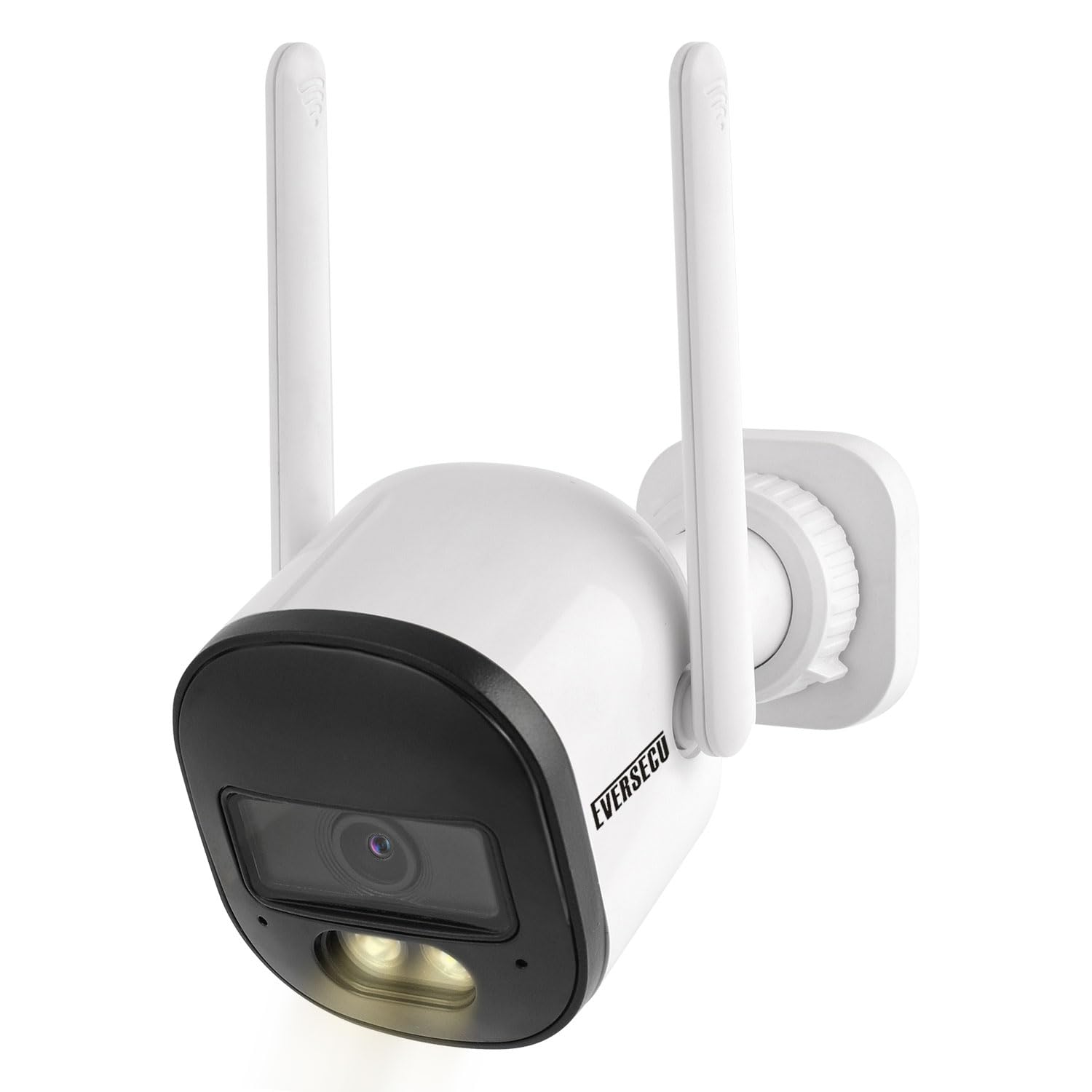
Figure 2.1: EVERSECU 2K Wired WiFi Bullet Camera. This image shows the main camera unit with its dual antennas.
3. Setup
3.1 Initial Power-Up and App Installation
- Power Connection: Connect the camera to a power outlet using the provided power adapter. The camera requires constant power to function.
- App Download: Download and install the O-KAM app on your iOS or Android device.
- Account Creation: Follow the in-app instructions to create an account and log in.
- Add Device: In the O-KAM app, select 'Add Device' and follow the prompts to connect your camera to your 2.4G Wi-Fi network. Ensure your router is configured for the 2.4 GHz band.
3.2 ONVIF/RTSP Configuration
To integrate your camera with an NVR or other systems using ONVIF or RTSP, you must first set a password within the O-KAM app.
- Set App Password: Open the O-KAM app, navigate to the camera's settings, and enable the password for ONVIF/RTSP. Set a strong password (8-31 characters).
- Connect to NVR: Connect your NVR to the same network as the camera.
- Search for Camera: On your NVR interface, search for IP cameras. The NVR should detect the camera via ONVIF protocol.
- Add Camera: Add the camera to the NVR using its IP address, the username (usually 'admin' or 'user'), and the password you set in the O-KAM app. The RTSP address format is:
rtsp://[username]:[password]@[ip]:10554/tcp/av0_0
Video 3.1: Instructions on how to add EVERSECU cameras to an NVR system. This video demonstrates the steps for setting up ONVIF functionality.

Figure 3.2: This image illustrates the integration of the camera with an NVR device for 24/7 recording, highlighting ONVIF compatibility.
4. Operation
4.1 Live View and Recording
Access the live feed from your camera via the O-KAM app. You can view real-time video, initiate manual recordings, and capture screenshots.

Figure 4.1: Comparison of 3MP high-definition pixels versus 2MP image quality, demonstrating the camera's superior resolution.
4.2 Night Vision Modes
The camera offers advanced night vision capabilities, including full-color night vision, enabled by its 8 premium infrared LEDs and white light illumination.
- Black and White Mode: Only IR lights are active, providing clear black and white footage in low light.
- All Day Full Color: White light is continuously ON for full-color vision.
- Full Color Auto Mode: White light automatically turns ON when motion is detected, providing full-color footage during events.

Figure 4.2: Illustration of the camera's night vision modes, including black and white, all-day full color, and full-color auto mode with white light activation upon motion detection.
4.3 Motion Detection and Alerts
The camera features an advanced motion detection sensor with enhanced AI capabilities to detect humanoids and send precise, immediate notifications to your mobile device.
- Customizable Alarm Modes: Configure the camera to activate a light warning, siren, or both when motion is detected.
- Notifications: Receive push notifications on your smartphone when an event is triggered.

Figure 4.3: Depiction of customizable alarm modes, showing how the camera can use light and siren to deter unwanted individuals.
4.4 Two-Way Audio
Utilize the integrated microphone and speaker to engage in two-way conversations with visitors or deter intruders directly from your mobile device.

Figure 4.4: An illustration of the two-way audio feature, allowing communication with individuals near the camera through the mobile app.
4.5 Storage Options
The camera supports both cloud storage and local storage via a micro SD card (up to 128GB, not included). All video data is secured with enterprise-class AES256 encryption.
5. Maintenance
5.1 Cleaning
To maintain optimal image clarity, regularly clean the camera lens with a soft, dry cloth. Avoid using harsh chemicals or abrasive materials.
5.2 Weather Resistance
The camera is rated IP66 waterproof, meaning it is protected against dust and resistant to powerful water jets. While designed for outdoor use, consider installing it under an overhang or in a sheltered location to prolong its lifespan and ensure consistent performance in extreme weather conditions.

Figure 5.1: This image highlights the camera's IP66 weather-resistant design, suitable for various outdoor conditions including rain and snow.
6. Troubleshooting
Common Issues and Solutions:
- No Power: Ensure the power adapter is securely connected to both the camera and a working power outlet.
- Wi-Fi Connectivity Issues:
- Verify the camera is within range of your 2.4G Wi-Fi router.
- Ensure your router is configured for the 2.4 GHz band.
- Restart both the camera and your router.
- Red Hue on Image: If you observe a reddish tint in the image, power cycle the camera (turn it off and on) a few times. This can help reset the IR filter.
- Poor Image Quality:
- Clean the camera lens.
- Ensure adequate lighting for optimal performance, especially at night.
- Check your Wi-Fi signal strength in the O-KAM app; a weak signal can affect streaming quality.
- Motion Detection Not Working:
- Verify motion detection settings are enabled in the O-KAM app.
- Adjust sensitivity settings if necessary.
- ONVIF/RTSP Connection Failure:
- Confirm the ONVIF password is set correctly in the O-KAM app.
- Ensure the camera and NVR are on the same network.
- Double-check the IP address, username, and password entered into the NVR.
7. Specifications
| Feature | Specification |
|---|---|
| Indoor/Outdoor Usage | Indoor, Outdoor |
| Compatible Devices | IOS/Android, Amazon Alexa |
| Power Source | Corded Electric |
| Connectivity Protocol | Wi-Fi (2.4G) |
| Mounting Type | Wall Mount |
| Video Capture Resolution | 2K (3MP, 2304x1296 pixels) |
| Color | White |
| Included Components | Camera Body, Power Adapter, User Manual |
| Item Dimensions (L x W x H) | 6 x 4 x 4 inches |
| Item Weight | 1.4 pounds |
| Special Features | 2.8mm Lens, ONVIF, RTSP, 2-Way Audio, Night Vision, Motion Detection Alarm |
| Storage Support | Cloud Storage, Micro SD Card (up to 128GB, not included) |
8. Warranty and Support
For warranty information or technical support, please refer to the contact details provided with your product packaging or visit the official EVERSECU website. Keep your purchase receipt for any warranty claims.