
1. Introduction
The ZTE U30 Air is a high-performance 5G portable WiFi mobile router designed to provide fast and reliable internet access on the go. Featuring intelligent dual network support, NFC one-touch connectivity, and a large 4500mAh battery, it ensures seamless connectivity for multiple devices. This manual provides essential information for setting up, operating, maintaining, and troubleshooting your device.

Figure 1.1: ZTE U30 Air 5G Portable WiFi Mobile Router
Video 1.1: ZTE U30 Air Product Overview. This video provides a brief visual introduction to the device's design and key functionalities.
2. Product Features
- High-Speed Connectivity: Supports WiFi speeds up to 867Mbps with dual 5G/4G compatibility for uninterrupted internet access.
- Wide WiFi Coverage: Extends up to 100 meters, providing robust WiFi signals in open spaces.
- Simultaneous Device Support: Connects up to 10 WiFi-enabled devices simultaneously, ideal for group usage.
- Dual-Mode 5G Networks: Supports SA+NSA networks and Sub-6GHz frequency bands for superior speed and coverage.
- Advanced Antenna Design: Features 7 antennas with 4x MIMO technology, enhancing signal strength and channel capacity.
- Extended Battery Life: Provides up to 10 hours of continuous use on a single charge.
- NFC Instant Pairing: Enables Android devices to connect to WiFi networks with a simple tap, without entering a password.
- USB 3.0 Type-C Connectivity: Ensures fast and stable wired internet connections for laptops and other devices.
- Enhanced Network Stability: AI network scheduling algorithm ensures stable connections even in poor network environments.

Figure 2.1: Illustrates the 4500mAh battery capacity of the ZTE U30 Air.
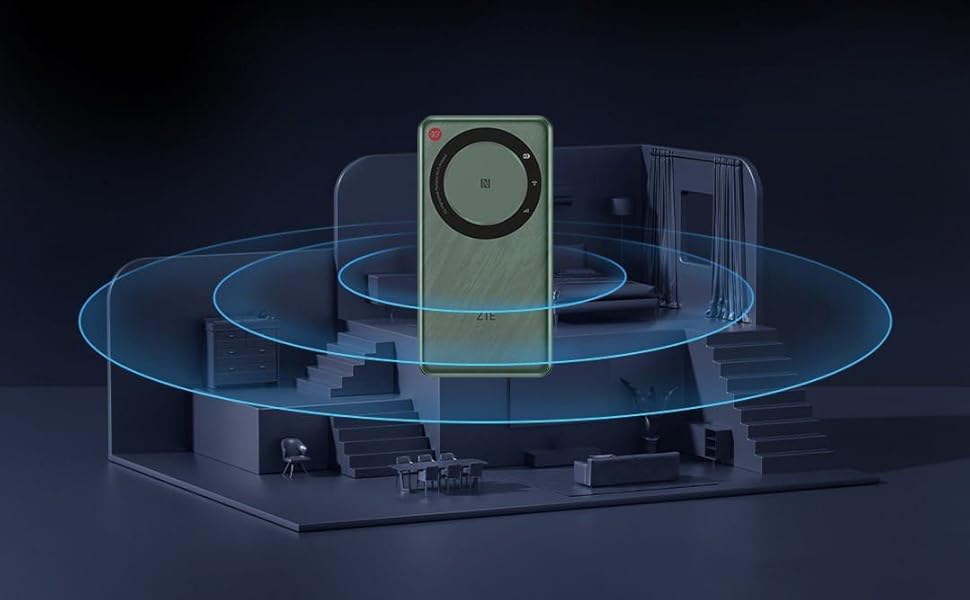
Figure 2.2: Depicts the wide WiFi coverage provided by the device within a typical living space.
3. Setup Guide
3.1 Unboxing and Initial Inspection
Carefully remove all components from the packaging. Verify that all items listed in the package contents are present and undamaged. The package typically includes the ZTE U30 Air device, a USB-C charging cable, and this instruction manual.

Figure 3.1: ZTE U30 Air with its retail packaging.
3.2 SIM Card Installation
- Locate the SIM card slot on the side of the device.
- Using the provided SIM ejector tool (if included) or a small paperclip, gently press into the small hole next to the SIM tray to eject it.
- Place your activated Nano-SIM card into the tray, ensuring the gold contacts face downwards and the notched corner aligns correctly.
- Gently push the SIM tray back into the device until it clicks into place.
3.3 Charging the Device
Before first use, fully charge the ZTE U30 Air. Connect the USB-C cable to the device's charging port and the other end to a compatible USB power adapter (not included) or a computer's USB port. The charging indicator light will show the charging status.
3.4 Powering On/Off
- To Power On: Press and hold the Power button for a few seconds until the indicator lights illuminate.
- To Power Off: Press and hold the Power button until the device powers down.
4. Operating Instructions
4.1 Connecting Devices via Wi-Fi
- Ensure the ZTE U30 Air is powered on.
- On your Wi-Fi enabled device (smartphone, laptop, tablet), open the Wi-Fi settings.
- Search for available networks. The default Wi-Fi network name (SSID) and password are usually found on a sticker inside the SIM card slot or on the device's packaging.
- Select the ZTE U30 Air's SSID from the list and enter the password when prompted.
- Once connected, your device will have internet access through the router.

Figure 4.1: Demonstrates a user connecting a laptop to the ZTE U30 Air for internet access.
4.2 Connecting Devices via NFC
For Android devices with NFC capability, you can connect to the ZTE U30 Air with a single tap, eliminating the need to manually enter the Wi-Fi password.
- Ensure NFC is enabled on your Android smartphone.
- Bring your smartphone close to the NFC area on the ZTE U30 Air (usually indicated by an NFC logo).
- Your phone will prompt you to connect to the Wi-Fi network. Confirm the connection.

Figure 4.2: Illustrates the NFC one-touch connection process between a smartphone and the ZTE U30 Air.
4.3 Connecting Devices via USB-C
The ZTE U30 Air can also provide a wired internet connection to devices like laptops via its USB 3.0 Type-C port.
- Connect one end of the USB-C cable to the ZTE U30 Air and the other end to your laptop's USB-C port.
- The device should be recognized as a network adapter, providing a stable wired connection.
5. Maintenance
5.1 Battery Care
- Avoid exposing the device to extreme temperatures.
- For optimal battery life, avoid fully discharging the battery frequently.
- Use only the provided or certified charging cables.
5.2 Cleaning
Wipe the device with a soft, dry cloth. Do not use liquid cleaners or abrasive materials, as they may damage the device's surface or internal components.
5.3 Firmware Updates
Periodically check for firmware updates through the device's web interface or a dedicated mobile application (if available). Firmware updates can improve performance, add new features, and enhance security.
6. Troubleshooting
6.1 No Internet Connection
- Check SIM Card: Ensure the SIM card is correctly inserted and activated with a valid data plan.
- Signal Strength: Verify that the device is receiving a strong cellular signal. Move to an area with better reception if needed.
- Restart Device: Power off the ZTE U30 Air, wait a few seconds, and then power it back on.
- Check Data Usage: Confirm that your data plan has not been exhausted.
6.2 Slow Connection Speed
- Number of Connected Devices: Too many devices connected simultaneously can reduce speed. Disconnect unnecessary devices.
- Network Congestion: Performance may vary based on network traffic in your area.
- Device Placement: Place the router in a central location, away from obstructions and other electronic devices that may cause interference.
6.3 Device Not Powering On
- Battery Level: Ensure the battery is charged. Connect the device to a power source and try again.
- Charging Cable/Adapter: Try a different USB-C cable and power adapter to rule out faulty accessories.
7. Specifications
| Feature | Detail |
|---|---|
| Brand | ZTE |
| Model Name | U30 Air |
| Product Dimensions | 14 x 7.28 x 1.25 cm |
| Item Weight | 220 g |
| Batteries | 1 Lithium Polymer battery (included) |
| Lithium Battery Energy Content | 4500 Milliampere Hour (mAh) |
| Connectivity Type | 5G, 4G, Wi-Fi |
| Wireless Type | 802.11n, 802.11b, 802.11ac (Dual-Band) |
| Voltage | 5 Volts |
| Operating System | ZyNOS |
| Color | White |

Figure 7.1: Detailed dimensions of the ZTE U30 Air device.
8. Warranty and Support
The ZTE U30 Air comes with a standard manufacturer's warranty. Please refer to the warranty card included in your product packaging for specific terms and conditions, including warranty period and coverage details. For technical support, troubleshooting assistance beyond this manual, or warranty claims, please contact ZTE customer service through their official website or designated support channels.
Keep your purchase receipt and product serial number readily available when contacting support.


