
1. Introduction
The TRIGKEY Key-N150 Mini PC is a compact and efficient computer designed for various tasks, from office work to media entertainment. It features an Intel Twin Lake N150 processor, 16GB DDR4 RAM, and a 500GB M.2 PCIeX4 SSD, offering reliable performance in a small form factor. This manual provides essential information for setting up, operating, and maintaining your Mini PC.

Image 1.1: Front view of the TRIGKEY Key-N150 Mini PC.
2. Package Contents
Please check the package for the following items:
- TRIGKEY Key-N150 Mini PC
- User Manual
- HDMI Cable (1m)
- AC Power Cable (Optional: US/EU/UK/JP/AU)
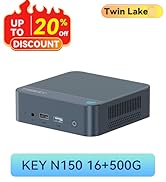
Image 2.1: TRIGKEY Key-N150 Mini PC and included accessories.
3. Product Overview
The Key-N150 Mini PC is equipped with a variety of ports and internal components to support its functionality.
3.1 Front and Rear Panel Interfaces

Image 3.1: Front panel of the Mini PC, showing USB ports and audio jack.

Image 3.2: Rear panel of the Mini PC, showing AC power, USB, LAN, and HDMI ports.
The Mini PC features:
- Front: 3.5mm Audio Jack, USB 2.0, USB 3.2 (10Gbps), Power Button, Power Indicator Light.
- Rear: AC Power Input, USB 3.2 (10Gbps) x2, LAN (1000M) x2, HDMI x2.
3.2 Internal Components
Image 3.3: Exploded view showing the internal components of the Mini PC, including the CPU, fan, RAM, and SSD slots.
Key internal features include:
- Processor: Intel Twin Lake N150 (4 Cores/4 Threads, up to 3.60GHz).
- Graphics: Intel UHD Graphics (24EUs, 1000MHz).
- Memory: 16GB DDR4 3200MHz SO-DIMM (single channel, expandable).
- Storage: 500GB M.2 PCIeX4 SSD (supports dual M.2 2280 SSDs, up to 2TB expansion).
- Wireless Connectivity: WiFi 5 and Bluetooth 5.0.
- Power Supply: Built-in 45W PSU.

Image 3.4: Details of the Intel Twin Lake N150 processor, highlighting its 3.6 GHz max turbo frequency, 4 cores, and 4 threads.

Image 3.5: Illustration of the 16GB DDR4 SO-DIMM RAM and the dual M.2 2280 SSD slots for storage expansion.
4. Setup Instructions
Follow these steps to set up your TRIGKEY Key-N150 Mini PC:
- Connect to a Display: Use an HDMI cable to connect the Mini PC to your monitor or TV. The device supports dual HDMI output for multiple displays.
- Connect Peripherals: Plug in your USB keyboard and mouse into the available USB ports.
- Connect to Network: For a wired connection, connect an Ethernet cable to one of the two LAN ports. For wireless, ensure your WiFi network is available during initial setup.
- Power On: Connect the AC power cable to the Mini PC and then to a power outlet. Press the power button on the front panel.
- Initial Boot: The Mini PC will boot up. Follow the on-screen instructions to complete the operating system setup (if not pre-configured).
Video 4.1: An overview of the TRIGKEY Key-N150 Mini PC, demonstrating its features and connectivity options. This video provides a visual guide to the product's design and capabilities.
5. Operating Instructions
5.1 Basic Operation
Once set up, your Mini PC functions like a standard desktop computer. You can perform tasks such as web browsing, media playback, and office applications.

Image 5.1: The Mini PC supports various applications including web browsing, media entertainment, office work, and 4K video playback.
5.2 Dual Display Setup
The Mini PC supports connecting two monitors via its dual HDMI ports. To configure dual displays:
- Connect both monitors to the HDMI ports on the rear of the Mini PC.
- Power on the Mini PC and both monitors.
- The operating system should automatically detect both displays. You can adjust display settings (extend, duplicate, primary display) through your OS display settings.
5.3 Intel Unison App
The Intel Unison App allows seamless connection between your Mini PC and mobile devices. This enables features such as:
- Viewing photo galleries from your PC.
- Extending your PC screen with a tablet.
- Making and receiving phone calls from your PC.
- Transferring files between phone/tablet and PC.
- Sending and receiving text messages from your PC.
- Managing device notifications from a single source.

Image 5.2: The Intel Unison App facilitates seamless connectivity and data transfer between your Mini PC and mobile devices.
6. Maintenance
To ensure the longevity and optimal performance of your Mini PC, consider the following maintenance tips:
- Keep it Clean: Regularly clean the exterior of the Mini PC with a soft, dry cloth. Ensure ventilation holes are free from dust and obstructions to maintain efficient cooling.
- Software Updates: Keep your operating system and drivers updated to the latest versions for security and performance improvements.
- Proper Shutdown: Always shut down the Mini PC properly through the operating system to prevent data corruption.
- Environmental Conditions: Operate the Mini PC in a well-ventilated area, away from direct sunlight, excessive heat, and moisture.

Image 6.1: The Mini PC features an efficient cooling system to ensure stable operation and heat dissipation.
7. Troubleshooting
If you encounter issues with your Mini PC, refer to the following common solutions:
- No Power: Ensure the AC power cable is securely connected to both the Mini PC and the power outlet. Try a different power outlet.
- No Display: Check that the HDMI cable is firmly connected to both the Mini PC and the monitor. Verify the monitor is powered on and set to the correct input source. Try a different HDMI cable or monitor if possible.
- No Internet Connection: For wired connections, check the Ethernet cable and router status. For wireless, ensure Wi-Fi is enabled in the operating system and you are connected to the correct network with the correct password.
- Peripherals Not Working: Ensure USB devices are properly plugged into the USB ports. Try different USB ports or restart the Mini PC.
- System Slowdown: Close unnecessary applications. Check for background processes consuming high resources. Ensure sufficient free storage space.
- Unexpected Shutdowns: Ensure the Mini PC is in a well-ventilated area and not overheating. Check for any recent software or driver installations that might be causing instability.
If problems persist, consult the TRIGKEY support resources mentioned in the Warranty and Support section.
8. Specifications
| Feature | Detail |
|---|---|
| Brand | TRIGKEY |
| Model Number | KEY N150 |
| CPU Model | Intel Twin Lake N150 (Celeron) |
| CPU Speed | Up to 3.6 GHz |
| Processor Count | 4 |
| Graphics Coprocessor | Intel UHD Graphics |
| RAM Memory Installed | 16 GB DDR4 SDRAM |
| Memory Speed | 3200 MHz |
| Memory Slots Available | 1 |
| Memory Storage Capacity | 500 GB |
| Hard Disk Description | 500GB M.2 PCIeX4 SSD |
| Operating System | OS (Pre-installed) |
| Connectivity Technology | Bluetooth, Ethernet, HDMI, Wi-Fi |
| Wireless Compatibility | 802.11ac (Wi-Fi 5), Bluetooth 5.0 |
| Total USB Ports | 3 (USB 3.2 x2, USB 2.0 x1) |
| Total Number of HDMI Ports | 2 |
| Display Resolution Maximum | 3840x2160 (4K) |
| Cooling Method | Passive (with fan for efficient heat dissipation) |
| Power Plug Type | Type A - 2 pin (North American) |
| Color | Grey |
9. Warranty and Support
TRIGKEY is committed to providing excellent customer service and support for your Mini PC.
- Quick Reply: Support inquiries receive a reply within 24 hours.
- Return Policy: 30-day return policy.
- Replacement: Replacement available within 12 months of purchase.
- Lifetime Support: Lifetime after-sales service and technical support.

Image 9.1: TRIGKEY's commitment to customer service, including response times, return policy, replacement period, and lifetime technical support.
Contact Us
For further assistance, technical support, or warranty claims, please use the following channels:
- Email: Refer to your product packaging or the official TRIGKEY website for email contact information.
- Website: Visit the official TRIGKEY website for FAQs, drivers, and support resources.
- Online Consultation: Check the TRIGKEY store page for online chat or consultation options.

Image 9.2: Various contact methods for TRIGKEY customer service and technical support.


