
1. Introduction
This manual provides detailed instructions for the setup, operation, and maintenance of your Yamnweo XF16 Professional DJ Audio Mixer. The 16-channel console is designed for versatile audio mixing, suitable for home music production, live performances, karaoke, and other audio applications. It features 99 DSP effects, a 7-stage equalizer, separate 48V phantom power, mute buttons, Bluetooth functionality, and a USB interface for recording and playback.
2. Important Safety Instructions
- Read all instructions carefully before operating the device.
- Keep this manual for future reference.
- Do not expose this equipment to rain or moisture.
- Do not block any ventilation openings. Install in accordance with the manufacturer's instructions.
- Do not install near any heat sources such as radiators, heat registers, stoves, or other apparatus (including amplifiers) that produce heat.
- Protect the power cord from being walked on or pinched, particularly at plugs, convenience receptacles, and the point where they exit from the apparatus.
- Only use attachments/accessories specified by the manufacturer.
- Unplug this apparatus during lightning storms or when unused for long periods of time.
- Refer all servicing to qualified service personnel. Servicing is required when the apparatus has been damaged in any way, such as power-supply cord or plug is damaged, liquid has been spilled or objects have fallen into the apparatus, the apparatus has been exposed to rain or moisture, does not operate normally, or has been dropped.
3. Package Contents
Upon unboxing your Yamnweo XF16 Professional DJ Audio Mixer, please ensure all items are present and in good condition. The standard package includes:
- Yamnweo XF16 Audio Mixer Unit
- Power Cord
- Instruction Manual
Video Description: This video demonstrates the unboxing process of a Yamnweo mixer, showing the main unit, power cord, and instruction manual included in the package. While the video features an XF8 model, the unboxing contents are representative of the XF16 package.
4. Product Overview
The Yamnweo XF16 is a 16-channel professional audio mixer designed for comprehensive sound control. Below is an overview of its key features and control sections.

Image Description: A top-down view of the Yamnweo XF16 Professional DJ Audio Mixer, showcasing its 16 input channels, faders, knobs for EQ and effects, and the central digital display for DSP effects and media playback controls.
4.1. Input Channels
The XF16 features 16 input channels, each equipped with dedicated controls for optimal sound shaping.
- XLR/6.35mm Combo Inputs: Each channel provides a combo jack supporting both XLR and 6.35mm (1/4 inch) connections for microphones and line-level instruments.
- Gain Control: Adjusts the input sensitivity for each channel.
- 3-Band Equalization: Dedicated knobs for High, Mid, and Low frequencies on each channel for precise tone adjustment.
- AUX Send: Controls the level of the channel signal sent to the auxiliary output for external effects or monitoring.
- FX Send: Controls the level of the channel signal sent to the internal DSP effects processor.
- Pan Control: Adjusts the stereo position of the channel signal.
- Mute Button: Silences the channel output. Each mute button has an LED indicator.
- PFL (Pre-Fader Listen) Button: Allows monitoring of the channel signal before the fader, useful for cueing.
- Channel Fader: Controls the output level of each individual channel.
- +48V Phantom Power: Individual phantom power buttons for condenser microphones on each channel.
- PAD (-20dB) Button: Attenuates the input signal by 20dB for very loud sources.

Image Description: Close-up view of the input section of the Yamnweo XF16 mixer, highlighting the +48V Phantom Power switch and the PAD (-20dB) button for channel signal attenuation. These controls are crucial for optimizing input levels from various microphones and line sources.

Image Description: A detailed view of the channel faders and mute buttons on the Yamnweo XF16 mixer. Each channel features an individual mute button with an LED light display, allowing for quick and visible control over each audio input.
4.2. Master Section & Outputs
- Main Mix Faders: Controls the overall output level of the main stereo mix.
- Group Output Faders: Dedicated faders for grouped channels, allowing for sub-mixing.
- Headphone Output: For monitoring the main mix or PFL signals.
- Main Outputs: XLR and 6.35mm (1/4 inch) outputs for connecting to power amplifiers or recording devices.
- Control Room Outputs: For connecting to studio monitors.
- AUX Send/Return: For connecting external effects processors.
- Tape In/Out (RCA): For connecting external playback or recording devices.
4.3. DSP Effects Processor
The XF16 includes a powerful DSP effects processor with 99 selectable effects to enhance your sound.
- Digital Display: Shows the currently selected effect number.
- Program Knob: Selects from 99 different DSP effects (e.g., Reverb, Delay, Chorus, Flanger).
- FX Level Knob: Adjusts the overall level of the applied effect.
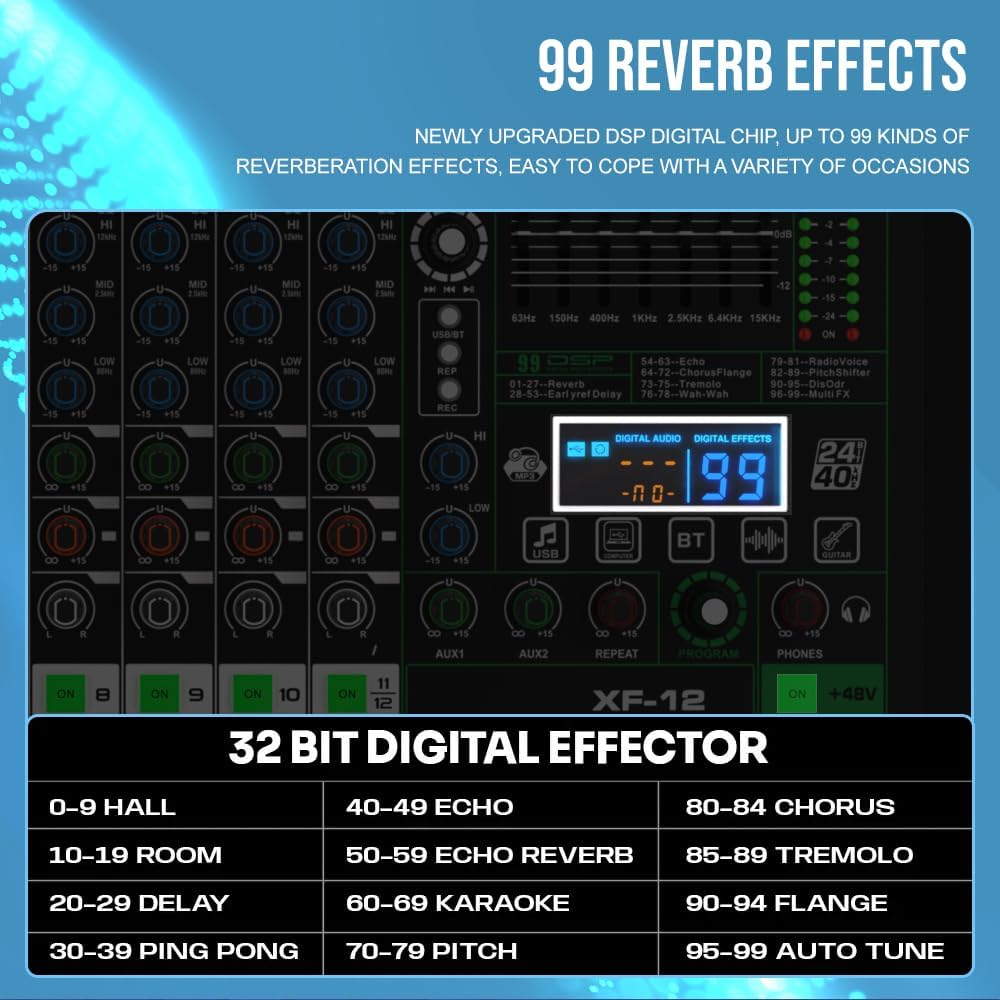
Image Description: A close-up of the digital display and controls for the 99 DSP reverb effects on the Yamnweo XF16 mixer. The display shows the selected effect number, and a list of effect categories like Hall, Room, Delay, Echo, Pitch, Chorus, Tremolo, Flange, and Auto Tune is visible.
4.4. 7-Band Stereo Graphic Equalizer
A dedicated 7-band graphic equalizer allows for precise frequency shaping of the main mix.
- Frequency Bands: Adjustable sliders for 63Hz, 150Hz, 400Hz, 1kHz, 2.5kHz, 6.4kHz, and 15kHz.
- EQ Bypass Button: Engages or bypasses the graphic equalizer.
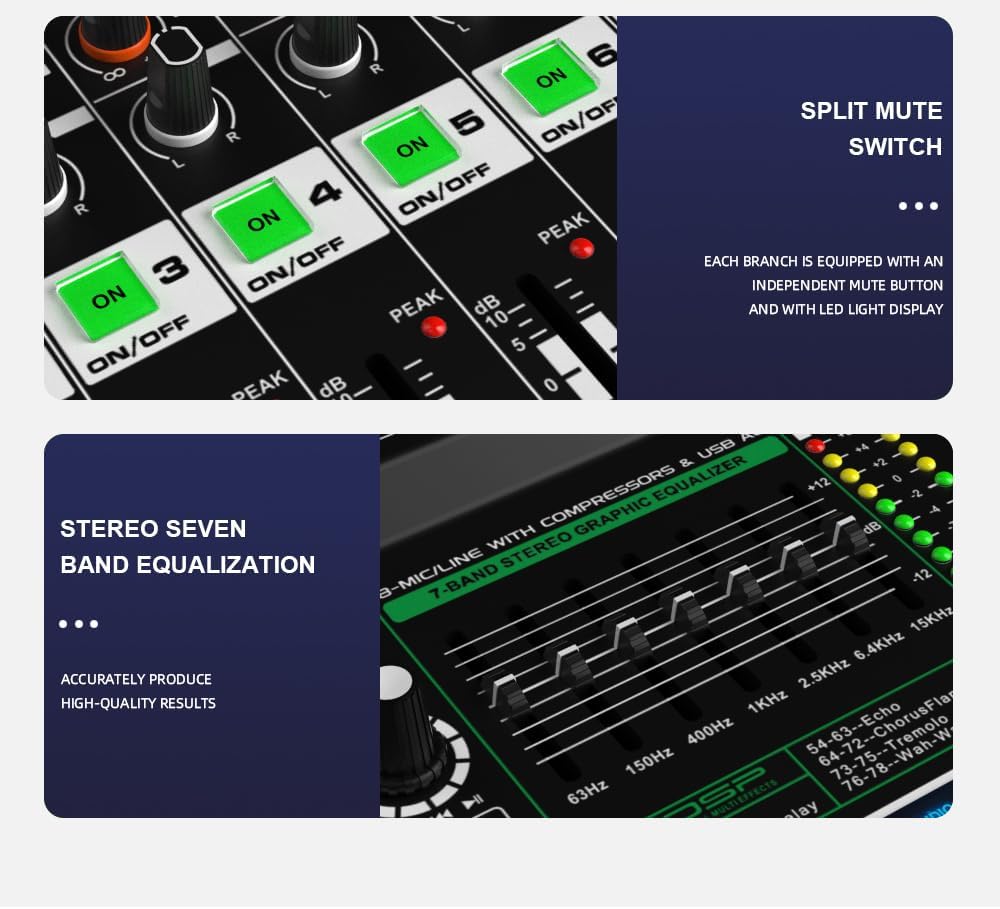
Image Description: A close-up of the 7-band stereo graphic equalizer section on the Yamnweo XF16 mixer. It shows the individual sliders for frequency adjustment, along with the split mute switches for channels.
4.5. USB/Bluetooth Media Player
The integrated media player supports USB playback/recording and Bluetooth connectivity.
- USB Port: For connecting USB flash drives for MP3 playback or direct recording.
- Bluetooth Function: Wirelessly connect your smartphone or other Bluetooth-enabled devices for audio playback.
- Control Buttons: Play/Pause, Stop, Skip Track, Mode selection.

Image Description: A close-up of the USB and digital effects section of the Yamnweo XF16 mixer, illustrating its USB bidirectional transmission capability for lossless internal recording and playback. A USB flash drive is shown plugged into the port.
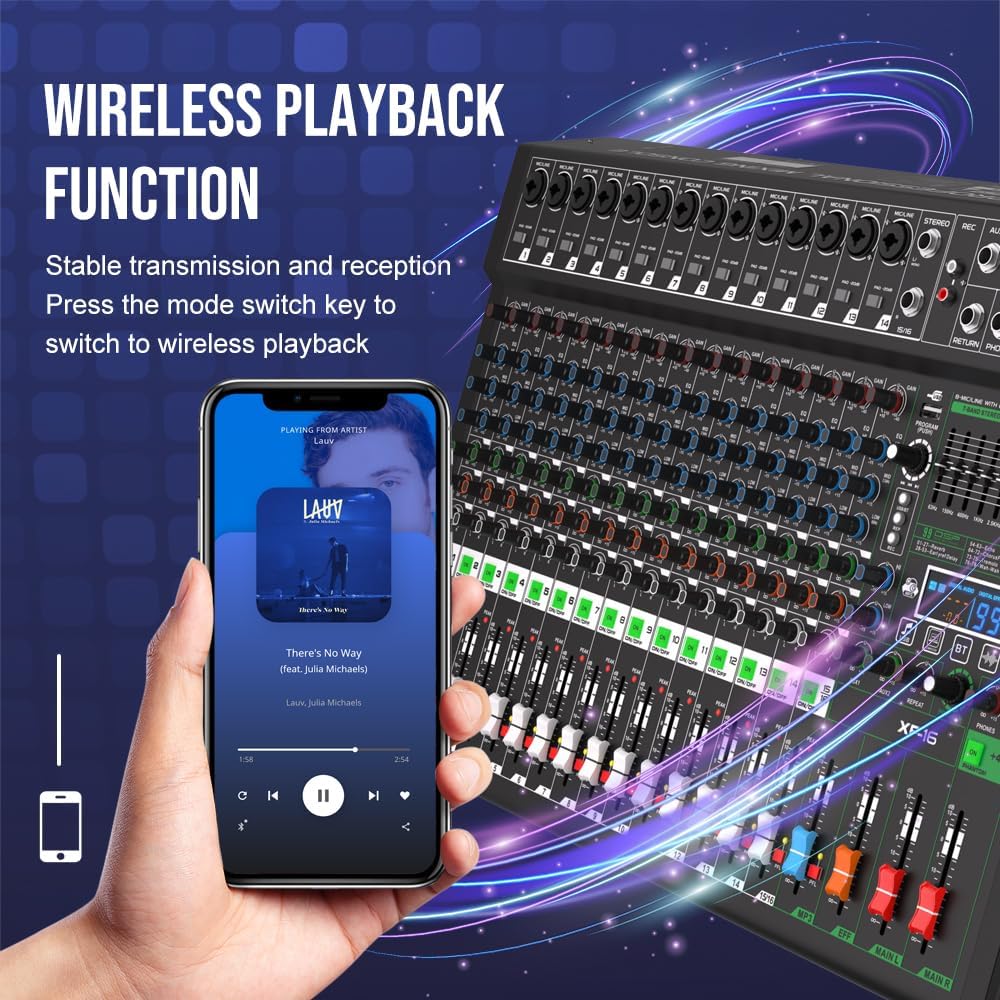
Image Description: An image demonstrating the wireless playback function of the Yamnweo XF16 mixer, showing a smartphone connected via Bluetooth, playing music. The mixer's digital display shows 'BT' indicating Bluetooth mode.
5. Setup Guide
Follow these steps to set up your Yamnweo XF16 mixer for initial use.
5.1. Power Connection
- Ensure the mixer's power switch is in the OFF position.
- Connect the provided power cord to the mixer's power input port.
- Plug the other end of the power cord into a suitable AC power outlet (110V).
- Turn the power switch to the ON position. The power indicator lights will illuminate.
5.2. Connecting Audio Sources
The XF16 supports various audio input types:
- Microphones: Connect dynamic or condenser microphones to the XLR inputs on each channel. For condenser microphones, activate the +48V phantom power for the respective channel.
- Line-Level Instruments: Connect instruments like keyboards, guitars (with a DI box), or other audio devices to the 6.35mm (1/4 inch) line inputs.
- External Playback Devices: Use the RCA Tape In jacks to connect CD players, media players, or other stereo sources.
- USB Devices: Insert a USB flash drive into the USB port for MP3 playback.
- Bluetooth Devices: Pair your smartphone or tablet via Bluetooth for wireless audio streaming.
Video Description: This video demonstrates various input connections on a professional DJ audio mixer, including XLR and 6.35mm inputs, and shows the activation of 48V phantom power and PAD buttons. It also illustrates the use of PFL (Pre-Fader Listen) and master channel output buttons, as well as USB flash drive recording and Bluetooth connectivity. The mixer shown is similar in functionality to the XF16.
5.3. Connecting Output Devices
- Main Speakers/Amplifiers: Connect your main speakers or power amplifiers to the XLR or 6.35mm (1/4 inch) Main Out L/R jacks.
- Studio Monitors: Connect studio monitors to the Control Room outputs.
- Headphones: Plug your headphones into the 6.35mm (1/4 inch) headphone jack.
- Recording Devices: Use the RCA Tape Out jacks to connect to external recording devices.
6. Operating Instructions
This section details how to operate the various functions of your XF16 mixer.
6.1. Basic Channel Operation
- Connect your audio source to the desired input channel.
- Adjust the Gain knob for the channel. Start with the gain low and gradually increase it until the signal is strong without peaking (the PEAK LED should not light up constantly).
- Use the 3-Band EQ knobs (High, Mid, Low) to shape the tone of the input signal.
- Adjust the Pan knob to position the sound in the stereo field.
- Use the Channel Fader to set the individual volume level for the channel in the main mix.
- Press the Mute button to temporarily silence a channel. The LED will indicate its status.
- Use the PFL button to monitor a channel's signal through headphones before it reaches the main mix.
6.2. DSP Effects
The XF16 offers 99 built-in DSP effects.
- Select an effect: Turn the PROGRAM knob in the DSP section to browse through the 99 effects. The digital display will show the effect number.
- Apply to channels: Use the FX SEND knob on each individual channel to send a portion of that channel's signal to the DSP effects processor.
- Adjust overall effect level: Use the FX LEVEL knob in the master section to control the overall volume of the applied effects in the main mix.
6.3. 7-Band Stereo Graphic Equalizer
To fine-tune the overall sound of your mix:
- Activate the EQ: Ensure the EQ Bypass button is disengaged (or the EQ is active).
- Adjust frequency bands: Use the sliders for each of the 7 frequency bands to boost or cut specific frequencies in the main stereo output.
6.4. USB Playback and Recording
The integrated USB media player allows for convenient audio playback and recording.
- Playback: Insert a USB flash drive containing MP3 files into the USB port. The mixer will automatically detect the drive and begin playback. Use the control buttons (Play/Pause, Skip Track) to navigate. Adjust the MP3 LEVEL knob for volume.
- Recording: With a USB flash drive inserted, press the RECORD button (usually indicated by a red dot or REC). The mixer will record the main stereo mix directly to the USB drive. Press RECORD again to stop.
6.5. Bluetooth Connectivity
Wirelessly stream audio from your Bluetooth-enabled devices.
- Activate Bluetooth: Press the MODE button on the media player section until 'BT' appears on the digital display. The mixer will enter pairing mode.
- Pair your device: On your smartphone or tablet, go to Bluetooth settings and search for available devices. Select 'BT-Speaker' (or similar name) to pair.
- Stream audio: Once paired, you can play audio from your device, and it will be routed through the mixer. Adjust the MP3 LEVEL knob for volume.
7. Maintenance
Proper maintenance ensures the longevity and optimal performance of your mixer.
- Cleaning: Use a soft, dry cloth to clean the surface of the mixer. Avoid using abrasive cleaners, solvents, or waxes. For stubborn dirt, a slightly damp cloth can be used, followed by a dry cloth.
- Dust Protection: Keep the mixer covered when not in use to prevent dust accumulation, especially on faders and knobs.
- Storage: Store the mixer in a cool, dry place away from direct sunlight, extreme temperatures, and high humidity.
- Cable Management: Ensure all cables are neatly organized and not under tension to prevent damage to connectors and ports.
8. Troubleshooting
If you encounter any issues with your Yamnweo XF16 mixer, refer to the following common problems and solutions:
- No Power:
- Check if the power cord is securely connected to both the mixer and the power outlet.
- Ensure the power switch is in the ON position.
- Verify the power outlet is functional.
- No Sound Output:
- Check all cable connections from input sources to the mixer, and from the mixer to output devices (speakers, headphones).
- Ensure all channel faders, main mix faders, and group faders are raised.
- Verify that no Mute buttons are active on channels or master outputs.
- Check the gain settings on individual channels and ensure they are not too low.
- If using phantom power, ensure it is activated for condenser microphones.
- Distorted Sound:
- Reduce the gain on the input channel if the PEAK LED is constantly lit.
- Lower the volume of the input source.
- Check for damaged cables or faulty connections.
- Bluetooth Not Connecting:
- Ensure the mixer is in Bluetooth pairing mode ('BT' displayed).
- Make sure your Bluetooth device is within range and its Bluetooth is enabled.
- Forget the device on your smartphone/tablet and try pairing again.
- USB Playback/Recording Issues:
- Ensure the USB flash drive is properly inserted and formatted correctly (FAT32 is usually recommended).
- Check if the audio files on the USB drive are in a supported format (e.g., MP3).
- For recording, ensure there is sufficient free space on the USB drive.
9. Specifications
| Feature | Detail |
|---|---|
| Model Number | XF16 |
| Brand | Yamnweo |
| Number of Channels | 16 |
| Connectivity Technology | Bluetooth, USB |
| DSP Effects | 99 types |
| Equalizer | 7-Band Stereo Graphic Equalizer, 3-Band EQ per channel |
| Phantom Power | Separate 48V per channel |
| Mute Function | Individual mute button per channel |
| USB Interface | MP3 Playback, USB Recording |
| Power Source | Corded Electric |
| Voltage | 110 Volts |
| Item Weight | 15.4 pounds |
| Product Dimensions | 15.74 x 22.2 x 2.75 inches |
10. Warranty and Support
For warranty information, technical support, or any questions regarding your Yamnweo XF16 Professional DJ Audio Mixer, please contact the seller or manufacturer directly. Refer to your purchase documentation for specific contact details and warranty terms.
You can also visit the Yamnweo Store on Amazon for additional product information and support resources.