
Zomolither for Nissan Altima Teana 2013-2018
Zomolither Android 13 Car Radio Stereo User Manual
Model: for Nissan Altima Teana 2013-2018
Brand: Zomolither
Introduction
This manual provides detailed instructions for the installation, operation, and maintenance of your Zomolither Android 13 Car Radio Stereo. Designed specifically for Nissan Altima Teana models from 2013 to 2018, this unit offers advanced features including Wireless Apple CarPlay, Android Auto, GPS Navigation, Bluetooth, and more. Please read this manual thoroughly before installation and use to ensure proper functionality and safety.

Image: The Zomolither Android 13 Car Radio Stereo unit, showcasing its 9-inch display, along with a backup camera, external microphone, and a remote control for wireless connectivity features.
Setup and Installation
Proper installation is crucial for the optimal performance of your car stereo. It is recommended that installation be performed by a qualified professional.
Compatibility Verification
This car stereo is designed for Nissan Altima Teana models from 2013 to 2018. Before installation, ensure your vehicle's dashboard matches the compatible models. For any doubts regarding compatibility or wiring, please contact customer support.
Wiring and Connections
Carefully connect all cables as per the wiring diagram provided in the included user manual. Pay special attention to the Canbus Box and its cable connection to the head unit, as this is essential for proper functionality, including steering wheel controls.
- Power Cable: Connect to the vehicle's power supply.
- GPS Antenna: Install in a location with clear sky view for optimal signal reception.
- Rear Camera Input Cable: Connect for backup camera functionality.
- RCA Cables: For audio/video output to external amplifiers or monitors.
- USB Cables: For data transfer and charging.
- Microphone: Connect the external microphone for clear hands-free calls.

Image: A visual comparison showing the vehicle's dashboard before and after the installation of the Zomolither car stereo, highlighting the seamless integration and enhanced display.

Image: A diagram illustrating the physical dimensions of the 9-inch car stereo unit and a comprehensive list of all components included in the package, such as the AHD rear camera, mounting brackets, various cables, and manuals.
Operating Instructions
Wireless Apple CarPlay & Android Auto
The unit features built-in Wireless Apple CarPlay and Android Auto. Connect your smartphone wirelessly via Bluetooth/WiFi to access phone calls, GPS navigation, music, and messages directly from the car stereo's display.
- Connection: Enable Bluetooth and Wi-Fi on your smartphone, then pair with the car stereo. Follow on-screen prompts to activate CarPlay or Android Auto.
- Voice Control: Use voice commands to control functions for a safer driving experience.

Image: Screenshots illustrating the user interfaces for Wireless Apple CarPlay and Android Auto, showing how smartphone apps are displayed on the car stereo. Also depicted is the Mirror Link function, allowing direct mirroring of phone content.
GPS Navigation & WiFi Connect
The stereo is equipped with a GPS module and WiFi receiver. Connect to a WiFi network to download and install various applications from the app store, including navigation apps. Supports both online and offline maps.
- Online Navigation: Connect to WiFi to use Google Maps or other navigation apps for real-time traffic information.
- Offline Maps: Download map data for navigation without an internet connection.
- App Installation: Access the app store via WiFi to expand the stereo's functionality.

Image: Displays of the GPS navigation interface, showing map routes and real-time traffic. Also shown are various popular application icons, indicating the unit's WiFi connectivity and ability to download and run apps.
Bluetooth & FM Radio & EQ Settings
- Bluetooth: Built-in Bluetooth with an external microphone for hands-free calling and audio streaming. Pair your phone to make and receive calls clearly.
- FM Radio: Tune into FM radio stations with 18 preset options for news, music, and sports.
- EQ Settings: Adjust audio output with various default styles (Rock, Pop, Jazz, Classic) to customize your listening experience.

Image: Visual representations of the audio equalizer settings, the FM/RDS radio tuning interface, and the Bluetooth hands-free calling screen, demonstrating the unit's multimedia and communication capabilities.
Mirror Link & Split Screen & UI Themes
- Mirror Link: Seamlessly integrate iOS and Android smartphones to display their content on the 9-inch touchscreen.
- Split Screen: Run multiple applications simultaneously, such as navigation while listening to music.
- UI Themes: Personalize the radio screen with 26 available UI Desktop Themes to match your preferences.

Image: Displays showcasing a selection of the 26 available user interface themes for customization, alongside an illustration emphasizing the responsive and durable 2.5D HD tempered glass touchscreen.
AHD Backup Camera & Steering Wheel Control
- AHD Backup Camera: The included 170-degree ultra-wide angle, waterproof backup camera provides a clear rear view. The screen automatically switches to the camera feed when reversing, enhancing safety.
- Steering Wheel Control (SWC): After correct wiring and learning the steering wheel buttons (via the Protocol Box and its cable), you can control the stereo directly from your steering wheel for convenience and safety.
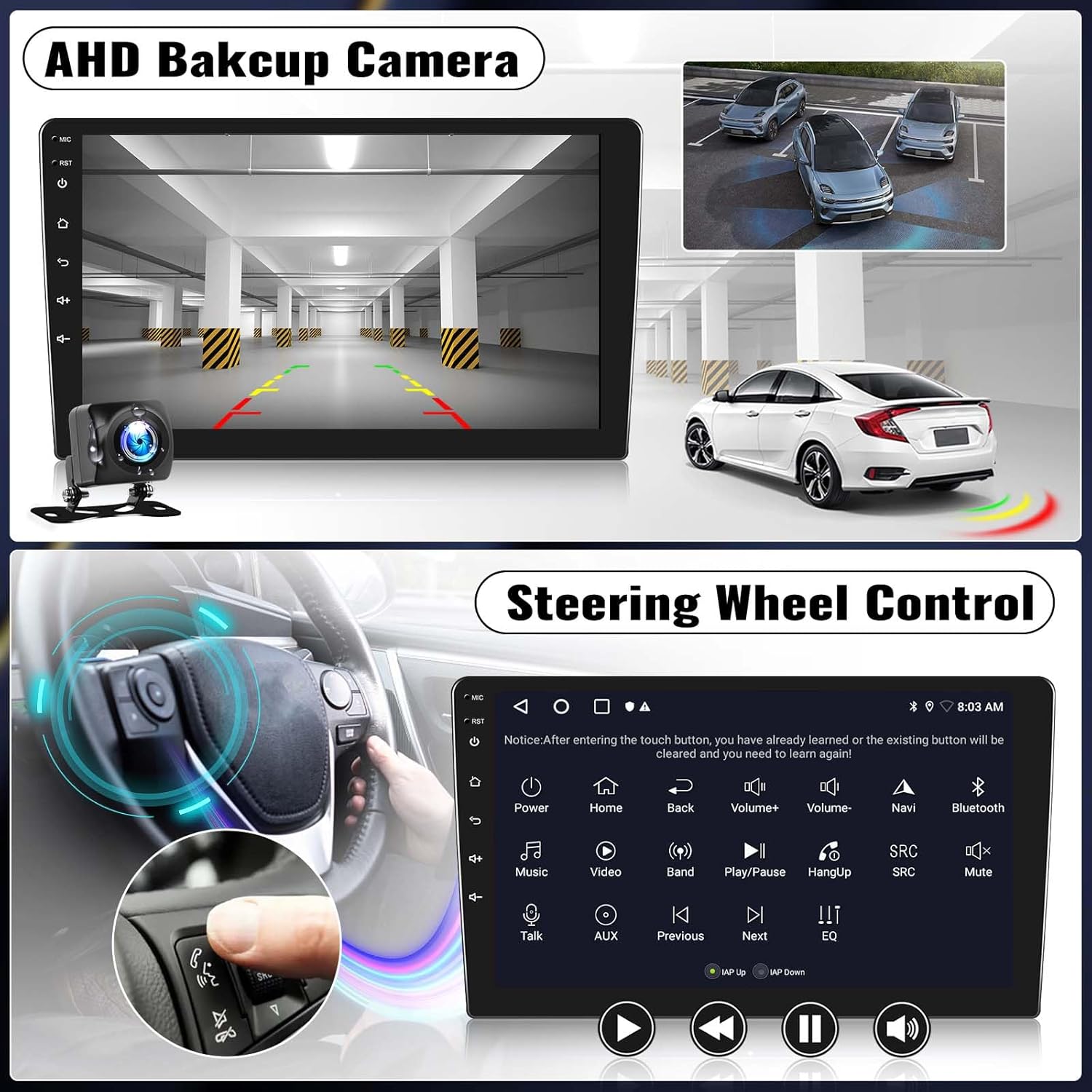
Image: Visuals depicting the clear, wide-angle view provided by the AHD backup camera when reversing, and the on-screen interface for configuring and utilizing steering wheel controls.
Maintenance
To ensure the longevity and optimal performance of your car stereo, follow these maintenance guidelines:
- Screen Cleaning: Use a soft, lint-free cloth to gently wipe the touchscreen. For stubborn smudges, slightly dampen the cloth with water or a screen-safe cleaner. Avoid harsh chemicals or abrasive materials.
- Software Updates: Periodically check for software updates via the system settings when connected to Wi-Fi to ensure you have the latest features and bug fixes.
- Environmental Conditions: Avoid exposing the unit to extreme temperatures, direct sunlight for prolonged periods, or excessive moisture.
Troubleshooting
If you encounter issues with your car stereo, refer to the following common solutions:
- No Power: Check all power connections. Ensure the Canbus Box and its cable are correctly connected to the head unit. Verify vehicle's fuse box.
- No Sound: Check speaker connections. Verify EQ settings are not set to mute or extremely low volume. Ensure audio output mode is correctly configured.
- GPS Signal Loss: Ensure the GPS antenna is installed in a clear location with no obstructions. Re-check antenna connection.
- Bluetooth/WiFi Connectivity Issues: Ensure Bluetooth/WiFi is enabled on both the stereo and your device. Try forgetting and re-pairing the device. Ensure the camera input cable is connected to enhance Bluetooth and WiFi signal.
- Steering Wheel Controls Not Working: Confirm the Protocol Box and its cable are correctly connected. Re-learn the steering wheel buttons through the system settings.
- Touchscreen Unresponsive: Try restarting the unit. If the issue persists, perform a factory reset (note: this will erase all user data).
- System Slow/Lagging: Close unnecessary background applications. Clear cache if possible. Consider a factory reset if performance does not improve.
For persistent issues not covered here, please contact Zomolither customer support.
Specifications
| Feature | Detail |
|---|---|
| Operating System | Android 13 |
| Memory | 2GB (RAM) + 32GB (ROM) |
| Screen Size | 9 Inches |
| Screen Resolution | 1024*600 |
| Touch Screen Type | 2.5D Tempered Glass Capacitive |
| Chipset | MT8163 |
| Radio Chip | MT6625N |
| Power Output | 4*45W |
| Power Amplifier Chip | YD7388 |
| Work Temperature | -20℃ to +75℃ (-4°F to 167°F) |
| Connectivity | Bluetooth, Wi-Fi, USB |
| Special Features | Mirror Link, GPS Navigation, Hi-Fi, Wireless Apple Carplay & Android Auto, Split Screen, 26 UI Themes |
| Audio Format Support | APE/FLAC/WAV/MP3/WMA etc. |
| Video Format Support | MKV/RMVB/AVI/MP4/MDV etc. |
| Picture Format Support | PNG/JPEG/JPG/GIF/WBMP/BNP etc. |
Package Contents
The following items are included in your product package:
- 1 x Car Stereo
- 1 x Power Cable
- 1 x GPS Antenna
- 1 x Rear Camera Input Cable
- 1 x RCA Cable
- 2 x USB Cable
- 1 x Original USB Cable
- 1 x User Manual
- 1 x Microphone
- 1 x Backup Camera
- 1 x Canbus
- 1 x Installation Tool
- 2 x Mounting Bracket
Warranty and Support
Your Zomolither Car Radio Stereo comes with a 1-Year Warranty. For any product-related inquiries, technical assistance, or warranty claims, please contact Zomolither customer support.
- Online Support: Zomolither@126.com
- Warranty Period: 1 Year
- Support Services: 30-Day Refund, 24-Hour After-Sale Support, Lifetime Tech-Support.

Image: A graphic detailing Zomolither's customer support offerings, including a 30-day refund policy, 24-hour after-sales service, and lifetime technical support.
Ask a question about this manual
Ask about setup, troubleshooting, compatibility, parts, safety, or missing instructions. Manuals+ will review the question and use this page’s manual context to help answer it.