
1. Introduction
The Limitless Innovations Ultimate Pro is a versatile 15,000mAh portable power bank designed to charge a wide range of electronic devices. It features multiple charging options, including built-in cables, USB-A and USB-C ports, wireless charging, and a retractable AC wall plug for convenient recharging. This manual provides instructions for safe and efficient use of your device.
2. Safety Information
- Do not expose the power bank to extreme temperatures, direct sunlight, or fire.
- Avoid dropping or subjecting the device to strong impacts.
- Do not disassemble, modify, or attempt to repair the unit.
- Keep out of reach of children.
- Use only compatible charging cables and adapters.
- If the power bank swells, emits smoke, or shows other abnormalities, discontinue use immediately.
- Dispose of the device according to local electronic waste regulations.
3. Product Overview
Familiarize yourself with the components of your Ultimate Pro power bank.

Figure 1: Front view of the Ultimate Pro Power Bank, showing the digital display, wireless charging pad, and built-in USB-C and Lightning cables.
Components:
- Digital Display: Shows battery percentage and charging status.
- Wireless Charging Pad: For Qi-enabled devices.
- Built-in Lightning Cable: For Apple devices.
- Built-in USB-C Cable: For USB-C compatible devices.
- Retractable AC Wall Plug: For direct wall charging of the power bank.
- USB-C Input/Output Port (PD 20W): For charging the power bank or charging devices.
- USB-A Output Port (QC 22.5W): For charging devices.
- Power Button: Activates the display and charging functions.
- LED Flashlight: Integrated light with high and SOS modes.
- Magnetic Kickstand: For hands-free device support.
- Slide-out Phone Holder: Provides a stable base for devices.
4. Charging the Power Bank
The Ultimate Pro can be recharged using its retractable AC wall plug or the USB-C input port.
4.1 Using the Retractable AC Plug
- Locate the retractable AC plug on the side of the power bank.
- Slide out the plug until it locks into position.
- Plug the power bank directly into a standard wall outlet.
- The digital display will show the charging progress.
- Once fully charged, unplug the power bank and retract the AC plug for storage.

Figure 2: Recharging the power bank using the retractable AC wall plug.
4.2 Using the USB-C Input Port
- Connect a USB-C charging cable (included) to the USB-C input/output port on the power bank.
- Connect the other end of the USB-C cable to a compatible USB wall adapter (not included).
- Plug the wall adapter into a power outlet.
- The digital display will indicate charging status.
5. Charging Your Devices
The Ultimate Pro offers multiple ways to charge your electronic devices.
5.1 Using Built-in Cables
- Pull out the appropriate built-in cable (Lightning or USB-C) from its storage slot.
- Connect the cable to your device's charging port.
- The power bank will automatically begin charging, or you may need to press the power button to initiate charging.
- Once charging is complete, disconnect the cable and return it to its storage slot.
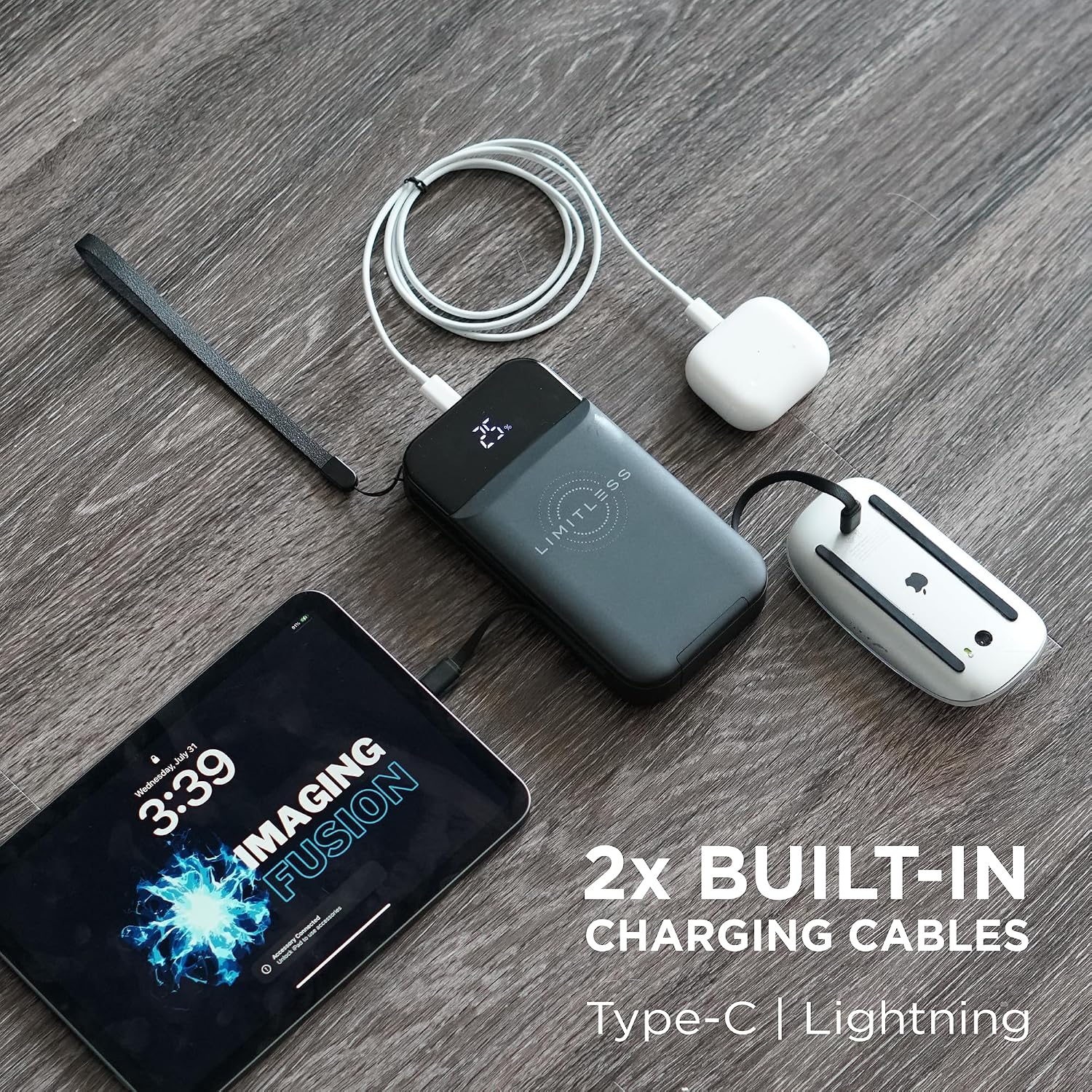
Figure 3: Charging devices using the integrated USB-C and Lightning cables.
5.2 Using USB-A and USB-C Output Ports
- Connect your device's charging cable to either the USB-A (22.5W Quick Charge) or USB-C (20W Power Delivery) output port on the power bank.
- Connect the other end of the cable to your device.
- Press the power button if charging does not start automatically.

Figure 4: Location of the USB-A and USB-C fast charging ports.
5.3 Wireless Charging
The Ultimate Pro supports Qi-enabled wireless charging up to 15W.
- Place your Qi-compatible device directly onto the wireless charging pad located on the front of the power bank.
- Ensure the device is centered on the pad for optimal charging.
- The digital display may indicate wireless charging activity.

Figure 5: Wireless charging a smartphone on the power bank.
6. Special Features
6.1 Digital Display
The integrated digital display provides real-time information on the power bank's remaining battery percentage and charging status indicators.
6.2 LED Flashlight
To activate the flashlight:
- Press and hold the power button for approximately 3 seconds to turn on the flashlight (High mode).
- Press the power button again to switch to SOS mode (flashing).
- Press and hold the power button again for 3 seconds to turn off the flashlight.
6.3 Kickstand and Phone Holder
The Ultimate Pro includes a magnetic kickstand and a slide-out phone holder for hands-free viewing and charging.

Figure 6: Power bank utilizing its built-in kickstand and phone holder.
7. Specifications
| Feature | Detail |
|---|---|
| Model Number | LIM-ULTPRO-M001 |
| Battery Capacity | 15,000 mAh |
| USB-C Output | 20W Power Delivery (PD) |
| USB-A Output | 22.5W Quick Charge (QC) |
| Wireless Charging Output | Up to 15W |
| Built-in Cables | Lightning, USB-C |
| Input (AC Plug) | Retractable AC Wall Plug |
| Input (USB-C) | USB-C Port |
| Dimensions | 5.81 x 3.06 x 1.14 inches |
| Weight | 13.1 ounces |
8. Maintenance and Care
- Clean the power bank with a soft, dry cloth. Do not use liquid cleaners or aerosols.
- Store the device in a cool, dry place away from direct sunlight and moisture.
- Avoid storing the power bank with a completely depleted or fully charged battery for extended periods to prolong battery life. Aim for around 50-70% charge for long-term storage.
9. Troubleshooting
9.1 Power Bank Not Charging
- Ensure the AC plug is fully extended and securely plugged into a live wall outlet.
- If using the USB-C input, verify the cable and wall adapter are functioning correctly and securely connected.
- Check the digital display for any error indicators.
9.2 Device Not Charging from Power Bank
- Ensure the power bank has sufficient charge (check the digital display).
- Verify that the charging cable (built-in or external) is securely connected to both the power bank and your device.
- Press the power button on the power bank to activate charging.
- For wireless charging, ensure your device is Qi-compatible and properly aligned on the charging pad. Remove any thick cases that might interfere.
- Try a different charging port or cable to rule out a faulty connection.
9.3 Flashlight Not Working
- Ensure the power bank has charge.
- Press and hold the power button for 3 seconds to activate the flashlight.
10. Warranty and Support
Limitless Innovations products are designed for reliability and performance. For specific warranty details and customer support, please refer to the warranty card included with your purchase or visit the official Limitless Innovations website. Keep your proof of purchase for warranty claims.
For further assistance, please contact Limitless Innovations customer support.