
iUmutzer GL-C-310WL
iUmutzer Compact WLED Controller User Manual
Model: GL-C-310WL
Brand: iUmutzer
1. Introduction
This manual provides comprehensive instructions for the installation, operation, and maintenance of your iUmutzer Compact WLED Controller. This device is designed to control addressable LED strips, offering extensive customization options through the open-source WLED firmware. Its compact size and versatile features make it suitable for various lighting projects.
2. Safety Information
- Ensure the input voltage (DC 5V-24V) matches the requirements of your LED strips to prevent damage. The controller does not change the voltage.
- Do not exceed the maximum total output current of 10A (6A per channel).
- This device is designed for indoor use only. It is not water resistant.
- Disconnect power before making any electrical connections or performing maintenance.
- Keep the device away from moisture, extreme temperatures, and direct sunlight.
- Handle with care to avoid physical damage to the components.
3. Package Contents
- 1 x iUmutzer LED Controller
- 1 x Microphone (integrated)
4. Product Overview
The iUmutzer Compact WLED Controller is a miniature yet powerful device for managing addressable LED lighting. It features an ESP32 chip with an integrated microphone for sound-reactive effects and supports a wide range of LED strip types.

Figure 4.1: iUmutzer Compact WLED Controller and its packaging. The blue controller is shown next to its black product box, highlighting its small size.

Figure 4.2: Dimensions of the WLED controller. The controller is held in a hand, showing its compact size of 42mm length, 17mm width, and 38mm height, emphasizing its suitability for small spaces like electrical boxes.
Key Features:
- Compact Design: Small footprint (42mm x 17mm x 38mm) for versatile installation.
- Dual Output Channels: Supports two independent output channels with a total current capacity of up to 10A.
- No Soldering Required: Features quick connection terminals for easy wiring.
- Wide LED Compatibility: Compatible with WS2811, WS2812, WS2812b, SK6812, TM1814, WS2813, WS2815, and WS2815 FCOB LED strips.
- ESP32 Chip with Mic: High-performance chip with integrated microphone for music synchronization.
- WLED Open Source Firmware: Pre-installed with WLED for extensive customization and smart home integration (MQTT, Home Assistant).
- DIY Friendly: Includes IO12 and IO33 pins for external control via buttons, PIR detectors, etc.
5. Setup
5.1 Wiring Connections
The controller features quick connection terminals for easy and secure wiring. Ensure all connections are firm before applying power.

Figure 5.1: Wiring diagram for the WLED controller. This image illustrates how to connect two LED strips to the controller's output channels (GND, Data, V+) and how to provide input power (V-, V+). It also highlights IO12 and IO33 for DIY external control.
- Power Input: Connect your DC 5V-24V power supply to the V- and V+ input terminals. Ensure the voltage matches your LED strip requirements.
- LED Strip Connections: The controller provides two output channels. For each LED strip, connect its GND, DATA, and V+ wires to the corresponding terminals on the controller.
- DIY Connections (Optional): IO12 and IO33 are available for external control, such as push buttons or PIR detectors. Refer to the WLED documentation for advanced configurations.
5.2 Quick Connection Design
The controller utilizes a quick connection design, eliminating the need for soldering. Simply insert the stripped wire ends into the appropriate terminals and secure them.

Figure 5.2: Close-up of quick connection terminals. This image shows the V=VCC, D=DATA, G=GND labels on the controller and how wires are inserted into the spring-loaded terminals for a solder-free connection. Important notes about voltage matching and 2.4G WiFi are also visible.
Important Notes:
- The controller does not change the voltage. Select a power adapter that matches the voltage and current requirements of your LED strip.
- Connect to a 2.4G WiFi network (5G WiFi is not supported).
6. Operating Instructions
6.1 WLED Open Source Project & App Control
The iUmutzer controller comes with WLED open-source firmware pre-installed, allowing for extensive customization and control via a dedicated app or web interface. No additional gateway devices are required.

Figure 6.1: WLED app interface for controlling LED strips. The image shows a smartphone displaying the WLED application with color selection, effects, segments, and presets. The controller is visible in the background, connected to LED strips illuminating a room.
To get started:
- Power on the controller. It will create a Wi-Fi access point (e.g., "WLED-AP").
- Connect your smartphone or computer to this Wi-Fi network.
- Open a web browser and navigate to
4.3.2.1or download the official WLED app. - Follow the on-screen prompts to connect the controller to your home 2.4G Wi-Fi network.
- Once connected, you can use the WLED app or web interface to select colors, effects, create segments, and manage presets.
6.2 Microphone Configuration & Music Mode
The integrated microphone enables dynamic music reactive modes, allowing your LED strips to synchronize with audio. After initial setup or a reset, the microphone parameters may need to be configured.

Figure 6.2: WLED app microphone configuration settings. This image shows the steps within the WLED app to configure the microphone, including selecting microphone type (Generic I2S), SD pin (26), WS pin (5), and SCK pin (21), along with audio reactive settings like gain and signal strength.
To configure the microphone:
- Access the WLED app or web interface.
- Navigate to the "Sound Settings" or "Microphone Configuration" section.
- Set the microphone type to "Generic I2S".
- Configure the pins: SD pin: 26, WS pin: 5, SCK pin: 21.
- Adjust gain and other audio reactive settings as desired.
- Restart the device for changes to take effect.
6.3 DIY External Control
The controller provides GPIO pins (IO12 and IO33) for advanced users to integrate external controls like push buttons or PIR detectors. This allows for customized physical interactions with your lighting setup.

Figure 6.3: DIY interface for external controls. This image shows how a push switch can be connected to GPIO 33 (Button 0) and GPIO 12 (Button 1) for various functions like On/Off, changing color, entering Wi-Fi AP mode, changing lighting modes, or dimming brightness based on short press, long press, or double-tap actions.
Refer to the WLED project documentation for detailed instructions on configuring these GPIO pins for specific functions.
7. Maintenance
The iUmutzer WLED Controller requires minimal maintenance. Keep the device clean and free from dust. Use a dry, soft cloth for cleaning. Do not use liquid cleaners or solvents. Ensure proper ventilation around the device to prevent overheating.
8. Troubleshooting
- No Power: Check all power connections and ensure the power supply is functioning correctly and matches the required voltage.
- LEDs Not Lighting Up: Verify that the LED strip type is compatible with the controller (WS2811, WS2812, etc.). Check wiring for correct polarity (GND, Data, V+). Ensure the power supply can provide sufficient current for your LED strips.
- Wi-Fi Connection Issues: Ensure you are connecting to a 2.4G Wi-Fi network. Try resetting the controller by pressing the reset button (if available) or power cycling the device. Re-enter Wi-Fi credentials if necessary.
- Incorrect Colors/Patterns: Verify the correct LED type and segment settings are configured in the WLED app. Ensure the data pin is correctly assigned.
- Music Mode Not Working: Check microphone configuration settings in the WLED app (Figure 6.2). Ensure the correct pins are set and the device has been restarted after configuration.
- Controller Unresponsive: Try a soft reset by pressing the reset button on the controller. If issues persist, perform a factory reset via the WLED app settings (this will erase all configurations).
For more detailed troubleshooting and community support, visit the official WLED project website or forums.
9. Specifications
| Feature | Detail |
|---|---|
| Model Number | GL-C-310WL |
| Input Voltage | DC 5V-24V |
| Output Channels | 2 |
| Max Output Current (per channel) | 6A |
| Max Total Output Current | 10A |
| Dimensions (L x W x H) | 42mm x 17mm x 38mm |
| Weight | 0.317 ounces (approx. 9g) |
| Connectivity | 2.4G Wi-Fi |
| Supported LED Types | WS2811, WS2812, WS2812b, SK6812, TM1814, WS2813, WS2815, WS2815 FCOB |
| Special Features | Integrated Microphone, Open Source WLED Firmware, DIY GPIO Pins (IO12, IO33) |
| Indoor/Outdoor Usage | Indoor |
| Water Resistance Level | Not Water Resistant |
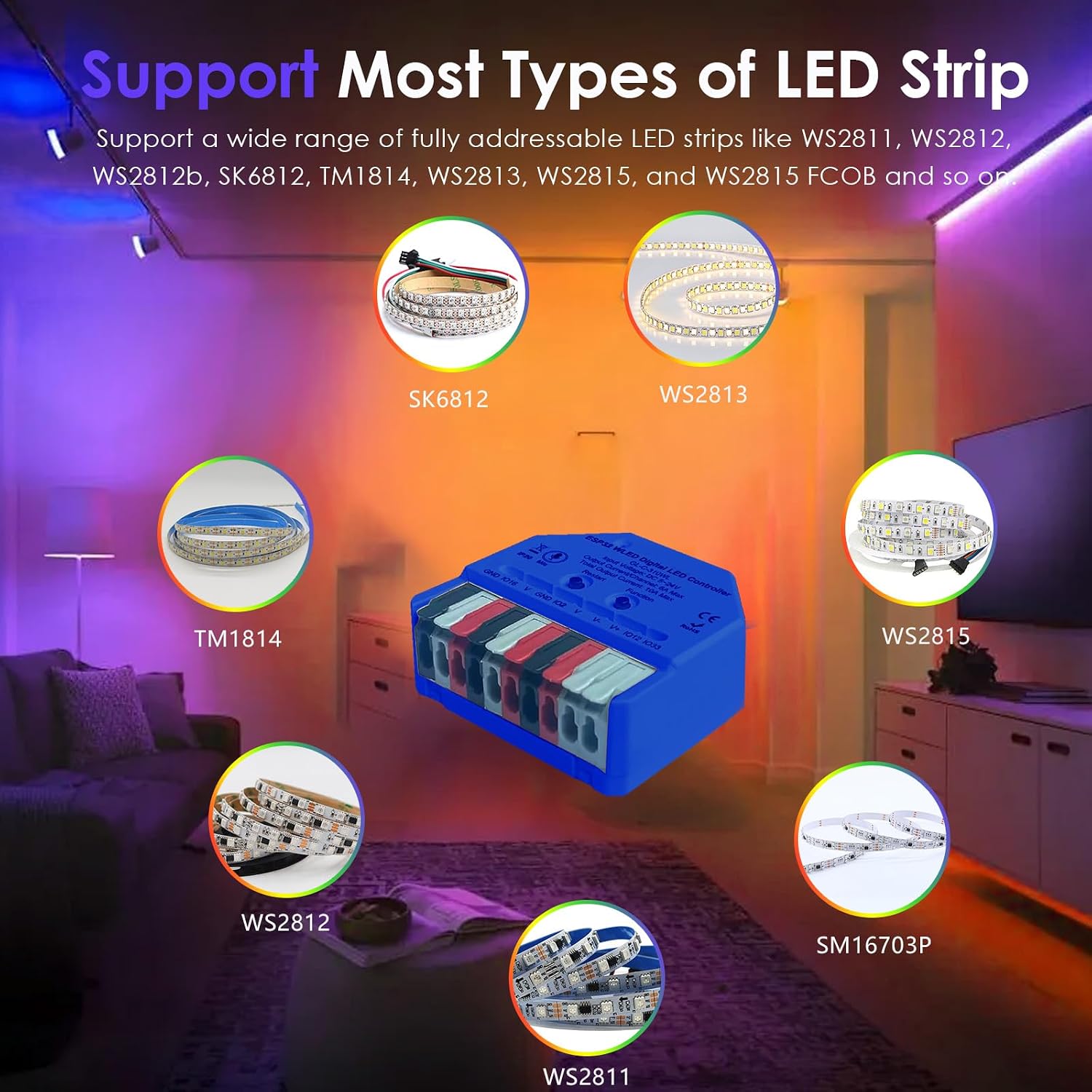
Figure 9.1: Various types of compatible LED strips. This image displays different types of addressable LED strips that are supported by the controller, including SK6812, WS2813, TM1814, WS2815, WS2812, SM16703P, and WS2811.
10. Warranty and Support
For warranty information and technical support, please refer to the product's official sales page or contact iUmutzer customer service directly. Keep your purchase receipt for warranty claims.
Additional resources and community support for the WLED open-source project can be found on their official website: wled.me
Ask a question about this manual
Ask about setup, troubleshooting, compatibility, parts, safety, or missing instructions. Manuals+ will review the question and use this page’s manual context to help answer it.