
1. Introduction
The Spedal CL798 is a 7-inch portable touchscreen designed to enhance your in-car experience by integrating wireless CarPlay and Android Auto. This device allows seamless access to navigation, music, and messaging applications directly from its IPS touchscreen. It features flexible display modes, a secure magnetic mount, advanced mirror link capabilities, and convenient over-the-air firmware updates. This manual provides detailed instructions for setup, operation, and maintenance to ensure optimal performance.
2. What's in the Box
- 1 x Spedal CL798 Car Play Screen
- 1 x Magnetic Suction Mount Bracket
- 1 x Digital Cigarette Lighter Power Adapter
- 1 x User Manual (this document)
- 1 x AUX Audio Cable
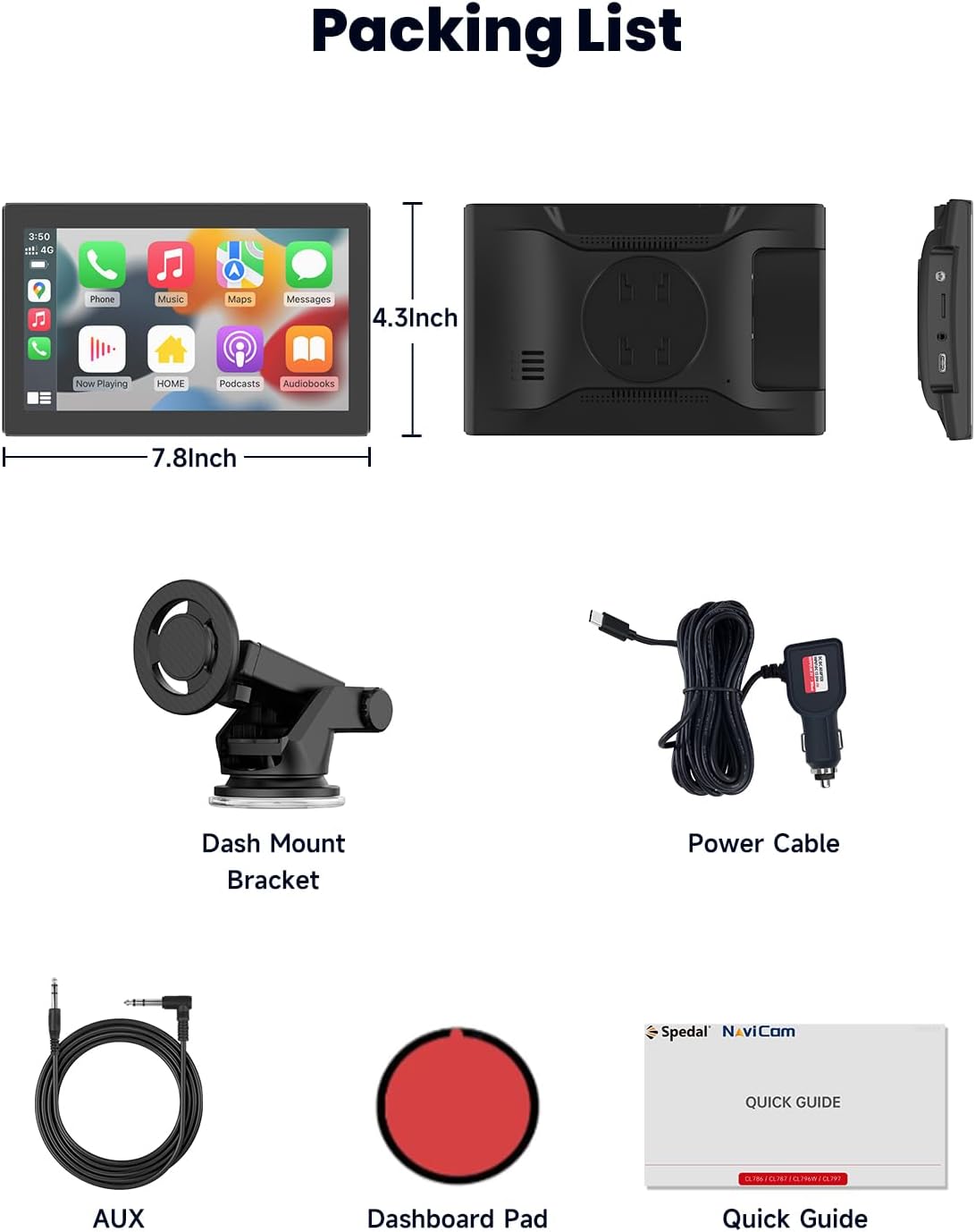
Image: All components included in the Spedal CL798 package.
3. Setup and Installation
3.1 Attaching the Magnetic Mount
The Spedal CL798 features an upgraded magnetic bracket for secure and flexible installation. The screen can be attached and detached in one second.
- Assemble the magnetic suction mount bracket.
- Choose a suitable location on your dashboard or windshield for the mount. Ensure the surface is clean and dry.
- Secure the mount using its suction cup mechanism.
- Align the back of the CL798 screen with the magnetic plate on the mount until it securely clicks into place.

Image: The magnetic suction mount bracket, showing its components and how it attaches to the device.
3.2 Power Connection
Connect the provided digital cigarette lighter power adapter to your vehicle's 12V power outlet and then to the Spedal CL798 unit. The device is designed for plug-and-play operation.
3.3 Multiple Installation Methods
The magnetic bracket allows for various installation angles and positions, including horizontal and vertical orientations, to optimize viewing comfort and accessibility.
4. Operating Instructions
4.1 Wireless CarPlay & Android Auto
The CL798 supports wireless Apple CarPlay and Android Auto for seamless smartphone integration.
4.1.1 Wireless Apple CarPlay Connection
- Switch the CL798 to CarPlay Mode.
- On your iPhone, go to Bluetooth settings and select the device starting with "T86B-B685".
- Wait for approximately 20-30 seconds, then select "Pair" on your iPhone when prompted.
- Confirm "Use CarPlay" on your iPhone.
- Connection successful.

Image: Visual steps for establishing a wireless Apple CarPlay connection.
4.1.2 Wireless Android Auto Connection
(Note: Wireless Android Auto is compatible with Android 11+ devices.)
- Switch the CL798 to Android Auto Mode.
- On your Android phone, turn on Wi-Fi and Bluetooth.
- Search for new Bluetooth devices and select the device starting with "spedal-******".
- Wait for approximately 15 seconds, then click "Connect" on your Android phone.
- Connection successful.

Image: Visual steps for establishing a wireless Android Auto connection.
4.2 Portrait & Landscape Modes
The CL798 supports both portrait and landscape display orientations. This allows for optimized viewing of navigation maps or vertical video content.
- Landscape Mode: Ideal for wide-screen applications like general CarPlay/Android Auto interfaces and horizontal videos.
- Portrait Mode: Enhances navigation map detail and is suitable for vertical video apps.
(Screen mode adjustments may require configuration within the device settings.)

Image: The Spedal CL798 screen displaying applications in both landscape and portrait modes.

Image: A navigation map displayed on the Spedal CL798, illustrating the enhanced detail provided by portrait mode.
4.3 Mirror Link Functionality
The enhanced Mirror Link function supports iPhone AirPlay and Android Super Link, allowing you to mirror your phone's screen or directly access media apps.
4.3.1 Mirror Link for iOS AirPlay
- Switch the CL798 to AirPlay Mode.
- On your iPhone, connect to the Wi-Fi network displayed on the CL798 screen and enter the password.
- Open your iPhone's Control Center and tap "Screen Mirroring".
- Select "NaviCam" (or the device name shown) to complete screen mirroring.
- Connection successful.

Image: Visual steps for setting up iOS AirPlay Mirror Link.
4.3.2 Mirror Link for Android Superlink
- Switch the CL798 to Super Link (Android) mode.
- Scan the QR code displayed on the CL798 screen to download the "Evelink" app on your Android phone.
- Turn on Wi-Fi on your phone.
- Open the Evelink app and connect to the Wi-Fi network "EVELINK-XXXX".
- Connection successful.

Image: Visual steps for setting up Android Superlink Mirror Link.
With Mirror Link, you can use your car display as a tablet to access apps or stream videos from platforms like YouTube and Netflix. Uninterrupted playback is supported even when your phone screen is off.

Image: The Mirror Link feature showing online video playback, screen casting, and Airdrop options.
4.4 Audio Output Options
The CL798 offers four methods for audio output:
- Built-in Speaker: Audio plays directly from the device.
- Bluetooth: Connect your phone to your car's Bluetooth system for the best sound quality through your car's speakers. This is the most recommended option.
- FM Transmitter: Sync the CL798 with your car radio to transmit audio wirelessly via an FM frequency.
- AUX Output: Connect the included AUX audio cable from the CL798 to your car's AUX input.

Image: Visual representation of the four audio output methods available on the Spedal CL798.
4.5 Voice Control (Siri & Google Assistant)
When connected via CarPlay or Android Auto, you can use voice commands through Siri or Google Assistant for hands-free operation. This includes accessing contacts, sending messages, navigating, and controlling music.

Image: The Spedal CL798 demonstrating voice control functionality with Siri and Google Assistant.
4.6 Hands-Free Calling
Make and receive calls, return missed calls, and listen to voicemail directly from the CL798 screen. You can also send audio messages and have incoming messages announced, allowing for safe, hands-free communication while driving.

Image: The Spedal CL798 showing a hands-free calling interface.
4.7 Online Music Playback
Access your entire music library and other audio apps through CarPlay or Android Auto. Play your favorite songs anytime and enjoy rich stereo sound through your car's audio system.

Image: The Spedal CL798 displaying an online music playback interface.
4.8 Product Feature Introduction Video
Video: An official product feature introduction video for the Spedal CL798, demonstrating its key functionalities and user interface.
5. Maintenance
5.1 OTA Firmware Updates
The Spedal CL798 supports Over-The-Air (OTA) firmware updates. This allows you to upgrade your device's software effortlessly without needing apps or SD cards. Simply connect the device to a Wi-Fi network to check for and install updates, ensuring optimal performance and system stability.

Image: The OTA firmware update process on the Spedal CL798, showing Wi-Fi connection and update progress.
6. Troubleshooting
If you encounter issues with your Spedal CL798, please refer to the following common troubleshooting steps:
- No Power: Ensure the digital cigarette lighter power adapter is securely plugged into both the vehicle's 12V outlet and the CL798. Check if the vehicle's power outlet is functioning.
- Connection Issues (CarPlay/Android Auto):
- Verify Bluetooth and Wi-Fi are enabled on your smartphone.
- Ensure your phone's operating system is compatible (Android 11+ for wireless Android Auto).
- Forget the device from your phone's Bluetooth settings and re-pair.
- Restart both the CL798 and your smartphone.
- No Audio Output:
- Check the selected audio output mode on the CL798 (Built-in Speaker, Bluetooth, FM Transmitter, AUX).
- If using Bluetooth, ensure your phone is connected to your car's Bluetooth system.
- If using FM Transmitter, ensure the frequency on the CL798 matches your car radio.
- If using AUX, ensure the cable is properly connected to both the CL798 and your car's AUX input.
- Screen Unresponsive: Try restarting the device by disconnecting and reconnecting the power.
- Firmware Update Failure: Ensure a stable Wi-Fi connection during OTA updates. Do not power off the device during an update.
For further assistance, please contact Spedal technical support.
7. Specifications
| Model Number | CL798 |
| Brand | Spedal |
| Screen Size | 7 inches |
| Connectivity Technology | Auxiliary, Bluetooth, USB, Wi-Fi |
| Controller Type | Google Assistant, iOS |
| Compatible Devices | Smartphone |
| Connector Type | 3.5mm Jack |
| Audio Output Mode | Stereo |
| Surround Sound Channel Configuration | 2.0 |
| Video Encoding | H.264, H.265/HEVC |
| Item Weight | 1.7 pounds |
| Package Dimensions | 9.06 x 5.67 x 4.41 inches |
| Special Features | Flexible Magnetic Suction Mount Bracket, OTA Firmware Update, Portrait & Landscape Modes, Wireless Carplay & Android Auto |
8. Warranty and Support
The Spedal CL798 comes with a 1-year warranty from the date of purchase, covering manufacturing defects. For any technical assistance, inquiries, or warranty claims, please contact our dedicated technical support team.
Official Support Email: Support@spedaltech.com
Please provide your model number (CL798) and a detailed description of the issue when contacting support for faster service.


