1. Introduction
This user manual provides comprehensive instructions for the installation, operation, maintenance, and troubleshooting of your SIXTOP Single Din Car Stereo. This device features a 10.4-inch touchscreen with 180° rotation, Bluetooth audio, CarPlay, Android Auto, Mirror Link, FM Radio, USB connectivity, EQ+ sound customization, and support for AHD Camera and Microphone. Please read this manual thoroughly before using the product to ensure proper function and safety.
2. Package Contents
Upon unboxing, please verify that all items listed below are included in your package:
- 1 x SIXTOP Car Radio Unit
- 1 x Power Cable
- 1 x Speaker Cable
- 1 x Rear Camera & Power Cable
- 1 x Microphone (MIC)
- 1 x Instruction Manual
- 1 x Video Extension Cable
- 1 x Horn Cable
- 2 x Mounting Brackets
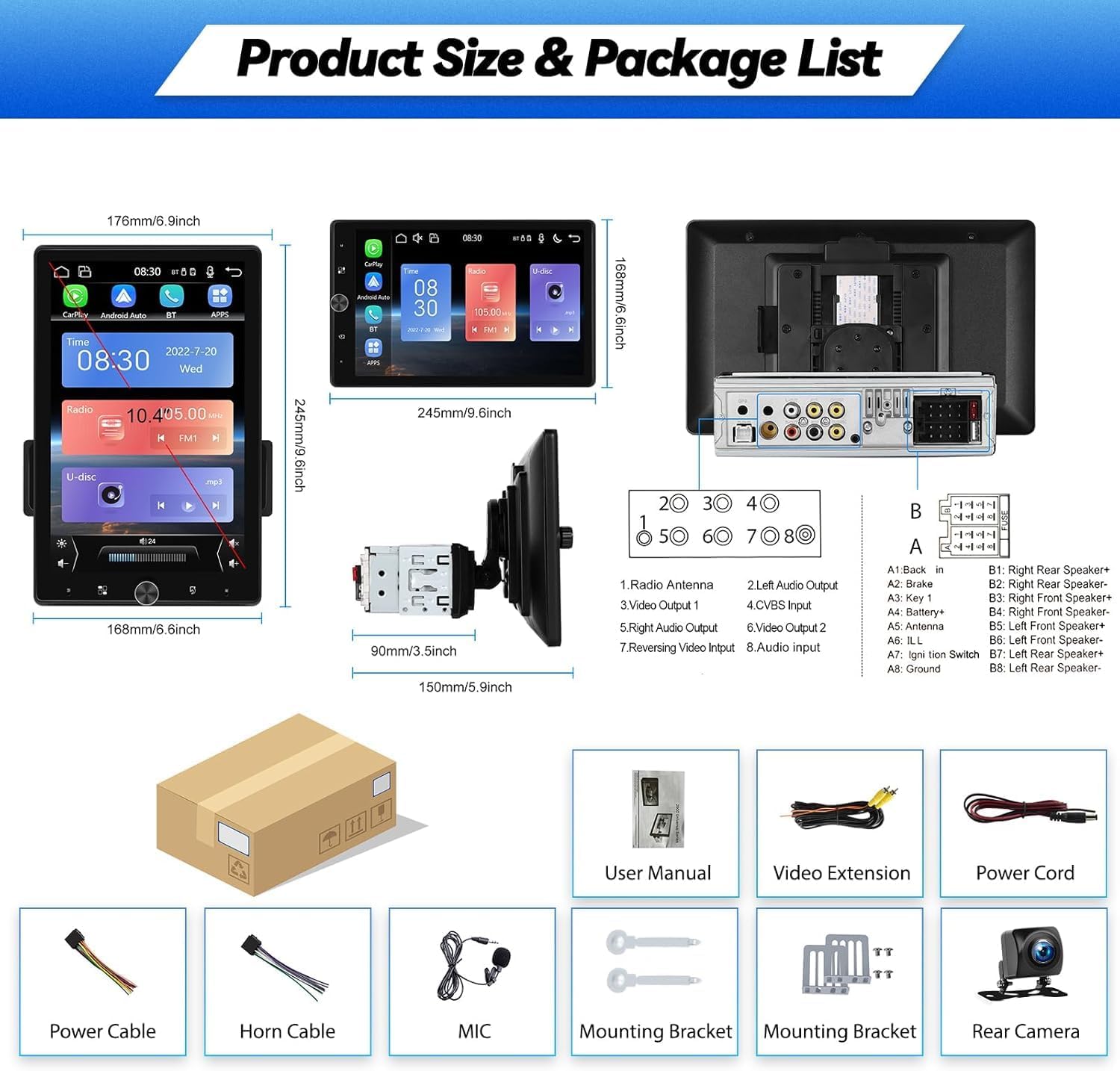
Figure 2.1: Overview of the SIXTOP Car Stereo package contents and product dimensions.
3. Product Overview
The SIXTOP Single Din Car Stereo is designed to enhance your in-car entertainment and connectivity. Key features include:
- 10.4-inch Vertical Screen: High-definition display supporting USB, AUX, and TF Card import. Features EQ function for sound customization and independent volume control for four audio outputs. Note: The rear USB port is primarily for DVR devices, not general data transfer.
- 180° Rotate Screen: The screen can be rotated 180 degrees for optimal viewing, allowing switching between horizontal and vertical display modes.
- CarPlay & Android Auto: Wired connectivity for iPhone and Android phones, enabling synchronization of phonebook, email, notifications, map navigation, and music apps. Supports voice control via mobile phone voice assistant.
- Mirror Link: Projects your iPhone or Android phone screen onto the stereo display via USB, allowing you to view mobile content like videos.
- Bluetooth & FM Radio: Supports hands-free calls, address book synchronization, and mobile music playback via Bluetooth. FM radio provides access to news, music, and traffic information.
- Steering Wheel Control Function: Compatible with original car steering wheel buttons for convenient audio control, enhancing driving safety. Requires proper wiring (KEY1, KEY2) and setup in radio settings.
- Backup Camera Support: Includes a waterproof night vision camera for clear reversing images, automatically switching when in reverse gear.
- EQ Settings: Allows adjustment of various popular sound qualities and fine-tuning of audio equalizer settings.

Figure 3.1: Main display of the SIXTOP Car Stereo showing the user interface.
4. Setup and Installation
Proper installation is crucial for the optimal performance of your car stereo. It is recommended that installation be performed by a qualified professional.
4.1 Wiring Diagram
Refer to the following diagram for correct wiring connections. Ensure all connections are secure and insulated to prevent short circuits.
Figure 4.1: Wiring diagram for the SIXTOP Car Stereo, including power, speaker, and auxiliary connections.
- Power Cable: Connect to vehicle's power supply (Battery+, ACC, Ground).
- Speaker Cable: Connect to vehicle's speakers (Front Left, Front Right, Rear Left, Rear Right).
- Rear Camera: Connect the camera's video output to the "Reversing Input" (AHD&CVBS) on the stereo. Connect the camera's power to the vehicle's reverse light circuit.
- MIC: Plug the external microphone into the designated MIC input.
- Steering Wheel Control (SWC): Connect KEY1 and KEY2 wires to your vehicle's steering wheel control wires. Refer to your vehicle's manual for specific wiring.
- USB: The front USB port is for CarPlay/Android Auto/Mirror Link. The rear USB port is typically for DVR devices.
4.2 Initial Power On
After installation, turn on your vehicle's ignition. The stereo should power on automatically. If not, check all power connections. Follow any on-screen prompts for initial setup, such as language selection.
5. Operating Instructions
5.1 Screen Rotation
The 10.4-inch screen supports 180-degree rotation. To switch between horizontal and vertical display modes, rotate the physical screen and then select the corresponding rectangular icon on the home page.

Figure 5.1: Demonstrating the 180° screen rotation feature.
5.2 CarPlay and Android Auto
To use CarPlay (for iPhone) or Android Auto (for Android phones), connect your smartphone to the stereo's front USB port using a USB data cable. The system will automatically detect and launch the respective interface. This allows access to navigation, music, calls, and messages directly from the stereo screen.

Figure 5.2: Wired connectivity for Apple CarPlay and Android Auto.
5.3 Mirror Link
For Mirror Link functionality, connect your smartphone to the stereo's front USB port. Select the [iOS Mirror] app for iPhones or the [Autolink] app for Android phones. Your phone's screen content will be mirrored on the stereo display.

Figure 5.3: Mirror Link functionality for iOS and Android devices.
5.4 Bluetooth & FM Radio
Bluetooth: Pair your phone via Bluetooth settings on the stereo to enable hands-free calling, synchronize your address book, and stream music. Navigate to the Bluetooth menu on the stereo to search for and connect to your device.
FM Radio: Access the FM radio application to scan for stations (FM 87.5-108 MHz). You can save your favorite stations for quick access.

Figure 5.4: Bluetooth call interface and FM radio display.
5.5 Steering Wheel Control & Backup Camera
Steering Wheel Control: After connecting the KEY1 and KEY2 wires during installation, go to the stereo's settings menu to configure the steering wheel control buttons. Press and hold a button on your steering wheel, then select the corresponding function on the stereo screen to assign it.
Backup Camera: When the vehicle is shifted into reverse gear, the stereo will automatically display the feed from the connected backup camera, providing a clear view of the area behind your vehicle.

Figure 5.5: Steering wheel control setup and backup camera display.
5.6 EQ Settings
Access the EQ (Equalizer) settings from the main menu to customize the audio output. You can adjust various frequency bands to achieve your preferred sound quality. The equalizer also allows for adjusting volume sources for different audio zones within the car.

Figure 5.6: EQ settings interface for audio customization.
6. Maintenance
To ensure the longevity and optimal performance of your SIXTOP Car Stereo, follow these maintenance guidelines:
- Cleaning the Screen: Use a soft, lint-free cloth to gently wipe the touchscreen. For stubborn smudges, slightly dampen the cloth with water or a screen-safe cleaner. Avoid abrasive materials or harsh chemicals.
- General Cleaning: Keep the unit free from dust and debris. Use a soft brush or compressed air to clean vents and ports.
- Temperature: Avoid exposing the unit to extreme temperatures, both hot and cold, as this can affect performance and lifespan.
- Connections: Periodically check all wiring connections to ensure they are secure and free from corrosion.
7. Troubleshooting
If you encounter issues with your SIXTOP Car Stereo, refer to the following common problems and solutions:
| Problem | Possible Cause | Solution |
|---|---|---|
| No Power | Loose power connection; Blown fuse; Vehicle battery issue. | Check power cables (Battery+, ACC, Ground). Inspect vehicle fuses. Ensure vehicle battery is charged. |
| No Sound | Speaker wires disconnected; Volume too low; Mute function active; Incorrect audio source. | Check speaker connections. Increase volume. Disable mute. Select correct audio source. |
| Touchscreen Unresponsive | System frozen; Software glitch. | Restart the unit (turn off vehicle ignition and restart). If issue persists, perform a factory reset (refer to settings menu). |
| CarPlay/Android Auto Not Connecting | Faulty USB cable; Phone software issue; Incorrect USB port. | Use a high-quality, original USB data cable. Ensure phone software is updated. Use the front USB port. Restart phone and stereo. |
| Backup Camera Not Displaying | Camera power issue; Video cable disconnected; Incorrect wiring to reverse light. | Check camera power supply. Ensure video cable is securely connected to "Reversing Input". Verify reverse light trigger wire connection. |
If the problem persists after trying these solutions, please contact SIXTOP customer support for further assistance.
8. Specifications
| Feature | Detail |
|---|---|
| Screen Size | 10.4 inches |
| Screen Resolution | 800*1280 |
| Output Power | 4 * 45W |
| Working Temperature | -40℃ to 80℃ (-40°F to 176°F) |
| Bluetooth Version | 4.2 |
| Power Amplifier Chip | AC7388 |
| Radio Frequency Band | FM |
| Reversing Input | AHD & CVBS |
| USB Support | Yes |
| AUX Support | Yes |
| CarPlay | Wired Support |
| Android Auto | Wired Support |
| Mirror Link | Android / iOS Support |
| Audio Formats | APE / FLAC / WAV / MP3 / WMA, etc. |
| Video Formats | MKV / RMVB / AVI / MP4 / MDV, etc. |
| Picture Formats | PNG / JPEG / JPG / GIF / WBMP / BNP, etc. |
| Language Support | English, Chinese, Portuguese, Spanish, Russian, German, Italian, Polish, French, Japanese, Turkish, Czech, etc. (Default: English) |
| IC Number | 29149-A2747 |
| HVIN | A2747 |
| Operation Frequency | 2402MHz~2480MHz |
| Item Weight | 1700 Grams (1.7 kg) |
| Parcel Dimensions | 27 x 20 x 13 cm |
9. Warranty and Support
For warranty information and technical support, please refer to the documentation provided with your purchase or contact SIXTOP customer service directly. Keep your purchase receipt as proof of purchase for any warranty claims.
Manufacturer Contact: sixtop123@163.com
For the latest information and support resources, you may also visit the official SIXTOP store on Amazon: SIXTOP Amazon Store
