
Alienware AW420K
Alienware TENKEYLESS Gaming Keyboard - AW420K User Manual
Model: AW420K
1. Introduction
This manual provides comprehensive instructions for the Alienware TENKEYLESS Gaming Keyboard, model AW420K. It covers setup, operation, maintenance, troubleshooting, and product specifications to ensure optimal performance and longevity of your device.
2. Product Overview
The Alienware AW420K is a high-performance tenkeyless gaming keyboard designed for competitive gaming and efficient daily use. It features durable construction, customizable RGB lighting, and responsive mechanical switches.

Figure 2.1: Top-down view of the Alienware AW420K Tenkeyless Gaming Keyboard, showcasing its compact design and vibrant RGB backlighting.
2.1 Key Features
- Tenkeyless Design: Streamlined form factor for more desk space and improved portability.
- Cherry MX Red Switches: Industry-leading mechanical switches with a 100 million actuation lifecycle for consistent, high-performance keystrokes.
- AlienFX RGB Lighting: Per-key RGB lighting configurable through Alienware Command Center software, offering up to 16.8 million colors for personalized aesthetics.
- Double-Shot PBT Keycaps: Two layers of plastic with legends molded into the cap for enhanced durability and wear resistance.
- Integrated Cable Routing: Channels on the underside of the keyboard for organized cable management.
- Adjustable Height: Flip-up risers with three height settings for ergonomic typing angles.

Figure 2.2: The compact TKL design of the AW420K keyboard allows for more space on your gaming setup and easy movability.
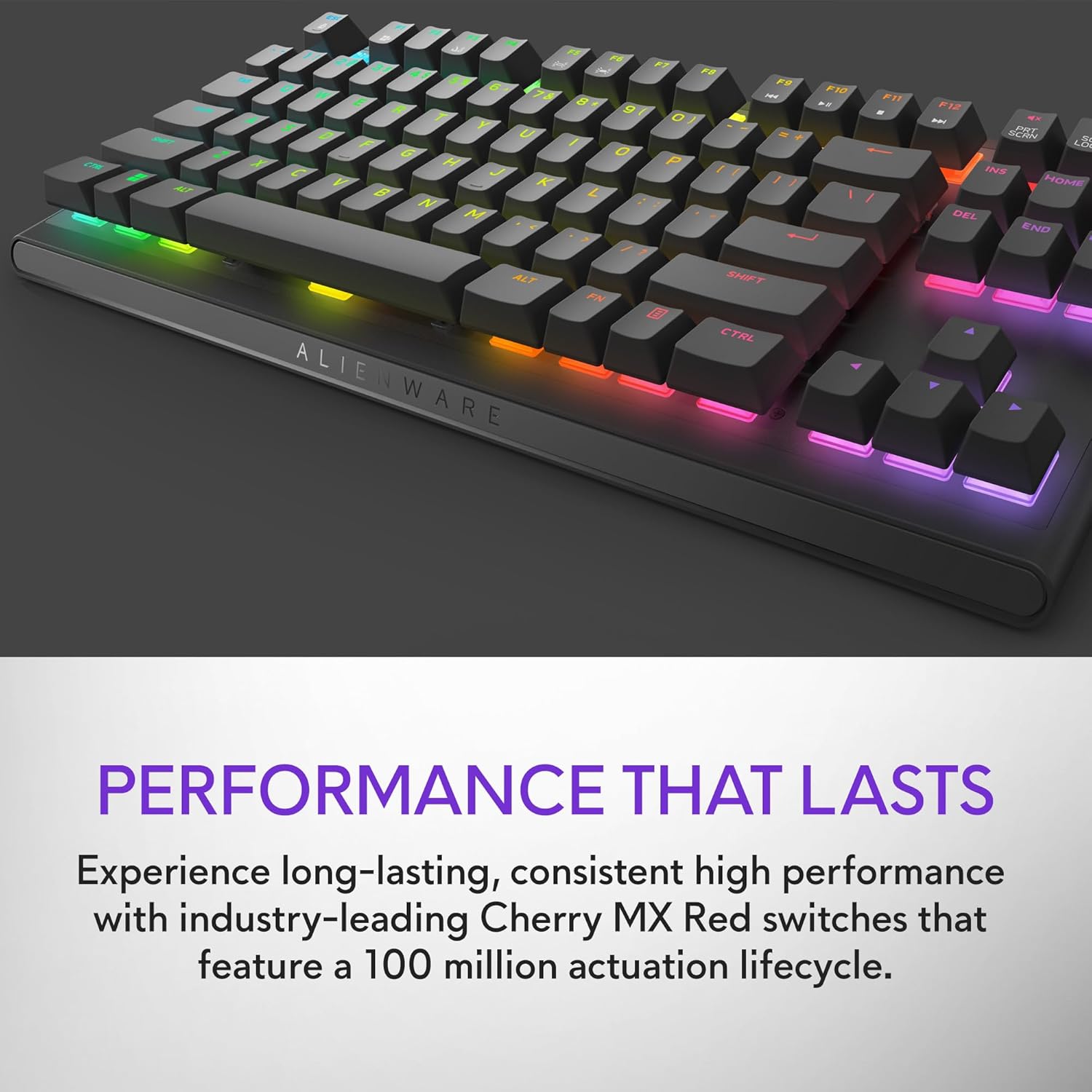
Figure 2.3: The keyboard features Cherry MX Red switches, known for their durability and consistent performance over 100 million keystrokes.

Figure 2.4: Customize your gaming experience with AlienFX per-key RGB lighting, offering up to 16.8 million colors via Alienware Command Center software.
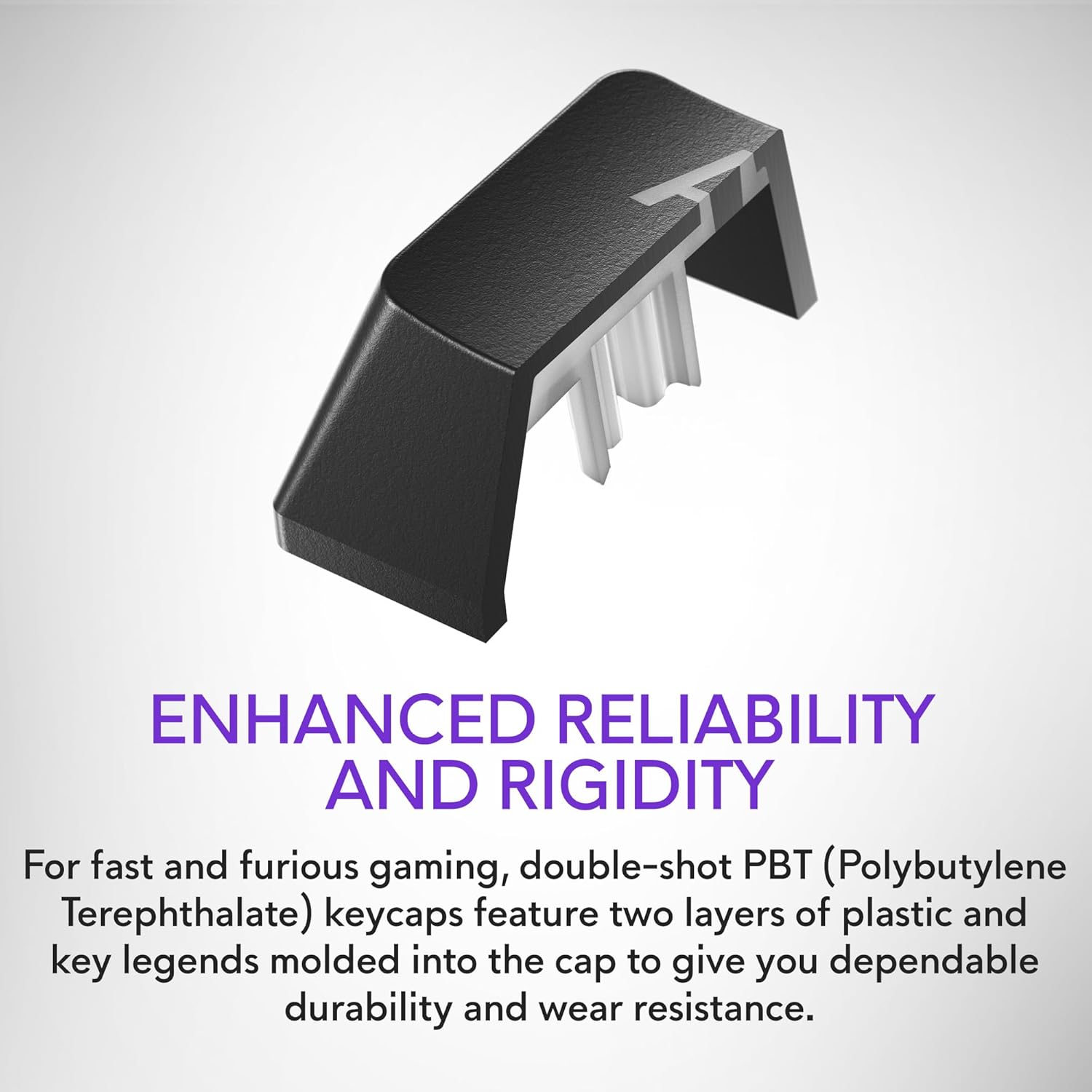
Figure 2.5: Double-shot PBT keycaps provide enhanced reliability and rigidity, ensuring legends do not wear off over time.
3. Setup
Follow these steps to set up your Alienware AW420K Gaming Keyboard:
- Unpack the Keyboard: Carefully remove the keyboard and any included accessories from the packaging.
- Connect the USB Cable: The keyboard features a detachable USB paracord cable. Connect the USB-C end to the port on the keyboard's underside.
- Route the Cable: Utilize the integrated cable routing channels on the underside of the keyboard to direct the cable to your preferred setup. This helps in keeping your desk tidy.
- Connect to Computer: Plug the USB-A end of the cable into an available USB port on your computer. The keyboard is USB powered.
- Adjust Height: Flip up the risers on the back of the keyboard to select one of the three available height settings for your ideal typing angle.
- Install Software (Optional but Recommended): For full customization of RGB lighting and programmable keys, download and install the Alienware Command Center software from the official Alienware support website.

Figure 3.1: The detachable USB-C cable provides a secure and convenient connection.

Figure 3.2: Integrated cable routing on the underside helps manage the connection cable for a clean setup.

Figure 3.3: Flip-up risers allow for three height settings to achieve your ideal typing angle.
4. Operating the Keyboard
The Alienware AW420K keyboard is designed for intuitive use with advanced features for gaming and productivity.
4.1 Basic Functions
- Typing: Standard QWERTY layout for general typing.
- Gaming: Responsive Cherry MX Red switches provide a smooth and linear feel, ideal for fast-paced gaming.
- Media Controls: Dedicated media keys (e.g., volume roller, mute button) are typically located on the top right of the keyboard for quick audio adjustments.
4.2 Customization with Alienware Command Center
The Alienware Command Center software unlocks the full potential of your keyboard:
- RGB Lighting: Customize per-key RGB lighting with a spectrum of 16.8 million colors. Choose from various effects, create your own profiles, and synchronize lighting with other Alienware devices.
- Macro Programming: Assign complex macros to programmable keys for in-game advantages or streamlined workflows.
- Profile Management: Create and save multiple profiles for different games or applications, allowing for quick switching of lighting and key assignments.
Video 4.1: An official video demonstrating the features and design of the Alienware Tenkeyless Gaming Keyboard - AW420K, including its RGB lighting and compact form factor.
5. Maintenance
Proper maintenance ensures the longevity and optimal performance of your keyboard.
- Cleaning Keycaps: The floating keycap design makes cleaning easy. Use a soft brush or compressed air to remove dust and debris from between the keys. For stubborn grime, gently wipe keycaps with a damp, lint-free cloth. Avoid excessive moisture.
- Cleaning the Chassis: Wipe the keyboard chassis with a soft, dry cloth. Do not use harsh chemicals or abrasive materials.
- Cable Care: Avoid sharp bends or excessive pulling on the USB cable to prevent damage.
6. Troubleshooting
If you encounter issues with your Alienware AW420K keyboard, try the following troubleshooting steps:
- Keyboard Not Responding:
- Ensure the USB cable is securely connected to both the keyboard and the computer.
- Try plugging the keyboard into a different USB port on your computer.
- Restart your computer.
- RGB Lighting Not Working/Customizing:
- Verify that the Alienware Command Center software is installed and up to date.
- Check the software settings to ensure lighting effects are enabled and configured correctly.
- Ensure no conflicting software is running that might interfere with RGB control.
- Keys Not Registering:
- Clean any debris from under the affected keycap.
- If the issue persists, it may indicate a hardware problem.
If these steps do not resolve the issue, please refer to the Warranty and Support section for further assistance.
7. Specifications
| Brand | Alienware |
| Model Name | ALIENWARE TENKEYLESS GAMING KEYBOARD - AW420K |
| Item Model Number | AW420K |
| Hardware Platform | PC |
| Item Weight | 1.74 pounds |
| Product Dimensions (LxWxH) | 5.81 x 14.46 x 2.19 inches |
| Color | Dark Side of the Moon |
| Power Source | USB Powered |
| Manufacturer | Dell |
| Connectivity Technology | USB-C |
| Keyboard Description | Mechanical |
| Number of Keys | 87 |
| Keyboard Backlighting | RGB |
| Special Features | Backlit, Programmable Keys, Split Keyset Design |
8. Warranty and Support
For warranty information and technical support, please refer to the official Alienware website or contact Alienware customer service. Keep your proof of purchase for warranty claims.
You can typically find support resources, drivers, and software updates on the Dell Support Website (as Alienware is a Dell brand).
Related documentsAW420K


Ask a question about this manual
Ask about setup, troubleshooting, compatibility, parts, safety, or missing instructions. Manuals+ will review the question and use this page’s manual context to help answer it.