
Introduction
Thank you for purchasing the Andoer Digital Camera H12. This manual provides detailed instructions for the proper use and maintenance of your camera. Please read this manual thoroughly before using the camera to ensure optimal performance and longevity.
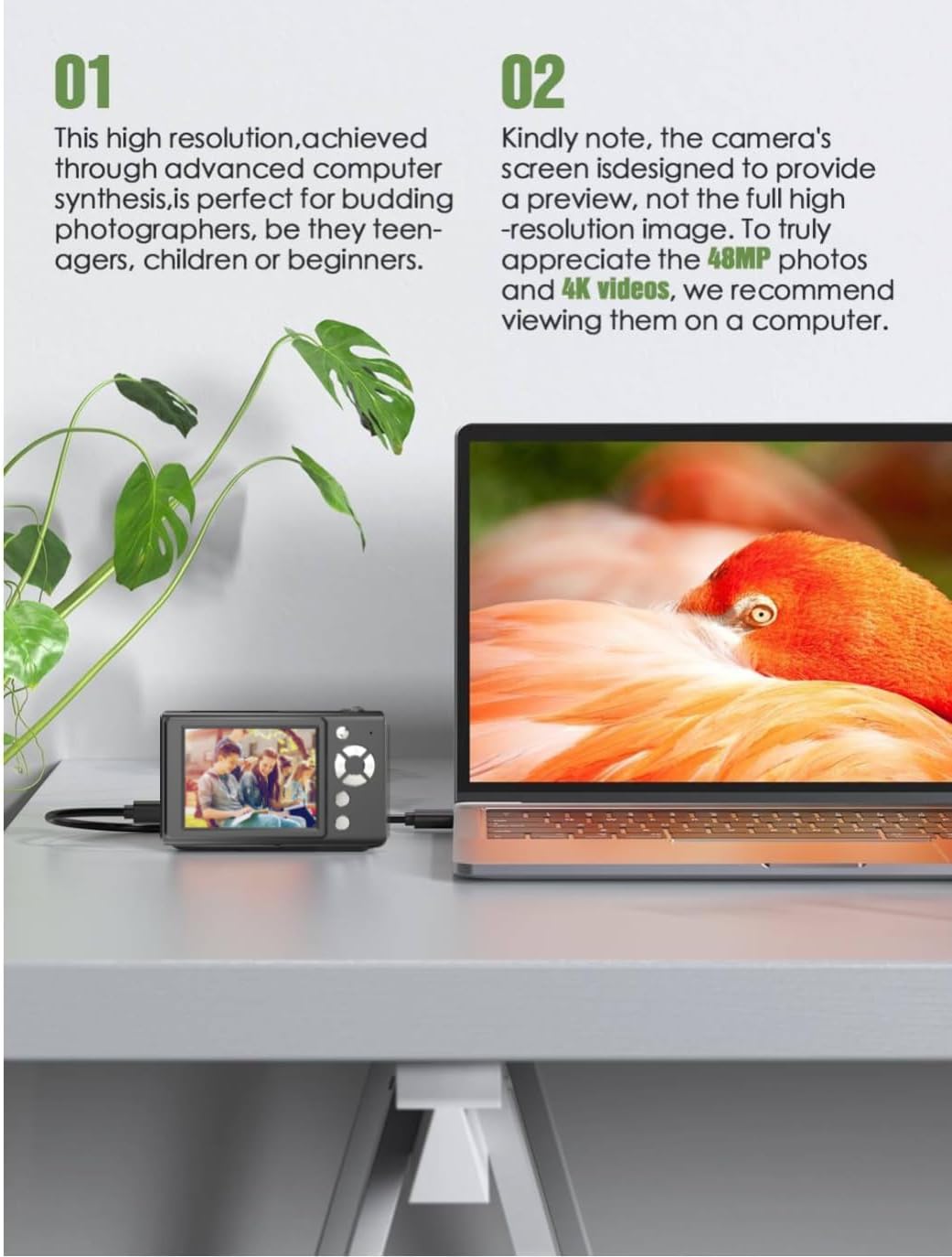
The Andoer H12 is a compact digital point-and-shoot camera featuring 1080P video recording, 48MP photo resolution, 16x digital zoom, autofocus, and an anti-shake function. It is designed for ease of use, making it suitable for various users.
Package Contents
Please check the package contents upon unboxing to ensure all items are present:
- 1 x Andoer Digital Camera H12
- 1 x USB Cable (Type-C)
- 1 x Wrist Strap
- 1 x 32GB Memory Card
- 1 x Card Reader
- 1 x User Manual
Setup
1. Charging the Battery
The camera is equipped with a built-in 3.7V 700mAh lithium battery. Before first use, fully charge the battery.
- Connect the included Type-C USB cable to the camera's USB port.
- Connect the other end of the USB cable to a USB power adapter (not included) or a computer's USB port.
- The charging indicator light will illuminate. Once charging is complete, the indicator light will change or turn off.
Note: A full charge typically takes approximately 2-3 hours. Do not use the camera while it is charging.
2. Inserting the Memory Card
The camera supports TF (MicroSD) cards up to 128GB. A 32GB memory card is included in the package.
- Locate the memory card slot on the side of the camera.
- Gently insert the TF card into the slot with the metal contacts facing the front of the camera until it clicks into place.
- To remove the card, gently push it in again until it springs out.

3. Attaching the Wrist Strap
Attach the included wrist strap to the camera for added security and to prevent accidental drops.
- Thread the thin loop of the wrist strap through the strap eyelet on the camera body.
- Pass the larger end of the strap through the thin loop and pull tight to secure it.
Operating Instructions
1. Power On/Off
- To power on, press and hold the power button until the screen illuminates.
- To power off, press and hold the power button again until the screen turns off.
- The camera features an auto power-off function (off/3 mins/5 mins) which can be configured in the settings.
2. Taking Photos
- Turn on the camera. The camera will typically start in photo mode.
- Frame your shot using the 2.8-inch IPS display.
- Press the shutter button halfway down to activate autofocus. The camera will recognize and track subjects.
- Once focus is achieved (indicated by a green frame), press the shutter button fully to take the picture.

3. Recording Videos
- Switch to video mode (refer to the camera's on-screen interface for the mode switch button).
- Press the shutter button to start recording. A red indicator or timer will appear on the screen.
- Press the shutter button again to stop recording.
The camera supports 1080P and 720P video resolutions in AVI format. Loop recording can be set for 3, 5, or 10 minutes.
4. Zoom Function
Use the zoom buttons (usually marked 'W' for Wide and 'T' for Telephoto) to adjust the 16x digital zoom. This allows you to magnify distant subjects.

5. LED Fill Light
The camera features a built-in ring LED fill light with three lighting modes to assist in low-light conditions.
- White Light: Bright, even, and soft illumination.
- Warm White Light: Pure natural light, soft and comfortable.
- Yellow Light: Warm color adjustment for a warm atmosphere.
Access and cycle through these modes via the camera's menu or a dedicated button (refer to the on-screen interface).

6. Other Functions
- Selfie Timer: Options for off, 2s, 5s, or 10s delay before taking a photo.
- Continuous Shooting: Capture a series of photos rapidly.
- Anti-Shake: Helps reduce blur caused by camera movement.
- Filter Effects: Various built-in filters to enhance your photos.
- Games: Includes 4 simple games for entertainment.
- MP3 Playback: Download MP3 music to the memory card and play it through the camera.

Maintenance
- Cleaning the Camera Body: Use a soft, dry cloth to wipe the camera body. For stubborn dirt, slightly dampen the cloth with water and then wipe dry. Avoid using chemical cleaners.
- Cleaning the Lens and Screen: Use a specialized lens cleaning cloth or brush to gently remove dust and smudges. Do not use abrasive materials or excessive force.
- Storage: When not in use for extended periods, store the camera in a cool, dry place away from direct sunlight and extreme temperatures. Remove the memory card if not in use.
- Battery Care: Avoid fully discharging the battery frequently. Charge the battery regularly, even if the camera is not in use, to maintain battery health.
- Water Resistance: This camera is not water resistant. Avoid exposure to water, rain, or high humidity.
Troubleshooting
| Problem | Possible Cause | Solution |
|---|---|---|
| Camera does not power on. | Battery is depleted or not charged. | Charge the camera battery fully using the provided USB cable. |
| Cannot take photos/record videos. | Memory card is full, not inserted correctly, or corrupted. | Check if the memory card is inserted correctly. Delete unnecessary files or replace the memory card. Format the card if necessary (this will erase all data). |
| Images are blurry. | Autofocus failed, camera shake, or dirty lens. | Ensure autofocus is engaged. Hold the camera steady or use the anti-shake function. Clean the lens with a soft cloth. |
| Screen is blank or frozen. | System error or temporary malfunction. | Press and hold the power button for 10 seconds to force a shutdown, then restart the camera. If the issue persists, contact customer support. |
| Cannot transfer files to computer. | Incorrect cable connection or driver issue. | Ensure the USB cable is securely connected. Try a different USB port or computer. Use the included card reader to transfer files directly from the memory card. |
Specifications
| Feature | Detail |
|---|---|
| Model Name | H12 |
| Display | 2.8 inch IPS LCD |
| Photo Resolution | Up to 48MP (48M, 40M, 24M, 20M, 18M, 16M, 12M, 10M, 8M, 5M, 3M, 2M, 1M) |
| Photo Format | JPG |
| Video Resolution | 1080P, 720P |
| Video Format | AVI |
| Digital Zoom | 16X |
| Autofocus | Yes (Contrast Detection, 9 points) |
| Image Stabilization | Optical |
| Sensor Type | CMOS (1/4-inch) |
| Storage | TF card, max. 128GB (32GB included) |
| Battery | Built-in Lithium Battery (3.7V 700mAh) |
| Charging Interface | USB Type-C |
| Selfie Timer | Off/ 2s/ 5s/ 10s |
| Auto Power Off | Off/ 3 mins/ 5 mins |
| Loop Recording | 3 mins/ 5 mins/ 10 mins |
| Built-in Features | LED Fill Light (3 modes), Filter Effects, 4 Games, MP3 Playback |
| Product Size | 103 x 31 x 65 mm |
| Product Weight | 149g (camera body) / 260g (item weight including packaging/accessories) |
| Water Resistance Level | Not Water Resistant |
Warranty Information
The Andoer Digital Camera H12 comes with a 1-year warranty from the date of purchase. This warranty covers manufacturing defects and malfunctions under normal use. It does not cover damage caused by misuse, accidents, unauthorized repairs, or natural disasters.
Please retain your proof of purchase for warranty claims.
Customer Support
If you encounter any issues or have questions not covered in this manual, please contact Andoer customer support. You can typically find support contact information on the official Andoer website or through your retailer.
For further assistance, please visit the Andoer Store on Amazon.

