
1. Introduction
Thank you for purchasing the ZEBRONICS Astra 40 Portable Bluetooth Speaker. This manual provides essential information for setting up, operating, and maintaining your speaker. Please read it carefully to ensure optimal performance and longevity of your device.
The ZEB-Astra 40 is a portable speaker designed to enhance your audio experience. It features Bluetooth v5.3 for seamless wireless connectivity, True Wireless Stereo (TWS) function for pairing two speakers, and multiple media options including USB, mSD, AUX, and FM Radio. With dual 5.2cm drivers and passive radiators, it delivers an impressive 20W RMS output. The speaker also includes vibrant RGB LED lights, an LED display, call functionality, and a splash-proof design for versatile use.
2. Package Contents
- ZEBRONICS Astra 40 Speaker - 1 unit
- Charging Cable (Type-C) - 1 unit
- Input Cable (AUX) - 1 unit
- QR Code Guide - 1 unit
3. Product Overview
Controls and Ports
Familiarize yourself with the various controls and connection ports on your ZEB-Astra 40 speaker.

Image: Rear view of the ZEB-Astra 40 speaker highlighting the OFF/ON switch, AUX input, USB port, Micro SD card slot, and Type-C charging port.
- OFF/ON Switch: Powers the speaker on or off.
- AUX Input: For connecting external audio devices via a 3.5mm audio cable.
- USB Port: For playing audio from USB flash drives.
- Micro SD Slot: For playing audio from Micro SD cards.
- Type-C Port: For charging the speaker.

Image: Top view of the ZEB-Astra 40 speaker displaying the media control buttons (Play/Pause, Volume Down/Previous, Volume Up/Next, Mode/RGB), and illustrations for TWS and Call functions.
- Play/Pause Button: Plays or pauses audio.
- Volume Down / Previous Track Button: Decreases volume or skips to the previous track.
- Volume Up / Next Track Button: Increases volume or skips to the next track.
- Mode / RGB Button: Switches between input modes (Bluetooth, USB, mSD, AUX, FM) and controls RGB lighting.
4. Setup
4.1 Charging the Speaker
Before first use, fully charge the speaker. Use the provided Type-C charging cable.
- Connect the Type-C end of the charging cable to the speaker's Type-C port.
- Connect the USB-A end of the charging cable to a 5V DC power adapter (not included) or a computer's USB port.
- The LED display will indicate charging status. Once fully charged, the indicator will change.

Image: The ZEB-Astra 40 speaker, highlighting its built-in rechargeable battery and up to 8 hours of playback time (at 50% volume with LED off).
A full charge provides up to 8 hours of playback at 50% volume with the LED lights off.
4.2 Powering On/Off
Locate the OFF/ON switch on the speaker's rear panel. Slide the switch to the 'ON' position to power on the speaker. Slide it to the 'OFF' position to power off.
5. Operating Instructions
5.1 Bluetooth Pairing
- Power on the speaker. It will automatically enter Bluetooth pairing mode, indicated by a flashing LED.
- On your mobile device, enable Bluetooth and search for available devices.
- Select "ZEB-Astra 40" from the list of devices.
- Once paired, the speaker will emit a confirmation sound, and the LED will stop flashing.
5.2 True Wireless Stereo (TWS) Function
The TWS function allows you to connect two ZEB-Astra 40 speakers for a stereo audio experience.
Image: Illustration depicting two ZEB-Astra 40 speakers wirelessly connected via TWS for enhanced sound.
- Ensure both ZEB-Astra 40 speakers are powered on and in Bluetooth mode, but not connected to any device.
- On one of the speakers (this will be the primary speaker), long-press the Play/Pause button until you hear a TWS pairing prompt.
- The two speakers will automatically connect to each other. Once connected, you will hear a confirmation sound.
- Now, connect your mobile device to the primary speaker via Bluetooth as described in section 5.1.
5.3 Multi-Connectivity Options
The speaker supports various input sources:
- USB Playback: Insert a USB flash drive into the USB port. The speaker will automatically switch to USB mode and begin playing audio files.
- Micro SD Playback: Insert a Micro SD card into the mSD slot. The speaker will automatically switch to mSD mode and begin playing audio files.
- AUX Input: Connect an external audio device (e.g., MP3 player, laptop) to the AUX port using the provided 3.5mm audio cable. Press the Mode button to switch to AUX mode.
- FM Radio: Press the Mode button to switch to FM Radio mode. Long-press the Play/Pause button to auto-scan and save available FM stations. Use the Volume Up/Down buttons to navigate between stations.
5.4 Media and Volume Control
Use the control buttons on the top panel of the speaker:
- Play/Pause: Short press to play or pause audio.
- Volume Up/Next Track: Short press to increase volume. Long press to skip to the next track.
- Volume Down/Previous Track: Short press to decrease volume. Long press to skip to the previous track.
5.5 Call Function
When connected via Bluetooth to a smartphone, the speaker supports hands-free calling.
Image: Illustration showing a smartphone connected to the ZEB-Astra 40 speaker for hands-free calling.
- Answer Call: Short press the Play/Pause button when an incoming call rings.
- End Call: Short press the Play/Pause button during a call to hang up.
- Reject Call: Long press the Play/Pause button when an incoming call rings.
5.6 RGB LED Lights
The speaker features colorful RGB LED lights to enhance your listening experience.

Image: Close-up of the ZEB-Astra 40 speaker displaying its vibrant RGB LED lights on the side panels.
Short press the Mode button to cycle through different RGB lighting modes or to turn the lights off.
5.7 LED Display
The integrated LED display provides useful information.
Image: Close-up of the ZEB-Astra 40 speaker's LED display showing 'BLUE' indicating Bluetooth mode.
The LED display shows the current mode (e.g., "BLUE" for Bluetooth, "FM" for radio), volume level, and battery status.
6. Maintenance
6.1 Cleaning
To clean the speaker, use a soft, dry cloth. Do not use harsh chemicals, cleaning solvents, or strong detergents, as these may damage the surface or internal components.
6.2 Splash Proof Feature
The ZEB-Astra 40 features a splash-proof design, offering protection against light splashes of water.
Image: The ZEB-Astra 40 speaker with water droplets on its surface, illustrating its splash-proof capability.
Important: This speaker is splash-proof, not waterproof. Do not immerse it in water or expose it to heavy rain or direct water jets, as this will cause damage and void the warranty.
6.3 Storage
When not in use for extended periods, store the speaker in a cool, dry place away from direct sunlight and extreme temperatures. Ensure the battery is partially charged before storing to maintain battery health.
7. Troubleshooting
| Problem | Possible Cause | Solution |
|---|---|---|
| Speaker does not power on. | Battery is depleted. | Charge the speaker using the provided Type-C cable. |
| Cannot pair via Bluetooth. | Speaker is not in pairing mode or already connected to another device. | Ensure the speaker is in Bluetooth pairing mode (flashing LED). Disconnect from any other device. Ensure your device's Bluetooth is on and within range. |
| No sound. | Volume is too low or muted. Incorrect input mode. | Increase the volume on both the speaker and your connected device. Press the Mode button to select the correct input source (Bluetooth, AUX, USB, mSD, FM). |
| Poor FM reception. | Weak signal. | Move the speaker to a location with better signal reception. Extend the antenna if available (not explicitly mentioned for this model, but general advice). |
| TWS pairing fails. | Speakers are already connected to a device or not in TWS pairing mode. | Ensure both speakers are disconnected from any Bluetooth device. Follow the TWS pairing steps precisely. |
8. Specifications

Image: The ZEB-Astra 40 speaker highlighting its 20W RMS output, dual 5.2cm drivers, and dual passive radiators for powerful audio.
| Feature | Detail |
|---|---|
| Model Name | ZEB-ASTRA 40 |
| Speaker Type | Portable Speaker |
| Material | Plastic |
| Speaker Maximum Output Power | 20 Watts RMS (10W + 10W) |
| Audio Driver Size | 5.2 Centimetres (Dual Drivers) |
| Passive Radiators | Dual |
| Wireless Communication Technology | Bluetooth v5.3 |
| Connectivity Technology | BT v5.3, USB, mSD, AUX, FM Radio |
| Battery Average Life | Up to 8 hours (at 50% volume, LED off) |
| Charging Port | Type-C |
| Special Features | TWS Function, RGB LED Lights, Splash Proof, Multi-Connectivity, Call Function, LED Display |
| Control Method | Touch Buttons |
| Product Dimensions (L x W x H) | 37.3cm x 6.5cm x 6.5cm (approx.) |
| Item Weight | 622 Grams |
| Color | Black |
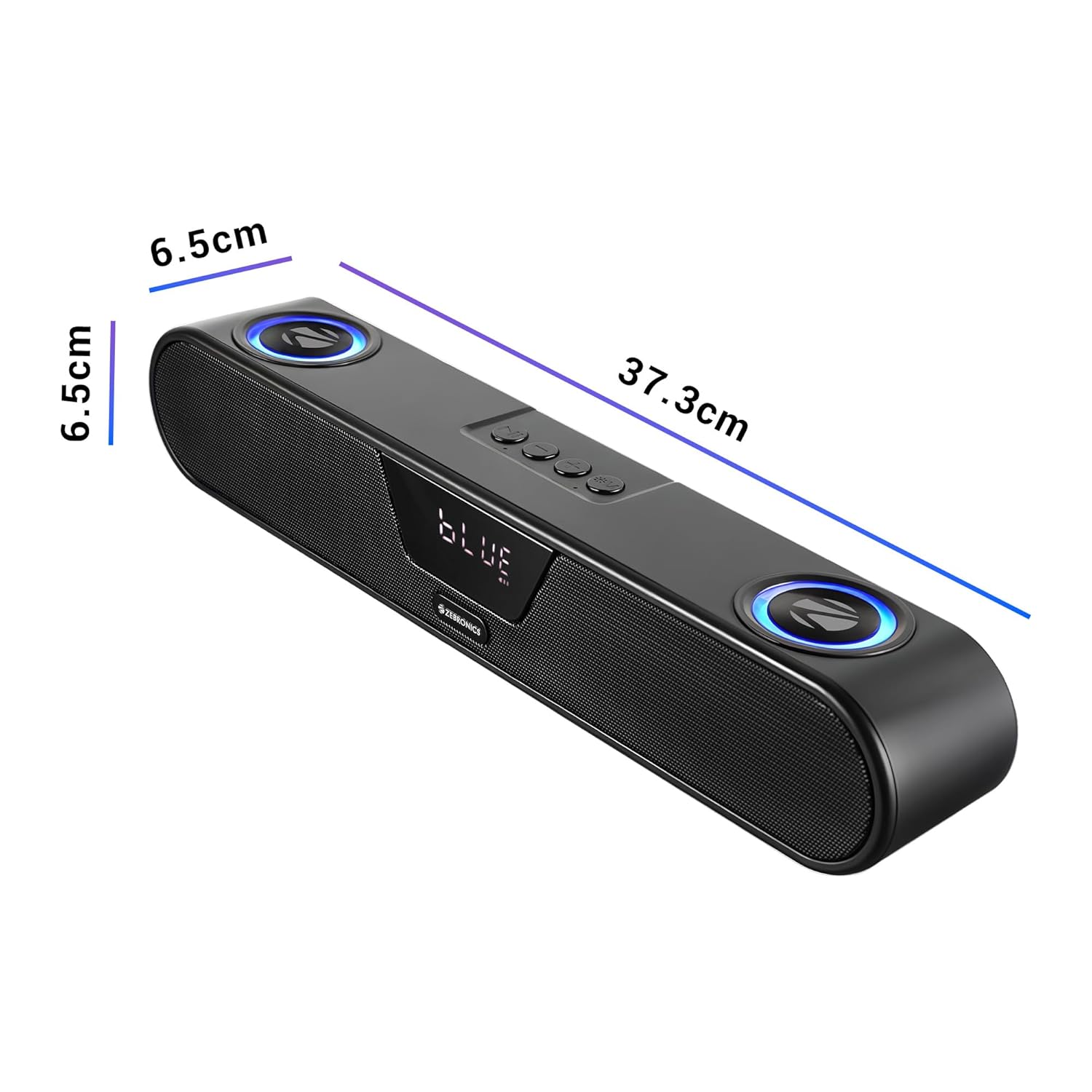
Image: The ZEB-Astra 40 speaker with its approximate dimensions: 37.3cm length, 6.5cm width, and 6.5cm height.
9. Warranty and Support
9.1 Warranty Information
The ZEBRONICS Astra 40 Portable Bluetooth Speaker comes with a 1 Year Warranty from the date of purchase. This warranty covers manufacturing defects under normal use. Please retain your purchase receipt as proof of purchase for warranty claims.
The warranty does not cover damage caused by misuse, accident, unauthorized modification, or exposure to conditions beyond the product's specifications (e.g., immersion in water despite being splash-proof).
9.2 Customer Support
For any technical assistance, warranty claims, or product-related inquiries, please contact ZEBRONICS customer support through their official website or the contact details provided in your product packaging. Please have your model number (ZEB-ASTRA 40) and purchase details ready when contacting support.
You can visit the official ZEBRONICS website for more information and support resources: www.zebronics.com

