
iSinbox GC357
iSinbox [Auto Focus/4K Support] Projector
User Manual
Introduction
Immerse yourself in a captivating visual experience with the iSinbox [Auto Focus] 4K Projector. Boasting WiFi6 and Bluetooth 5.2 connectivity, this projector delivers a native 1080P resolution and a bright 850 ANSI lumens, perfect for outdoor movie nights or indoor gaming sessions. Its smart auto 6D keystone correction ensures a perfectly aligned image, while compatibility with iOS, Android, and TV sticks adds versatility. With a compact and portable design, this projector is the ultimate entertainment companion for your smart home.
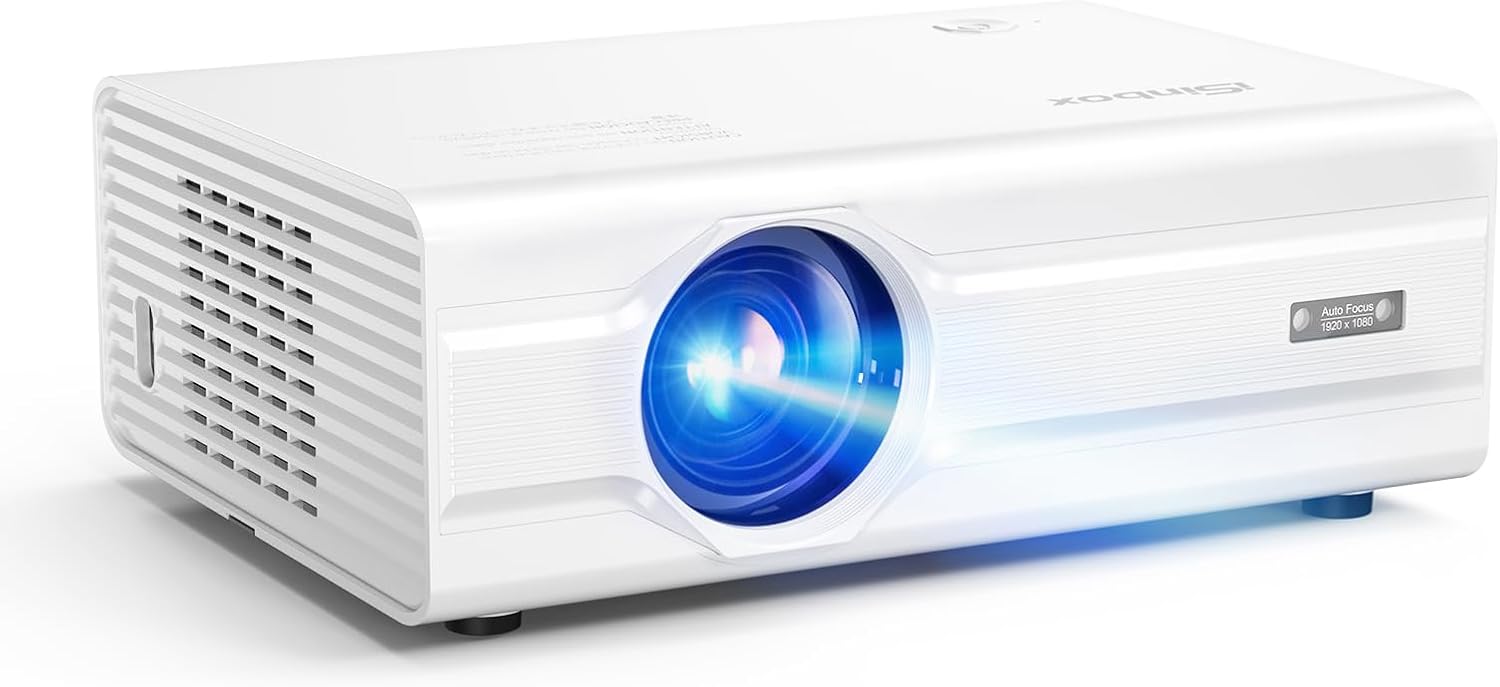
The iSinbox Projector features a sleek white design with a prominent lens and ventilation grilles.
What's in the Box
- AV Cable
- HDMI Cable
- Power Cord
- Remote
- User Manual
Key Features
- Full Automation: Experience auto-focus, auto-keystone correction, and auto-obstacle avoidance for hassle-free setup.
- Stunning Visual Quality: Native 1080P resolution with 4K support and 850 ANSI lumens brightness for unparalleled clarity and rich color depth.
- Enhanced Connectivity: Dual-band 2.4G/5G WiFi 6 and Bidirectional Bluetooth 5.2 for stable streaming and versatile audio connections.
- Robust Performance: Powered by the MTK9269 chip, supporting PPT playback and projection up to 300 inches with 50-100% zoom.
- Personalized Settings: Customize image modes, brightness levels, and wallpapers with a unique companion mode.
- Comprehensive Support: Robust after-sales support ensures an effortless and enjoyable user experience.

This image illustrates the projector's advanced AI features, including automatic focus adjustment, keystone correction for distorted images, obstacle avoidance to prevent projection onto unwanted objects, and automatic screen alignment for a perfect fit.

The iSinbox projector offers stunning visual quality with 4K support and 850 ANSI lumens brightness, providing superior clarity and richer colors compared to standard projectors.

The projector is equipped with the latest WiFi 6 technology, ensuring faster, smoother, and lower-latency wireless streaming for an enhanced viewing experience.

The iSinbox projector features two-way Bluetooth 5.3 technology, allowing it to connect to external speakers for enhanced audio output or function as a Bluetooth speaker itself when connected to a smartphone or other device.

Powered by an MTK chip, the projector offers personalized settings, enabling users to customize image brightness, select various image modes, set custom wallpapers, and utilize a unique companion mode for tailored viewing.

The projector is compatible with a wide range of devices, including TV sticks, allowing seamless streaming of multimedia content and 4K videos from popular platforms.

This projector can create a highly efficient workspace, supporting office presentations directly via USB, making it convenient for business and educational use.
Setup Guide
- Unpack: Carefully remove all components from the packaging.
- Placement: Place the projector on a stable, flat surface, ensuring adequate ventilation around the device. Position it at an appropriate distance from your projection surface (wall or screen).
- Power Connection: Connect the power cord to the projector's power input and then to a power outlet.
- Initial Power On: Press the power button on the projector or the remote control to turn on the device.
- Automatic Adjustments: The projector will automatically perform auto-focus, auto-keystone correction, auto-obstacle avoidance, and auto-screen alignment upon startup to optimize the image.
- Connect Source: Connect your desired input source (e.g., HDMI device, USB drive, or connect via Wi-Fi/Bluetooth) as described in the Connectivity section.
Operating Instructions
Remote Control Usage
The included remote control allows full navigation and control of the projector's functions. Ensure batteries are correctly inserted.
- Power Button: Turns the projector on/off.
- Navigation Buttons (Up/Down/Left/Right): Used to navigate through menus and options.
- OK/Enter Button: Confirms selections.
- Back/Return Button: Returns to the previous screen or menu.
- Source Button: Selects input sources (HDMI, USB, etc.).
- Menu Button: Accesses the main settings menu.
- Volume Buttons: Adjusts audio volume.
Menu Navigation and Settings
From the main menu, you can access various settings to customize your viewing experience:
- Image Settings: Adjust brightness, contrast, color, aspect ratio, and select predefined image modes.
- Sound Settings: Control volume, audio output, and sound modes.
- Network Settings: Configure Wi-Fi and Bluetooth connections.
- System Settings: Manage language, time, software updates, and reset options.
- Personalized Settings: Utilize the unique companion mode and customize wallpapers.
Zoom Function
The projector supports a zoom capability from 50% to 100%. This allows you to adjust the screen size without moving the projector. Access this feature through the image settings menu.
Connectivity
Wi-Fi 6 Connection
- Navigate to the Network Settings menu.
- Select 'Wi-Fi' and turn it on.
- Choose your desired Wi-Fi network from the list.
- Enter the password if prompted and connect.
Bluetooth Pairing
The projector supports Bidirectional Bluetooth 5.2, allowing it to connect to external speakers (Bluetooth Output) or act as a speaker for your mobile device (Bluetooth Input).
- Bluetooth Output (Connecting to External Speaker):
- Go to Sound Settings > Bluetooth Output.
- Enable Bluetooth and search for devices.
- Select your Bluetooth speaker from the list to pair.
- Bluetooth Input (Using Projector as Speaker):
- Go to Sound Settings > Bluetooth Input.
- Enable Bluetooth Input mode on the projector.
- On your mobile device, search for Bluetooth devices and select the projector to connect.
Wired Connections (HDMI, USB, 3.5mm Jack)
- HDMI: Connect devices like laptops, gaming consoles, or TV sticks using an HDMI cable. Select the corresponding HDMI input from the source menu.
- USB: Insert a USB drive to play media files (photos, videos, documents including PPT) directly. Select 'USB' from the source menu and browse files.
- 3.5mm Audio Jack: Connect external audio devices like headphones or speakers using a 3.5mm audio cable.
Maintenance
- Lens Cleaning: Use a soft, lint-free cloth specifically designed for optical lenses to gently wipe the projector lens. Avoid abrasive materials or harsh chemicals.
- Ventilation: Ensure the projector's ventilation ports are clear and unobstructed to prevent overheating. Do not place the projector on soft surfaces that may block airflow.
- Dust Removal: Periodically use a can of compressed air to gently clear dust from the ventilation grilles.
- Storage: When not in use for extended periods, store the projector in a cool, dry place, ideally in its original packaging or a protective case, to prevent dust accumulation and damage.
- Power Off Properly: Always power off the projector using the designated power button and allow it to complete its shutdown cycle before unplugging.
Troubleshooting
| Problem | Possible Cause | Solution |
|---|---|---|
| No image on screen | Power cable loose; Incorrect input source; Lens cap on. | Check power connection; Select correct input source; Remove lens cap. |
| Image is blurry | Out of focus; Projector not level. | Allow auto-focus to adjust; Manually adjust focus if needed; Ensure projector is on a flat surface. |
| No sound | Volume too low; Muted; Incorrect audio output. | Increase volume; Unmute; Check audio output settings (internal speaker/Bluetooth). |
| Remote control not working | Batteries low/dead; Obstruction between remote and projector. | Replace batteries; Ensure clear line of sight to IR receiver. |
| Wi-Fi connection unstable | Router too far; Interference. | Move projector closer to router; Reduce interference from other devices. |
Technical Specifications
| Feature | Specification |
|---|---|
| Brand | iSinbox |
| Model Number | GC357 |
| Display Resolution | Native 1920 x 1080 (Supports 4K) |
| Brightness | 850 ANSI Lumens |
| Connectivity Technology | 3.5mm Jack, Bluetooth 5.2 (Bidirectional), HDMI, USB, Wi-Fi 6 |
| Special Features | Auto Focus, Auto Keystone, Auto-obstacle avoidance, Auto Screen Alignment, Personalized User Experience, Robust MTK9269 Chip |
| Product Dimensions | 6.97 x 3.46 x 9.37 inches |
| Item Weight | 3.41 pounds |
| Color | White |
| Recommended Uses | Bedroom, Business, Education, Gaming, Garden, Home Cinema, Indoor, Movies, Outdoor, Party, Video |
Warranty and Support
The iSinbox Projector comes with a manufacturer's warranty covering defects in materials and workmanship under normal use. Please refer to the warranty card included in your product packaging for specific terms and conditions, including the warranty period.
For technical support, troubleshooting assistance, or warranty claims, please contact iSinbox customer service. Contact details can typically be found on the official iSinbox website or on the warranty card provided with your product.
When contacting support, please have your product model number (GC357) and purchase information ready to expedite the process.
Related documentsGC357


Ask a question about this manual
Ask about setup, troubleshooting, compatibility, parts, safety, or missing instructions. Manuals+ will review the question and use this page’s manual context to help answer it.