
Introduction
Thank you for choosing the Apexcam M80 4K 60FPS 48MP Action Camera. This manual provides essential information for setting up, operating, and maintaining your camera to ensure optimal performance and longevity. Please read this manual thoroughly before using the device.
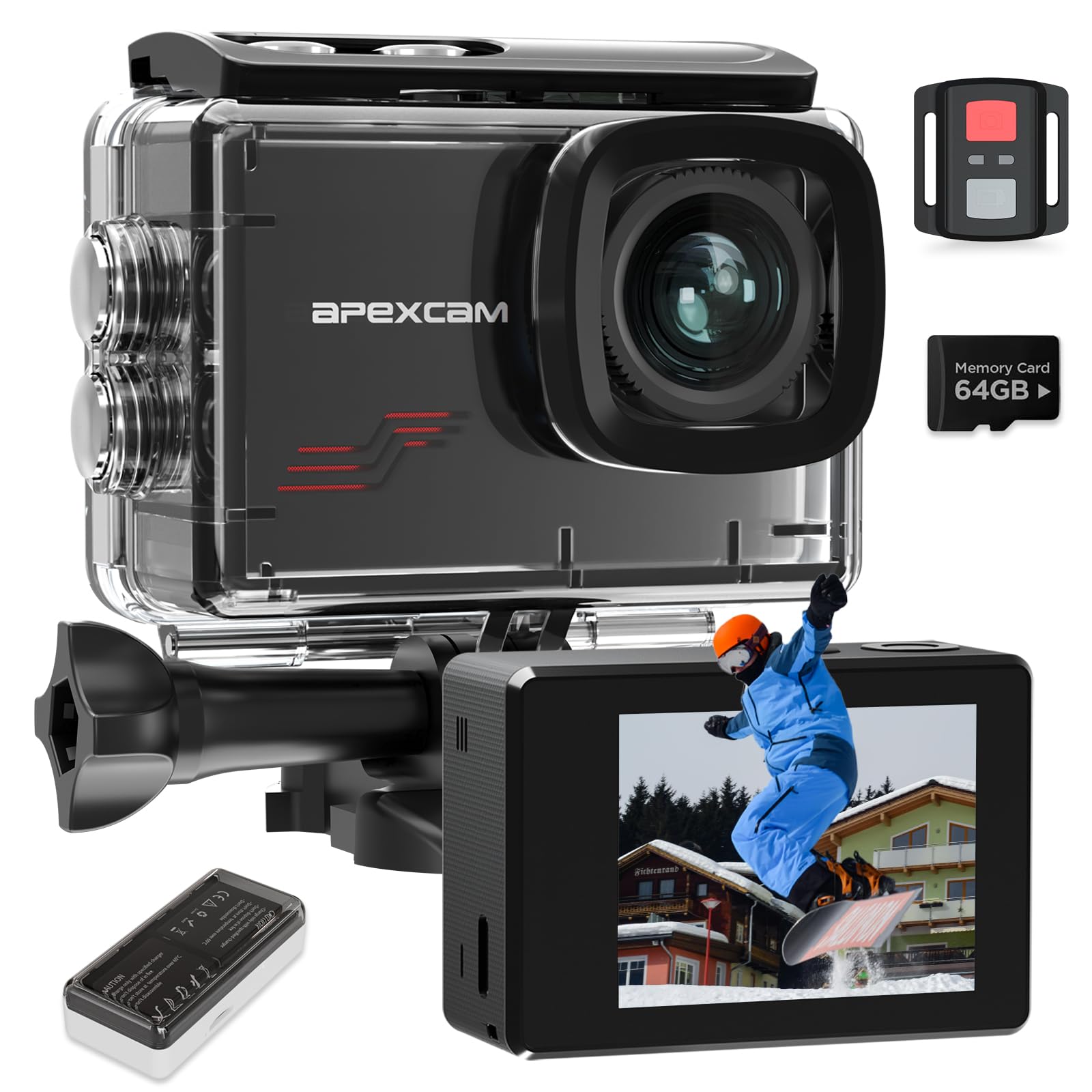
Image: Apexcam M80 Action Camera, front view.
What's in the Box
The Apexcam M80 package includes the following items:
- Apexcam M80 Action Camera
- Waterproof Case (up to 40 meters)
- 2 x 1350mAh Rechargeable Batteries
- 64GB MicroSD Card
- Dual Battery Charger (also functions as a card reader)
- 2.4G Wireless Remote Control (splash-resistant)
- Various Mounting Accessories (for helmets, bicycles, wrists, etc.)
- USB Cable
- User Manual (this document)

Image: Contents of the Apexcam M80 package, including camera, waterproof case, batteries, remote, and various mounts.
Product Overview
Familiarize yourself with the camera's components and controls.
Camera Body
- Lens: Wide-angle lens for capturing broad scenes.
- Display Screen: 2-inch screen for live view, playback, and menu navigation.
- Power/Mode Button: Press to power on/off, short press to switch modes.
- Shutter/OK Button: Press to start/stop recording or take photos, confirm selections.
- Up/Down Buttons: Navigate menu options, adjust settings, or zoom (in certain modes).
- MicroSD Card Slot: Insert your memory card here.
- USB Port: For charging and data transfer.
- Battery Compartment: Houses the rechargeable battery.

Image: Front and rear views of the Apexcam M80, highlighting the lens and display screen.
Setup
1. Battery Installation
- Open the battery compartment cover on the bottom of the camera.
- Insert a fully charged 1350mAh battery, ensuring the contacts align correctly.
- Close the battery compartment cover securely.
The camera comes with two batteries for extended use. Charge batteries using the provided dual charger.

Image: A battery being inserted into the Apexcam M80 camera.
2. MicroSD Card Installation
- Locate the MicroSD card slot on the side of the camera.
- Insert the 64GB MicroSD card (or another compatible card, Class 10, U3, V30 recommended) with the gold contacts facing the back of the camera.
- Push the card gently until it clicks into place. To remove, push again until it springs out.
- It is recommended to format the MicroSD card in the camera before first use.
3. Waterproof Case Usage
The included waterproof case protects your camera up to 40 meters (130 feet) underwater. Ensure the case is clean and free of debris before sealing. Always perform a dry test without the camera inside before submerging.

Image: The Apexcam M80 in its waterproof housing, submerged in water.
4. Mounting Accessories
The camera comes with a variety of mounts for different activities. Attach the camera to the desired mount (e.g., helmet mount, bicycle mount, wrist strap) using the provided screws and adapters. Ensure all connections are secure before use.
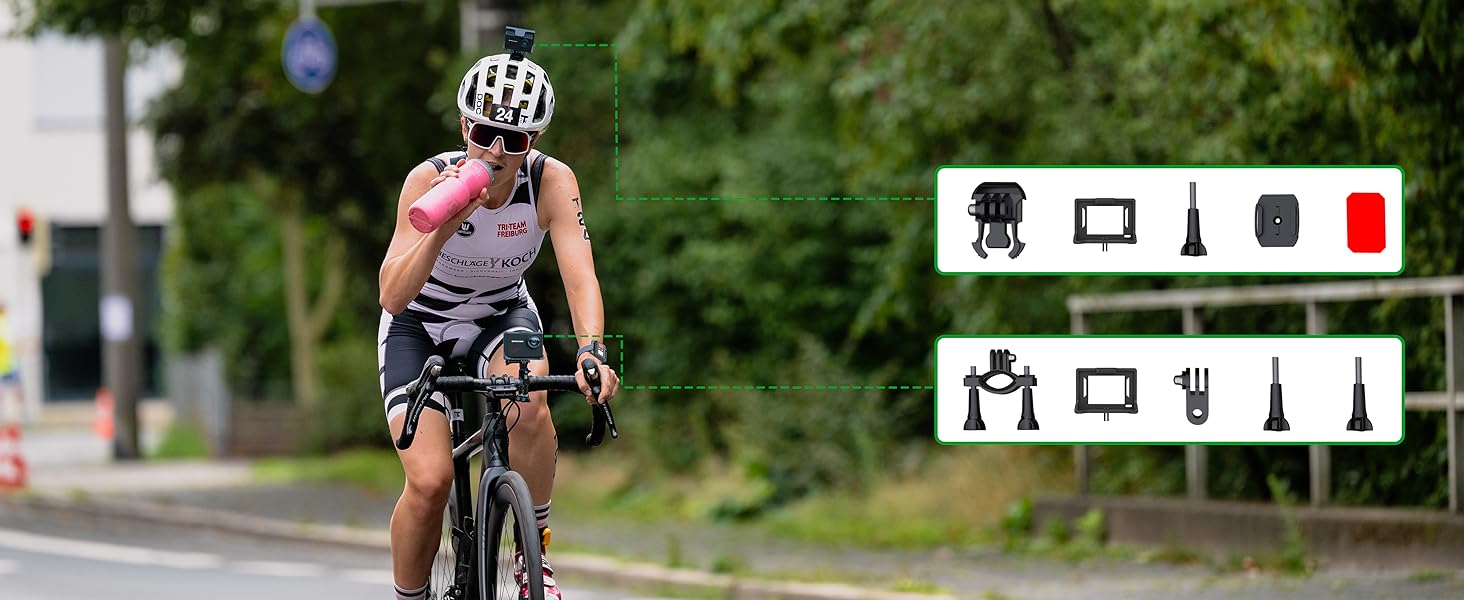
Image: A cyclist demonstrating the use of various mounting accessories for the Apexcam M80.
Operating Instructions
1. Power On/Off
- Power On: Press and hold the Power/Mode button for 3 seconds.
- Power Off: Press and hold the Power/Mode button for 3 seconds.
2. Mode Selection
Short press the Power/Mode button to cycle through available modes: Video Recording, Photo Mode, Playback Mode, and Settings.
3. Video Recording
- In Video Recording mode, press the Shutter/OK button to start recording.
- Press the Shutter/OK button again to stop recording.
- The camera supports 4K at 60 frames per second (FPS) for smooth, high-definition video.
- Pre-recording: This feature captures footage before you press the record button, ensuring you don't miss critical moments. Refer to the camera's settings menu to enable and configure pre-recording.
4. Photo Capture
- In Photo Mode, press the Shutter/OK button to take a photo.
- The camera captures 48MP high-resolution images.
- 8x Digital Zoom: Use the Up/Down buttons to adjust the digital zoom level in Photo or Video mode (when not recording).

Image: The camera display showing 8x digital zoom in action during a sports activity.
5. Wi-Fi Connection & App
Connect your Apexcam M80 to your smartphone or tablet via Wi-Fi for remote control, live preview, and easy sharing of your content.
- Download the official Apexcam app from your device's app store.
- Enable Wi-Fi on your camera through the settings menu.
- On your smartphone, connect to the camera's Wi-Fi network (SSID and password will be displayed on the camera screen).
- Open the Apexcam app to control the camera and view media.

Image: Apexcam M80 connected via Wi-Fi to a smartphone, showing the app interface.
6. Remote Control
The 2.4G wireless remote control allows you to start/stop recording or take photos from a distance of up to 10 meters. Wear it on your wrist for convenient access. Note that the remote is splash-resistant, not fully waterproof for diving.
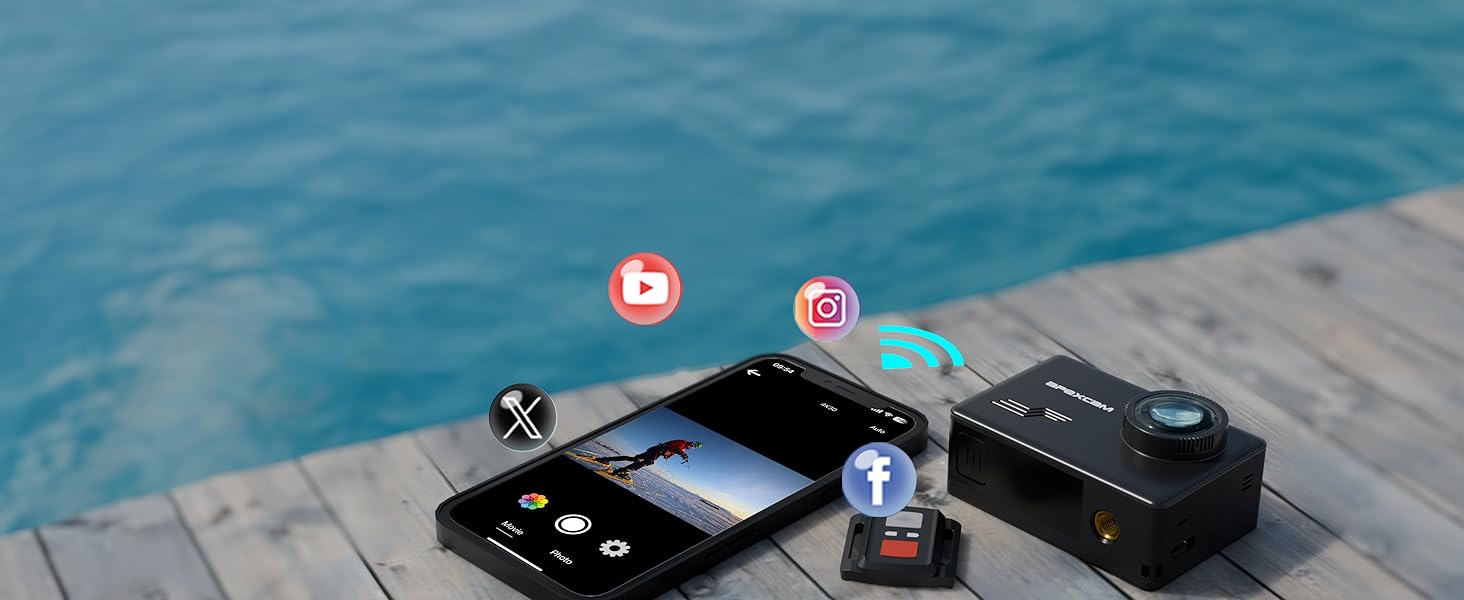
Image: The Apexcam M80 camera and its wireless remote control, emphasizing Wi-Fi functionality.
7. Settings Menu
Access the settings menu to customize various camera parameters, including video resolution, photo resolution, loop recording, time-lapse, slow motion, exposure, white balance, and more. Use the Up/Down buttons to navigate and the Shutter/OK button to select.

Image: A collage showcasing various sports, illustrating the camera's adaptability for different activities and shooting modes like Time Lapse and Slow Motion.
Maintenance
1. Cleaning
- Use a soft, lint-free cloth to clean the camera lens and screen.
- For the waterproof case, rinse with fresh water after saltwater use and allow to air dry.
- Avoid using chemical cleaners, which may damage the camera or case.
2. Battery Care
- Store batteries in a cool, dry place.
- Do not expose batteries to extreme temperatures or direct sunlight.
- Charge batteries fully before extended storage and recharge every few months to maintain battery health.
3. Storage
When not in use, store the camera and accessories in a protective case to prevent damage from dust, moisture, and impacts.
Troubleshooting
| Problem | Possible Solution |
|---|---|
| Camera does not power on. | Ensure the battery is fully charged and correctly inserted. Try using the second battery. |
| Cannot record video or take photos. | Check if the MicroSD card is inserted correctly and has sufficient free space. Format the card if necessary. |
| Poor image/video quality. | Ensure the lens is clean. Check resolution settings. Ensure adequate lighting. |
| Wi-Fi connection issues. | Restart both the camera and your smartphone. Ensure the app is up to date. Check Wi-Fi settings on both devices. |
| Water leakage in waterproof case. | Immediately remove the camera. Check the O-ring seal for dirt, hair, or damage. Ensure the latches are fully closed. Perform a dry test before next use. |
Specifications
| Feature | Detail |
|---|---|
| Brand | Apexcam |
| Model Number | M80 |
| Video Capture Resolution | 4K (3840 pixels effective video resolution) |
| Effective Still Image Resolution | 48 MP (64 MP effective non-moving image resolution) |
| Photo Sensor Technology | CMOS |
| Screen Size | 2 inches (UHD Max Screen Resolution) |
| Connectivity Technology | Bluetooth, Wi-Fi |
| Water Resistance Level | Waterproof (up to 40 meters with case) |
| Image Stabilization | Dynamic (EIS) |
| Digital Zoom | 8x |
| Lens Type | Wide-angle |
| Focus Type | Automatic |
| Flash Memory Type | Micro SD (64 GB installed, C10, U3, V30 speed class recommended) |
| Video Capture Format | MP4 (MOV file format) |
| Supported Audio Format | AAC |
| Batteries | 2 x 1350mAh rechargeable batteries (included) |
| Item Dimensions (DxWxH) | 11.1 x 7.3 x 20.6 cm |
| Recommended Uses | Outdoor activities |
| Country of Origin | China |
Warranty and Support
The Apexcam M80 Action Camera comes with a 2-year warranty from the date of purchase. This warranty covers manufacturing defects and malfunctions under normal use.
For technical support, warranty claims, or any questions regarding your product, please refer to the official Apexcam website or contact their customer service directly. Contact information can typically be found on the product packaging or the manufacturer's website.
For additional resources and FAQs, visit the Apexcam Store on Amazon.


