
PHOVOLT TH001
PHOVOLT Smart Wireless Temperature and Humidity Sensor
Model: TH001
Introduction
Thank you for choosing the PHOVOLT Smart Wireless Temperature and Humidity Sensor. This device allows you to monitor environmental conditions remotely, ensuring comfort and safety in your home or other spaces. With easy setup and smart integration, you can stay informed and automate your environment with precision.
Product Overview
Components
- PHOVOLT Smart Temperature and Humidity Sensor
- 2 x AAA Batteries (pre-installed or included)
- User Manual (this document)
Key Features
- Wireless Connectivity: Connects to 2.4GHz WiFi (5GHz not supported) for remote monitoring. No hub required.
- Real-Time Data: Provides instant temperature and humidity readings.
- App Notifications: Receive alerts directly on your smartphone.
- Historical Data: View past readings and temperature/humidity graphs.
- Smart Linkage: Integrate with other smart devices for automated actions (e.g., turn on AC/humidifier).
- Voice Control: Compatible with Amazon Alexa and Google Home.
- Compact Design: Small size for versatile placement.
- Device Sharing: Share access with family members.
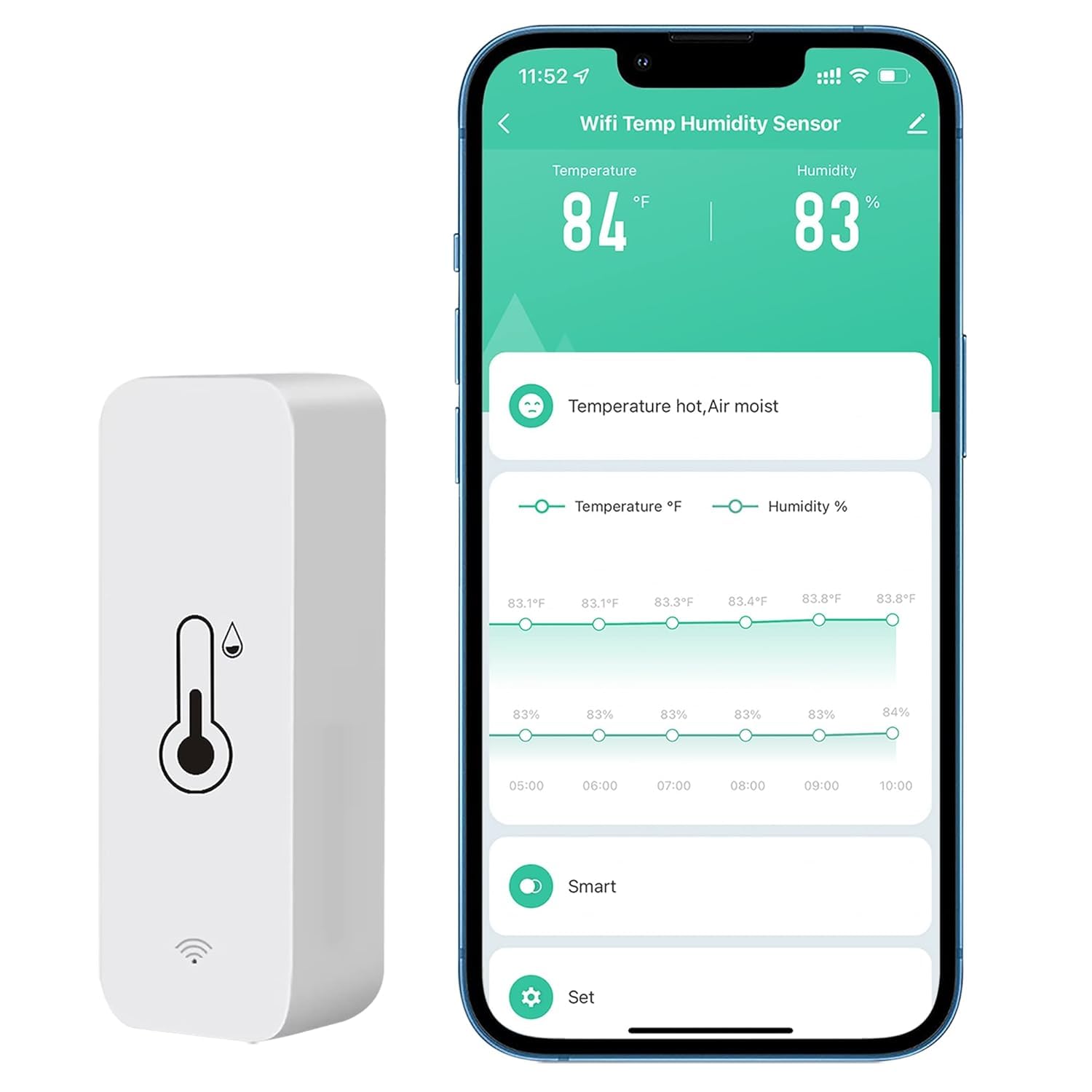
Image: The PHOVOLT Smart Temperature and Humidity Sensor displayed alongside a smartphone showing its real-time data interface within the app.

Image: A collage demonstrating various suitable environments for the sensor, including homes, offices, warehouses, and villas.
Setup Guide
1. Install Batteries
Open the battery compartment on the back of the sensor and insert the two AAA batteries, ensuring correct polarity. The device will power on automatically.

Image: A visual representation of the sensor's mini size and the location for AAA battery installation.
2. Download the App
Search for and download the 'Tuya Smart' or 'Smart Life' app from your smartphone's app store (Google Play Store for Android or Apple App Store for iOS).
3. Add Device to App
- Open the 'Tuya Smart' or 'Smart Life' app and register/log in.
- Tap the '+' icon in the top right corner to add a device.
- Select 'Sensor' or 'Temperature and Humidity Sensor' from the device list.
- Follow the on-screen instructions to connect the sensor to your 2.4GHz Wi-Fi network. Ensure your phone is also connected to the same 2.4GHz network during setup.
- The app will guide you through pairing the device. This usually involves pressing and holding the reset button on the sensor until an indicator light flashes, signifying pairing mode.
- Once connected, you can rename the device for easy identification.
Operating Instructions
Viewing Data
Once connected, open the app to view real-time temperature and humidity readings. You can also access historical data and graphs to track environmental changes over time.
Changing Temperature Units (°F/°C)
To switch between Fahrenheit (°F) and Celsius (°C), navigate to the device settings within the app. After changing the setting in the app, you may need to press the physical reset button on the device for the change to take effect immediately. This action does not erase your Wi-Fi setup.
Voice Control (Alexa/Google Home)
The sensor is compatible with Amazon Alexa and Google Home. To enable voice control:
- Link your 'Tuya Smart' or 'Smart Life' account to your Alexa or Google Home app.
- Discover new devices.
- You can then ask for readings, e.g., "Alexa, what is the temperature in the living room?" or "Hey Google, what is the humidity in the baby room?"

Image: A child playing while Amazon Alexa and Google Assistant devices are nearby, illustrating the sensor's compatibility with third-party smart speakers for voice inquiries.

Image: A family in a living room setting, demonstrating the use of voice commands with a smart speaker to inquire about the sensor's readings.
Smart Linkage Function
Create automated scenarios by linking the sensor with other smart devices in the app:
- Temperature Automation: Set a condition, e.g., "If temperature exceeds 35°C, turn on the air conditioner."
- Humidity Automation: Set a condition, e.g., "If humidity is less than 20% RH, turn on the humidifier."

Image: A diagram illustrating the smart linkage function, showing how temperature and humidity readings can trigger actions in other smart devices like air conditioners and humidifiers.

Image: A practical scenario showing the sensor, a humidifier, and a smartphone displaying automation settings, demonstrating smart linkage in action.
Device Sharing
You can share control and monitoring access of your sensor with family members through the app. This allows multiple users to view data and manage settings.

Image: An illustration depicting the device sharing feature, showing how the sensor can be shared among multiple family members' accounts.
Maintenance
Battery Replacement
The sensor is powered by 2 AAA batteries. When the battery level is low, the app will notify you. Replace the batteries promptly to ensure continuous operation and accurate readings. Open the battery compartment, remove old batteries, and insert new ones with correct polarity.
Troubleshooting
- Device not connecting to Wi-Fi: Ensure your Wi-Fi network is 2.4GHz. The sensor does not support 5GHz networks. Make sure your phone is also connected to the 2.4GHz network during setup. Check Wi-Fi signal strength.
- Temperature/Humidity readings are inaccurate: Ensure the sensor is placed in a stable environment away from direct sunlight, drafts, or heat sources that could affect readings.
- Cannot switch between °F and °C: After changing the unit in the app, press the physical reset button on the sensor to apply the change.
- Remote monitoring not working: Ensure the sensor is properly connected to your Wi-Fi network and has a stable internet connection. If issues persist, try re-pairing the device with the app.
- Short battery life: Battery life can vary based on usage and environmental conditions. Ensure you are using fresh, high-quality AAA batteries.
Specifications
| Attribute | Value |
|---|---|
| Model Number | TH001 |
| Product Dimensions | 2.76 x 0.98 x 0.79 inches |
| Product Weight | 1.76 ounces |
| Batteries Required | 2 x AAA (included) |
| Voltage | 1.5 Volts |
| Wi-Fi Frequency | 2.4GHz IEEE 802.11b/g/n |
| Temperature Measure Range | -20°C to 60°C |
| Humidity Measure Range | 0%RH to 100%RH |
| Temperature Accuracy | ±1°C |
| Humidity Accuracy | ±5%RH |
| Mounting Type | Surface Mount |
| Material | ABS |
| Country of Origin | China |
Warranty and Support
PHOVOLT offers a 24-month warranty for this product. If you encounter any issues or have questions regarding your Smart Wireless Temperature and Humidity Sensor, please contact our customer service for friendly and prompt assistance. Refer to your purchase documentation for specific contact details.
Ask a question about this manual
Ask about setup, troubleshooting, compatibility, parts, safety, or missing instructions. Manuals+ will review the question and use this page’s manual context to help answer it.