
Introduction
This user manual provides comprehensive instructions for the setup, operation, and maintenance of your Magic Box 2.0 and Magic Remote 2.0 Bundle. This bundle is designed to enhance your in-car entertainment experience by providing a convenient way to control screen functions with a mouse and keyboard, especially beneficial for vehicles without a touchscreen.
Please read this manual thoroughly before using the product to ensure proper functionality and to avoid any potential issues.
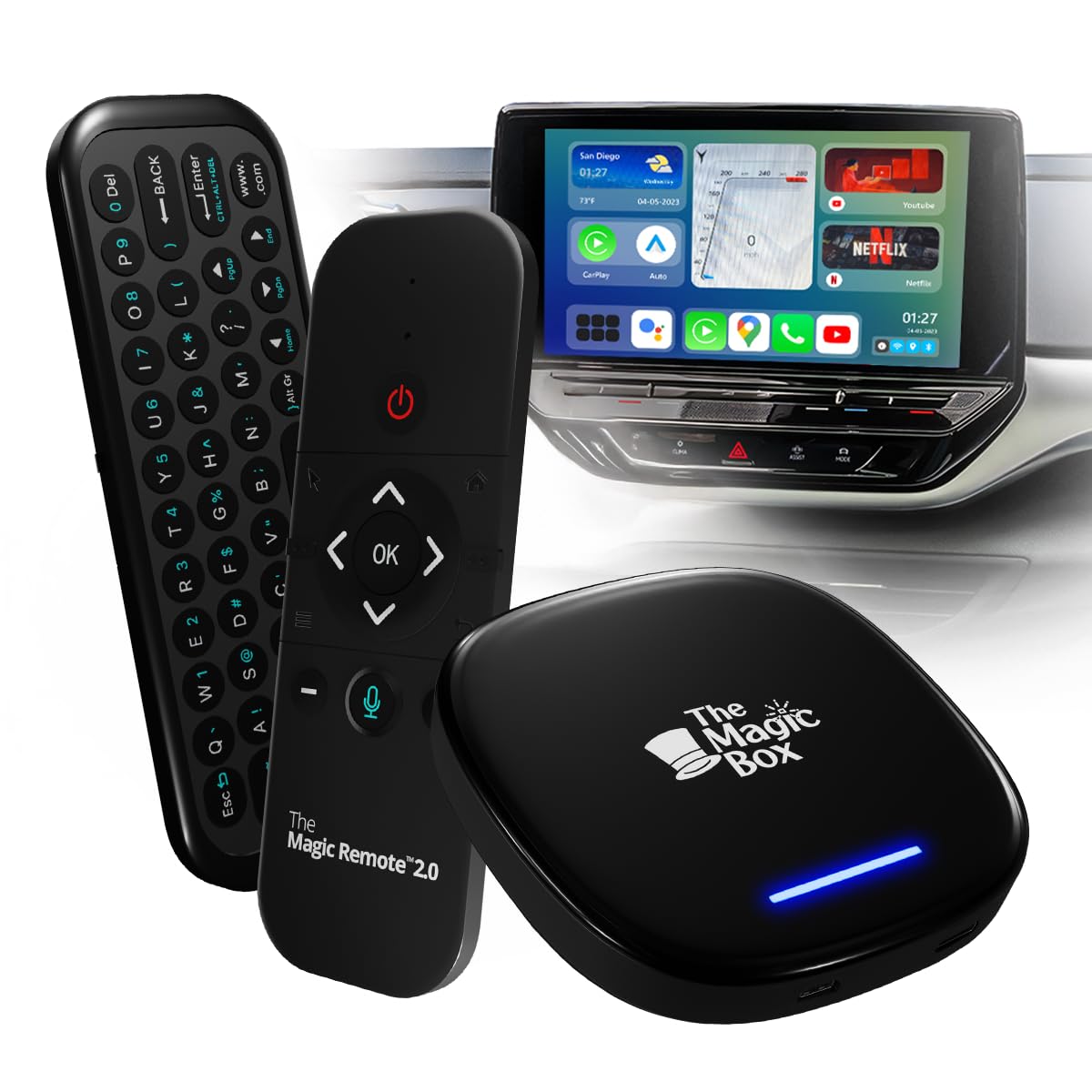
Image: The Magic Box 2.0 and Magic Remote 2.0, showcasing both devices together.
Package Contents
Verify that all items are present in your package:
- 1 x Magic Box 2.0 Device
- 1 x Magic Remote 2.0
- 1 x USB Power Cable
- 1 x HDMI Cable (if applicable, assuming for connection)
- 1 x User Manual (this document)

Image: The Magic Box 2.0 and Magic Remote 2.0 positioned in a car's interior, highlighting their use for in-car streaming and convenience.
Safety Information
- Do not expose the devices to extreme temperatures, direct sunlight, or moisture.
- Keep out of reach of children.
- Use only the provided cables and power adapters.
- Avoid disassembling or modifying the devices, as this will void the warranty.
- Ensure secure placement of the Magic Box 2.0 to prevent obstruction of driving controls or airbags.
Setup Guide
1. Magic Box 2.0 Installation
- Connect Power: Plug the USB power cable into the Magic Box 2.0 and then into a suitable USB power source in your vehicle (e.g., USB port, car charger).
- Connect to Display: If your vehicle's display supports HDMI input, connect the Magic Box 2.0 using an HDMI cable. Otherwise, ensure your vehicle's infotainment system supports USB CarPlay/Android Auto for connection.
- Power On: The Magic Box 2.0 should power on automatically when the vehicle starts or when power is supplied. A blue indicator light will illuminate.
- Initial Pairing (for CarPlay/Android Auto systems): If connecting via USB, follow your vehicle's on-screen prompts to establish a connection with the Magic Box 2.0.

Image: Diagram illustrating the Magic Box 2.0's compatibility with Wireless Apple CarPlay, Wireless Android Auto, and its integrated multimedia system.
2. Magic Remote 2.0 Pairing
The Magic Remote 2.0 connects to the Magic Box 2.0 via Bluetooth.
- Ensure Magic Box 2.0 is On: Confirm the Magic Box 2.0 is powered on and connected to your vehicle's display.
- Activate Pairing Mode on Remote: Press and hold the "OK" button and the "Home" button simultaneously on the Magic Remote 2.0 for 3-5 seconds until the indicator light on the remote begins to flash.
- Pair via Magic Box Settings: On your vehicle's display (controlled by the Magic Box 2.0), navigate to the Bluetooth settings menu. Select "Magic Remote 2.0" from the list of available devices to pair.
- Confirmation: Once paired, the indicator light on the remote will stop flashing and remain solid for a few seconds, then turn off. The remote is now ready for use.

Image: The Magic Remote 2.0, emphasizing its Bluetooth functionality for connection to The Magic Box 2.0.
Operating Instructions
Magic Box 2.0 Basic Operation
- Navigation: Use the Magic Remote 2.0 (or your vehicle's touchscreen if available) to navigate the Magic Box 2.0 interface.
- App Access: Select desired applications from the home screen. The Magic Box 2.0 supports various streaming services and navigation apps.
- Wireless CarPlay/Android Auto: If configured, your phone will automatically connect to Wireless CarPlay or Android Auto when the Magic Box 2.0 is active.
- Split Screen Functionality: Some applications support split-screen mode, allowing you to view two apps simultaneously. Refer to individual app settings for details.

Image: The Magic Box 2.0 user interface displaying popular features such as YouTube, Netflix, Wireless Apple CarPlay, Wireless Android Auto, and Split Screen functionality.
Magic Remote 2.0 Functions
The Magic Remote 2.0 provides intuitive control over the Magic Box 2.0 system.
- Directional Pad & OK Button: Navigate menus and select items.
- Mouse Mode: The remote functions as a mouse, allowing precise cursor control on the screen. Move the remote to move the cursor.
- Keyboard Input: Use the full QWERTY keyboard on the reverse side for typing text, searching, and entering passwords.
- Voice Control: Press the microphone button to activate voice commands (if supported by the Magic Box 2.0 and specific applications).
- Volume Control: Use the dedicated volume buttons to adjust audio output.
- Back/Home Buttons: Navigate back to the previous screen or return to the home interface.

Image: The Magic Remote 2.0, showcasing its front-facing controls for navigation, selection, and voice commands.

Image: The reverse side of the Magic Remote 2.0, featuring a full QWERTY keyboard for convenient text input and navigation.
Maintenance
- Cleaning: Use a soft, dry cloth to clean the exterior of both devices. Do not use liquid cleaners or abrasive materials.
- Software Updates: Periodically check for software updates for the Magic Box 2.0 through its settings menu to ensure optimal performance and access to new features.
- Battery Replacement (Remote): The Magic Remote 2.0 uses standard AAA batteries. Replace them when the remote's performance degrades or the indicator light signals low battery.
- Storage: When not in use for extended periods, store the devices in a cool, dry place away from direct sunlight.
Troubleshooting
| Problem | Possible Cause | Solution |
|---|---|---|
| Magic Box 2.0 does not power on. | No power supply or faulty cable. | Check USB power connection. Try a different USB port or power adapter. Ensure the cable is not damaged. |
| Magic Remote 2.0 is unresponsive. | Low battery, not paired, or out of range. | Replace batteries. Re-pair the remote (refer to "Magic Remote 2.0 Pairing" section). Ensure the remote is within close proximity to the Magic Box 2.0. |
| No display from Magic Box 2.0. | Incorrect input source selected on vehicle display or connection issue. | Verify your vehicle's display is set to the correct input (e.g., USB CarPlay, HDMI). Check all cable connections. Restart both the Magic Box 2.0 and your vehicle's infotainment system. |
| Apps are slow or freezing. | Poor internet connection or too many apps running. | Ensure a stable Wi-Fi or cellular data connection. Close unnecessary background applications. Restart the Magic Box 2.0. |
Specifications
- Product Name: The Magic Box 2.0 and Magic Remote 2.0 Bundle
- Model Numbers: Magic Box 2.0, Magic Remote 2.0
- ASIN: B0DNG5RHBS
- Connectivity: USB, Bluetooth (for remote), Wi-Fi (for Magic Box)
- Compatibility: Vehicles with wired Apple CarPlay or Android Auto, or HDMI input.
- Remote Battery: 2 x AAA (not included)
- Date First Available: November 18, 2024
Warranty and Support
The Magic Brand products are covered by a limited manufacturer's warranty. For specific warranty terms and conditions, please refer to the warranty card included in your product packaging or visit the official The Magic Brand website.
For technical support, troubleshooting assistance, or to inquire about replacement parts, please contact our customer support team:
- Website: www.themagicbrand.com/support (example link)
- Email: support@themagicbrand.com (example email)
- Phone: 1-800-XXX-XXXX (example number)
Please have your product model number and ASIN (B0DNG5RHBS) ready when contacting support.


