
CHICIRIS CHICIRISy9830bntme
Programmable LED Display User Manual
Model: CHICIRISy9830bntme
1. Product Overview
The CHICIRIS Programmable LED Display is a flexible, full-color LED panel designed for dynamic visual communication. With 1280 RGB LED beads, it delivers bright and attractive effects. Its thin and lightweight silicone design, coupled with an IP65 waterproof rating, makes it suitable for various indoor and outdoor applications. The display is powered via USB and controlled through the iPixel Color APP, allowing for extensive customization of text, patterns, animations, and more.
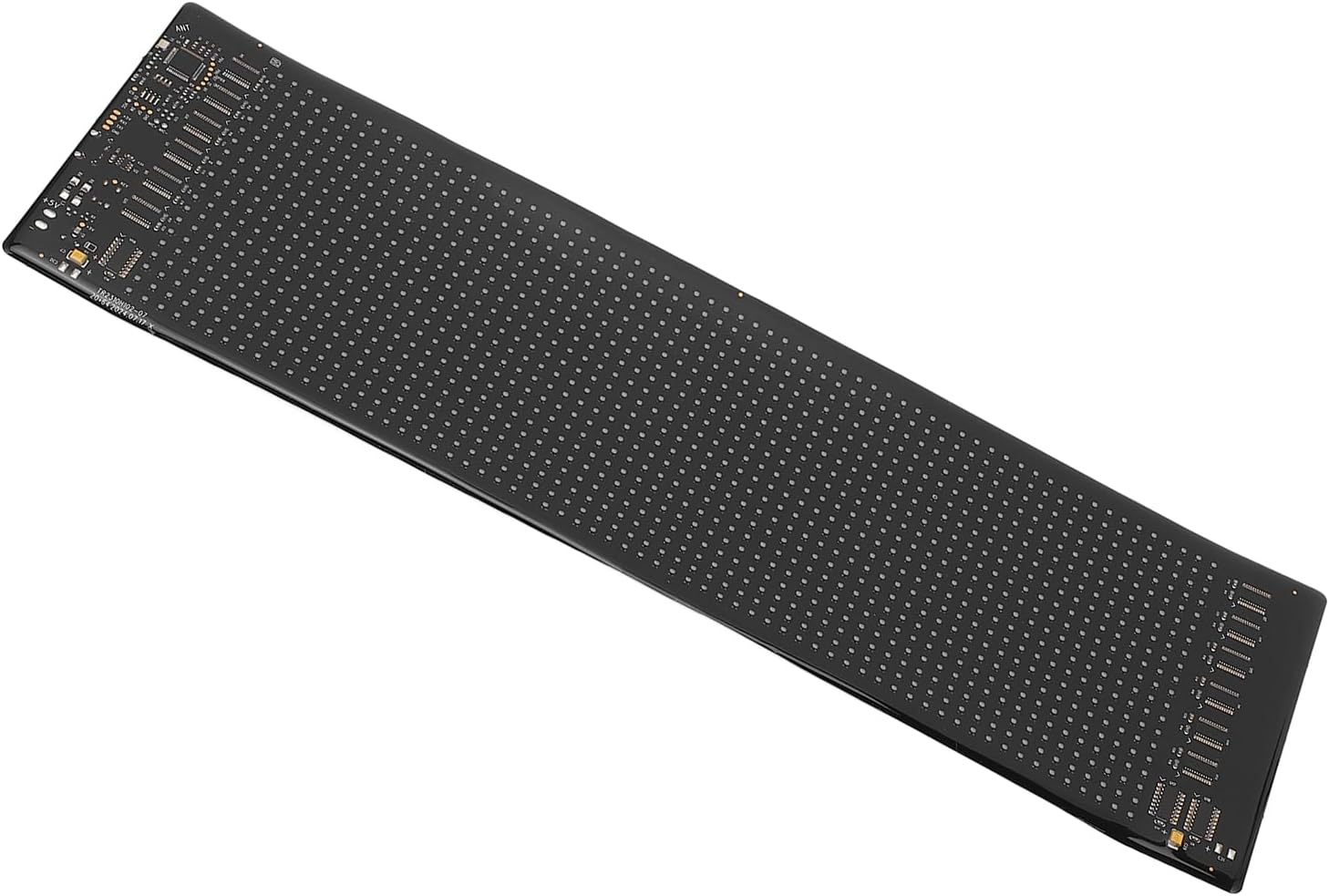
Figure 1.1: The CHICIRIS Programmable LED Display, showcasing its flexible and elongated design.
Key Features:
- Portable and Flexible Design: Thin, lightweight, and bendable silicone construction for easy installation and transport.
- High Intensity Full Color Effects: Equipped with 1280 RGB LED beads for vibrant and eye-catching displays.
- Customizable Light Display: Personalize content with text, patterns, animations, doodles, and music rhythm synchronization via the iPixel Color APP.
- IP65 Waterproof Rating: Ensures durability and protection against water and dust, suitable for various environments.
- Eco-friendly Design: USB-powered, requiring no internal battery, making it a sustainable choice.
- Versatile Usage: Ideal for holiday gatherings, weddings, bars, offices, vehicles, and other events.
2. Specifications
| Attribute | Detail |
|---|---|
| Item Type | Programmable LED Display |
| Material | Silicone, PCB |
| Pixels | 20x64 Pixels |
| Expanded Size | Approx. 13.7 x 4.0 inches (34.8 x 10.16 cm) |
| Color | Black |
| LED Quantity | 1280pcs RGB LEDs |
| Power Supply | USB |
| Power Input | 5V 2A 10W |
| Control App | iPixel Color APP |
| Model Number | CHICIRISy9830bntme |
3. Package Contents
Please verify that all items listed below are included in your package:
- 1 x Programmable LED Display
- 1 x User Manual
- 1 x USB Cable
- 1 x Remote Control
- 1 x Double Sided Tape

Figure 3.1: All components included in the package: LED display, USB cable, remote control, and double-sided tape.
4. Setup
4.1 Unpacking and Inspection
- Carefully remove all components from the packaging.
- Inspect the LED display and accessories for any signs of damage. If any damage is found, do not proceed with setup and contact customer support.
- Confirm all items listed in Section 3 are present.
4.2 Power Connection
- Locate the USB port on the LED display.
- Connect the provided USB cable to the display's USB port.
- Plug the other end of the USB cable into a 5V 2A USB power source (e.g., a USB wall adapter, power bank, or computer USB port). Ensure the power source meets the 5V 2A requirement for optimal performance.

Figure 4.1: The included USB cable for power connection and the remote control.
4.3 App Installation
- Download the iPixel Color APP from your mobile device's app store (Google Play Store for Android or Apple App Store for iOS).
- Install the app on your smartphone or tablet.
- Ensure your device's Bluetooth is enabled for connection to the LED display.
4.4 Mounting the Display (Optional)
The display can be mounted using the provided double-sided tape or by hanging it. Its flexible design allows it to conform to various surfaces.
- Using Double-Sided Tape: Clean the desired mounting surface. Apply the double-sided tape to the back of the LED display and firmly press the display onto the surface.
- Hanging: The display's lightweight nature allows it to be hung using appropriate hooks or fasteners (not included) through its flexible structure.
5. Operation
5.1 Connecting to the iPixel Color APP
- Ensure the LED display is powered on.
- Open the iPixel Color APP on your mobile device.
- The app should automatically detect the LED display via Bluetooth. If not, navigate to the connection settings within the app and select your device from the list of available devices.
- Once connected, the app interface will allow you to control the display.
5.2 Content Customization
The iPixel Color APP provides various options for customizing the display content:
- Text Mode: Enter custom text, adjust font, size, color, scrolling direction, and speed.
- Pattern Mode: Select from pre-set patterns or create your own static or animated designs.
- Animation Mode: Choose from a library of animations or upload custom GIF files.
- Doodle Mode: Draw directly on the virtual display within the app to create unique designs.
- Music Rhythm Mode: Synchronize the display's lighting effects with music played through your device's microphone.
5.3 Using the Remote Control
The included remote control provides quick access to common functions and pre-set displays without needing the app.
- Power Button: Turns the display on/off.
- Brightness Adjustment: Increases or decreases display brightness.
- Mode Selection: Cycles through various pre-programmed display modes (e.g., text, patterns, animations).
- Speed Adjustment: Controls the speed of scrolling text or animations.
- Pre-set Icons/Symbols: Buttons for displaying common symbols or emojis (e.g., warning signs, arrows, hearts).
6. Maintenance
6.1 Cleaning
To maintain the display's appearance and functionality:
- Ensure the display is powered off and disconnected from the power source before cleaning.
- Use a soft, dry, lint-free cloth to gently wipe the surface of the LED panel.
- For stubborn dirt, slightly dampen the cloth with water. Avoid using harsh chemicals, abrasive cleaners, or excessive moisture, as these can damage the display.
6.2 Storage
When not in use, store the display in a cool, dry place, away from direct sunlight and extreme temperatures. Avoid folding or creasing the display sharply to prevent damage to the internal components.
7. Troubleshooting
If you encounter issues with your Programmable LED Display, refer to the following common troubleshooting steps:
| Problem | Possible Cause | Solution |
|---|---|---|
| Display does not power on. | No power, insufficient power, faulty USB cable. | Ensure USB cable is securely connected. Use a 5V 2A power source. Try a different USB cable or power adapter. |
| Cannot connect to iPixel Color APP. | Bluetooth off, app not updated, display too far, interference. | Ensure Bluetooth is enabled on your device. Restart the app and display. Move closer to the display. Check for app updates. |
| Display shows garbled text or incorrect patterns. | Data transmission error, app settings incorrect. | Reconnect the app to the display. Verify settings within the app. Restart the display. |
| Remote control not working. | Line of sight blocked, remote battery low (if applicable). | Ensure direct line of sight to the display's receiver. (Note: This remote does not use batteries, it's an IR remote). |
If the problem persists after trying these solutions, please contact customer support.
8. Warranty and Support
This product is covered by a standard manufacturer's warranty. For specific warranty terms and conditions, please refer to the documentation provided at the time of purchase or contact your retailer.
For technical support, troubleshooting assistance, or warranty claims, please contact CHICIRIS customer service through the retailer where the product was purchased or visit the official CHICIRIS brand store on Amazon.
CHICIRIS Store: https://www.amazon.com/stores/CHICIRS/page/5DDA4A76-A419-4A11-8D0F-A017222BC2F1
Related documentsCHICIRISy9830bntme


Ask a question about this manual
Ask about setup, troubleshooting, compatibility, parts, safety, or missing instructions. Manuals+ will review the question and use this page’s manual context to help answer it.