
1. Product Overview
The Rraycom S-W1B-SP is a wireless outdoor security camera system designed for comprehensive surveillance. Featuring 2K QHD resolution, dual-band 5G/2.4G Wi-Fi connectivity, and a solar panel for continuous power, this camera offers advanced features such as human detection, color night vision, two-way audio, and compatibility with Amazon Alexa. Its IP65 waterproof rating ensures reliable performance in various outdoor conditions.

Image 1.1: Rraycom S-W1B-SP 5G Solar Security Camera with attached solar panel.
2. Package Contents
Verify that all components are present in your package:
- Rraycom S-W1B-SP 5G Solar Security Camera (2 units)
- Solar Panel (2 units)
- Mounting Brackets and Screws
- USB Charging Cable
- User Manual (this document)
3. Setup Guide
3.1 Charging the Camera
Before initial use, fully charge the camera's internal battery using the provided USB cable. Connect the cable to the camera's charging port and a standard 5V USB power adapter (not included). The LED indicator will show charging status.
3.2 App Installation and Account Creation
- Download the O-KAM app from your smartphone's app store (iOS or Android).
- Open the app and create a new account, or log in if you already have one.

Image 3.1: The O-KAM app interface showing quick connection via Bluetooth.
3.3 Connecting the Camera to Wi-Fi
The camera supports dual-band 5G/2.4G Wi-Fi for flexible connectivity.
- In the O-KAM app, tap 'Add Device' or the '+' icon.
- Follow the on-screen prompts to select your camera model.
- Enable Bluetooth on your smartphone for quick pairing.
- Select your 2.4GHz or 5GHz Wi-Fi network and enter the password. Ensure your phone is connected to the same network.
- The app will generate a QR code. Hold your phone's screen approximately 6-8 inches (15-20 cm) in front of the camera lens until you hear a confirmation sound.
- Once connected, the camera's LED indicator will change, and the app will confirm successful pairing.

Image 3.2: The camera supports both 5GHz and 2.4GHz Wi-Fi networks for flexible connectivity.
3.4 Physical Installation
Choose a location with good Wi-Fi signal and direct sunlight exposure for the solar panel.
- Mounting the Camera: Use the provided mounting bracket and screws to securely attach the camera to a wall or other stable surface. Adjust the camera angle for optimal viewing coverage.
- Mounting the Solar Panel: Position the solar panel in an area that receives maximum direct sunlight throughout the day. Connect the solar panel cable to the camera's charging port. Ensure the connection is secure and waterproof.

Image 3.3: The camera and solar panel are designed with IP65 weatherproofing for outdoor use.
4. Operating Instructions
4.1 Live View and Recording
Access the live feed from your camera through the O-KAM app. You can manually record video or capture screenshots directly from the live view interface.

Image 4.1: The O-KAM app provides fast loading of live HD video.
4.2 Motion Detection and Alerts
The camera features advanced human detection and PIR motion detection to minimize false alarms. When motion is detected, the camera will record an event and send a notification to your smartphone.
- Adjusting Sensitivity: In the app settings, you can adjust the motion detection sensitivity to suit your environment.
- Custom Activity Zones: Define specific areas within the camera's view where you want to receive motion alerts, ignoring irrelevant areas.

Image 4.2: AI Human Detection reduces false alarms by distinguishing people from other objects.

Image 4.3: Customize activity zones to receive alerts only for important events.
4.3 Color Night Vision
The camera provides 2K QHD resolution with full-color night vision, allowing you to see important details clearly even in low-light conditions.
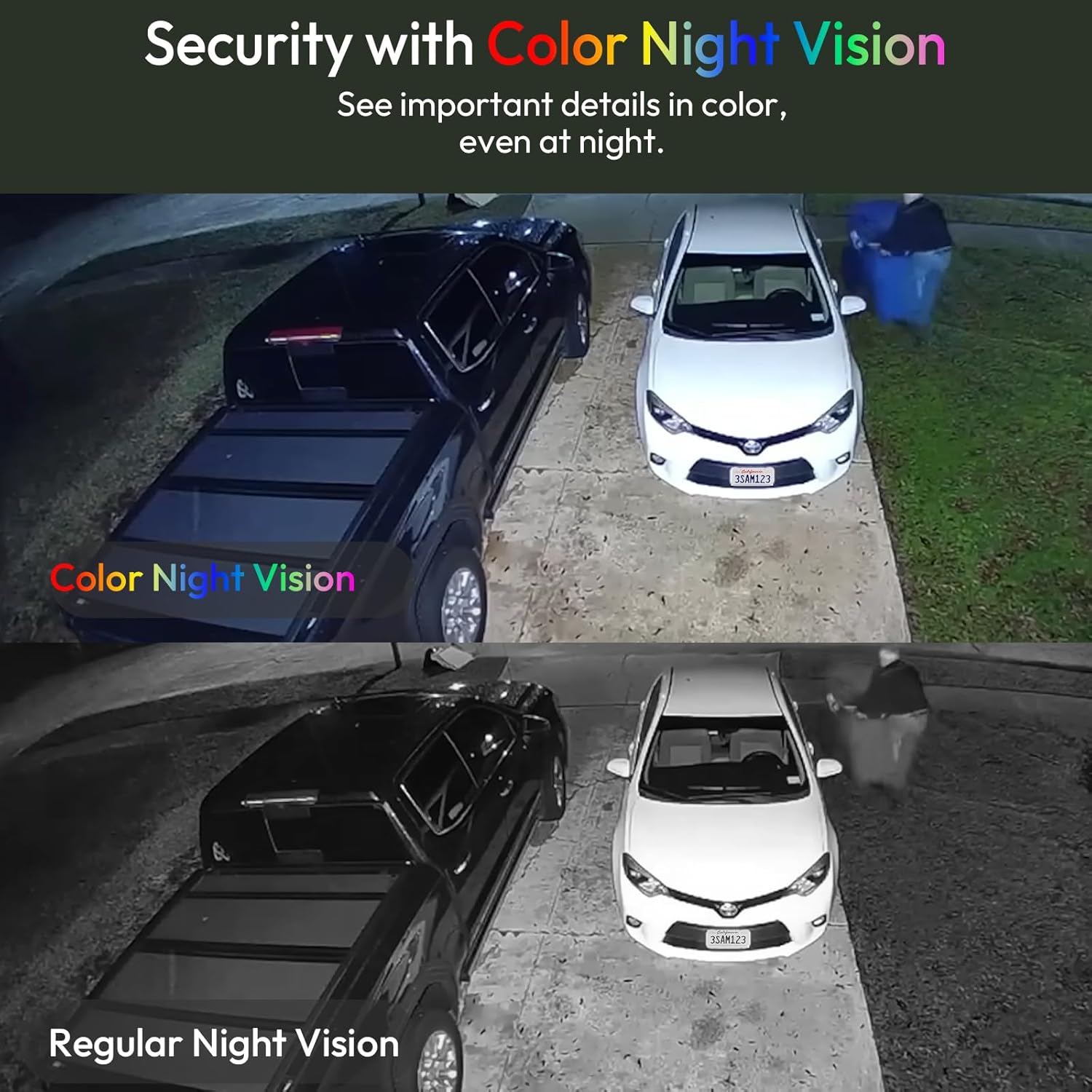
Image 4.4: Color Night Vision provides clear, detailed footage at night.
4.4 Two-Way Audio and Siren Alarm
Use the built-in microphone and speaker for two-way communication. You can speak to visitors or deter intruders. The camera also features a siren alarm and spotlights that can be activated manually or automatically upon detection.

Image 4.5: Enhanced two-way talk with a louder speaker and more sensitive microphone.

Image 4.6: The camera can activate a spotlight and siren to deter unwanted visitors.
4.5 Storage Options
The camera supports both local storage via a Micro SD card (up to 256GB, not included) and cloud storage (subscription may be required for certain features).

Image 4.7: Securely store footage using cloud services or a Micro SD card.
4.6 Alexa Integration
The Rraycom camera is compatible with Amazon Alexa. You can use voice commands to view your camera feed on compatible Alexa-enabled devices.
- Connecting to Alexa: Follow the instructions in the O-KAM app or Alexa app to link your Rraycom account.
- Voice Commands: Example: "Alexa, show me the backyard camera."

Image 4.8: The camera integrates with Amazon Alexa for convenient voice control and viewing.
4.7 AI Bird Identification
The camera offers an AI bird identification feature that can recognize different bird species. This feature may require a separate subscription within the O-KAM app.
Video 4.9: Demonstration of AI Bird Recognition feature, identifying birds in the camera's view.
5. Care and Maintenance
- Cleaning: Regularly wipe the camera lens and solar panel with a soft, damp cloth to ensure clear image quality and efficient solar charging. Avoid abrasive cleaners.
- Solar Panel Efficiency: Ensure the solar panel remains free from obstructions like leaves, dirt, or snow to maintain optimal charging performance.
- Firmware Updates: Check the O-KAM app periodically for firmware updates to ensure your camera has the latest features and security enhancements.
- SD Card Management: If using an SD card, periodically review and back up important footage. Format the SD card within the app as needed to maintain performance.
6. Troubleshooting
| Problem | Possible Solution |
|---|---|
| Camera frequently goes offline. | Check Wi-Fi signal strength at the camera's location. Move the camera closer to the router or consider a Wi-Fi extender. Ensure the camera's battery is charged. |
| Inconsistent motion detection or missed recordings. | Adjust motion detection sensitivity in the app. Verify activity zones are correctly configured. Ensure the camera's view is clear of obstructions. Check battery level, as low power can affect recording. |
| Night vision not working or poor quality. | Ensure the camera lens is clean. Check app settings for night vision mode (auto/color). Verify there are no strong light sources directly facing the camera at night, which can interfere. |
| Solar panel not charging the camera. | Ensure the solar panel is positioned in direct sunlight for several hours daily. Clean the solar panel surface. Check the connection cable between the panel and the camera. |
| Cannot connect to Wi-Fi. | Ensure you are connecting to a 2.4GHz or 5GHz network (both supported). Double-check the Wi-Fi password. Restart your router and the camera. Ensure your phone's Bluetooth is enabled during initial setup. |
| Battery drains quickly. | High motion detection frequency, frequent live view access, or continuous recording can increase battery consumption. Adjust settings to reduce these factors. Ensure the solar panel is effectively charging the camera. |
Video 6.1: Overview of the camera's wireless connectivity, which can impact performance if not optimized.
7. Product Specifications
| Feature | Detail |
|---|---|
| Model Name | S-W1B-SP |
| Brand | Rraycom |
| Recommended Use | Outdoor Security |
| Connectivity Technology | Wireless (5G/2.4G Dual Band Wi-Fi, Bluetooth) |
| Special Features | 2-Way Audio, Compatible with Alexa, Free Person Detection, Spotlights & Siren Alarm |
| Indoor/Outdoor Usage | Outdoor |
| Compatible Devices | Smartphone (via O-KAM app), Amazon Alexa devices |
| Color | Black |
| Enclosure Material | Acrylonitrile Butadiene Styrene (ABS) |
| Power Source | Solar Powered |
| Item Dimensions | 4 x 3.7 x 4.7 inches |
| Unit Count | 2 Count |
8. Warranty Information
This Rraycom product is covered by a 1-Year Manufacturer Warranty from the date of purchase. This warranty covers defects in materials and workmanship under normal use. It does not cover damage caused by misuse, accidents, unauthorized modifications, or natural disasters. Please retain your proof of purchase for warranty claims.
9. Customer Support
For technical assistance, troubleshooting guidance, or warranty inquiries, please refer to the support section within the O-KAM mobile application or visit the official Rraycom website. Detailed FAQs and contact information may be available there.


