
1. Introduction
Welcome to the Plimpton Kids20 10-inch Android 15 Kids Tablet. This device is designed to provide a safe and engaging learning and entertainment experience for children, featuring robust parental controls, eye protection, and a durable design. This manual will guide you through the setup, operation, and maintenance of your new tablet.

Image: The Plimpton Kids20 tablet in its pink protective case, showcasing a vibrant display.
2. What's in the Box
Upon unboxing your Plimpton Kids20 tablet, please ensure all the following items are present:
- Plimpton Kids20 10-Inch Android 15 Kids Tablet
- EVA Shockproof Protective Case (pre-installed)
- 1.8M Charging Cable
- Power Adapter (10W, 5V2A)
- User Manual (this document)
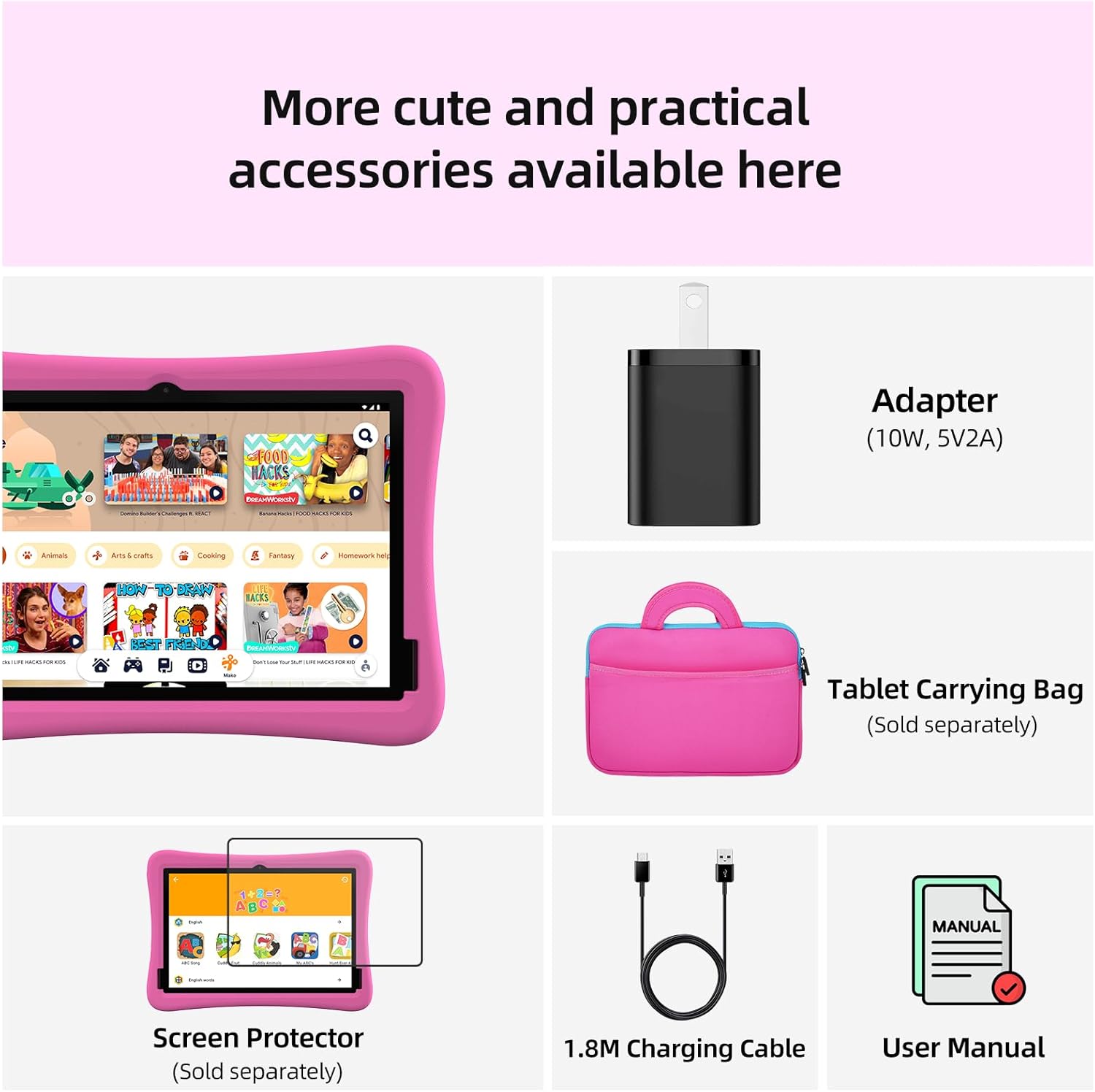
Image: Contents of the Plimpton Kids20 tablet package, including the tablet, charging cable, power adapter, and user manual.
3. Key Features
- Operating System: Enhanced Android 15 with GMS certification, user-friendly interface, and privacy protection.
- Performance: Rapid 8-Core Processor, 12(4+8)GB RAM, and 64GB internal storage, expandable up to 1TB via microSD card.
- Display: 10.1-inch HD IPS glass screen with 1280 x 800 resolution, featuring low blue light technology and eye protection mode.
- Kids Space & Parental Control: Pre-installed Google Kids Space with teacher-recommended apps, content filtering, time limits, and location tracking via Google Family Link.
- Durability: Rugged EVA shockproof protective case, odorless, deformation-resistant, with a comfortable grip and a 360-degree rotatable bracket.
- Battery: 6000mAh battery for extended usage.

Image: Visual representation of the tablet's full features, including Android 15, parental controls, and battery capacity.
4. Setup and First Use
4.1 Charging the Tablet
Before first use, fully charge your tablet using the provided 1.8M charging cable and power adapter. The charging port is located on the side of the tablet. A full charge ensures optimal performance and battery life.
4.2 Powering On/Off
- To power on: Press and hold the power button located on the side of the tablet until the screen lights up.
- To power off: Press and hold the power button, then select 'Power off' from the on-screen options.
- To restart: Press and hold the power button, then select 'Restart' from the on-screen options.
4.3 Connecting to Wi-Fi
To access online content and apps, connect your tablet to a Wi-Fi network:
- Swipe down from the top of the screen to open the Quick Settings panel.
- Tap and hold the Wi-Fi icon to open Wi-Fi settings.
- Toggle Wi-Fi on if it's off.
- Select your desired network from the list and enter the password if prompted.
4.4 Initial Setup and Google Kids Space
Follow the on-screen prompts to complete the initial setup, including setting up a Google account. The tablet comes with Google Kids Space pre-installed, offering a curated environment for children. You can configure Kids Space during the initial setup or later through the app.

Image: A child and an adult using the tablet, demonstrating the Google Kids Space interface with various educational apps.
5. Operating Instructions
5.1 Navigating Android 15
The tablet runs on Android 15, offering a smooth and intuitive user experience. Use touch gestures to navigate:
- Swipe up from the bottom to access the app drawer.
- Swipe down from the top for notifications and quick settings.
- Tap icons to open apps.
- Pinch to zoom in/out.

Image: The Android 15 operating system interface, highlighting its safe and personalized features.
5.2 Using Kids Space
Google Kids Space provides a safe and enriching environment for your child. It includes a variety of educational games, creative activities, and stories. You can customize the content and settings within Kids Space to suit your child's age and interests.

Image: A child happily engaged with the tablet, displaying the Google Kids Space interface with various learning and play options.
5.3 Parental Controls with Google Family Link
Manage your child's digital experience using Google Family Link. This allows you to:
- Filter content and block inappropriate websites.
- Set daily screen time limits and device bedtime.
- Approve or block app downloads.
- Track your child's device location (if enabled).
Download the Google Family Link app on your own device to manage these settings remotely.

Image: A parent and child interacting with the tablet, illustrating how Google Family Link can be used to manage content and screen time from a separate device.
5.4 Eye Protection Mode
The tablet features an eye protection mode with automatic brightness adjustment and low blue light technology to reduce eye fatigue. This mode can be activated through the tablet's display settings to ensure a comfortable viewing experience for your child.
5.5 Using the Rotatable Bracket
The integrated 360-degree rotatable bracket on the protective case allows for multiple viewing angles, making it convenient for hands-free use during learning or entertainment. Simply adjust the bracket to your desired position.

Image: A child holding the tablet, highlighting the tough EVA case and its handle-to-stand design.
6. Maintenance
6.1 Cleaning
- Screen: Use a soft, lint-free cloth slightly dampened with water or a screen cleaner. Avoid harsh chemicals.
- Case: The EVA case can be wiped clean with a damp cloth.
6.2 Battery Care
- Avoid fully discharging the battery frequently.
- Do not expose the tablet to extreme temperatures.
- Use only the provided charger and cable.
6.3 Software Updates
Periodically check for system updates in the tablet's settings to ensure optimal performance and security. Connect to Wi-Fi before downloading updates.
6.4 Storage Management
To maintain performance, regularly clear unnecessary files and uninstall unused apps. You can expand storage up to 1TB using a microSD card (sold separately).
7. Troubleshooting
If you encounter any issues with your Plimpton Kids20 tablet, please refer to the following common solutions:
- Tablet not turning on: Ensure the battery is charged. Connect the tablet to the charger and wait a few minutes before attempting to power it on again.
- Wi-Fi connectivity issues: Check if your Wi-Fi router is working correctly. Restart the tablet and try reconnecting to the network.
- Apps crashing or freezing: Close the problematic app and reopen it. If the issue persists, restart the tablet. Ensure apps are updated to their latest versions.
- Slow performance: Close background apps, clear cache, and ensure sufficient storage space. Consider performing a factory reset as a last resort (this will erase all data).
7.1 Factory Reset
A factory reset will erase all data from your tablet and restore it to its original factory settings. Back up any important data before proceeding.
- Go to Settings > System > Reset options.
- Select 'Erase all data (factory reset)'.
- Confirm your choice and follow the on-screen instructions.
8. Specifications
| Feature | Detail |
|---|---|
| Brand | Plimpton |
| Model Name | Kids20 |
| Operating System | Android 15 |
| Screen Size | 10.1 Inches |
| Display Resolution | 1280 x 800 pixels (HD IPS) |
| Processor | 8-Core, 1.8 GHz |
| RAM | 12(4+8) GB |
| Storage | 64GB (Expandable to 1TB via MicroSD) |
| Wireless Standard | 802.11g (Wi-Fi) |
| Battery Capacity | 6000mAh |
| Product Dimensions | 24 x 16 x 0.9 cm |
| Item Weight | 1.19 kg |

Image: Key technical specifications of the Plimpton Kids20 tablet, such as storage, RAM, Android version, and CPU.
9. Warranty and Support
Plimpton is committed to providing quality products and services. Your Plimpton Kids20 tablet comes with:
- Lifetime technical services.
- 2-year replacement service for non-human factor damage.
For any technical assistance or support inquiries, please contact us at: support@plimptonline.