
1. Introduction
The MUDDY Mitigator Cellular 24MP Imaging Trail Camera is designed to provide high-quality surveillance for wildlife monitoring and security. This manual will guide you through the setup, operation, and maintenance of your new trail camera system.
Key Features:
- 24MP Imaging Resolution: Captures clear and detailed photos.
- 80 Feet Detection and Flash Range: Ensures broad area coverage.
- Cellular Connectivity: Stay connected via the Stealth Cam Command Pro app.
- Automatic Network Coverage: Selects the strongest Verizon or AT&T signal.
- On Demand Function: Capture real-time photos remotely.
- RUB Decoration: Blends seamlessly with natural environments.
- Bundle Includes: Camera, SD Card Reader and Viewer, 32GB SDHC UHS-I Memory Card, and USB 2.0 Card Reader.

Figure 1: MUDDY Mitigator Cellular Trail Camera and included accessories.
2. Package Contents
Before proceeding with the setup, please verify that all items listed below are present in your package:
- MUDDY Mitigator Cellular 24MP Imaging Trail Camera
- Muddy SD Card Reader and Viewer with 4.3 Inch LCD Screen
- 32GB SDHC UHS-I Memory Card
- Focus All In One High Speed USB 2.0 Card Reader

Figure 2: All components included in the MUDDY Mitigator Cellular Trail Camera bundle.
3. Setup Guide
3.1. Battery Installation
- Open the camera housing latch.
- Insert the required number of AA batteries (not included) into the battery compartment, ensuring correct polarity (+/-).
- Close the battery compartment securely.
3.2. SD Card Insertion
- Locate the SD card slot on the side of the camera.
- Insert the provided 32GB SDHC UHS-I Memory Card into the slot until it clicks into place. Ensure the card is inserted in the correct orientation.
- To remove, gently push the card in until it springs out.
3.3. Initial Power On and Network Setup
- Turn the camera's power switch to the ON position.
- The camera will automatically begin searching for the strongest cellular signal (Verizon or AT&T) using its Automatic Network Coverage feature.
- Once a signal is acquired, the camera will display network status.
- For optimal performance, ensure the camera is placed in an area with good cellular reception.
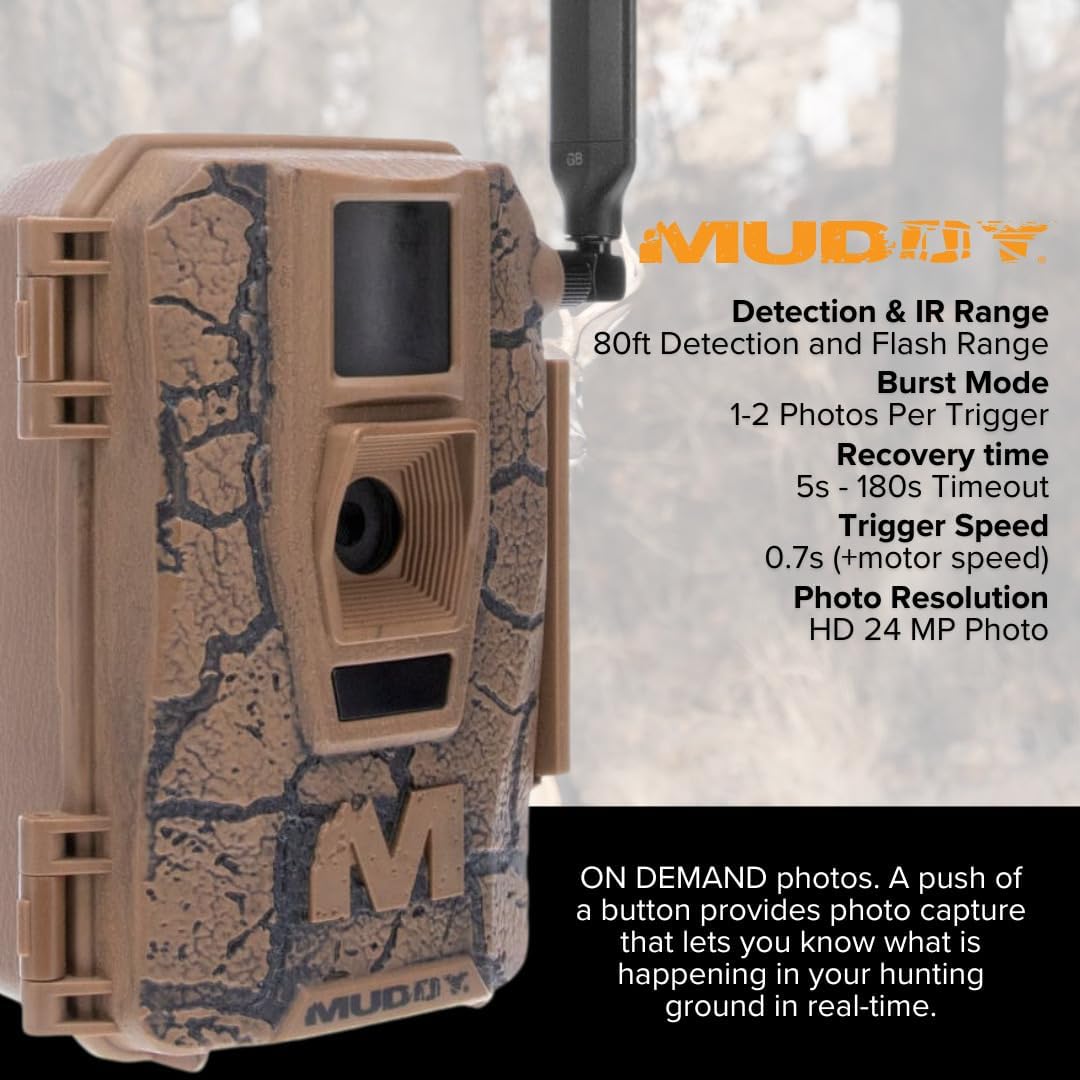
Figure 3: MUDDY Mitigator Cellular Trail Camera showing key specifications like detection range and trigger speed.

Figure 4: Proper placement and setup of the camera for optimal network coverage.
4. Operating Instructions
4.1. Stealth Cam Command Pro App
The MUDDY Mitigator camera is fully compatible with the new Stealth Cam Command Pro app. This app allows you to remotely monitor your cameras, download images and videos, and operate the camera from your mobile device.
- Download the "Stealth Cam Command Pro" app from your mobile device's app store.
- Create an account or log in.
- Follow the in-app instructions to add your Mitigator camera using its unique ID.
- Once connected, you can access camera settings, view captured media, and receive notifications.
4.2. On Demand Function
The On Demand function allows you to send a command to the camera to immediately capture photos of the hunting area in real-time. This feature is accessible through the Stealth Cam Command Pro app.
- Open the Stealth Cam Command Pro app and select your Mitigator camera.
- Navigate to the "On Demand" or "Capture Now" section.
- Initiate the command to capture a photo. The camera will take a picture and send it to your app.
4.3. Image Sharing
The Stealth Cam Command Pro app allows you to share your Mitigator camera with other app users (lease buddies, family, friends) or easily share individual images via text messages, emails, or social media platforms.

Figure 5: Example of an image captured by a MUDDY trail camera.

Figure 6: Overview of key features including HuntStand app integration.
5. Maintenance
5.1. Cleaning
Regular cleaning ensures optimal performance and longevity of your camera.
- Wipe the camera's exterior with a soft, damp cloth. Avoid abrasive cleaners.
- Gently clean the lens and sensor window with a lens cleaning cloth to prevent scratches and ensure clear images.
- Ensure no debris obstructs the PIR sensor or flash.
5.2. Battery Replacement
Replace batteries when the low battery indicator appears on the camera or in the app. Always use fresh, high-quality batteries.
5.3. SD Card Management
Periodically format your SD card using the camera's menu or a computer to maintain performance and prevent data corruption. Back up important images before formatting.
6. Troubleshooting
6.1. Camera Not Powering On
- Check battery polarity and ensure batteries are fully charged.
- Verify the power switch is in the ON position.
- Try a different set of fresh batteries.
6.2. No Cellular Signal / Connectivity Issues
- Relocate the camera to an area with better cellular reception.
- Ensure the camera's antenna is securely attached and oriented correctly.
- Check your data plan status with your cellular provider.
- Verify the camera is properly registered and activated in the Stealth Cam Command Pro app.
6.3. Poor Image Quality / No Images Captured
- Clean the camera lens and sensor window.
- Ensure the SD card is properly inserted and not full. Format the SD card if necessary (after backing up data).
- Check camera settings for resolution and trigger delay.
- Verify the PIR sensor is not obstructed and the detection range is appropriate for the placement.
7. Specifications
| Feature | Detail |
|---|---|
| Product Dimensions | 9.1 x 9.1 x 9.1 inches |
| Item Weight | 10.43 pounds |
| ASIN | B0DNF21NY2 |
| Date First Available | October 18, 2024 |
| Manufacturer | Muddy |
| Brand | MUDDY |
| Batteries Required? | Yes |
| UPC | 196271630906 |
| Image Resolution | 24MP (24MP, 8MP, and 4MP options) |
| Detection Range | 80 Feet |
| Flash Range | 80 Feet |
| Cellular Network | Verizon or AT&T (Automatic Network Coverage) |
| App Compatibility | Stealth Cam Command Pro |
8. Warranty and Support
8.1. Warranty Information
MUDDY products are manufactured to high-quality standards. For specific warranty details, including coverage period and terms, please refer to the warranty card included with your product or visit the official MUDDY website. Keep your proof of purchase for warranty claims.
8.2. Customer Support
If you encounter any issues or have questions not covered in this manual, please contact MUDDY customer support. You can typically find contact information on the official MUDDY website or through the Stealth Cam Command Pro app.
For app-related inquiries, please refer to the Stealth Cam Command Pro app's help section or support resources.


