
1. Introduction
This manual provides comprehensive instructions for the installation, operation, and maintenance of your FOSCAM Home Security Camera System, which includes both the FOSCAM 3K 5MP WiFi Pet Camera and the FOSCAM 4MP WiFi IP Camera (R4S). These cameras are designed to provide reliable home security, pet monitoring, and baby monitoring with advanced features such as AI human detection, two-way audio, and extensive surveillance coverage.

Image: The FOSCAM 3K 5MP WiFi Pet Camera (left) and the FOSCAM 4MP WiFi IP Camera (R4S) (right).
2. Package Contents
Please verify that all components are present in your package. If any items are missing or damaged, contact FOSCAM customer support.
- FOSCAM 3K 5MP WiFi Pet Camera
- FOSCAM 4MP WiFi IP Camera (R4S)
- Power Adapters (2)
- Mounting Brackets (2)
- Mounting Screws and Wall Plugs (for each camera)
- Quick Start Guide
3. Product Overview
3.1 FOSCAM 3K 5MP WiFi Pet Camera
This camera offers 5MP resolution for clear images and features 360° panoramic viewing with 350° horizontal pan and 70° vertical tilt. It includes 6X digital zoom and supports dual-band 2.4GHz/5GHz WiFi connectivity.

Image: The FOSCAM 3K 5MP camera demonstrating its 360° expansive surveillance coverage with 350° horizontal and 70° vertical rotation, along with 6x digital zoom.
3.2 FOSCAM 4MP WiFi IP Camera (R4S)
The R4S camera provides 4MP Ultra HD 2K resolution. It also supports dual-band 2.4GHz/5GHz WiFi for stable and efficient connectivity.

Image: The FOSCAM 4MP R4S camera highlighting its Upgraded Ultra HD 2K resolution, indicating clearer image quality.
3.3 Common Features
- Two-Way Audio: Both cameras feature full-duplex two-way audio, allowing real-time conversation.
- AI Detection: Advanced AI capabilities for human, animal, and package detection (subscription sold separately).
- Privacy Mask: Customizable privacy zones to exclude specific areas from surveillance.
- Multiple Storage Options: Support for Cloud service, micro SD card (up to 256 GB, not included), NVR, NAS, or FTP server.
- Smart Home Integration: Compatible with Alexa and Google Assistant.
- Dual-band WiFi: Support for both 2.4GHz and 5GHz WiFi networks for enhanced stability.

Image: Illustration of the full duplex 2-way audio feature, showing a user talking through the camera to family members.

Image: Depiction of AI Recognition Reminder powered by AWS, showing icons for AI Human Detection, Animal detection, and Package detection, with a mobile app interface displaying alerts.

Image: Graphic illustrating compatibility with both 2.4GHz and 5GHz dual-band WiFi for more stable and efficient connectivity.
4. Setup
4.1 Initial Setup
- Power On: Connect the camera to a power outlet using the provided power adapter. The camera will initiate its self-test sequence.
- Download Foscam APP: Scan the QR code in the Quick Start Guide or search for "Foscam" in your mobile app store (iOS App Store or Google Play Store) to download and install the official Foscam application.
- Create Account: Open the Foscam APP and register a new account or log in if you already have one.
- Add Camera: Tap the "+" icon in the app to add a new device. Follow the on-screen instructions to scan the QR code on the camera or manually enter the device ID.
4.2 Network Connection
The Foscam cameras support both 2.4GHz and 5GHz Wi-Fi networks. Ensure your mobile device is connected to the same Wi-Fi network you intend to connect the camera to during the setup process.
- Wi-Fi Configuration: The app will guide you through selecting your Wi-Fi network and entering the password.
- Connection Confirmation: Once connected, the camera's indicator light will change, and the app will confirm successful connection.
- Placement: Position the camera in your desired monitoring area. For optimal performance, place it within range of your Wi-Fi router.
5. Operating Instructions
5.1 Live View and Control
- Access Live Feed: Open the Foscam APP and select the desired camera from your device list to view its live feed.
- Pan/Tilt/Zoom (3K 5MP Camera): Use the on-screen controls in the app to remotely pan the camera 350° horizontally and tilt it 70° vertically. Pinch to zoom for 6X digital zoom.
- Two-Way Audio: Tap the microphone icon in the app to speak through the camera's speaker. Tap the speaker icon to listen to audio from the camera's microphone.
5.2 AI Detection and Alerts
The cameras feature advanced AI capabilities to distinguish between human, animal, and package movements, reducing false alarms.
- Enable Detection: Navigate to the camera settings in the Foscam APP and enable desired detection types (Human, Animal, Package).
- Activity Zones: Customize specific detection areas to focus on critical zones and minimize unwanted alerts.
- Notifications: When motion or a specific AI event is detected, the camera will immediately send notifications to your mobile device and begin video recording.

Image: Comparison showing how Human-only Detection reduces false alerts triggered by pets and other non-human movements.
5.3 Recording and Storage
The cameras offer flexible recording options and storage solutions.
- Scheduled Recording: Configure 24/7 scheduled recording through the app settings.
- Event Recording: Recordings are automatically triggered by motion or AI detection events.
- Storage Options:
- Micro SD Card: Insert a micro SD card (up to 256 GB, not included) into the camera's slot for local storage.
- Foscam Cloud Service: Subscribe to Foscam Cloud for secure off-site storage and easy access to recordings.
- NVR/NAS/FTP: Integrate with Network Video Recorders (NVR), Network Attached Storage (NAS), or FTP servers for advanced storage solutions.
6. Maintenance
- Cleaning: Use a soft, dry cloth to clean the camera lens and body. Avoid abrasive cleaners or solvents.
- Firmware Updates: Regularly check for and install firmware updates via the Foscam APP to ensure optimal performance and security.
- Network Stability: Ensure your Wi-Fi network is stable and has sufficient bandwidth for continuous video streaming.
- SD Card Management: If using an SD card, periodically check its status and format it through the app if necessary to maintain recording efficiency.
7. Troubleshooting
| Problem | Possible Cause | Solution |
|---|---|---|
| Camera offline | No power; Wi-Fi disconnected; Router issue. | Check power connection; Reconnect Wi-Fi in app; Restart router. |
| Poor video quality | Weak Wi-Fi signal; Lens dirty; Insufficient bandwidth. | Move camera closer to router; Clean lens; Check internet speed. |
| No motion detection alerts | Detection disabled; Sensitivity too low; Incorrect activity zone. | Enable detection in app; Adjust sensitivity; Redraw activity zones. |
| Two-way audio not working | Microphone/speaker muted; App permissions. | Check audio settings in app; Grant microphone permission to Foscam APP. |
8. Specifications
| Feature | FOSCAM 3K 5MP Camera | FOSCAM 4MP R4S Camera |
|---|---|---|
| Resolution | 5MP (2560x1440) | 4MP (2K Ultra HD) |
| Pan/Tilt | Horizontal: 350°, Vertical: 70° | Not specified (fixed or limited) |
| Digital Zoom | 6X | Not specified |
| Wi-Fi Connectivity | 2.4GHz & 5GHz Dual-band | 2.4GHz & 5GHz Dual-band |
| Audio | Full Duplex Two-Way Audio | Two-Way Audio |
| Detection | AI Human, Animal, Package Detection (subscription) | AI Human Detection, Sound Detection |
| Storage Options | Cloud, Micro SD (up to 256GB), NVR, NAS, FTP | Cloud, Micro SD (up to 256GB), NVR, NAS, FTP |
| Compatibility | Alexa, Google Assistant | Alexa, Google Assistant |
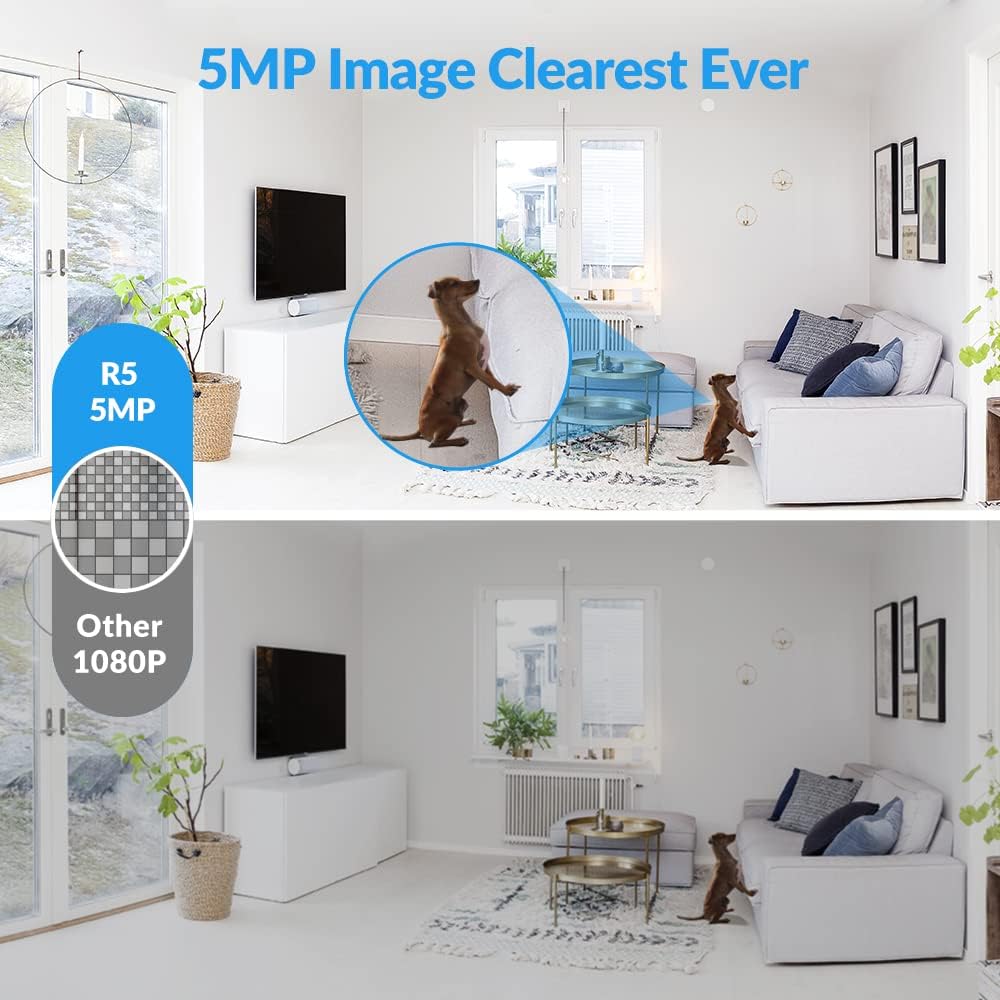
Image: Visual comparison demonstrating the superior clarity of 5MP image resolution (top) compared to standard 1080P (bottom).

Image: Details of new upgrades, including a Type-C interface replacing the old DC interface, new yellow and green indicator lights, and a resolution upgrade to 2560x1440 pixels from 2304x1536 pixels.
9. Warranty and Support
FOSCAM products typically come with a limited warranty. Please refer to the warranty card included in your package or visit the official FOSCAM website for detailed warranty terms and conditions.
For technical support, troubleshooting assistance, or any inquiries regarding your FOSCAM camera system, please contact FOSCAM customer support through their official website or the contact information provided in your Quick Start Guide.
Online Resources:
- FOSCAM Official Website: www.foscam.com
- Foscam APP: Available on iOS App Store and Google Play Store.


