
1. Introduction
This manual provides comprehensive instructions for the installation, operation, and maintenance of your Walfront Smart Security Camera (Model: WALFRONTb9htewr2gm-11). Please read this manual thoroughly before using the product to ensure proper functionality and safety. Keep this manual for future reference.
2. Product Overview
The Walfront Smart Security Camera is an indoor surveillance device designed for monitoring infants, pets, or general home security. It features 1296P HD video, 360-degree automatic tracking, two-way audio communication, infrared night vision, and motion detection with alarm notifications. The camera integrates with the Tuya Smart APP for remote control and viewing.

Image 2.1: Front view of the Walfront Smart Security Camera, showing the lens and LED indicators.

Image 2.2: Close-up of the camera's front, highlighting the lens and infrared LEDs for night vision.

Image 2.3: Rear view of the camera, showing the speaker grille and power input port.

Image 2.4: Bottom view of the camera base, indicating mounting points and anti-slip pads.
3. Package Contents
Please verify that all items listed below are included in your package. If any items are missing or damaged, contact customer support.
- 1 x Walfront Smart Security Camera
- 1 x Power Cord
- 1 x Power Adapter (US Plug)
- 1 x Mounting Bracket
- 2 x Screws
- 2 x Wall Plugs
- 1 x User Manual (This document)
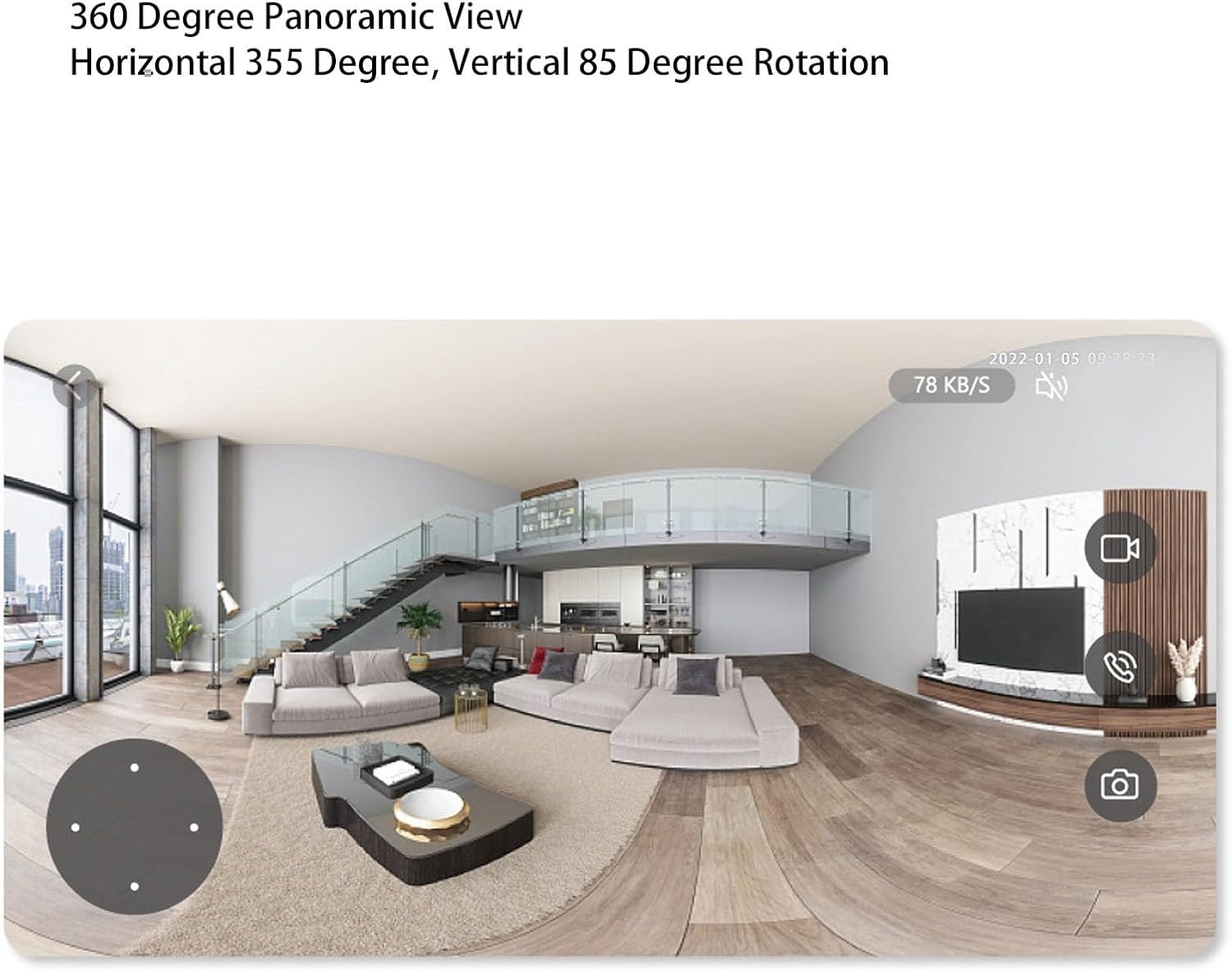
Image 3.1: All components included in the Walfront Smart Security Camera package: camera, power adapter, USB cable, mounting bracket, screws, and wall plugs.
4. Specifications
| Feature | Specification |
|---|---|
| Resolution | 2304x1296 (1296P HD) |
| Lens | 4mm |
| Infrared Night Vision Range | Up to 10 meters (Black & White Night Vision, LED Illumination) |
| PTZ (Pan/Tilt/Zoom) | Horizontal 355 Degrees, Vertical 85 Degrees |
| Light Sensitivity | 0.1lx |
| Network Connectivity | Supports 2.4GHz Wi-Fi network; BT quick network connection |
| Storage Mode | Cloud storage, supports up to 128GB small memory card (not included) |
| Network Protocols | HTTP, HTTPS, TCP, IPV4, IPV6, UDP, RTSP, ICMP, RTP, DHCP, ARP, DNS, QoS |
| Control Mode | For Tuya Smart APP |
| Power Source | AC/DC (100-240V) |
| Dimensions | 5.91 x 3.54 x 3.15 inches |
| Item Weight | 10.2 ounces |
5. Setup Guide
5.1 Powering On the Camera
- Connect the provided power cord to the camera's power input port.
- Plug the power adapter into a standard 100-240V AC outlet.
- The camera will power on and initiate its self-check sequence. Wait for the indicator light to flash, indicating it's ready for network configuration.
5.2 Installing the Tuya Smart APP
- Download the 'Tuya Smart' application from your mobile device's app store (App Store for iOS, Google Play Store for Android).
- Register for a new account or log in if you already have one.
5.3 Connecting the Camera to Your Network
- Open the Tuya Smart APP and tap '+' to add a new device.
- Select 'Security & Video Surveillance' > 'Smart Camera'.
- Follow the on-screen instructions to connect the camera to your 2.4GHz Wi-Fi network. The camera supports BT quick network connection for easier pairing.
- Ensure your mobile device is connected to the same 2.4GHz Wi-Fi network during the setup process.
5.4 Mounting the Camera
The camera can be placed on a flat surface or mounted to a wall or ceiling using the provided bracket.
- Surface Placement: Simply place the camera on a stable, flat surface in your desired monitoring area.
- Wall/Ceiling Mounting:
- Choose a suitable location for mounting.
- Use the mounting bracket as a template to mark the screw holes on the wall or ceiling.
- Drill holes at the marked positions and insert the wall plugs.
- Secure the mounting bracket to the wall/ceiling using the provided screws.
- Attach the camera to the mounting bracket by aligning the base with the bracket and twisting until it locks securely.
6. Operating Instructions
6.1 Remote Viewing and Control
Once connected, you can access your camera remotely via the Tuya Smart APP from anywhere with an internet connection.
- Open the Tuya Smart APP and select your camera from the device list.
- You will see a live feed from the camera.

Image 6.1: Screenshot of the Tuya Smart App displaying a live video feed from the camera, with control options visible.
6.2 Pan, Tilt, and Zoom (PTZ) Control
The camera offers 355 degrees horizontal and 85 degrees vertical rotation, allowing you to adjust the viewing angle remotely.
- On the live view screen in the Tuya Smart APP, use the directional controls to pan (left/right) and tilt (up/down) the camera lens.
- Digital zoom may be available through pinch-to-zoom gestures on the live feed.
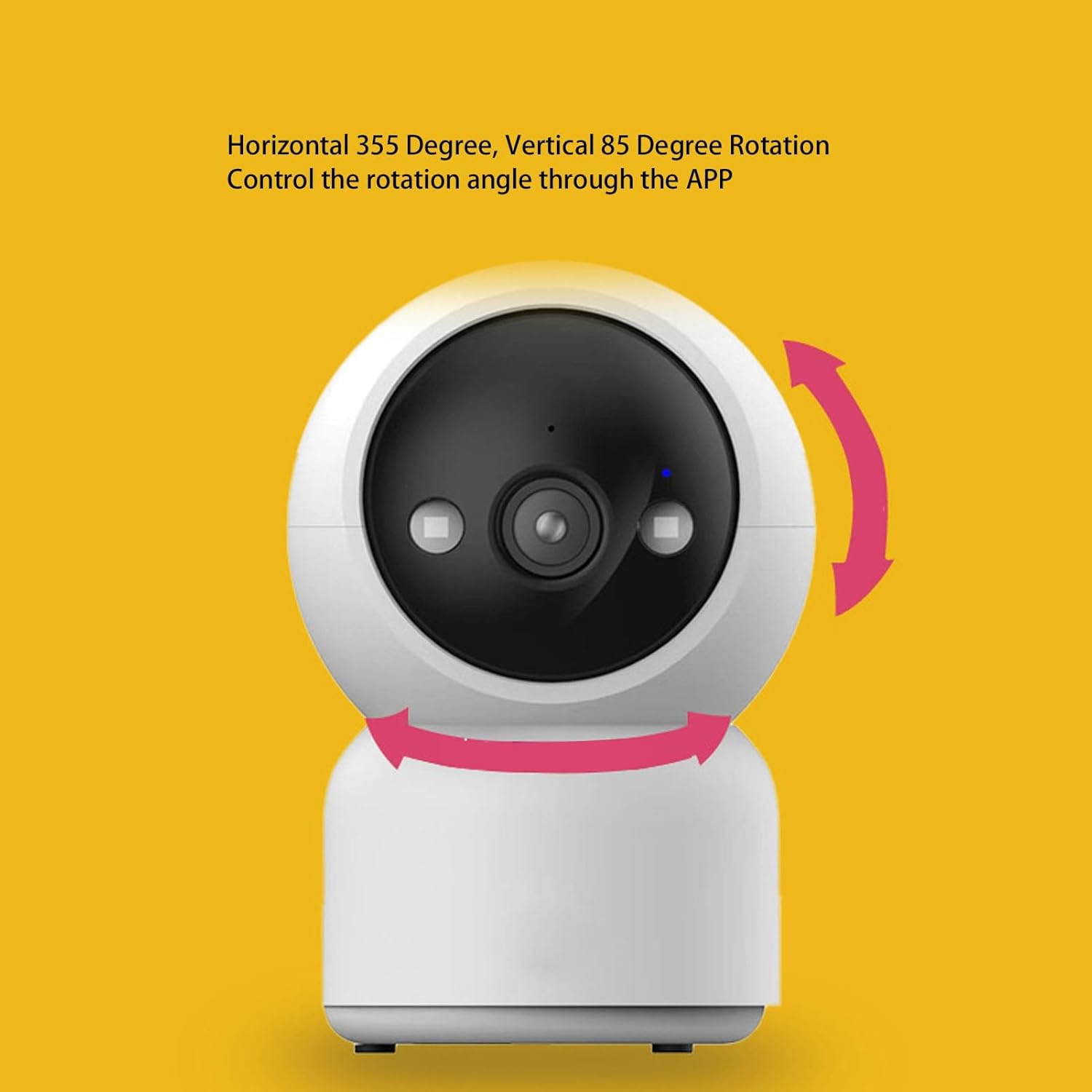
Image 6.2: Illustration showing the camera's ability to rotate horizontally (355 degrees) and vertically (85 degrees) for comprehensive coverage.
Image 6.3: A simulated panoramic view from the camera, demonstrating its wide field of vision and ability to cover a large area.
6.3 Two-Way Intercom
The camera supports two-way audio communication, allowing you to speak through the camera and hear audio from its location.
- On the live view screen, tap the microphone icon to speak. Your voice will be transmitted through the camera's speaker.
- Tap the speaker icon to listen to audio from the camera's environment.
6.4 Motion Detection and Alarms
The camera can detect motion and send intelligent alerts to your mobile phone.
- In the Tuya Smart APP settings for your camera, navigate to 'Detection Alarm Settings'.
- Enable 'Motion Detection' and adjust sensitivity levels as needed.
- Configure 'Alarm Notification' settings to receive push notifications on your phone when motion is detected.
- The camera can also be linked with other intelligent devices to trigger sound and light alarms.
6.5 Infrared Night Vision
The camera automatically switches to infrared night vision in low-light conditions, providing clear black and white video up to 10 meters.
- The camera's LED illumination can fill light to enhance night vision clarity.
6.6 Video Storage
The camera supports two storage methods for recorded footage:
- Cloud Storage: Subscribe to cloud storage services through the Tuya Smart APP for secure, remote access to your video history.
- Local Storage: Insert a small memory card (up to 128GB, not included) into the camera's designated slot for local recording.

Image 6.4: Graphic illustrating the dual storage capabilities: local storage via a memory card and cloud storage for remote access.
6.7 Family Sharing
You can share access to your camera's live feed and recordings with multiple family members or trusted individuals.
- In the Tuya Smart APP, go to the camera settings and look for 'Share Device' or 'Family Management'.
- Invite other users by entering their Tuya Smart account details. They will then be able to view the camera feed on their own devices.

Image 6.5: Visual representation of the family sharing function, allowing multiple users to access the camera's live feed simultaneously.
7. Maintenance
- Cleaning: Use a soft, dry cloth to clean the camera lens and body. Avoid using harsh chemicals or abrasive materials.
- Software Updates: Regularly check the Tuya Smart APP for firmware updates for your camera. Keeping the firmware updated ensures optimal performance and security.
- Placement: Ensure the camera is placed in a stable environment, away from direct sunlight, extreme temperatures, and moisture.
8. Troubleshooting
- Camera Not Connecting to Wi-Fi:
- Ensure your Wi-Fi network is 2.4GHz. The camera does not support 5GHz networks.
- Check that your Wi-Fi password is entered correctly.
- Move the camera closer to your Wi-Fi router.
- Restart your router and the camera.
- Poor Video Quality:
- Check your internet connection speed. A stable and fast connection is required for HD streaming.
- Clean the camera lens with a soft cloth.
- Motion Detection Not Working:
- Ensure motion detection is enabled in the Tuya Smart APP settings.
- Adjust the motion detection sensitivity.
- Check the notification settings on your phone to ensure the Tuya Smart APP is allowed to send push notifications.
- Two-Way Audio Issues:
- Ensure your phone's microphone and speaker permissions are granted to the Tuya Smart APP.
- Check the volume settings on both your phone and within the app.
- Camera Offline:
- Verify the camera is powered on and the power adapter is securely connected.
- Check your Wi-Fi network status.
- Restart the camera and check if it reconnects automatically.
9. Warranty and Support
For warranty information, please refer to the documentation provided at the time of purchase or contact your retailer. For technical support, troubleshooting assistance, or to inquire about replacement parts, please contact Walfront customer service through their official channels or visit the Walfront store on Amazon: