
Skycityworld V310
V310 OBD2 EOBD + CAN Car Engine Scanner Code Reader Auto Diagnostic Tool User Manual
Brand: Skycityworld | Model: V310
This manual provides comprehensive instructions for the operation, maintenance, and troubleshooting of your V310 OBD II / EOBD code reader. Designed for all OBD II compliant vehicles from 1996 onwards, this tool assists in diagnosing engine issues and monitoring vehicle performance.
1. Introduction
The V310 OBD II / EOBD code reader is specifically designed for all OBD II compliant vehicles, including those equipped with Next Generation Protocol - Control Area Network (CAN). The US Environmental Protection Agency mandates that all cars and light trucks sold in the US from 1996 onwards must comply with the OBD II standard. This includes all domestic, Asian, and European vehicles. A small number of 1994 and 1995 model year gasoline vehicles are also OBD II compliant. To verify compliance for 1994 or 1995 vehicles, check the Vehicle Emissions Control Information (VECI) Label located under the hood or by the radiator. If the vehicle is OBD II compliant, the label will state "OBD II Certified". Additionally, all OBD II compliant vehicles must have a standard sixteen-pin Data Link Connector (DLC) under the dash.
2. What's in the Box
Upon opening your V310 package, please verify that all components are present and in good condition:
- 1pc x V310 OBD2 Scanner Unit
- 1pc x User Manual

Figure 2.1: The V310 package contents, including the scanner unit and user manual.
Video 2.1: Official product video demonstrating the unboxing, components, and basic operation of the Skycityworld V310 OBD2 scanner.
3. Setup
To begin using your V310 OBD2 scanner, follow these simple steps:
- Locate the Data Link Connector (DLC): The 16-pin DLC is typically found under the vehicle's dashboard, often on the driver's side. Refer to your vehicle's service manual if you have difficulty locating it.
- Connect the V310: Plug the V310's integrated OBDII connector cable firmly into the vehicle's DLC. Ensure a secure connection. The device will power on automatically once connected to the vehicle's battery.
- Initial Power-On: The V310 display will light up, indicating it is ready for use.
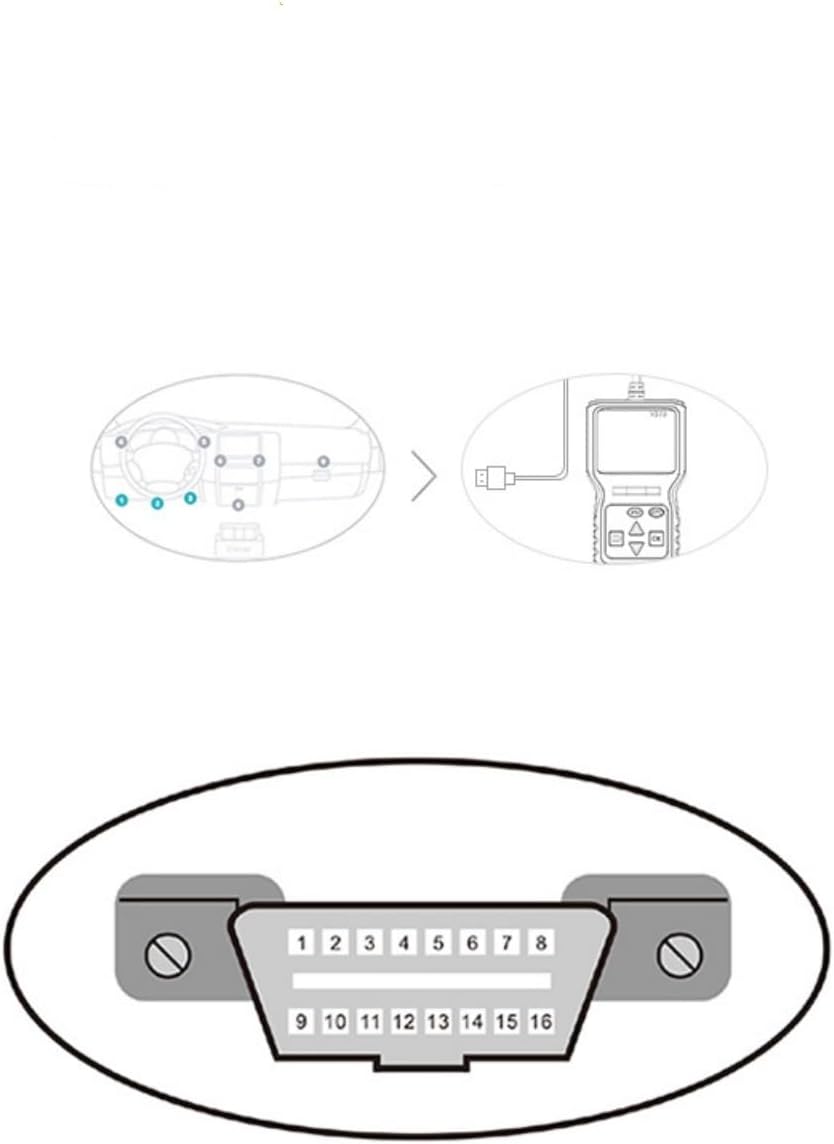
Figure 3.1: Illustration of a typical OBD-II Data Link Connector (DLC) location and pinout.
4. Operating Instructions
The V310 OBD2 scanner offers a range of diagnostic functions. Use the navigation buttons (UP, DOWN, OK, RETURN) to navigate through the menus.
4.1. Main Interface and Navigation

Figure 4.1: Front view of the V310 scanner, highlighting the display and control buttons.
The main screen displays icons for various functions. Use the UP/DOWN arrows to highlight an option and OK to select it. The RETURN button typically takes you back to the previous screen.
4.2. Diagnostic Menu Functions
The diagnostic menu provides access to the core functions of the V310:
- Read Codes: Retrieves Diagnostic Trouble Codes (DTCs) from the vehicle's computer.
- Erase Codes: Clears DTCs from the vehicle's computer and turns off the Malfunction Indicator Lamp (MIL, "Check Engine" light).
- View Freeze Frame: Displays a snapshot of sensor data recorded when a fault code was set.
- I/M Readiness: Checks the status of emission-related monitoring systems.
- Vehicle Info: Retrieves vehicle information such as VIN (Vehicle Identification Number), CID (Calibration ID), and CVN (Calibration Verification Number).
- Data Stream: Displays live sensor data in numerical format.
- Realtime Curve: Displays live sensor data in a graphical format for easier analysis.
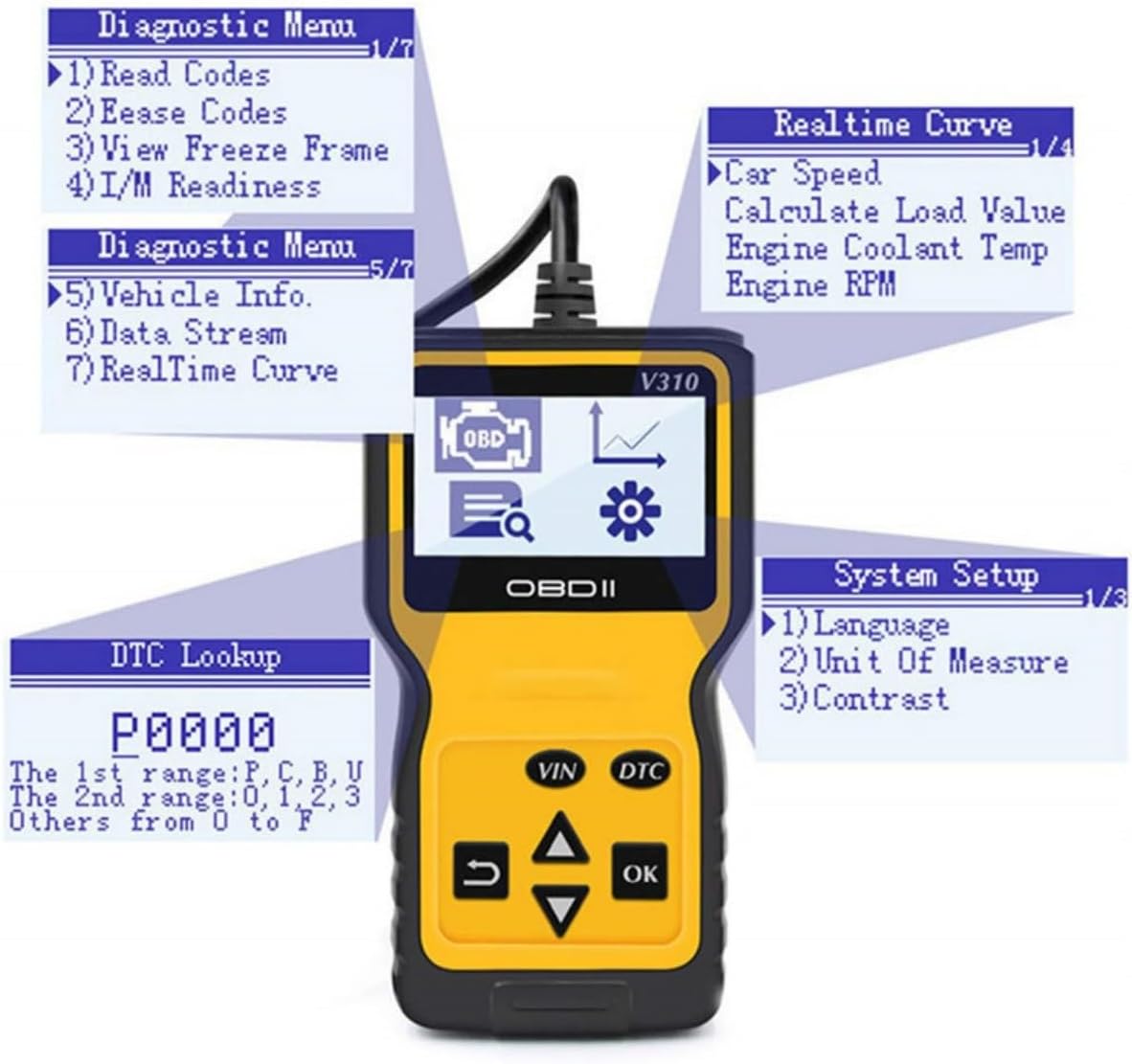
Figure 4.2: Overview of the V310's diagnostic menu options.

Figure 4.3: The Realtime Curve function allows monitoring of live sensor data such as Car Speed, Calculated Load Value, Engine Coolant Temperature, and Engine RPM.
4.3. Supported Sensor Data
The V310 can display a wide range of current sensor data, including but not limited to:
- Engine RPM
- Calculated Load Value
- Coolant Temperature
- Fuel System Status
- Vehicle Speed
- Short Term Fuel Trim
- Long Term Fuel Trim
- Intake Manifold Pressure
- Timing Advance
- Intake Air Temperature
- Air Flow Rate
- Absolute Throttle Position
- Oxygen sensor voltages/associated short term fuel trims
- Fuel System status
- Fuel Pressure
4.4. Multi-Language Support
The V310 supports multiple languages for user convenience. You can select from:
- English
- French
- Italian
- Spanish
- German
- Dutch

Figure 4.4: The V310 supports multiple languages for a global user base.

Figure 4.5: Navigate to the System Setup menu to change the display language.
5. Maintenance
To ensure the longevity and optimal performance of your V310 OBD2 scanner, please adhere to the following maintenance guidelines:
- Cleaning: Use a soft, dry cloth to clean the device. Avoid using abrasive cleaners or solvents that could damage the casing or screen.
- Storage: Store the scanner in a cool, dry place away from direct sunlight and extreme temperatures. When not in use, it is recommended to store it in its original packaging or a protective case.
- Cable Care: Do not bend or crimp the OBDII cable excessively. Always grasp the connector when plugging or unplugging it from the vehicle's DLC.
- Avoid Drops: Protect the device from physical shocks and drops, which can damage internal components.
6. Troubleshooting
If you encounter issues while using your V310 OBD2 scanner, consider the following common troubleshooting steps:
- No Power/Display: Ensure the OBDII connector is securely plugged into the vehicle's DLC. Verify that the vehicle's ignition is in the ON position (engine off or running, depending on the test). Check the vehicle's battery voltage; the scanner requires 8.0 to 15.0 Volts.
- "Linking to Vehicle" Error: This message indicates the scanner is attempting to establish communication. Ensure the vehicle is OBD II compliant (1996 and newer for most US vehicles). Check for loose connections.
- No Codes Found: If the scanner reports "No Codes Found" but you suspect an issue, ensure the Malfunction Indicator Lamp (MIL) is illuminated. Some issues may not trigger a DTC.
- Incorrect Data Readings: Verify that the correct vehicle protocol is being used (though the V310 auto-detects). Ensure the engine is running for live data streams.
For persistent issues or specific error codes not covered here, please refer to the detailed sections of this user manual or contact customer support.
7. Specifications
Detailed technical specifications for the V310 OBD2 scanner:
| Display | Badit, 128 x 64 pixel display |
| Operating Temperature | 0~60℃ (32~140℉) |
| Storage Temperature | -20~70℃ (-4~158℉) |
| External Power | 8.0 to 15.0 Volts provided via vehicle battery |
| Dimensions | 28 x 18.5 x 5 CM (approx. 11 x 7.3 x 2 inches) |
| Weight | 0.34 Kg (approx. 0.75 lbs) |
7.1. Multi-Protocol Support
The V310 supports a wide range of OBDII protocols, ensuring compatibility with various vehicles:
- SAE J1850 PWM (41.6Kbaud)
- SAE J1850 VPW (10.4Kbaud)
- ISO9141-2 (5 baud init, 10.4Kbaud)
- ISO14230-4 KWP (5 baud init, 10.4 Kbaud)
- ISO14230-4 KWP (fast init, 10.4 Kbaud)
- ISO15765-4 CAN (11bit ID, 500 Kbaud)
- ISO15765-4 CAN (29bit ID, 500 Kbaud)
- ISO15765-4 CAN (11bit ID, 250 Kbaud)
- ISO15765-4 CAN (29bit ID, 250 Kbaud)

Figure 7.1: Physical dimensions of the V310 OBD2 scanner.
8. Warranty & Support
For information regarding the product warranty, please refer to the warranty card included with your purchase or contact the retailer. Extended protection plans may also be available for purchase to provide additional coverage beyond the standard warranty period.
For technical support, product inquiries, or assistance with troubleshooting, please contact Skycityworld customer service through the contact information provided on the product packaging or the official Skycityworld website.
Ask a question about this manual
Ask about setup, troubleshooting, compatibility, parts, safety, or missing instructions. Manuals+ will review the question and use this page’s manual context to help answer it.