1. Introduction
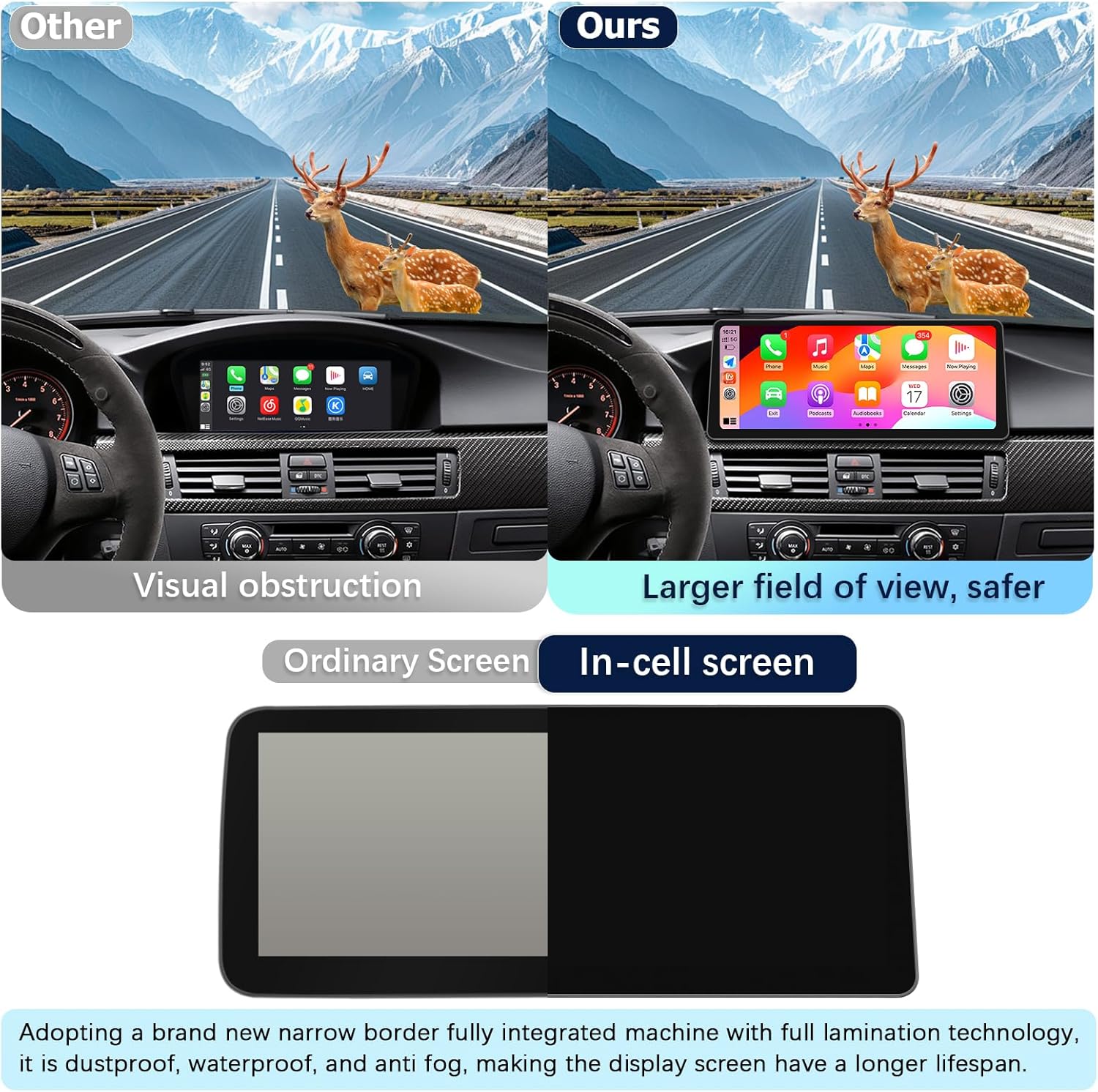
This manual provides detailed instructions for the installation, setup, and operation of your Uckazy 12.3 Inch CarPlay/Android Auto Radio Upgrade Touch Screen Car Stereo. This unit is designed for BMW 3 and 5 Series vehicles with CIC systems, specifically models E60, E61, E62, E63, E64, E90, E91, E92, and E93 from 2008-2013. It features a 12.3-inch HD1920*720 IN-CELL screen with full lamination technology, dual system functionality (Linux and original car system), wireless Apple CarPlay and Android Auto, Mirrorlink, Bluetooth, Wi-Fi, a built-in DSP with 16 EQ segments, and an AHD720P reverse camera with built-in trajectory and night vision.
Before proceeding with installation, please ensure this device is compatible with your vehicle's system. If you are unsure, please contact us for assistance.
2. What's in the Box
- Plug and play power Cable
- USB/AUX/RCA Cable
- 12.3 inch In-cell display/Frame
- Reverse Camera AHD 720P
- Installation tools and touch pen
3. Installation Guide
Professional installation is recommended. Always disconnect the car's power before beginning any installation to prevent damage.
3.1. Pre-Installation Checks
Before installation, verify your car's system type. This unit is compatible with BMW 5 Series E60, E61, E63 CIC systems (2008-2013). The image below helps distinguish between CIC and CCC systems based on their LVDS ports.

3.2. Removing Original Components
Carefully remove the original car stereo display and associated panels. Ensure all connectors are unplugged before removing components. Remember to turn off and disconnect the car's power before disconnecting the power cable.
Video 3.1: Installation Guide for BMW 5 Series CIC System (2011-2012). This video demonstrates the process of removing the original car stereo display and other components.
3.3. Connecting the New Unit
Connect the provided cables to the new head unit. Refer to the wiring diagrams below for correct connections. Ensure the LVDS cable is inserted before connecting the main power cable.


3.4. Reassembly
After all connections are made and verified, carefully reassemble the dashboard components in reverse order of removal. Ensure all screws are tightened and panels are securely clipped into place.
Video 3.2: Installation Guide for BMW 5 Series CIC System (2011-2012). This video also covers the reassembly process after connecting the new unit.
4. Initial Setup
4.1. AUX Audio Configuration
To ensure proper audio output, configure the AUX settings. First, plug in the stock AUX cable (located in the manual gear position or passenger side storage box). Then, navigate to the system settings to adjust the AUX auto-switching setting.

You can set the AUX to switch automatically or manually. For manual setting, go to the main menu, select "Multimedia," then "External devices." Long press number "8" on your original car controls until you hear a tone, then press "8" every time before entering the new system to get CarPlay sound.
4.2. Camera and Display Settings
Adjust the original car's screen resolution and camera settings within the system menu to ensure optimal display and functionality of the reverse camera.

5. Operating Your Uckazy CarPlay System
5.1. Switching Between Systems
The unit supports a dual system, allowing you to switch between the Linux system and your original car's system with a single click or long press of the physical button.


5.2. Wireless CarPlay Connection
To connect wirelessly to Apple CarPlay, follow these steps:
- Turn on the radio.
- Touch the CarPlay icon on the screen.
- Check the Bluetooth name of the radio (e.g., CarBT-D2BC).
- On your iPhone, go to Settings > Bluetooth and connect to the radio's Bluetooth name.
- Confirm the pairing request on your iPhone.
- Allow contacts and favorites sync if prompted.
- Touch "Connect CarPlay" on your iPhone.
- The system will connect automatically.

Video 5.1: How to Connect CarPlay Wirelessly. This video provides a visual guide for connecting your iPhone to CarPlay.
5.3. Wireless Android Auto Connection
To connect wirelessly to Android Auto, follow these steps:
- Turn on the radio.
- Touch the Android Auto icon on the screen.
- Check the Bluetooth name of the radio (e.g., CarBT-D2BC).
- On your Android phone, go to Settings > Bluetooth and search for the device. Connect to the radio's Bluetooth name.
- Confirm the authorization request on your phone.
- The system will connect automatically.
Video 5.2: How to Connect Android Auto Wirelessly. This video provides a visual guide for connecting your Android phone to Android Auto.
5.4. Key Features
The Uckazy CarPlay system offers a range of features to enhance your driving experience:
- Navigation: Access map navigation through CarPlay/Android Auto.
- Music Playback: Enjoy music from your phone or other sources.
- Voice Control: Use Siri or Google Voice Assistant for hands-free operation.
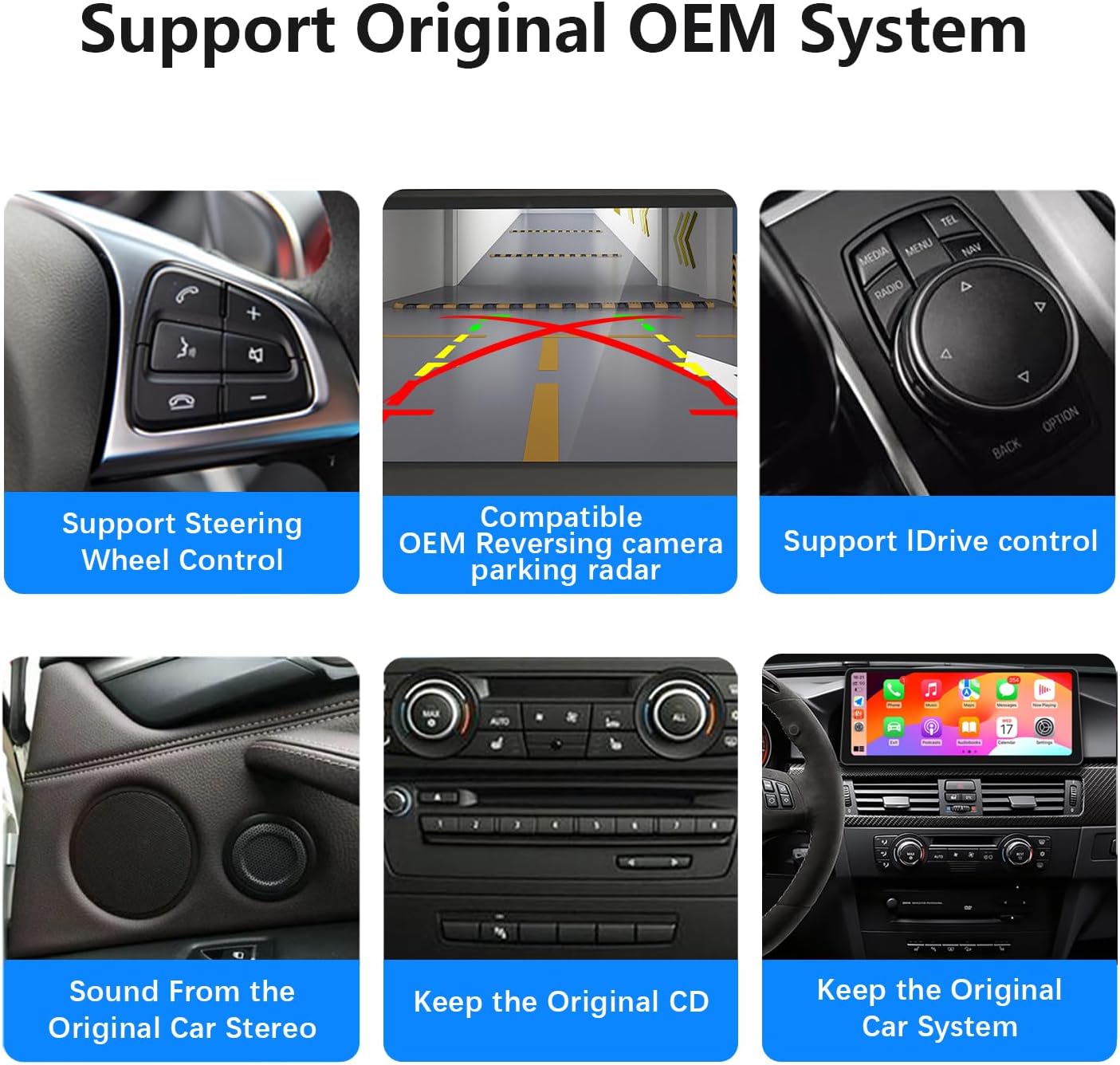
- Dual System: Seamlessly switch between the Linux system and your original BMW system.
- Automatic Day/Night Mode: The screen adjusts brightness based on your car's original headlights.
- Original System Support: Retains original car radio, amplifier function, steering wheel control, iDrive knob, and original reverse camera.


Video 5.3: Product Display Operating System. This video provides a general overview of the system's interface and features.
6. Maintenance
To maintain the longevity and clarity of your screen, regularly wipe it with a soft, lint-free cloth. Avoid using harsh chemicals or abrasive materials that could damage the screen's surface. Keep the unit free from dust and debris.
7. Troubleshooting
7.1. No Sound Issue
If you experience no sound after installation, it may be related to the fiber optic cable connection. Ensure the fiber optic cable from your original car CD is correctly transferred to the new Linux system harness.
Video 7.1: No Sound - How to Transfer Fiber Optic Cables. This video demonstrates the correct procedure for transferring fiber optic cables to resolve sound issues.
7.2. General Technical Support
For any complex issues regarding installation, sound, CarPlay functionality, original car UI display, or other technical problems, please contact the seller directly. Provide detailed information about the issue to receive prompt assistance.

8. Specifications
| Feature | Detail |
|---|---|
| Package Dimensions | 15.12 x 7.2 x 6.77 inches |
| Item Weight | 3.97 pounds |
| ASIN | B0DNBCV2VB |
| Item Model Number | 5fefcdb3-c5c0-45bf-96f3-5fab4fc97b50 |
| Date First Available | January 11, 2025 |
| Manufacturer | Uckazy |
| Brand | Uckazy |
| Connectivity Technology | Bluetooth |
| Controller Type | iPhone App |
| Special Feature | Touchscreen |
| Compatible Devices | Smartphone |
| Connector Type | Stereo Audio |
| Audio Output Mode | Stereo |
| Surround Sound Channel Configuration | 5.1 |
| Video Encoding | H.264, H.265/HEVC |
| Color | Linux CIC With Camera |
9. Warranty and Support
This product is eligible for a 30-day refund or replacement policy. For any technical assistance, troubleshooting, or warranty claims, please contact the Uckazy Factory Outlet directly through the Amazon platform. They are available to provide solutions for installation, sound, CarPlay, or original car UI display issues.