
Introduction
This instruction manual provides detailed guidance for the installation, operation, maintenance, and troubleshooting of your We Technology 3D Face Recognition Smart Lock, Model RL17. This advanced smart lock offers multiple secure entry methods including 3D face recognition, fingerprint, passcode, IC card, and mechanical key. It also features an integrated HD camera, doorbell, Wi-Fi connectivity for remote control via the WiShome app, and auto-locking functionality for enhanced security and convenience.
Key Features
- 3D Face Recognition: Provides fast, hands-free access with advanced facial recognition technology.
- 6-in-1 Smart Unlock: Supports Face ID, fingerprint, passcode, IC card, mechanical key, and WiShome app for versatile access.
- Built-In HD Camera & Doorbell: Monitor your doorstep in real-time and communicate with visitors.
- WiFi + App + Alexa Control: Remote lock/unlock, access history monitoring, alerts, and voice control via Alexa.
- Auto-Lock Intelligence: Automatically secures the door after entry or exit.
- Long-Life 3200mAh Lithium Battery: Offers extended usage and includes a Type-C emergency charging port.
- DIY-Friendly Installation: Designed for quick and simple installation on doors 45–90mm thick, requiring no drilling or wiring.
- Military-Grade Strength: Constructed from aerospace-grade aluminum alloy and reinforced ABS + iron with a heavy-duty 6068 mortise for durability.
- IP65 Waterproof Design: Engineered to withstand various outdoor weather conditions.
- Global-Ready & Future-Proof: Features an English interface, Alexa compatibility, and Tuya-powered smart control.
Package Contents
Upon unpacking, please verify that all the following components are included:
- 1 x C-level lock cylinder
- 1 x 3200mAh battery
- 1 x Double-sided door lock assembly (front and back panels)
- 1 x Lock body (mortise)
- 1 x User manual
- 2 x Mechanical keys
- 2 x IC Cards
- Mounting screws and accessories
- 1 x USB cable (for emergency power)

Image: All components included in the package.
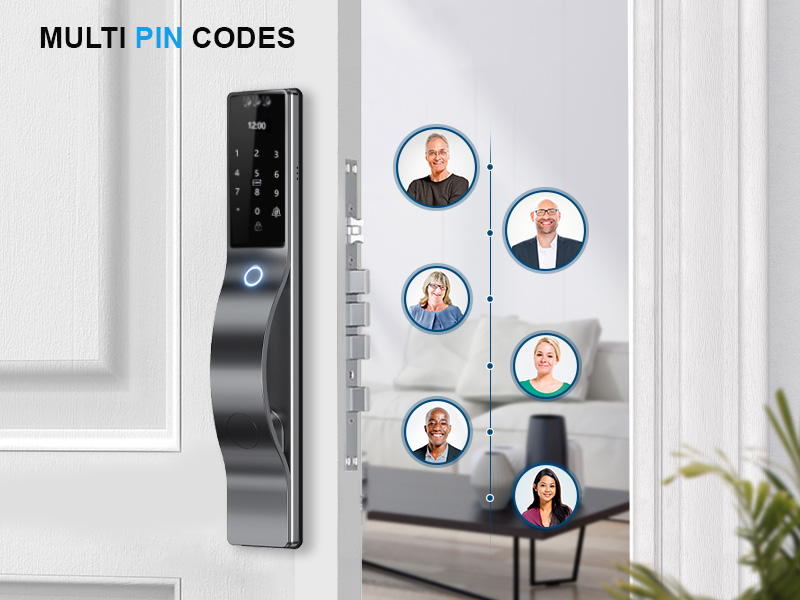
Image: Detailed view of the smart lock components.
Specifications
| Brand | We Technology |
| Model Name | 3D Face Recognition Door Lock (RL17) |
| Lock Type | Biometric, Deadbolt |
| Material | Aerospace-grade Aluminum Alloy (front), Reinforced ABS + Iron (back) |
| Color | Gray |
| Dimensions (L x W x H) | 16.9 x 2.8 x 2.3 inches (43 x 7 x 5.8 cm) |
| Item Weight | 5.5 Pounds (2.5 kg) |
| Battery | 3200mAh Lithium Battery (Rechargeable) |
| Connectivity | 2.4GHz Wi-Fi, Bluetooth |
| Control Method | App (WiShome), Remote, Touch, Voice (Alexa, Google Assistant) |
| Special Features | Anti-Peeping Password, Fingerprint, One-Touch Lock, Rechargeable, Weather Resistant (IP65) |
| Door Thickness Compatibility | 45–90mm |

Image: Detailed view of the smart lock with labeled components and dimensions.
Safety Information
Please read and understand all safety instructions before installing and operating the smart lock. Failure to follow these instructions may result in damage to the product, property, or personal injury.
- Do not attempt to disassemble or modify the lock. Unauthorized modifications can void the warranty and compromise security.
- Keep mechanical keys in a secure location outside the property to prevent lockout in case of electronic failure or battery depletion.
- Ensure the battery is charged regularly. Do not use damaged or non-standard batteries.
- Protect the touchscreen and camera from sharp objects or excessive force.
- Avoid exposing the lock to extreme temperatures or corrosive substances. While IP65 rated, prolonged submersion or high-pressure water jets should be avoided.
- Regularly check the lock for any signs of wear or damage.
- When setting passcodes, avoid easily guessable combinations. Utilize the anti-peeping feature when entering codes in public.
Installation Guide
The We Technology Smart Lock is designed for DIY installation. Please follow these steps carefully. Ensure your door meets the specified thickness (45-90mm) and dimensions before proceeding.
1. Door Preparation and Measurement
Before installation, verify your door's compatibility and prepare the necessary openings. This lock is not suitable for standard door preparations and requires specific dimensions.

Image: Door compatibility and dimensions. Please check these measurements carefully before purchasing and installing.
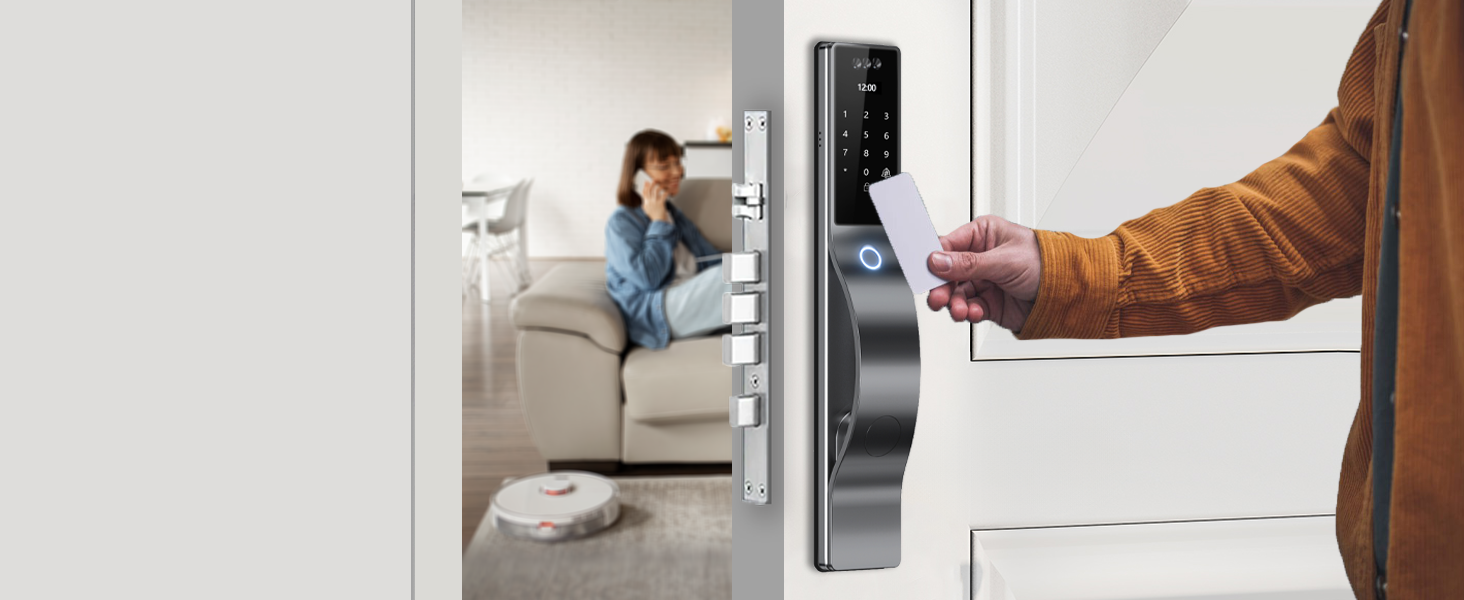
Image: Required door hole dimensions for installation.
2. Mortise Installation
Install the mortise (lock body) into the prepared cavity on the door edge. Ensure the reversing paddle is correctly oriented for your door's swing (left-handed or right-handed).
3. Front and Back Panel Assembly
Connect the cables from the front panel to the back panel. Carefully align the spindle and mounting posts, then secure the panels to the door using the provided screws. Ensure no cables are pinched during assembly.

Image: Installation in progress.
4. Battery Installation
Insert the 3200mAh lithium battery into the battery compartment on the back panel. Ensure correct polarity. Close the battery cover securely.
5. Initial Setup and App Pairing
Follow the instructions in the included manual for initial setup, including setting the administrator passcode and pairing the lock with the WiShome app via 2.4GHz Wi-Fi. This typically involves creating an account, adding the device, and following on-screen prompts in the app.
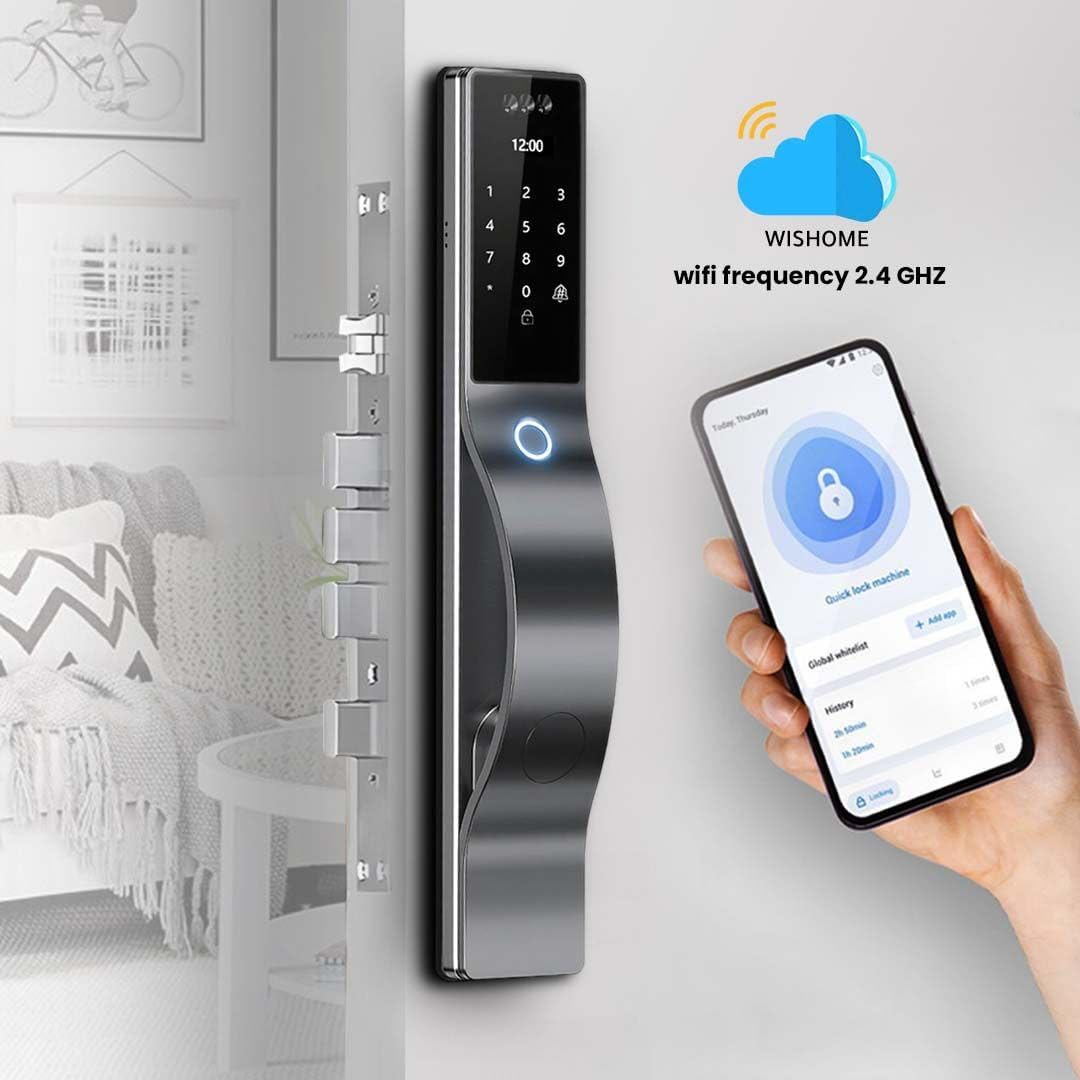
Image: WiShome app interface for smart lock control.
Operation
Your smart lock offers multiple convenient ways to unlock and manage access.
Multiple Unlocking Methods

Image: Overview of the multiple unlocking methods available.
1. 3D Face Recognition
To unlock using face recognition, simply approach the lock. The integrated 3D facial recognition system will scan your face for verification. Ensure your face is clearly visible to the camera. The lock will unlock automatically upon successful recognition.
Video: Demonstrates the 3D face recognition unlocking process.
2. Fingerprint Unlock
Place your registered finger on the fingerprint reader. The lock will verify your fingerprint and unlock. Ensure your finger is clean and dry for optimal performance.
Video: Demonstrates fingerprint unlocking.
3. Passcode Entry
Enter your registered passcode on the digital keypad. Press the '#' key to confirm. Utilize the anti-peeping feature by entering random digits before or after your actual passcode to prevent others from guessing your code.
Video: Demonstrates the anti-peeping password feature.
4. IC Card Unlock
Present your registered IC card to the card swiping area on the lock. The lock will verify the card and unlock.
Video: Demonstrates IC card unlocking.
5. Mechanical Key Unlock
In case of emergency or battery depletion, you can use the mechanical key. Insert the key into the mechanical keyhole and turn to unlock the door manually.
Video: Demonstrates mechanical key unlocking.
6. WiShome App Control
The WiShome app provides comprehensive control and monitoring features for your smart lock.
- Remote Unlock/Lock: Control your door from anywhere via the app (requires 2.4GHz Wi-Fi connection).
- Access History: View a log of all entries and exits.
- Alerts: Receive notifications for low battery, unauthorized attempts, or other events.
- Temporary/Timed Passcodes: Generate one-time, permanent, or timed passcodes for guests or service providers.
Video: Demonstrates generating a remote one-time passcode.
Video: Demonstrates generating a remote permanent passcode.
Video: Demonstrates generating a remote timed passcode.
7. HD Camera & Doorbell Functionality
The integrated HD camera allows you to view who is at your door in real-time via the WiShome app. When the doorbell button is pressed, you will receive a notification on your smartphone, enabling two-way communication.
Video: Demonstrates the doorbell and camera functionality.
8. Auto-Lock Feature
The smart lock is equipped with an auto-lock feature that automatically secures the door after a set period following entry or exit. This ensures your home remains secure even if you forget to manually lock the door.
Video: Demonstrates the auto-lock feature.
9. Voice Control (Alexa/Google Assistant)
Integrate your smart lock with Amazon Alexa or Google Assistant for convenient voice control. Once configured through the WiShome app, you can use voice commands to lock or unlock your door.
Video: Demonstrates voice control functionality with Alexa.
Maintenance
Battery Management
The smart lock is powered by a 3200mAh lithium battery, providing several months of usage on a single charge. The WiShome app will provide low battery alerts. When the battery is critically low, the lock will indicate this visually and audibly.

Image: 3200mAh Lithium Battery and compartment.
Video: Demonstrates low battery warning.
To recharge, remove the battery and connect it to a Type-C charger. In an emergency, if the battery is completely depleted, you can temporarily power the lock via the Type-C emergency port on the bottom of the front panel using a power bank.
Cleaning
Wipe the lock's surface with a soft, damp cloth. Avoid using abrasive cleaners, solvents, or harsh chemicals, as these can damage the finish and electronic components. Ensure the camera lens and fingerprint reader are kept clean for optimal performance.
Weather Resistance
The lock is IP65 rated, meaning it is protected against dust ingress and low-pressure water jets from any direction. While designed for outdoor use, avoid direct high-pressure water exposure or prolonged submersion.
Troubleshooting
| Problem | Possible Cause | Solution |
|---|---|---|
| Lock does not respond. | Battery is depleted or incorrectly installed. | Recharge or replace the battery. Ensure it is installed correctly. Use the emergency Type-C power port if needed. |
| Fingerprint/Face recognition fails. | Finger/face not properly positioned, sensor/camera dirty, or unregistered. | Ensure finger/face is clean and correctly positioned. Clean the sensor/camera. Re-register fingerprint/face if necessary. |
| Passcode not accepted. | Incorrect passcode entered, or anti-peeping feature misunderstood. | Verify the passcode. Ensure you are entering the correct sequence, including the '#' key. Remember the anti-peeping feature allows extra digits before/after the actual code. |
| Cannot connect to Wi-Fi/App. | Incorrect Wi-Fi password, router too far, or 5GHz network. | Ensure you are connecting to a 2.4GHz Wi-Fi network. Check Wi-Fi password. Move router closer or use a Wi-Fi extender. Restart lock and router. |
| Doorbell/Camera not working. | App not running in background, network issue, or camera obstruction. | Check app permissions and ensure it's running. Verify Wi-Fi connection. Clean camera lens. |
| Lock frequently deprograms. | Possible software glitch or hardware issue. | Perform a factory reset (refer to the full manual for steps). If the issue persists, contact customer support. |
For more detailed troubleshooting or issues not listed here, please refer to the comprehensive user manual included with your product or contact We Technology customer support.
Warranty and Support
We Technology stands behind the quality of its products. For information regarding warranty coverage, please refer to the warranty card included in your product packaging or visit the official We Technology website. If you encounter any issues or require technical assistance, please contact our customer support team:
Customer Support: For assistance, please visit the We Technology Store on Amazon or contact the seller directly through your Amazon order history.
Protection plans are also available for extended coverage, which can be purchased separately.